


Available in: Drawing

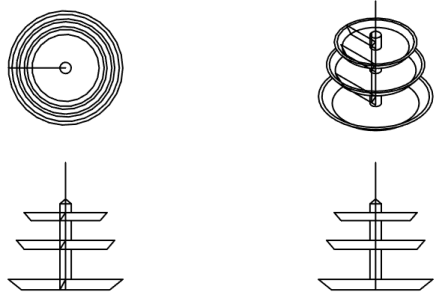
When you create a drawing from a part, curve, surface, or subassembly, you can create it without any views (by default) or with 4 standard views: top, front, right, and isometric. Typically, the projection of the views depends on the standard chosen: first angle projection for ISO standard and third angle projection for ANSI standard, you can also use a custom template and select the projection, or change the projection after the drawing is created.
For example, a standard ANSI drawing may look like this:
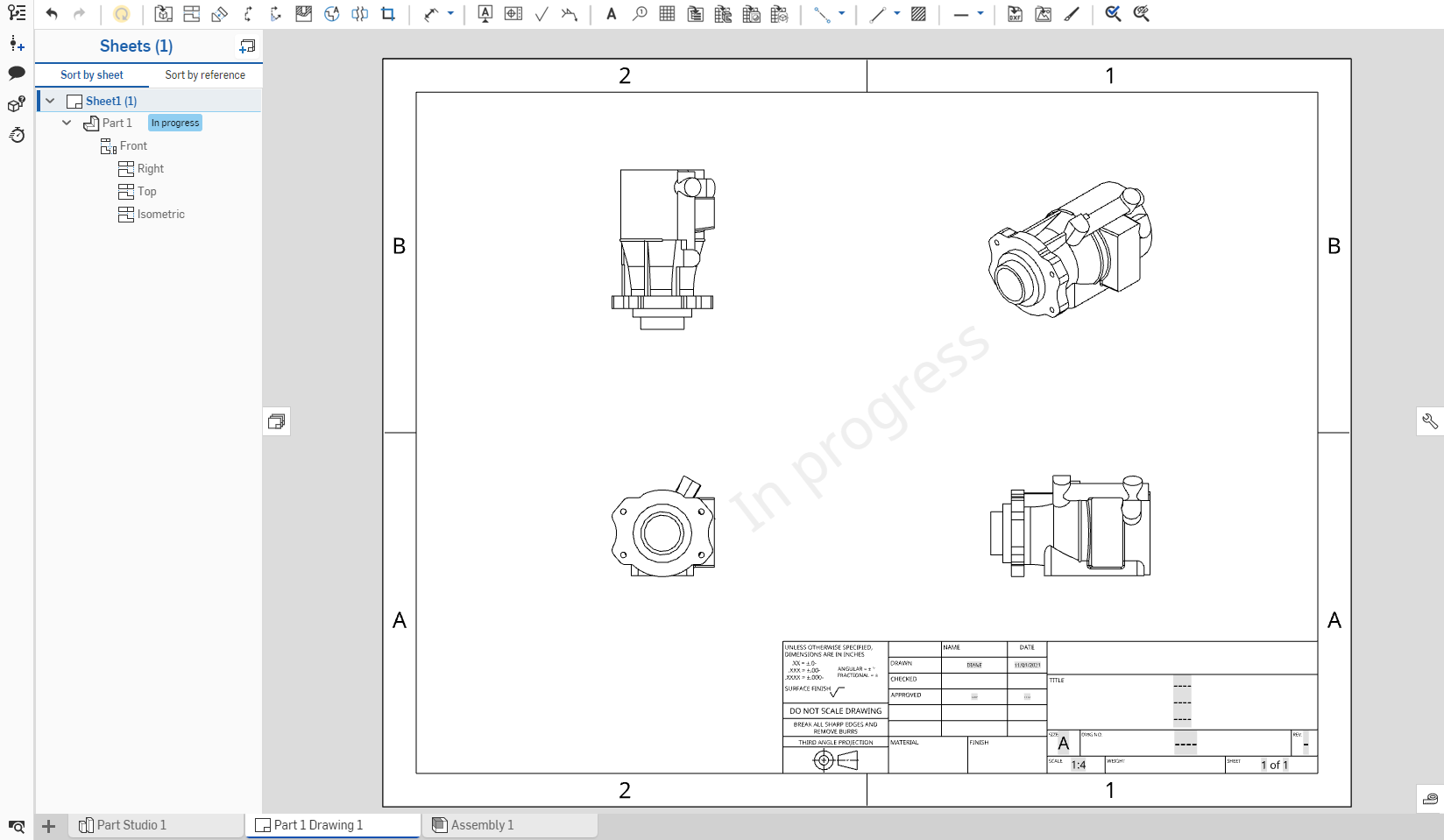
All views of a part, curve, or surface in a drawing are from the same version of the part. When creating a view (drawing, projected, auxiliary, section) the part version used is the same as for all existing views.
Views are placed on sheets and can have relationships with other views.
Refer to the following pages for information on each view:
 Insert view

Place a view of the model (part, surface, assembly, sketch, curve, composite part, or flat sheet metal pattern) on the active sheet; use the dialog to select the desired part, sketch, or flat sheet metal pattern, including version and orientation. By default, the label and scale are off. To see the scale, double-click the view: the View properties dialog opens to the top left of the drawing.
- Click Insert view in the Toolbar:
- Click the
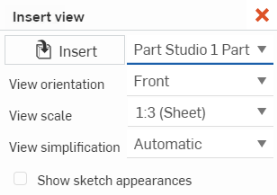
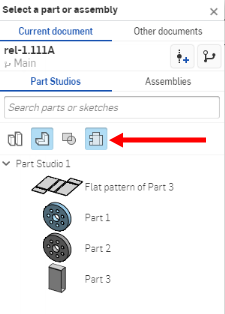
 Insert button in the dialog (shown in the left image below) to open the Select a part or assembly dialog (shown in the right image below). Search the Part Studios and Assemblies in the current (or other) document(s) for parts, surfaces, assemblies, curves, or sketches (or versions thereof):
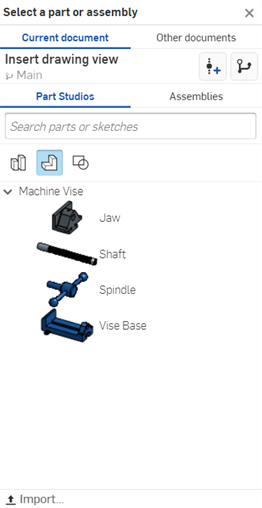
- Select to insert from the Current workspace (in Part Studios or Assemblies in this document):
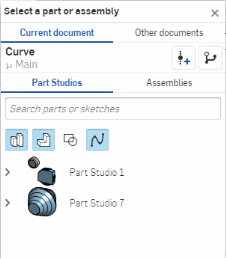
By default, the selected filter is Parts, but you can also search for an entire Part Studio, Assemblies, surfaces, sketches, curves, composite parts, and sheet metal flat patterns. These filter icons appear only when the selected Part Studio or Assembly contains these types of entities:
- Or, click
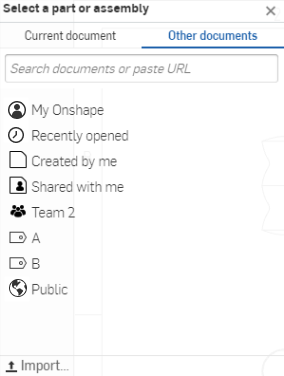
Other documents
to use the familiar filters to search for and then select from a version in a different document:
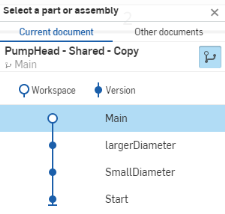
- Once a document is selected, if it has versions, click
 to open the Version graph and select the version or workspace from which to select a part or assembly:
You can also select to view only released items
 , and to create a version.
- Select to insert from the Current workspace (in Part Studios or Assemblies in this document):
- Once a Part Studio or Assembly is selected, select a view using the Insert view dialog:
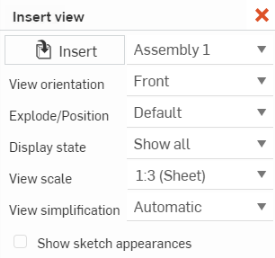
The screenshot on the left shows the Insert view dialog for a Part Studio; the one on the right shows the dialog for an Assembly
For Part Studios and Assemblies:
Select the View orientation: Top, Left, Right, Front (default), Back, Bottom, or Isometric. You can also select existing Named views (with and without section planes), if applicable.
Select the View scale dropdown to select a specific scale for the view.
Select the View simplification: None, Absolute, Ratio to studio, Ratio to part, or Auto (default). This simplifies the geometry shown in the drawing by setting a threshold below which features are hidden. This setting only affects newly inserted views. See Insert view defaults for more information.
Optionally, select the checkbox next to Show sketch appearances to show the appearances from the Part Studio or Assembly you are inserting from.
For Assemblies, if available:
Select the View orientation: Top, Left, Right, Front (default), Back, Bottom, or Isometric. You can also select existing Named views (with and without section planes), if applicable.
Select an exploded view / named position using the Explode/Position dropdown.
Select a display state using the Display state dropdown.
- Once you have the intended entity selected, click on the drawing to place the view. A preview appears as you place the view.

If a named view, exploded view/named position, and/or display state is active when creating a Drawing tab for the first time, the Insert view dialog fields are pre-populated with that view, position, and/or state.
Navigating views
Deleting views
- Select the view to delete using any selection method.
- Press the Delete key or right-click to activate the context menu and select Delete.
Moving a view
- Select the view.
- Drag to the desired placement.
Moving a view to another sheet
You can move any view to another, pre-existing sheet in your drawing through three ways: use the Move to sheet command on the context menu, select a new sheet in the Sheet dropdown in the View properties dialog, and by dragging the view to another sheet in the Sheets panel.
When a view is moved to another sheet, all related entities (labels, dimensions, etc) move with it.
When moving an auxiliary view, the parent view is not moved.
When moving a parent view, the auxiliary view is not moved.
Copying a view
Copy and paste views from one location to another in the same sheet, from one sheet to another in the same drawing, or from a sheet in one drawing to a sheet in another drawing in the same workspace. You cannot copy and paste views from one workspace to another, for example, from one document to another.
To copy any view:
-
Click the view to select it.
-
Right-click and select Copy (Ctrl+C) from the context menu.
-
With the cursor over the new location, right-click and select Paste (Ctrl+V) to place the copied view.
You can also copy a view by holding the Alt key, then selecting and dragging the view you want to copy.
View properties
Select a view, right-click, and select View properties. Alternatively, you can double-click a view to open the View properties dialog:
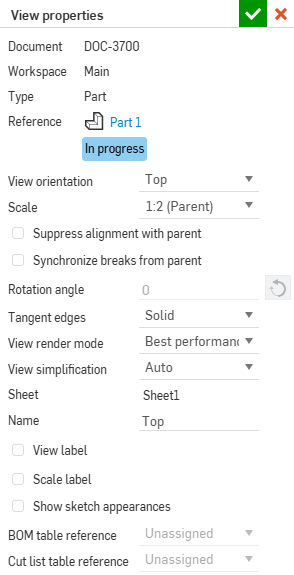
You can select a Display state (when available) and the views update accordingly.
When multiple views with differing values for their properties are selected, the appropriate fields in the dialog display multiple values, as shown below:
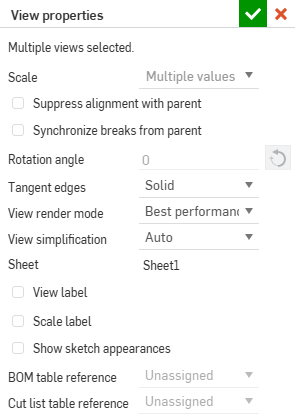
For Detail and Section views, there are additional View label options, explained below.
For Projected views created from Section views, there is an additional option for working with cuts, explained below.
- Document - The name of the document the part or assembly resides in.
- Workspace or Version - The workspace name if the part or assembly is from the current document. The version name if the part or assembly is in a different document (when Part Studios or Assemblies are moved to another document, that document is automatically versioned).
- Type - Whether the drawing is of a part or an assembly.
- Reference - The name of the part or assembly of the drawing, with a link to open the referencing document and Part Studio or Assembly tab.
- View orientation - To change the view from one perspective to another, select from the dropdown: Top, Left, Right, Front, Back, Bottom, Isometric, or Named.
- Scale - Set the scale of the drawing. Input is in an N:N or N/N format. For user input values, the second digit or denominator is always set to 1, and you can double-click the Scale label to edit it. By default, the scale of a Projected view is always set to Parent (the same scale as the parent view).
- Rotation angle
- Use this to rotate the angle of view (in default units). The arrow reverses the direction of the angle. All views, when created, have a rotation angle of 0 degrees. You can change this value only if the view has no parent (is not a 'child'), is not a parent (has no 'children'), or if the alignment with a parent is suppressed.
Valid values are between 0 and 360 degrees.
Views that may be rotated may also be Aligned view vertically or horizontally along a selected straight edge.
- Tangent edges
- Select the visual treatment of tangent edges in the view:
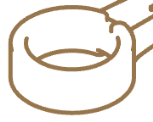
- Hidden
- Tangent edges are visually removed from the drawing:
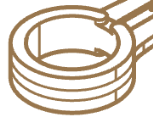
- Solid
- Tangent edges are shown by solid lines:
- Phantom
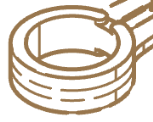
- Tangent edges are shown by broken lines:
- Hidden
- Tangent edges are visually removed from the drawing:
- View render mode - Select the type of render mode you wish: Best quality or Best performance. Drawings views default to Best performance. If, in certain cases, some edges are not displayed correctly, you should change the View render mode to Best quality. The rendering mode setting applies to both drawing views within Onshape and views in exported drawings.
- View simplification
- This feature allows users to simplify the geometry shown in the drawing by setting a threshold below which features will be hidden.
Auto - Default. Finds the best view simplification settings based on the geometry of the part and automatically uses those settings to display the part or assembly.
Absolute - Enter a number in the length units of the drawing to indicate that any feature smaller than the value will be simplified within the view. If whole parts are smaller than the threshold value, those parts will be missing from the view. This is useful for removing excessive details not needed for drawing purposes (for example, a large number of very small features or components).
Ratio to studio - Enter a percentage of the size of the Part Studio or Assembly below which the feature will be simplified within the view. If whole parts are smaller than the threshold value, those parts will be missing from the view. This is useful for removing excessive details not needed for drawing purposes (for example, a large number of very small features or components).
Ratio to part - Enter a percentage of the size of the part below which the feature will be simplified within the view. This setting aims to preserve parts in a view, while simplifying the detail within those parts. This is useful if you intend to ensure all the parts are present to facilitate detailing actions, such as placing callouts.
All child views will receive the View simplification setting of their parent view, but any child view can be independently changed later and not affect the rest of the view settings in the parent/child dependency.
- Sheet - The name of the current sheet shown; use the dropdown to move the view to another sheet.
- Name
- The name of the view in the format <view perspective>-<part name>. Changing the name of the view does not alter the view perspective or the part name.
With a single view selected in the Sheet/Views list, you are able to use Shift+N to open the Rename dialog.
- View label
- All views (Projected, Auxiliary, Section, and Detail) allow you to place a View label below the view in the drawing. View labels are applied automatically when adding a Detail or Section view. To apply View labels to Projected and Auxiliary views, open their Property dialog, check View label, and provide a label name.
For Detail and Section views you may optionally specify a custom prefix and suffix for the label, creating a multi-line label. Changing the letter also changes the letter of the view referenced (the parent of the Detail view or the cutting line of a Section view, for instance).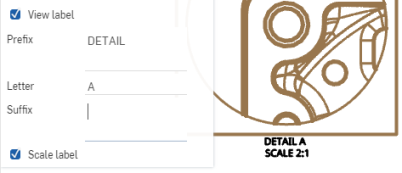
- Scale label - Check to display the scale label below the view.
- Show sketch appearances - Check to show the sketch appearances from the Part Studio or Assembly in the Drawing.
- Move to sheet - Opens a dialog with a dropdown listing all available sheets. Select a sheet to move the currently selected view to.
- BOM table reference - Select the assembly the BOM table should reference.
- Cut list table reference - Select the cut list table that should be referenced.
- Apply parent view section cut - When creating a Projected view from a Section view, toggle this option to create the Projected view with the cuts from the parent view.
If a Named view was inserted and then subsequently deleted from the workspace, it is grayed out in the context menu list. You can select a different view orientation or leave the current view as is.
You can also open the Part Studio or Assembly that the view is from, and specify a scale, rotation angle, and scale label.
Select Parent scale to link the view's scale to its parent’s scale or Sheet scale to link the view’s scale to the sheet scale.
Notes
- The view rotates around the center of the view rectangle, which changes size as needed. For detail views, the view rotates about the center of the circle surrounding the detail view; the visible geometry stays the same and the circle stays the same size.
- When the Rotation angle is not 0 degrees, then the view properties to reconnect alignment are disabled. Similarly, the commands to reconnect alignment with the parent are also disabled. You must change the Rotation angle to 0 degrees before the view can reconnect with the parent.
- All dimensions adjust when a Rotation angle changes. Vertical and horizontal linear dimensions remain vertical and horizontal. Aligned and rotated linear dimensions remain aligned and rotated to their view geometry.
- View scale and label location change to be centered below the new view rectangle or detail view circle.
- Use Suppress alignment with parent to remove the alignment of the view to its parent. If there are no dependencies, that is, if the view has no children, then you can use the Rotation angle field once the alignment is broken. However, if there are other issues blocking the view from being rotated (that is, if it has children), then the view cannot be rotated. Keep in mind, that if a view has children it cannot be rotated even if you suppress alignment.
- Copy a view label using Ctrl+C to copy the label and apply the default properties of Notes (from the Property panel). Use Alt+drag to copy a view label keeping the view label properties.
Modifying views through the Context menu (RMB)s
Use the right-mouse click to open a context menu on any view to access a list of command options for that view. These command options are listed below. Note that not all the commands listed here are available for every type of view.
Adjusting line styles
-
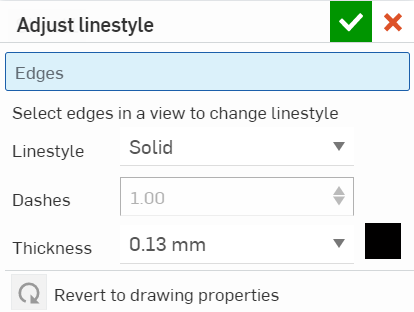
Right-click on the view to open the context menu and select the Adjust linestyle command.
-
Click on each edge in the view to apply the specified style changes; these selections appear in the dialog under Edges.
-
In the dialog, adjust the following to your specifications:
-
Linestyle - Select a line style from the drop down.
-
Dashes (if dashed line) - Customize the spacing of line dashes.
-
Thickness (in specified units)
-
Color - Click the color block and adjust accordingly in the color dialog.
-
-
Close the dialog with
 .
.
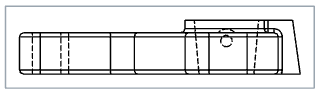
Show/hide hidden lines
By default, the lines of a view that are not visible in the current view position (hidden lines) are hidden.
To toggle their visibility, right-click on the view and select Show/hide > Show hidden lines or Hide hidden lines from the context menu:
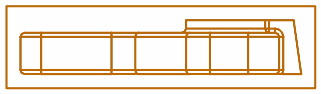
The resultant view:
Show/hide bend lines
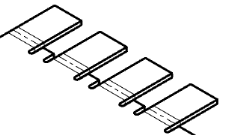
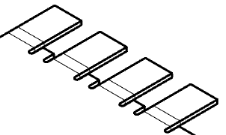
By default, bend lines of a sheet metal flat pattern view are visible.
To toggle their visibility, right-click on the view and select Show/hide > Show bend lines or Hide bend lines from the context menu:
The resultant view:
Show/hide centerlines
Shows or hides automatic centerlines that are added to circular geometry (holes, cylinders, and spheres) from view. Any centerlines added using the centerline drawing tools are not hidden.
Select the view, right-click and then select Show/hide > Hide centerlines (or Show centerlines) from the context menu:
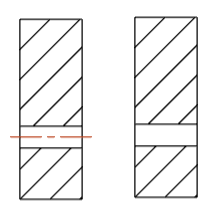
Automatic centerlines shown at left (default), and hidden at right.
Tangent edges
Tangent edges are edges formed between a curve and linear edge; for example, from fillets or smooth edges.
To select the visual treatment of tangent lines, select the view, right-click and select Tangent edges and then select from the following three modes:
- Hidden - Tangent edges are visually removed from the drawing.
- Solid - Tangent edges are shown by solid lines. This is the default.
- Phantom - Tangent edges are shown by broken lines.
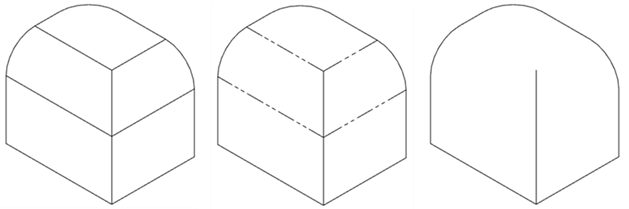
Three different tangent edge options, from left to right: Solid (default), Phantom, and Hidden.
Show/hide shaded view
By default, the shaded view of parts is not visible.
To toggle their visibility, right-click on the view and select Show/hide > Show shaded view or Hide shaded view from the context menu:
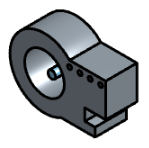
If a parent view is shaded, then the Detail view will also be shaded. You can change the shading independently of the parent, and also the parent independently of the child (right-click on the view).
If a Decal is applied to a part, it is only visible when the shaded view is shown.
Show/hide threads
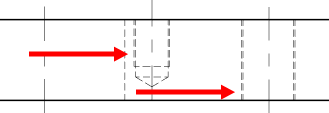
By default, lines indicating threaded holes are visible.
To toggle their visibility, right-click on the view and select Show/hide > Show or Hide threads from the context menu:
Show/hide sketches for Part Studios
Showing sketches comes in handy show flat pattern sketches on drawing views of those flat patterns for sheet metal.
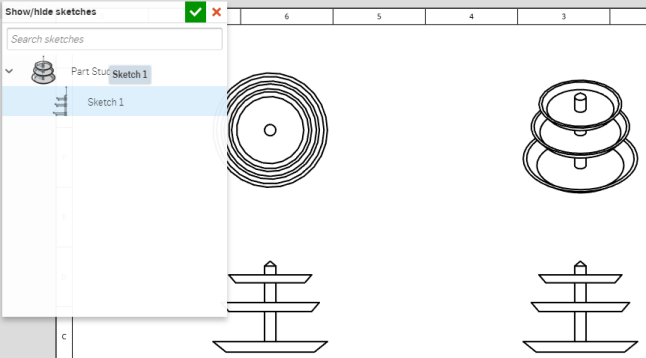
For views of parts, this command shows or hides selected sketches from within a Part Studio. Select the view, then right-click and select Show/hide > Show/hide sketches. When the Show/hide sketches dialog opens, select the sketch from the menu. You can select more than one sketch. This dialog displays all sketches in the Part Studio in which the part was modeled. Selecting the same drawing sketch for each view displays the sketch in each view's perspective.
To hide a sketch, open the Show/hide sketches dialog again and click to un-select the sketch or sketches.
Show/hide sketches for Assemblies
For views of assemblies, this command toggles the visibility of selected sketches from the Assembly (sketches must first be inserted into an Assembly). By default, assembly sketches are hidden.
To toggle sketch visibility, right-click on the view and select Show/hide > Show sketches or Hide sketches from the context menu.
When shown, all sketches inserted into the Assembly become visible in the drawing.
Show/hide sketch points
If a sketch with sketch points is inserted into the Drawing, the sketch points are visible by default.
To toggle their visibility, right-click on the view, and select Show/hide > Show sketch points or Hide sketch points from the context menu:
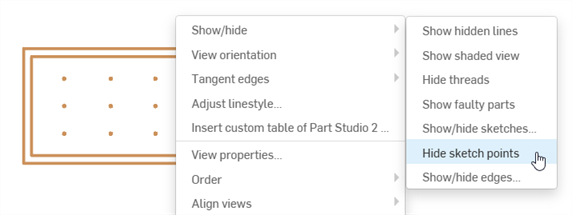
To customize the appearance and size of the sketch points in the drawing, use the Drawing properties panel, Construction geometry tab.
Show/hide edges
Show or hide the edges of a drawing. This functionality is available from all drawing views.
Select the view, right-click and then select Show/hide > Show/hide edges from the context menu (first image below). The Show/hide edges dialog opens (second image below):
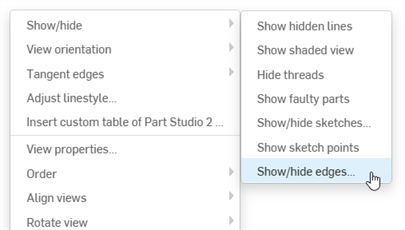
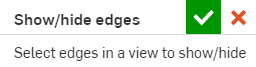
Select any edges from your view that you would like hidden. The edges turn thicker and are colored gray to indicate they are marked as hidden. Hidden lines are also displayed in gray to help you define which edges to show. If you make a mistake, click the edge once again and it turns black (indicating it will remain displayed). Click the green checkmark in the dialog. Any edges marked as hidden are hidden from view.
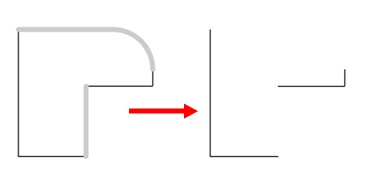
To show any hidden edges, reverse this process. Select the view, right-click and select Show/hide > Show/hide edges from the context menu, select any hidden (grey) edges that you would like displayed. Then click the green checkmark in the dialog.
Show/hide faulty parts
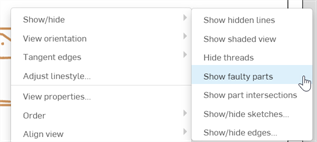
Show or hide faulty parts that have been inserted into an assembly drawing view. Faulty parts are shown by default in Part drawings, but they are hidden by default in assembly drawings; rendering them may impact performance.
To toggle the visibility of faulty parts, right-click on the view and select Show/hide > Show faulty parts or Hide faulty parts from the context menu.
Show/hide auto centermarks
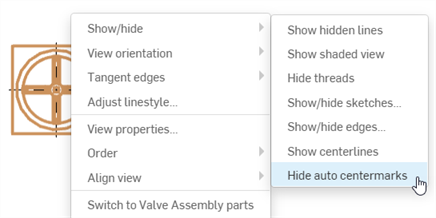
When a view with a part that has a Hole feature is inserted into a drawing, its centermarks are automatically displayed if the view is normal to the face where the hole is inserted. Similarly, if a Hole feature is patterned (circular or linear) or mirrored, automatic centermarks are displayed. For circular or linearly patterned holes, connecting lines between centermarks are also displayed.
To toggle the visibility of automatic centermarks, right-click on the view and select Show/hide > Show auto centermarks or Hide auto centermarks from the context menu:
For more information on centermarks, see Centermark.
Insert sketch
To insert a sketch on a section view:
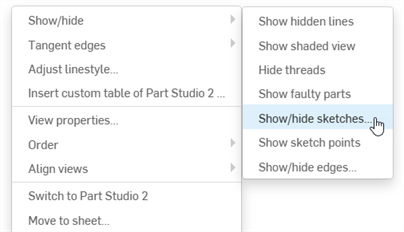
- Right-click on the section view and select Show/hide > Show/hide sketches (first image below) to open the Show/hide sketches dialog (second image below):
-
From here, click on the sketch or sketches you want to insert.
-
Click the
checkmark in the top right corner of the dialog box to insert the sketch or sketches into your section view.
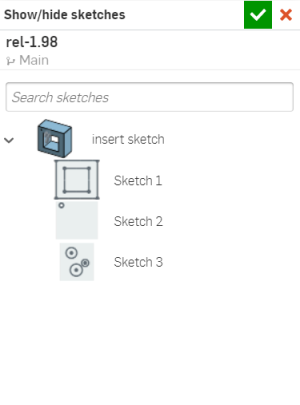
To remove a sketch on a section view:
-
Right-click on the section view and select Show/hide > Show/hide sketches from the context menu.
- Click on the sketch or sketches you want to remove (notice they are no longer highlighted in blue).
-
Click the
checkmark in the top right corner of the dialog box to finish removing the sketch or sketches.
Show/hide offset cut lines
From an section view, you can toggle the visibility of offset cut lines by right-clicking on the section view and selecting Show/hide > Show offset cut lines or Hide offset cut lines from the context menu:
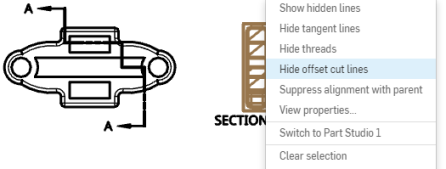
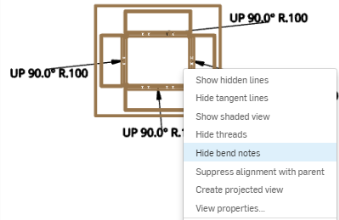
Show/hide bend notes
From an section view, you can toggle the visibility of bend notes for flattened views of sheet metal by right-clicking on the view and selecting Show/hide > Show bend notes or Hide bend notes from the context menu:
Show/hide part intersections
Part intersections are virtual edges (curves drawn at the places where parts intersect). By default, they are not visible.
Keeping part intersections hidden can improve performance.
If an assembly view with more than 20 parts does not display correctly because parts interfere with each other or portions of intersecting edges/faces are misidentified as hidden (or visible) in any view, toggle Show part intersections.
To toggle part intersection visibility, right-click on the view and select Show/hide > Show part intersections or Hide part intersections from the context menu.
In addition to toggling the display of virtual edges (curves drawn at the places where parts intersect) this command also restores visibility of parts which have been completely left out of the view due to having an intersection and being partially obscured from the specific view orientation.
Show/hide parts
By default, parts are always visible when a view is inserted into a drawing.
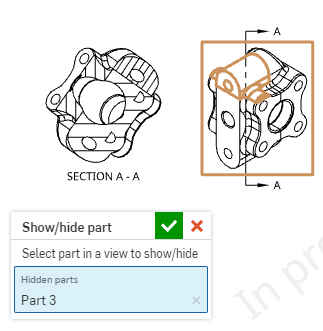
To toggle their visibility, right-click on the view and select Show/hide > Show/hide parts from the context menu.
A dialog opens. With focus in the Hidden parts field, select the parts in the view that you want to hide. Click the checkmark () to accept and close the dialog.
For example:
Show/hide constraints
By default, sketch constraints are hidden in the view.
To toggle their visibility, right-click on the view and select Show/hide > Show constraints or Hide constraints from the context menu:
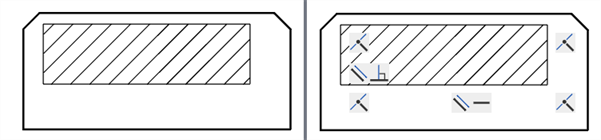
Constraints hidden (left), and shown (right).
Display state
Select a view, then right-click and hover over Display state to display a list of available display states for the view. Select one. For all parent views, the default is 'show all.' All child views default to 'follow parent' display state. Section and Detail views will only ever 'follow parent' display state.
If you create a display state after creating the drawing, update the drawing to make use of the display state. If you delete a display state from the assembly, then upon drawing update an error message is displayed:
Failed to resolve Display state
Any views using the deleted display state will be empty, but remain on the drawing. The name of the deleted display state no longer appears in the context menu.
Explode/Position
Select a view, then right-click and hover over Explode/Position to display a list of available explode or position states for the view. Select one.
If you create an explode view after creating the drawing, update the drawing to make use of the explode. If you delete an explode view from the assembly, then upon drawing update an error message is displayed:
Failed to resolve exploded view
Note that moving the rollback bar in the Exploded tree between explode steps will not affect the drawing view. The drawing views reflect all explode steps in an Exploded view.
Suppress alignment with parent
Select a child view, right-click and select Suppress alignment with parent to disconnect the automatic alignment of views derived from other views in order to place them independently on the drawing.
When suppressing an alignment, you are not breaking the alignment to the view’s children. If the view has children (or any alignments) you will not be able to rotate the view.
Edit section/Edit crop/Edit auxiliary view
Select the broken-out section, crop, or auxiliary view, right-click and select Edit section, Edit crop, or Edit auxiliary view. For section and crop views, use the dialog that opens to edit the spline/circle/polygon. Add spline points, drag the shape into a new size or location, or change other specifications. For auxiliary views, use the dialog to provide a label, alter the originating view edge, flip the view, or turn on/off view plane visibility.
Edit hatch
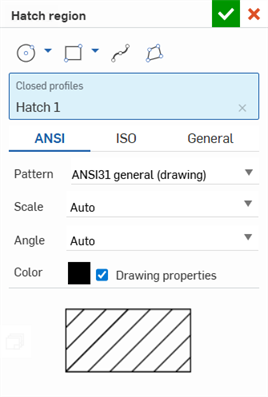
Select the section view or broken-out section view, right-click and select Edit hatch. The Edit hatch dialog opens. Click the hatch area of the drawing, and a set of options opens in the dialog, where you can adjust the hatch type (ANSI, ISO, or General), pattern, scale, angle, and color.
Remove section/Remove crop
Select a section or crop view, right-click and select Remove section (or Remove crop) to remove the broken-out section or crop view and leave the spline/circle/polygon for reference. To remove the boundary, click to highlight it, then either press Delete, or right-click and select Delete.
View orientation
Change the orientation of a selected view. Right-click on the view and select View orientation from the context menu. The current view orientation will be grayed out in the menu:
- Top
- Left
- Right
- Front
- Back
- Bottom
- Isometric
These commands are also available through the View properties dialog as well.
Align views vertically or horizontally
Align two selected views vertically or horizontally, according to their view centers.
-
Right-click on a view, or select a view and then right-click to activate the context menu.
-
Hover over the Align views option, then select Vertically or Horizontally.
The cursor changes to a selection cursor.
-
Select another view to align the view with.
The views are aligned and the selection mode is exited.
Rotate views vertically or horizontally
For rotated views, you can elect to rotate them vertically or horizontally, according to a selected straight edge. The commands are found in the view context menu:
- Select a view.
- Right-click to activate the context menu.
- Select
Rotate view vertically
or
Rotate view horizontally.
The cursor changes to a selection cursor.
- Select a straight edge with which to rotate the view.
The view is rotated and the command mode is exited.
Select for replication/Replicate annotations
Copy a view or region's annotations to be replicated on another similar view with like geometry. Views do not need to be linked.
-
Select a view.
-
Right-click and select one of the following options:
-
Select for replication > View - Copies all view annotations to the clipboard.
-
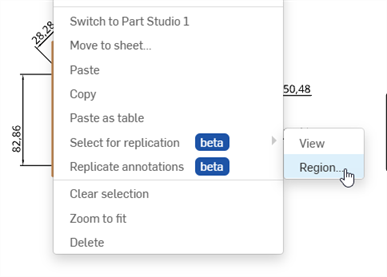
Select for replication > Region - The Replicate region dialog opens.
-
Adjust the size of the selection box using the corner point handles.
-
Place a rectangular center point selection on the view.
-
Press Enter or click the checkmark (
). The annotations from the region are copied to the clipboard.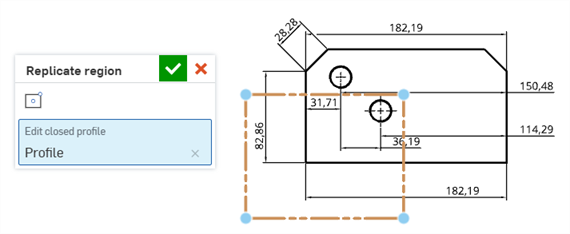
-
-
-
Select the view in which you want the annotations replicated.
-
Right-click and select Replicate annotations.
-
If a View was copied, its annotations are pasted into this view.
-
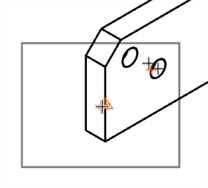
If a Region was copied, a solid-edged box is displayed with the cursor at its center.
-
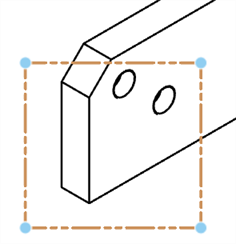
Click to place a selection box on the view.
-
Adjust the size of the box using the corner point handles.
-
Press Enter or click the checkmark (
). The annotations are pasted into this view.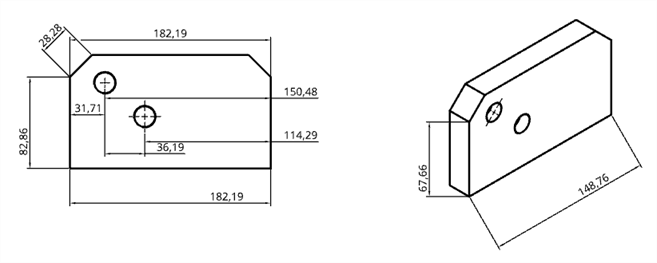
-
-
The number of successfully replicated annotations are provided in a notification at the top of the graphics area:
