 Break View


Available in: Drawing
Use Break view to shorten an existing view by trimming out a portion.
 Steps
Steps
- Click
 .
.
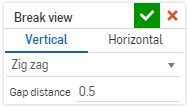
- Specify a horizontal or vertical break.
- Specify the type of break line and gap distance:
- Zig zag
- Small zig zag
- Curve
- Straight
-
Click in the view to place the two break lines (indicating where the gap occurs).
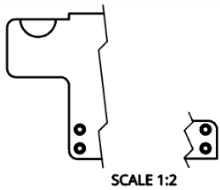
To delete a break, click to select it and press Delete.
You can also double-click on the view to open the View properties dialog.
Creating a break view from a section view
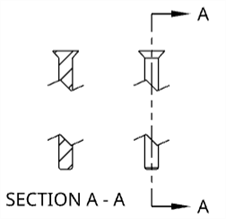
You can add break views to horizontal or vertical section views, even if the sections are jogged. Similarly, you can add horizontal or vertical section views to views with breaks. Changing the break location in one view changes it in all the related views.
Angular section views cannot be created on views with breaks, and breaks cannot be created on views with angular section cutting lines.
Break view creation table
This table illustrates the types of views from which the Auxiliary view can be created:
| Break view | |
| Can be created from: | Cannot be created from: |
|
Base views Project views Auxiliary views Section views Aligned section views Isometric views Flat pattern views |
Detail views |