

Available in: Drawing
Shortcut: Right-click on an empty area in the drawing and select Drawing properties
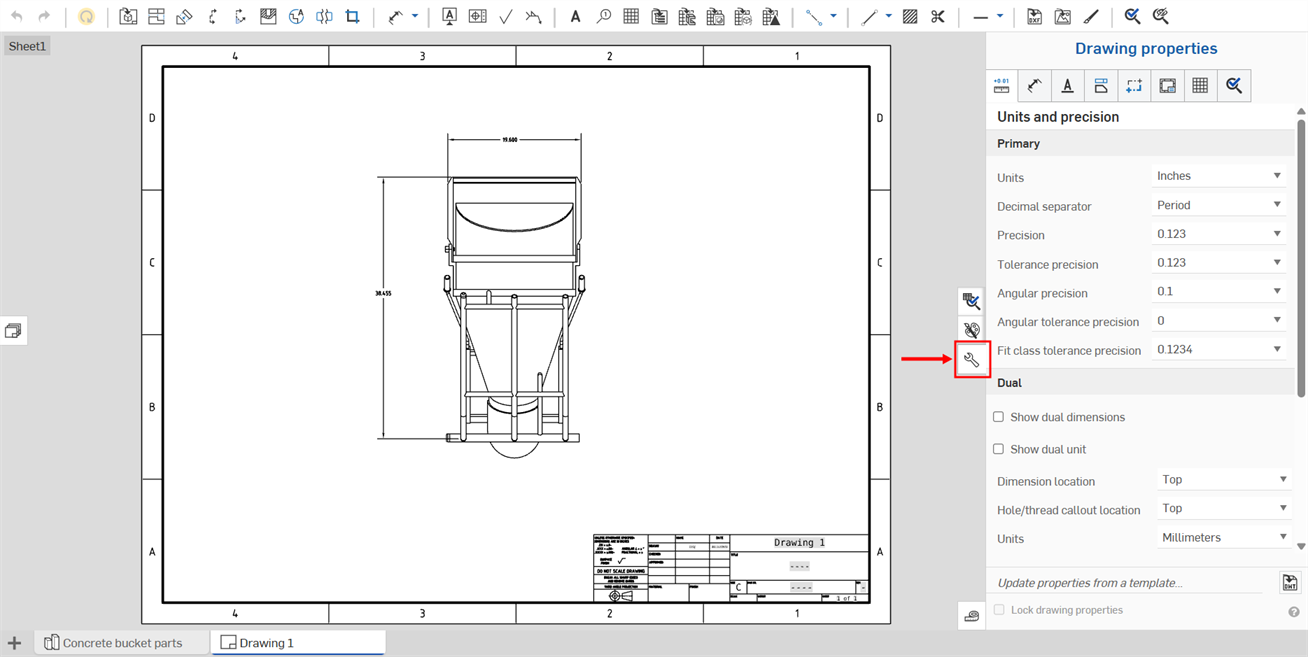
The icon to access the Drawing Properties panel is located on the right side of the drawings area. Click the icon to open the panel, click again to close the panel:
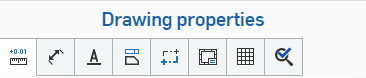
The Properties panel has multiple tabs, each explained in separate topics below.
Use these settings to define the defaults for your drawing. Individual drawing entities may be changed separately, but these settings apply to all entities in a drawing as a default.
Once you have your drawing properties set to your satisfaction, you can save the drawing and its settings as a template. For information on creating a template, see Custom Drawing Templates.
To edit drawing metadata, see Properties (Metadata).
Use the Format painter to apply the format of one dimension or annotation to additional dimensions or annotations.
 Updating and locking drawings properties
In Onshape, you can change the properties of a drawing by importing a drawing template you have already created by using the feature at the bottom of the Drawing properties panel (shown below outlined in red). You can also use the Lock drawing properties checkbox to prevent them from being accidentally edited.
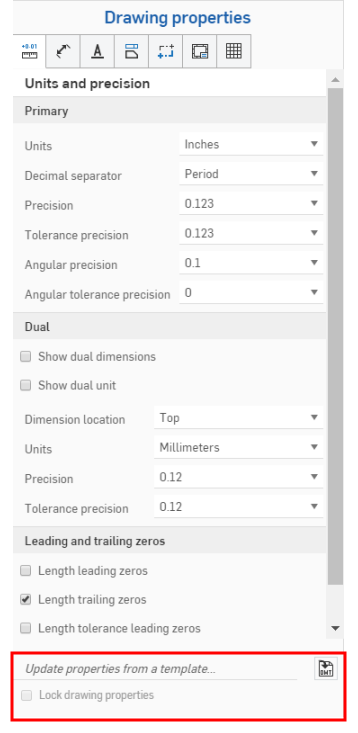
To update properties from an existing Onshape drawing template, open the Drawing properties panel.
Click the Select a DWT icon
 to the right of Update properties from a template...to open the Select a DWT dialog box:
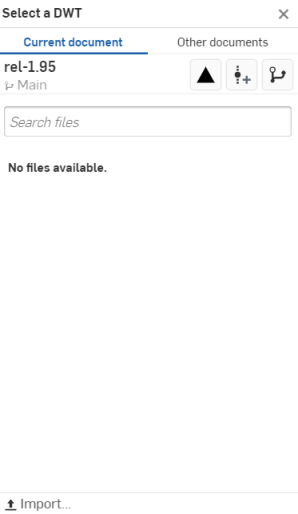
To select a DWT from the current document
-
Click
 at the top of the dialog.
- Type in the Search files bar to find a file, or select one from the list below it.
-
To import a DWT from your desktop, click
 Import at the bottom of the dialog box, select the file you wish to import, and click Open.
Use the three icons at the top of the dialog, under Other documents, as explained below:
 View released items
- Click the View released items icon to list all released items for you to choose from.
View released items
- Click the View released items icon to list all released items for you to choose from.
 Create version
- Click the Create version icon to open the Create version dialog box:
Create version
- Click the Create version icon to open the Create version dialog box:
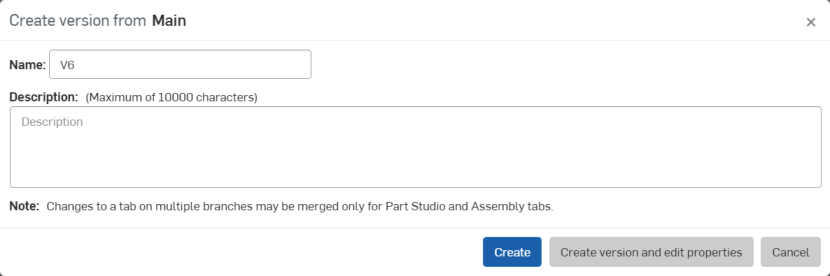
Adjust the name and/or description of your version, and click Create to create the version, or Create version and edit properties to open the Properties dialog:
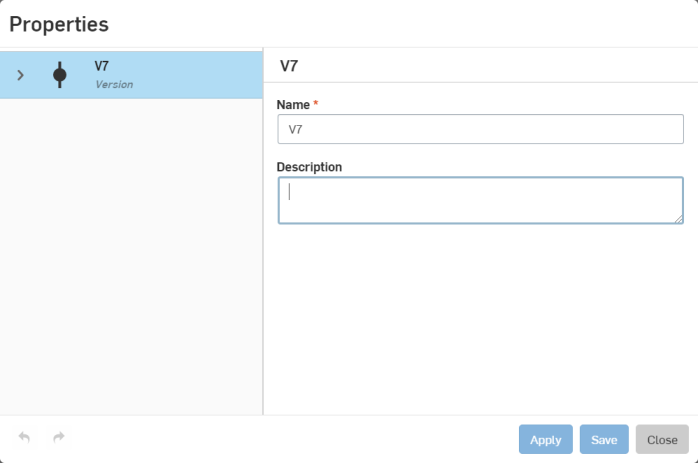
Adjust the properties of your version, click Apply to apply your changes, or click Save to apply the changes and close the Properties dialog.
Click Close to close the Properties dialog without applying any changes.
 Version graph
- Click the Version graph icon to select a different version of the document from the version graph.
Version graph
- Click the Version graph icon to select a different version of the document from the version graph.
To select a DWT from other documents
-
Click
 at the top of the dialog.
- Use the Search bar, or click one of the options below it, to select a DWT from another document in Onshape.
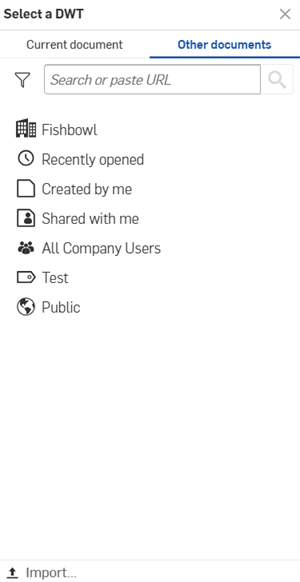
 Owned by me
- Select a DWT from a document owned by you.
Owned by me
- Select a DWT from a document owned by you.
 /
/  /
/  Enterprise/Classroom/Company
- Select a DWT from a document in your enterprise/classroom/company.
Enterprise/Classroom/Company
- Select a DWT from a document in your enterprise/classroom/company.
 Recently opened
- Select a DWT from your recently opened documents.
Recently opened
- Select a DWT from your recently opened documents.
 Created by me
- Select a DWT fr om documents created by you.
Created by me
- Select a DWT fr om documents created by you.
 Shared with me
- Select a DWT from documents shared with you.
Shared with me
- Select a DWT from documents shared with you.
-
To import a DWT from your desktop, click
Import...at the bottom of the dialog box, select the file you wish to import, and click Open.
After you import a drawing template, the properties will automatically update.