 Drawing Properties - Construction Geometry

Available in: Drawing
Edit the color and thickness of the drawing's centerlines and centermarks, as well as the style, color, and thickness of the drawing's virtual sharps. Use the Part Studio sketches section to edit the format of sketches brought into the drawing.
 Accessing the Construction geometry tab
To access Construction geometry properties, click the Construction geometry icon ( ) at the top of the Drawing properties toolbar.
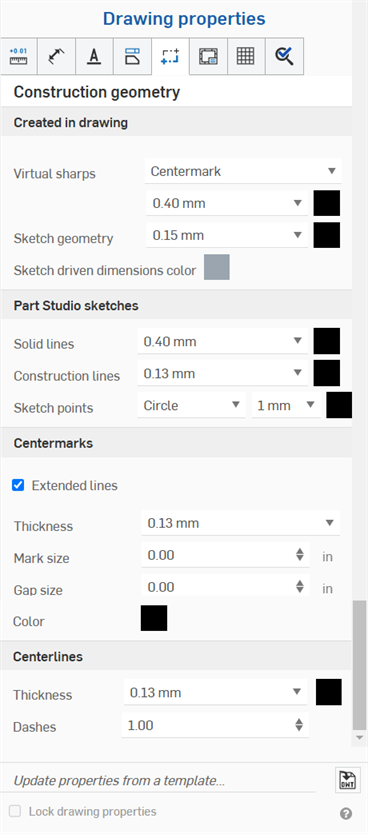
Created in drawing
- Created in drawing
- Specify defaults for construction geometry you create in the drawing:
- Virtual sharps
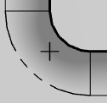
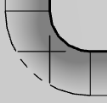
- Specify the visual treatment for all virtual sharps as Centermark or Edge extension, shown below, respectively:
- Sketch geometry - Specify the default line size and color for all sketches added to the drawing.
- Sketch driven dimensions color - Specify the color of all driven dimensions added to the drawing.
- Virtual sharps
- Specify the visual treatment for all virtual sharps as Centermark or Edge extension, shown below, respectively:
Part Studio sketches
-
Part Studio sketches - Specify defaults for the geometry brought in as a Part Studio sketch.
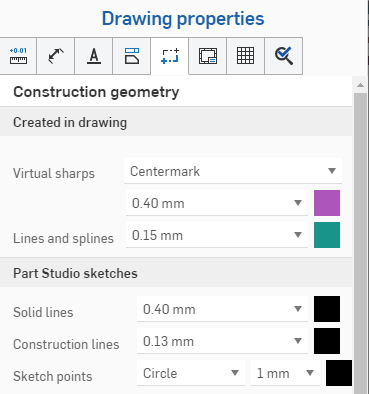
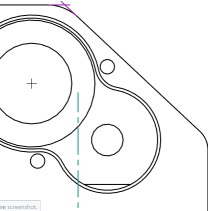
The illustration above shows the selections made in the dialog for construction geometry; the image to the right shows the virtual sharps are purple and edge extensions are green.
Centermarks
-
Centermarks - For automatic or manual centermarks, specify the default line color and thickness, mark size, gap size, and whether or not to extend the lines. For circular centermarks, specify whether to show a bolt circle, radial lines, and/or the pattern centermark.
-
To alter the length of the automatic or manual centermark lines, enable Extended lines. Hover over a centermark line to display the grip points at the end of each line. Click and drag one of the grip points outward or inward and drop at the new position. All lines move simultaneously. To move one line independently, hold Shift, and then drag and drop.
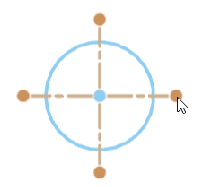
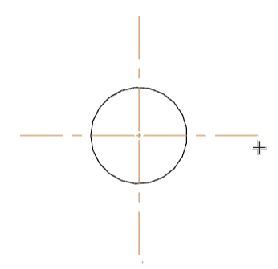
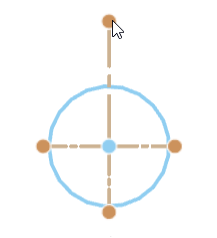
Hovering over a line to expose grip points (shown in the first image above), click and dragging a grip point to extend all centermark lines outward (shown in the second image above), and holding Shift, then clicking and dragging the grip point to extend a single line upward (shown in the third image above)
-
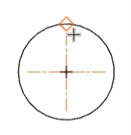
When dragging the automatic or manual centermark grip point over an edge, a snap point is displayed as a red diamond, so you can drop the centermark extension lines at this snap point location (see the image below). Snap points are only displayed if all centermark extension lines are moved simultaneously. They are not displayed when Shift+dragging a grip point to move a single extension line.
-
Centerlines
-
Centerlines - Specify the default line size and color, as well as the spacing of the dashes.