 Drawing Properties - Units and Precision

Available in: Drawing
Edit the current drawing's Primary and Dual units, and Leading and trailing zeros. Change each option by clicking the drop down menu arrows on the right side of the menu and selecting an option.
 Accessing the Units and precision tab
To access Units and precision properties, click the Units and precision icon ( ) at the top of the Drawing properties toolbar.
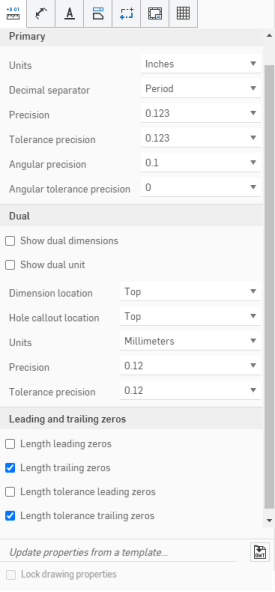
Primary
Define the default primary units for the drawing. Edit the format of:
- Units
- Default units for the drawing. Choose from: Millimeters, Millimeters (Drawing), Centimeters, Meters, Inches, Inches fractional, Feet and inches, Feet, or Yards.
- Drawing units are managed separately from Workspace units for Part Studios and assemblies.
- Feet and inches is only available in drawings; it is not available for workspace units.
- Decimal separator - Default character to use a decimal separator. Choose between: Comma and Period.
- Precision - The precision of all numbers except those listed in the Properties panel. Choose between: Zero and up to 6 decimal places, or between 0 and 1/256 for fractional numbers.
- Tolerance precision - The precision of geometric tolerances. Choose between: Zero and up to 6 decimal places, or between 0 and 1/256 for fractional numbers.
- Angular precision - The precision of angular measurements. Choose between: Zero and up to 6 decimal places.
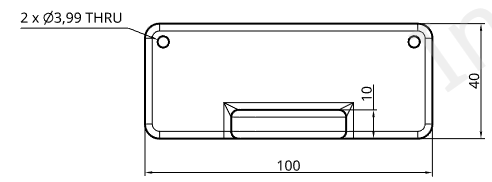
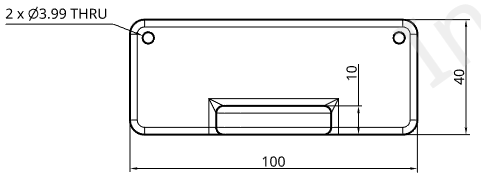
Initial drawing with default properties (above) and with Decimal separator set to 'decimal' (below)
- Angular tolerance precision - The precision of the tolerance for an angle. Choose between: Zero and up to 6 decimal places.
- Fit class tolerance precision - The precision of the fit class tolerance for an angle. Choose between: Zero and up to 6 decimal places.
Dual
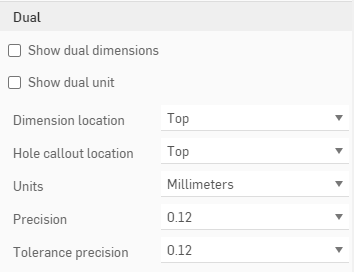
Specify whether or not to show dual dimensions and/or dual units in the drawing. You have the ability to specify the location of the dimension in reference to the view, as well as unit type, precision of decimal places, and the tolerance precision.
- Check
Show dual dimensions
to display all drawings dimensions in the default document units as well as a second, specified unit. Specify where to display the second dimension, either on top of, or on the bottom of the default units:
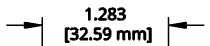
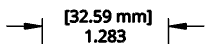
- Check Show dual unit to display the units of the dual dimension; otherwise, just the dimension is shown, without the unit of measurement.
- Dimension location - Specify where to place the dual dimension: on the top or bottom of the initial dimension
- Hole callout location - Select where to place the hole callout dual dimension: top, bottom, left or right of the initial dimension.
- Units - Specify the units for the dual dimension: this list will contain all units of measure except the units specified for the initial dimension label.
- Precision - The precision of the dual dimension. Choose between: Zero and up to 6 decimal places, or between 0 and 1/256 for fractional numbers.
- Tolerance precision - The precision of geometric tolerances. Choose between: Zero and up to 6 decimal places, or between 0 and 1/256 for fractional numbers.
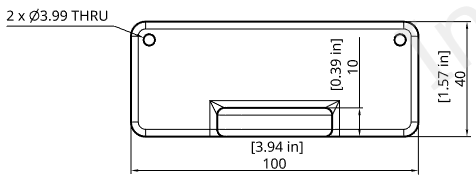
Drawing with Show dual dimensions selected, Show dual unit selected with Units set to 'Inches', and Precision set to '0.12' (two decimal places)
Leading and trailing zeros
Use these settings to format the leading and trailing zeros in lengths.

- Length leading zeros - Select to include leading zeros on lengths.
- Length trailing zeros - Select to include trailing zeros on lengths.
- Length tolerance leading zeros - Select to include leading zeros for tolerances.
- Length tolerance trailing zeros - Select to include trailing zeros for tolerances.
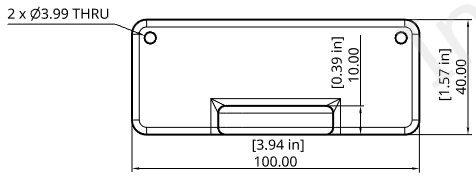
Drawing with Length trailing zeros set on