 Drawing Properties - Dimensions

Available in: Drawing
Edit the current drawing's font, text height, color, text alignment, text gaps, geometry gaps, and more. Change each option by clicking the drop down menu arrows on the right side of the menu and selecting an option.
 Accessing the Dimensions tab
To access Dimension properties, click the Dimensions icon ( ) at the top of the Drawing properties toolbar.
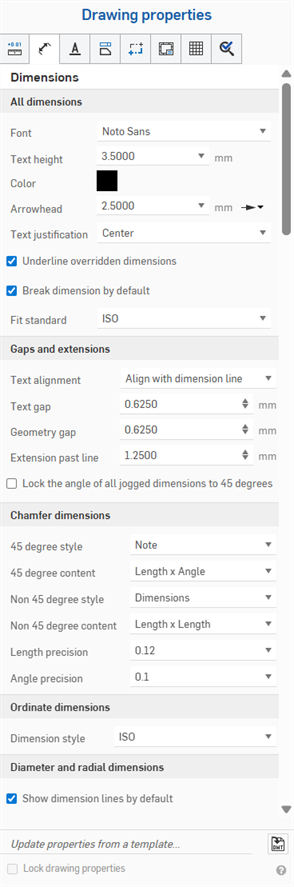
All dimensions
- Font - Select the font of choice for dimension text.
- Text height - Select the size of choice for dimension text.
- Color
- To edit colors for any drawing entity, click the color block in the Drawing properties panel to access the color dialog:
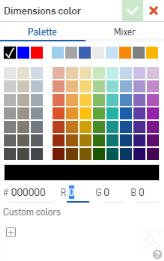
- Select Palette to choose a color or enter a hex or RGB codes. Use the Mixer panel to drag to a general color area and then enter a specific hex or RGB code.
On either the Palette or Mixer panels you can click the plus sign under Custom colors to save the currently specified color value as a custom color for later use.
- Arrowhead
- Change the size of arrowheads for dimensions. Arrowhead length can be any value between 0.004 inches and 393.7 inches.
- Arrowhead type
- Choose from no arrowhead, filled arrowhead, unfilled arrowhead, open arrowhead, oblique marks, or filled dot.
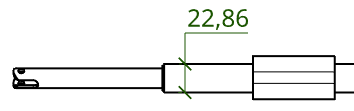
- Arrowhead type
- Choose from no arrowhead, filled arrowhead, unfilled arrowhead, open arrowhead, oblique marks, or filled dot.
- Text justification - Change the justification of all the Note and Dimension text in the drawing. Choose from Left, Center, Right, or Auto alignment.
- Underline overridden dimensions - Uncheck this box to remove the underline format from all currently overridden dimensions.
- Break dimension by default - Checked by default, this creates a space between overlapping dimension lines. Unchecking it does not change existing dimensions, but determines the default state for dimensions created later.
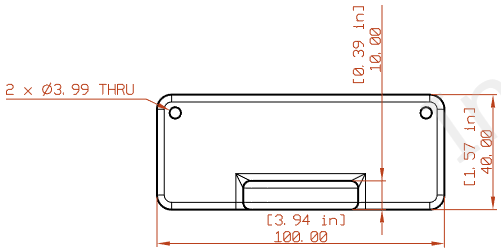
Drawing with the Color of dimensions set to red, the Font changed to APMONO, the Text height increased to 4.5, and the Arrowhead length set to 4.5000. Second image illustrates 'Oblique' selected as the Arrowhead type.
Gaps and extensions
Use this tab to edit your drawing's text alignment, text gap, geometry gap, extension past line, and to lock the angle of all jogged dimensions to 45 degrees:
- Text alignment - Specify whether to align the dimension text with either the dimension line, or align it horizontally along the bottom edge of the drawing sheet.
- Text gap - Set the measurements of the text gap in the drawing.
- Geometry gap - Set the measurements of the geometry gap in the drawing.
- Extension past line- Set how far the extension line will extend past the text.
- Lock the angle of all jogged dimensions to 45 degrees - Check this box to lock the angle of all jogged dimensions in the drawing to 45 degrees.
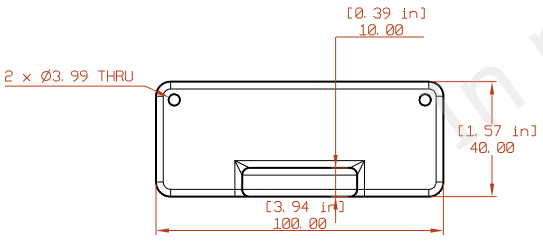
Drawing with Text alignment set to Horizontal, and Text gap and Geometry gap set to 0.75, and Extension past line increased to 1.5
Chamfer dimension
For information on using the tool, see Chamfer dimensions.
Use these properties to style the chamfer dimensions on the drawing. You can specify:
- 45 degree style - Select either a Note or a Dimension to appear
- 45 degree content - Angle x Length; Length x Angle; Length x Length; C Length
- Non 45 degree style - Dimension; Note
- Non 45 degree content - Angle x Length; Length x Angle; Length x Length
- Length precision - Number of digits in the length value
- Angle precision - Number of digits in the angle value
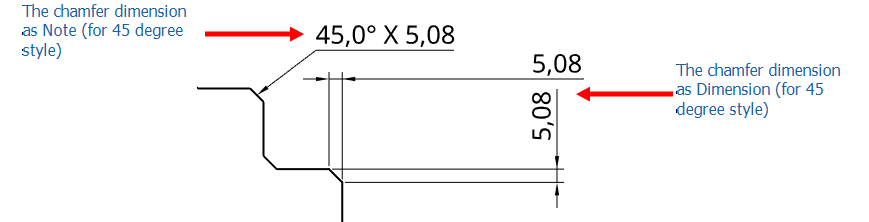
Ordinate dimensions
Changes the Drawing ordinate dimension style.
-
ANSI - Displays leading lines from the ordinate dimensions.
-
ISO - Displays leading lines from the ordinate dimensions and additional arrows that connect the increasing ordinate values from the origin point.
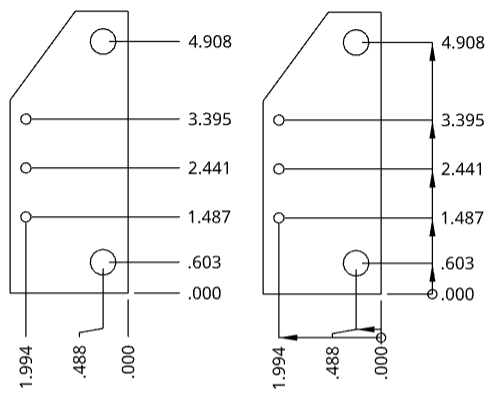
Drawing with ANSI Ordinate dimension style on the left and ISO on the right
If you use an ANSI or ISO template when creating a new drawing, the ordinate dimension style defaults to ANSI or ISO, respectively.
Diameter and radial dimensions
-
Show dimension lines by default - Displays radial and diameter dimension lines inside the circle or arc. By default, this option is checked when creating a drawing with an ISO template, and unchecked when creating a drawing with an ANSI template. Unchecking it does not change existing dimensions, but determines the default state for dimensions created later.
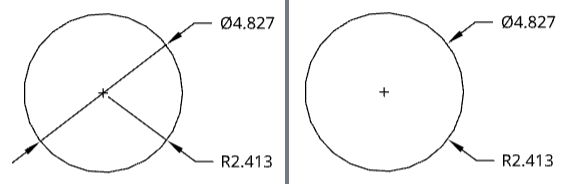
Circular drawing with Show dimension line checked (left) and show dimension line unchecked (right).