Drawing - Diameter Dimension

Available in: Drawing
Shortcut: Shift+d
Measure the diameter of a circle, arc or circular arc centermark, including silhouette edges.
 Steps
Steps
-
Click
 .
.
- Select the arc, circle, or centermark.
- Move the cursor and click to place the dimension. A diameter symbol is included in the placement.
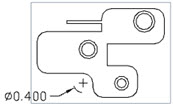
Placing a diameter dimension on a detail view or crop view of an arc or circle displays a foreshortened dimension. For information on creating, converting, and flipping foreshortened dimensions, see Foreshorten dimension.
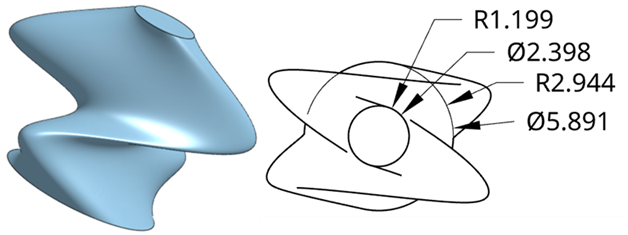
You can also add a Diameter dimension to circles that are on either side of other geometry. For instance, the top and bottom circles below have two ellipses between them. The four sketches are lofted, and then a top view is placed in a Drawing. Diameter dimensions are then added to both circles. If the circle is obscured, as is the case in the bottom circle in this example, a guide line is overlaid on top, as you add the dimension, ensuring the visibility of the circle.