 Drawing Properties - Inspection

Available in: Drawing
Edit the appearance of inspection items in the current drawing.
 Accessing the Inspection tab
To access Inspection properties, click the Inspection icon ( ) at the top of the Drawing properties toolbar.
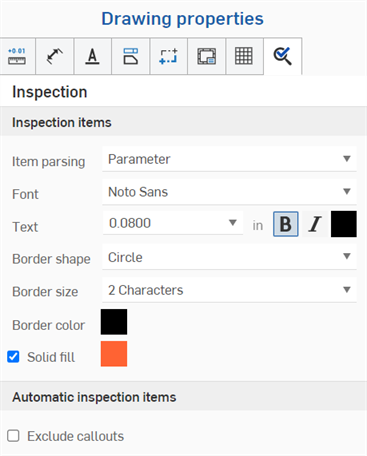
Inspection items
- Item parsing
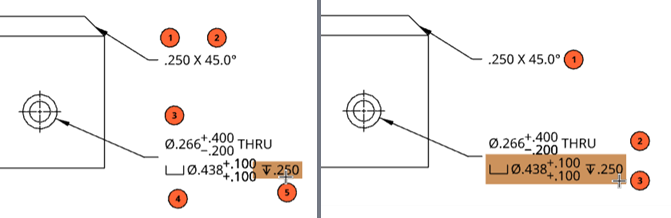
- Specify the default behavior of Inspection item parsing. Parameter (default) separates Hole callout and Chamfer dimensions into separate parameters (see example below left), and Row consolidates Hole callout and Chamfer dimensions together into a single row (see example below right). When adding Inspection items, the row or parameter is highlighted, depending on selection:
- Font - Specify the default font type for the inspection item.
- Text - Specify the size and treatment of the text displayed as part of the inspection item.
- Border shape - Select the desired shape for the inspection item.
- Border size - Select the desired size of the inspection item shape.
- Border color - Select the color of the inspection item.
- Solid fill - Check the box to indicate a solid inspection item, and select the color.
You can use a combination of both Parameter and Row. For example, using the default Item parsing > Parameter setting, add two inspection items to the two Chamfer dimension parameters, then switch Item parsing to Row and add a third inspection item to the Chamfer dimension row.
Automatic inspection items
- Exclude callouts - By default, if using automatic inspection items, inspection item numbers are assigned to callouts when callouts are created. Check this box if you wish to exclude callouts from being assigned inspection item numbers.