Render Studio 介面

僅為 提供
下方部分說明 Render Studio 分頁介面中各個部分的操作方式。

 Scene list
位在頁面的左側,場景清單提供關於目前 Render Studio 場景的零件、Part Studio 和組合件資訊。
當選取了「場景清單」中的一個選項時,在右側的「Scene」、「Appearance」與「Environment」面板中會顯示相關的子功能表與可編輯的參數。關於參數選項的完整清單,請參考 Scene、Appearance 與 Environment 面板的部分。
如果只選取了單一的場景清單項目,「外觀」面板會僅顯示可用的參數。按下鍵盤空格鍵來取消選取所有的項目,然後在「場景清單」中選擇一個項目。
除了 Transform 與 Projector 之外,您可以在場景清單中選取多個個體 (在群組選擇中一起選取)。Transform 與 Projector 是僅能單獨選取的。
「場景清單」分為兩個可捲動的部分:
-
場景清單幾何 (上半部) - 包含場景中的所有幾何,以及任何的 Transforms 與 Projectors。
-
外觀 (下半部) - 包含場景中幾何使用的所有外觀。
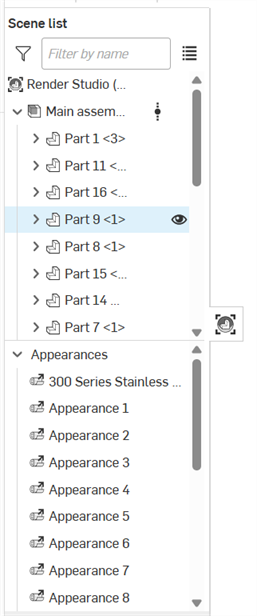
若要調整「場景清單」的寬度,將游標移動至面板右邊暫留,當游標變為雙邊箭頭時,按一下並拖曳來調整大小。
詳細資訊請參考 Scene list。
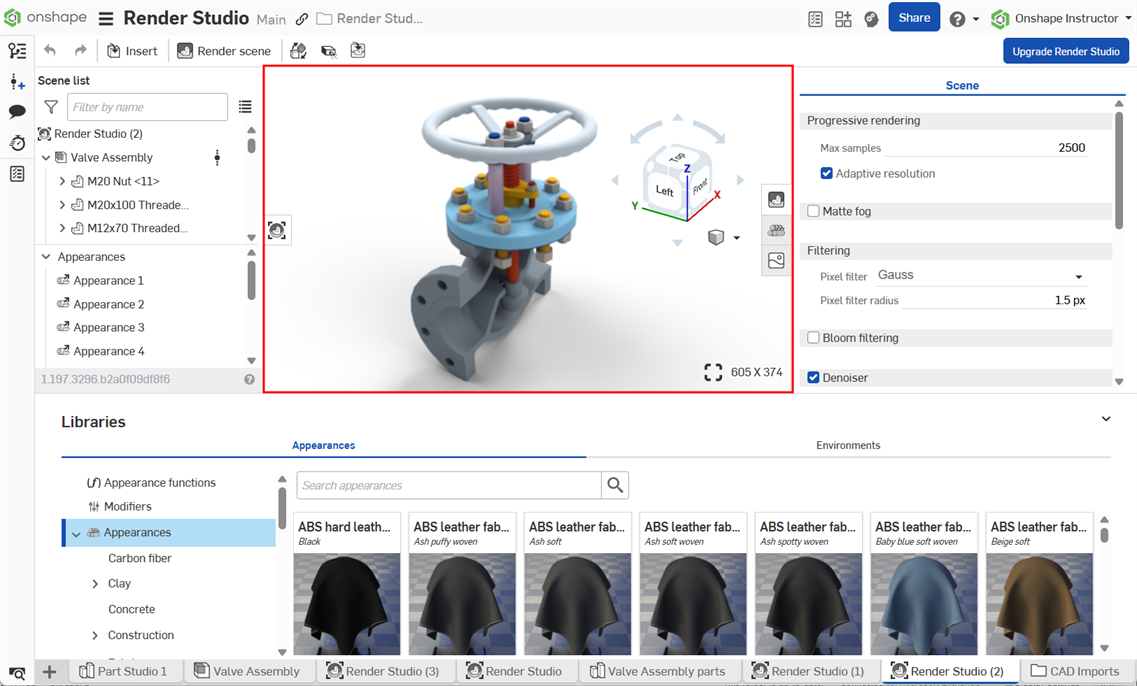 「Appearances」資源庫
位在頁面的下方,「外觀資源庫」中包含所有各種標準屬性的組合,可以套用至零件、零件面或曲面上來提供材料紋理,並有可套用至外觀參數的函式:
Search
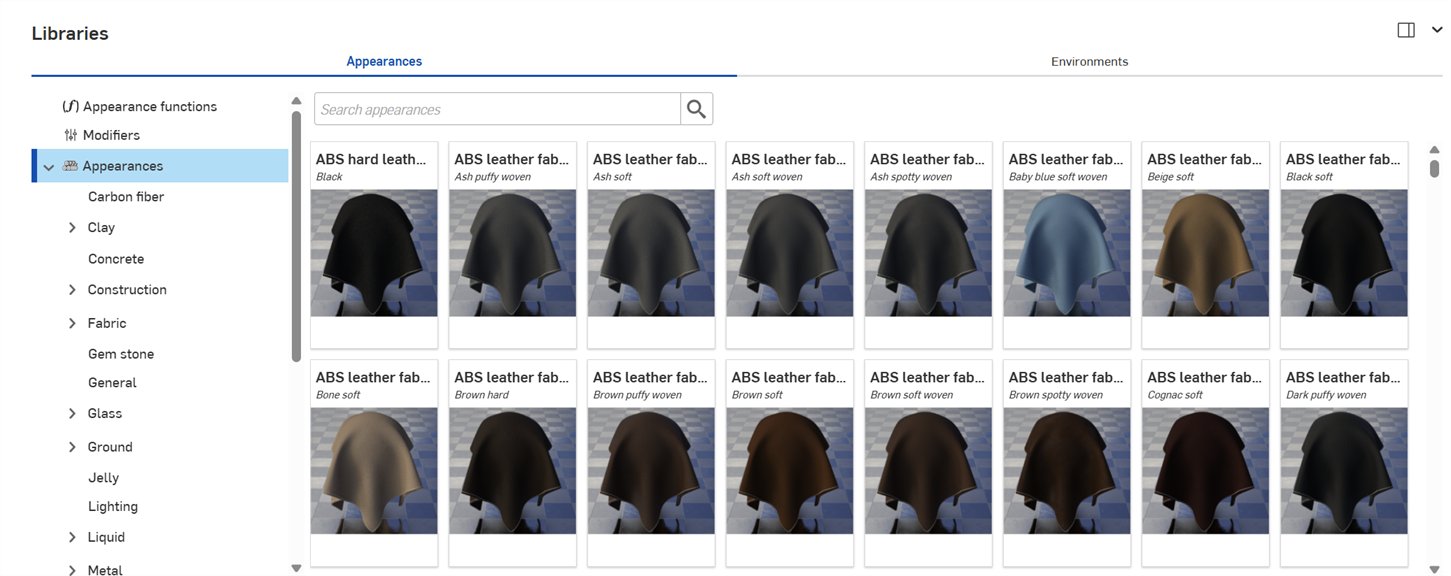
使用「Search appearances」欄位來縮小在資源庫中對外觀的搜尋結果。「Search appearances」欄位會僅找出在所選資料夾內的外觀。例如,在上方的圖片中選取了 Ceramic 資料夾,在「Search appearances」欄位中輸入關鍵字然後按下 Enter 鍵,系統僅會顯示在 Ceramic 資料夾中的結果。
在字詞之間使用 "and"、"+"、與 "or" 運算子來進一步縮小搜尋範圍。
在縮小搜尋範圍之後,結果會以縮圖清單顯示在「外觀」面板的右側。若要清除搜尋,刪除在「Search appearances」欄位中的關鍵字,然後按下 Enter 鍵或按下清除欄位圖示 ( )。
)。
在水平與垂直資源庫檢視中切換
按一下面板右上角的 Show library in the right panel 圖示來在右側面板中顯示資源庫:
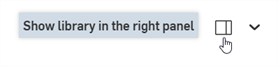
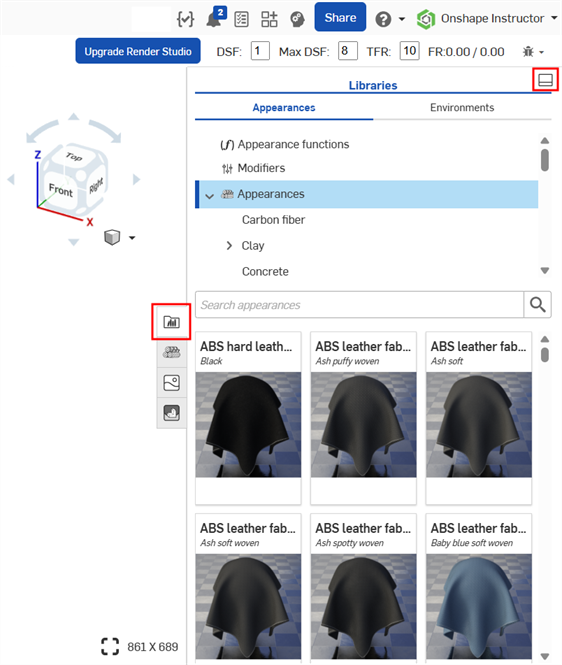
按一下資源庫面板圖示 ( ) 來關閉面板。再次點按即可開啟。
若要將資源庫放回到其預設的水平位置,按一下面板右上角的 Show library in the bottom panel 按鈕 (上圖中以紅色強調顯示i)。
若要將一個外觀函式拖曳到右側面板的「Appearances」資源庫的外觀參數上,請將外觀函式拖曳到「Appearances」面板圖示上,按住直到面板開啟。接著將外觀函式放置在面板中的參數上。詳細資訊請參考使用外觀函式。
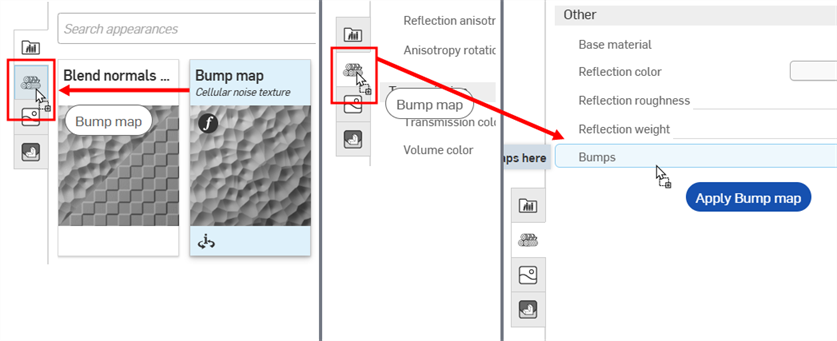
將「Bump map」外觀函式拖曳到「 Appearance」面板圖示上 (左圖)。「 Appearance」面板開啟 (中間圖)。在按住的同時,將「Bump map」外觀函式拖曳到「 Appearance」面板中的「Bumps」參數上 (右圖)。
隱藏/顯示資源庫
若要隱藏/顯示資源庫面板,請按一下面板右上角的展開/摺疊切換 ( )。
)。
檢視外觀名稱
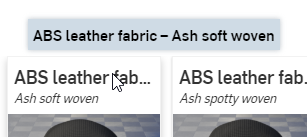
如果沒有顯示外觀的整個名稱,請移動游標至名稱上暫留,工具提示會顯示完整的名稱:
檢視外觀說明
按一下外觀卡底部的「View description」切換 ( ) (下方左上圖) 來將卡片翻面以顯示卡片背面的外觀簡短說明 (下方右上圖)。如果說明過長卡片無法容納,請將游標移動至文字上暫留一下,卡片即會展開以顯示完整的說明 (下方底部圖片)。再次點按「View description」切換 來將卡片翻回正面的縮圖。
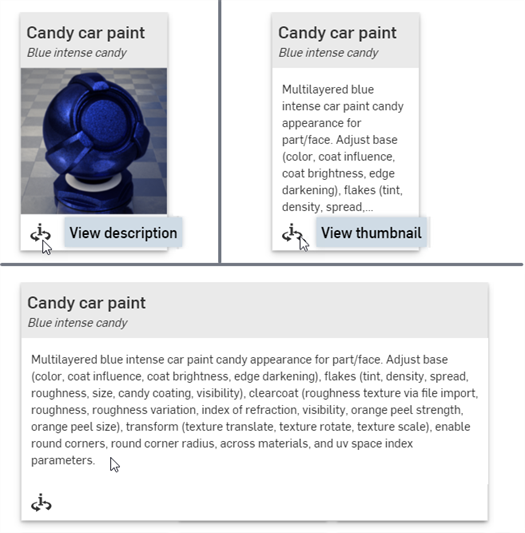
一次只能將一個外觀卡翻到背面的說明。按一下第二個外觀的「View description」切換會同時將第一個外觀的說明圖翻回正面 (縮圖),並將第二個外觀的視圖翻到背面 (說明)。
關於所有外觀與外觀函式的完整清單,請參考 Render Studio 資源庫。
關於預設外觀參數的說明,請參考外觀面板。
詳細資訊請參考「Appearances」資源庫。
「Environments」資源庫
位在頁面底部的「Environments」資源庫包含各種標準的環境,可加入至 Part Studio,、組合件與零件的場景中做為背景。環境同時提供場景中的照明。
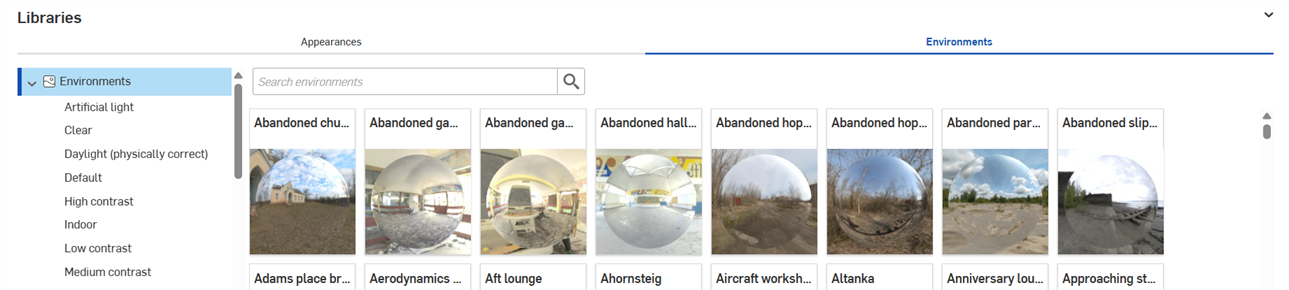
Search
使用「Search environments」欄位來縮小在資源庫中的環境搜尋結果。搜尋會僅找出在所選資料夾內的環境。例如,在上方圖片中選取了「Artificial light」這個資料夾。在「Search environments」欄位中輸入關鍵字,然後按下 Enter 鍵。搜尋會僅限於在「Artificial light」資料夾中的環境。
在字詞之間使用 "and"、"+"、與 "or" 運算子來進一步縮小搜尋範圍。
在篩選之後,結果會以縮圖清單顯示在「Environments」面板的右側。若要清除搜尋,刪除在「Search environments」欄位中的關鍵字,然後按下 Enter 鍵或按下清除欄位圖示 ()。
在水平與垂直資源庫檢視中切換
按一下面板右上角的 Show library in the right panel 圖示來在右側面板中顯示資源庫:
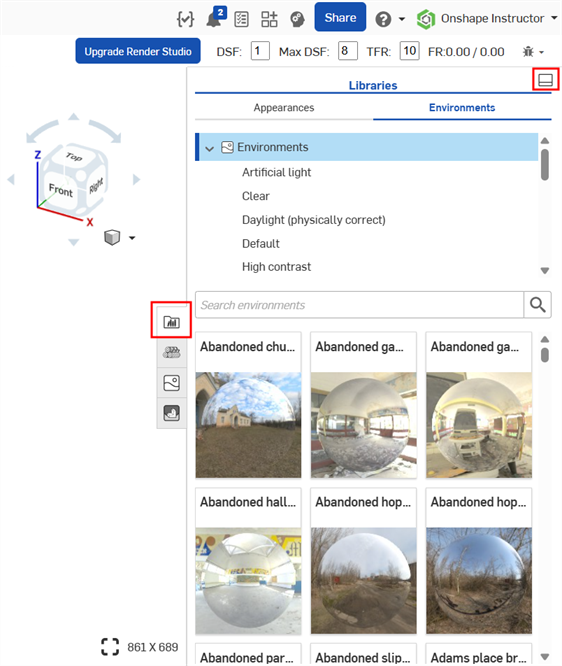
按一下資源庫面板圖示 () 來關閉面板。再次點按即可開啟。
若要將資源庫放回到其預設的水平位置,按一下面板右上角的 Show library in the bottom panel 按鈕 (上圖中以紅色強調顯示i)。
隱藏/顯示資源庫
若要隱藏/顯示資源庫面板,請按一下面板右上角的展開/摺疊切換 ()。
檢視環境名稱
如果沒有顯示環境的整個名稱,請移動游標至名稱上暫留,工具提示會顯示完整的名稱:
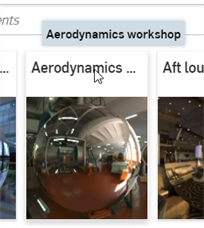
關於所有環境的完整清單,請參考 Render Studio 資源庫。
詳細資訊請參考「Environments」資源庫。
「Scene」面板
Located at the right of the page, the Scene panel displays an editable list of global parameters for the Scene list. Click the Scene panel icon ( ) to open the panel:
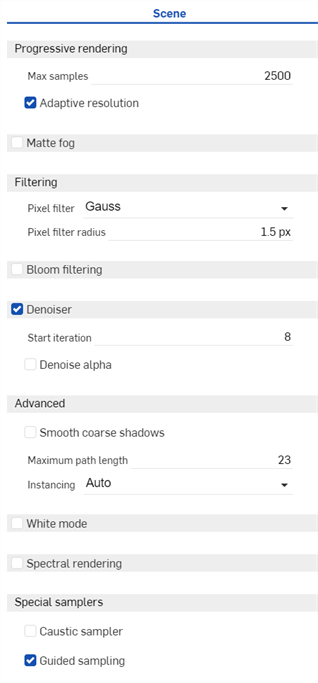
To adjust the Appearance/Selection panel width, hover the cursor over a panel edge. When the cursor turns into a double-sided arrow, click and drag to resize the panel.
詳細資訊請參考「Scene」面板。
「Appearance」面板
Located at the right of the page, the Appearance panel displays an editable list of parameters for the appearance of the selected object. The Appearance is material-specific (for example, Fabric, Glass, or Masonry), and the available panel parameters change, depending on the selected Appearance.
-
Select an entity (part, face, Part Studio, Assembly, Render Studio, Appearance) in the Scene list or in the graphics area.
-
Click the Appearance panel icon (
 ) to open the panel:
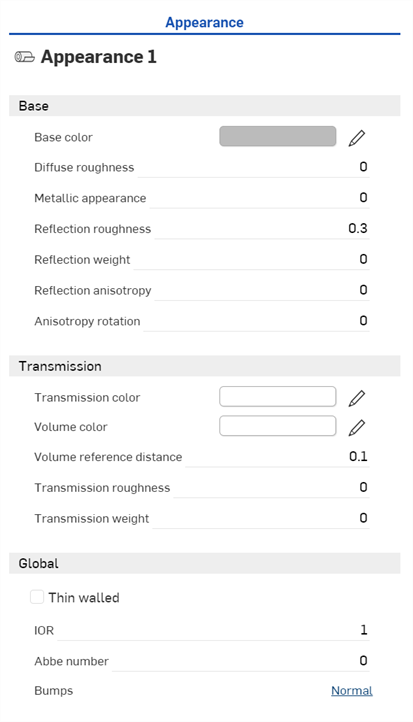
When a Part Studio or Assembly is inserted into a Render Studio, it has a base appearance. The name of the current Appearance is provided at the top of the panel (Appearance 1 in the above example).
詳細資訊請參考「Appearances」面板。
「Environment」面板
Located at the right of the page, the Environment panel displays an editable list of parameters for the scene environment. The available panel parameters change, depending on the selected Environment.
Click the Environment panel icon ( ) to open the panel:
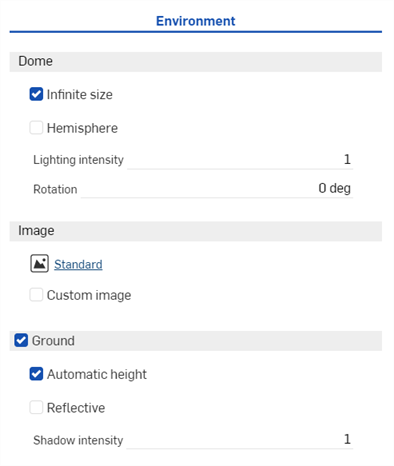
詳細資訊請參考「Environments」面板。
Render options
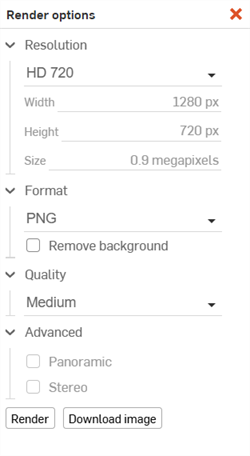
Render options determine how the scene is output to a JPEG or PNG image file. Once scene edits are completed, click the Render scene button () on the toolbar to open the Render options dialog:
詳細資訊請參考 Render options。
詳細資訊請參考 Render Studio 範例與資源。