 Configurations


Available in: Part Studio, Assembly, Variable Studio
Create variations of a part, Part Studio, assembly, or Variable Studio. For example, you can configure the depth of an extrude feature, the suppression of a fillet, the FeatureScript of a custom feature, part numbers, colors, materials, and more.
See the following for details on creating and using configurations:
See the following for details on managing configurations, including renaming, copy/pasting, and releasing:
See the following for details on applying advanced configuration logic:
When more than one person is working in the same document, each sees their own selected configuration. When working in Follow Mode, the follower sees the configurations selected by the leader.
 Terminology
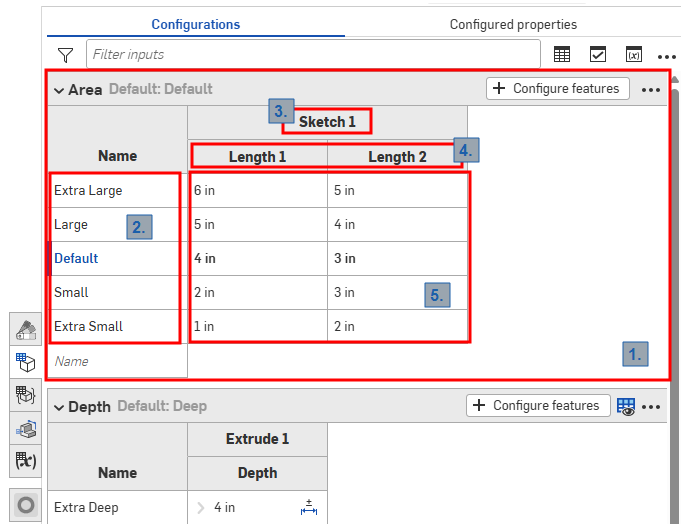
Configurations panel in a Part Studio
Onshape configurations use the following terms, as indicated in the above image:
-
Inputs - Each configuration input is represented as a collapsible table. Each Part Studio, Assembly, and Variable Studio has only one Configurations panel, but each panel can contain many inputs.
-
Options - Each row in an input table becomes the options available when selecting a configuration.
-
Configured features - The feature or variable being configured. These always correspond to an existing feature or variable. Names cannot be changed.
-
Parameters - Each column in an input table represents the specific feature parameter being configured.
-
Option values - Each cell indicates the value to set for the parameter for the indicated option.
All Part Studios, assemblies, and Variable Studios have one Configuration panel that summaries the configurations available for the element. You can create multiple configuration inputs within one configuration. This is especially helpful when the feature or input values you want to configure are not necessarily related to each other. For example, when the length and diameter of a part are not related to whether a fillet is applied, you can use two configuration inputs. This allows more flexibility and can aid in keeping each configuration input from becoming unnecessarily complicated. The configuration inputs you define become options in the Insert dialog when inserting the configured item.
Configurations: iOS and Android
iOS and Android support for configurations is limited to the following:
-
Viewing the Configuration panel (
 ) on the right.
 -
Selecting between Configurations in the left side panel (above the Features list):
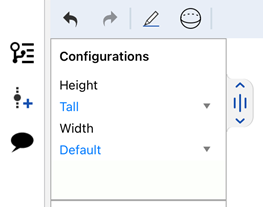
Selecting Configurations on iOS
-
(iOS only) Visibility conditions are applied, if they are present in the configuration.
You cannot create or edit configurations or visibility conditions from the iOS or Android platforms. This can only be done from the desktop (browser) platform.
For additional Learning center resources, see: Self-Paced Courses > Configurations. You can also follow the learning pathway course here: Introduction to Part Configurations (Onshape account required), and the technical briefing article here: Parametric Variables vs Configuration Variables (Onshape account required).