 Part Studio and Assembly Configurations


Available in: Part Studio, Assembly
Create variations of a part, Part Studio, or assembly. For example, you can configure the depth of an extrude feature, the suppression of a fillet, the FeatureScript of a custom feature, part numbers, colors, materials, and more.
In an assembly, you can only configure mates (not mate connectors), instances, and patterns. You can configure an assembly regardless of any Part Studio configurations.
Configurations are created only on a browser but can be viewed on iOS and Android.
See the following pages for more details on working with configurations:
-
Managing Configurations (including renaming, filtering, copy/pasting, etc.)
-
Visibility Configurations (configuration logic)

 Video example (List input)
Video transcript
A List configuration input is a table where each named row sets values for selected parameters, letting the model switch between predefined design permutations in a Part Studio or assembly. Open the Configuration panel. If the Part Studio has no configurations, no tables exist, and the Configurations selector is not available above the Features list.
To create a list input table, click Configure Part Studio, or click the dropdown arrow and select List. The Configurations selector is now available. The table starts with one column for configuration names, including the first Default configuration. Configure the required parameters. Click Configure features to enter configure mode; a yellow banner indicates the mode is on. Select sketches or features to configure their parameters.
For this example, the variables that define the outer, and inner, circle diameters are selected. The parameters are added as columns in the table. Configured parameters in a sketch or feature are outlined with a dashed yellow line. When the table includes all required columns, select Done on the banner. Edit the cells in the table to include all required sizes.
To rename the input table, click the current name or click the overflow icon and select Rename. Renaming the table updates the input in the Configurations selector, which is especially important when multiple input tables exist. If a dimension uses an expression, the expression populates the cells.
The active configuration shows a blue bar in the name column. To switch the active configuration, use the Configuration selector or right-click a row and select Switch to. When a new configuration becomes active, the model updates based on the table values.
Video example (Checkbox input)
Video transcript
A checkbox input toggles a parameter on or off.
Open the Configuration panel. Click the arrow next to Add configuration input and select Checkbox. Name the input and set the default option as either checked or cleared. The machined features are organized into folder. Configure Extrude 14. Select Configure features and then click the Extrude feature. Hover over the Unsuppressed checkbox until the yellow highlight appears and then click. The feature’s suppression state is now a column in the input table.
Alternatively, right-click a feature or sketch in the Features list and select Configure suppression. Once in the input table, check the boxes in the column to suppress the Extrude feature when the Machined configuration is active. When the table includes all required columns, select Done on the banner. In the Configuration selector, clear the Machined checkbox to suppress the Machined features.
A checkbox input can include multiple parameter columns, and not just suppression. In the pneumatic cylinder, a rod clevis with one hole is configured using a checkbox input that controls End type and the Up to face selection. The flat blind cap checkbox is configured by suppression of several features to achieve the desired result. Use checkbox inputs to create parameters that toggle on or off.
Video example (Configuration variable input)
Video transcript
Configuration variable inputs control design parameters and constrain values to a defined range.
Open the Configuration panel. Click the Add configuration input arrow, and select Configuration variable. Enter a Name for the variable that informs the user of its purpose. Select the Variable type. In this example, the Length type is selected. The variable will be used to drive the sound hole radius.
With the exception of the text type, all other types define values for Default, Minimum, and Maximum. Enter values to finish defining the parameter. After creating the variable, use it to drive sketch dimensions, feature values, and more.
To adjust the sound hole radius, edit the sketch dimension that controls it. Double-click the dimension, enter a valid expression, converting the radius into a diameter, then enter the configuration variable name. Select the variable from the list, and accept both the dimension and the sketch. The configuration input table adds a column with a Default configuration row. The feature updates based on the value in the Configuration selector.
Video example (Inserting configurations into an assembly)
Video transcript
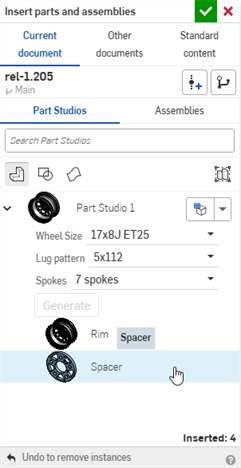
When inserting instances into an assembly, configurations make it easy to manage variations without creating separate models. The Insert dialog includes the Configurations selector to set the configuration option before insertion.
The instance initially has the default configuration options selected. Default options are designated during creation, but can be changed at any time. To set a default option, navigate to the Part Studio or assembly Configuration panel, right-click the row in the desired input table, and select Set as default.
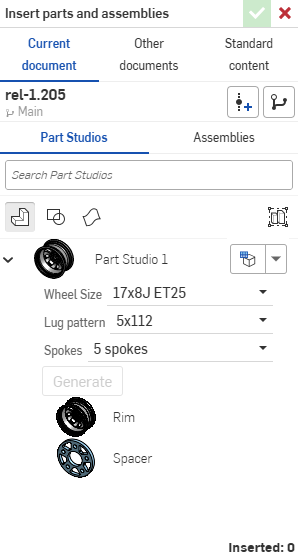
In an assembly, click Insert, and expand a configured Part Studio or assembly to access the Configuration selector. Click the Set to last viewed configuration dropdown for two options. Select Set to last viewed to use the configuration most recently viewed in the Part Studio. Select Reset to default to restore the options to their defaults. Select the desired options. Click Generate to refresh the preview if needed. Then select the parts, Part Studio, or assembly, and accept to insert.
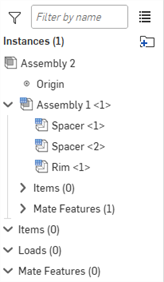
Instances with configurations are indicated with the configuration icon. An instance's configuration can be changed after it is inserted into the assembly. Right-click an instance in the graphics area or in the Instances list and select Change configuration. Select parameters and accept.
Patterning, replicating, or mirroring a configured instance creates additional instances that reference the same configuration as the seed instance. Changing the configuration of the seed instance updates all patterned instances. Independently inserted or pasted instances have their own referenced configurations. This includes instances of a dissolved replication.
Select all instances of a part with the same configuration by right-clicking the part and choosing Select instances with same part and same configuration. Use Select instances with same configuration to select all parts configured in the same input table that currently reference the same configuration options. Then right-click a selected instance and click Change configuration to update in bulk.
Basic steps: Creating a list input
- Click the Configuration panel icon (
 ) on the right side of the screen.
-
The Configuration panel opens. Click Configure Part Studio or Configure Assembly to add an input:
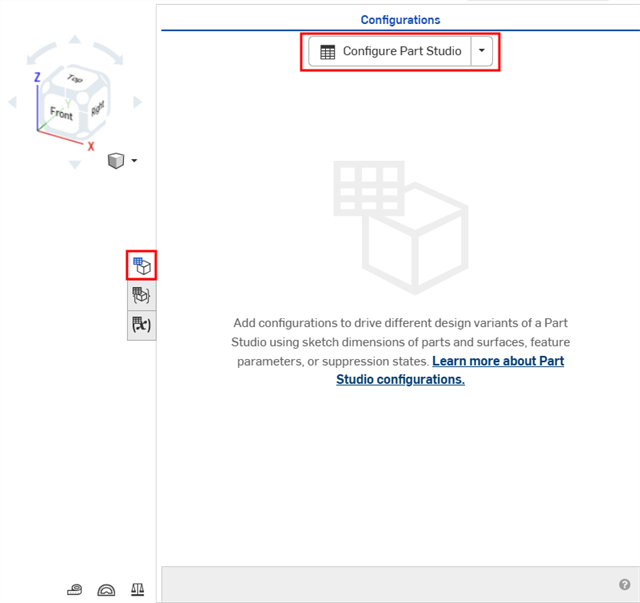
Creating a configuration in a Part Studio
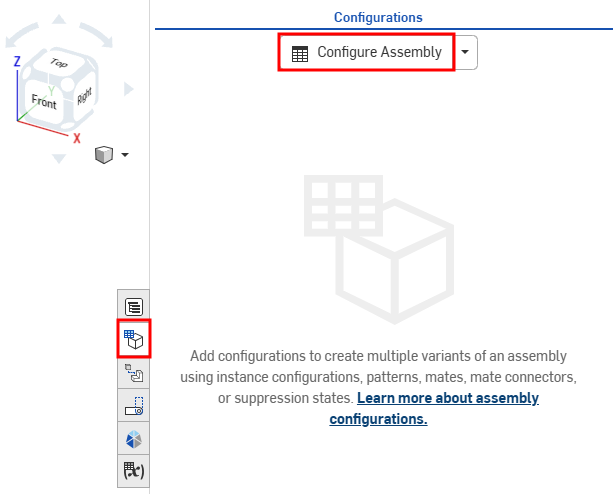
Creating a configuration in an assembly
By default, the caret to the left of 'Configuration' is expanded, click the caret when you are done with a section of the panel to collapse that section.
- Click in the first row to activate it, and enter the input value names in the first column. Press Tab to move to the next row. The blue bar to the left of the row indicates the currently selected configuration in the Onshape window.
This example has 3 possible configurations: Short, Medium, and Tall.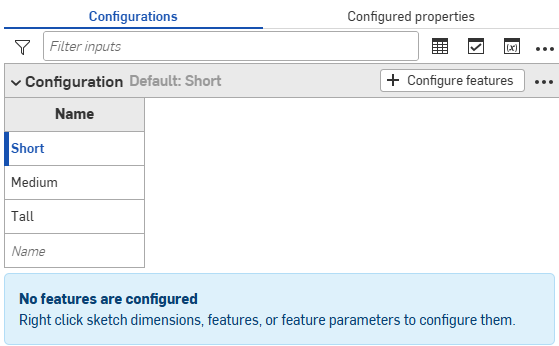
- To configure a feature for the selected input value, click + Configure features (or + Configure assembly features).
- Click the feature or instance to configure and select the parameter. The parameter is outlined with a broken yellow line and a new column is created for that parameter.
For example, click an Extrude feature in the Features list, and select the Depth parameter in the Extrude dialog. The parameter is highlighted in yellow in the dialog, and a new column appears in the table.
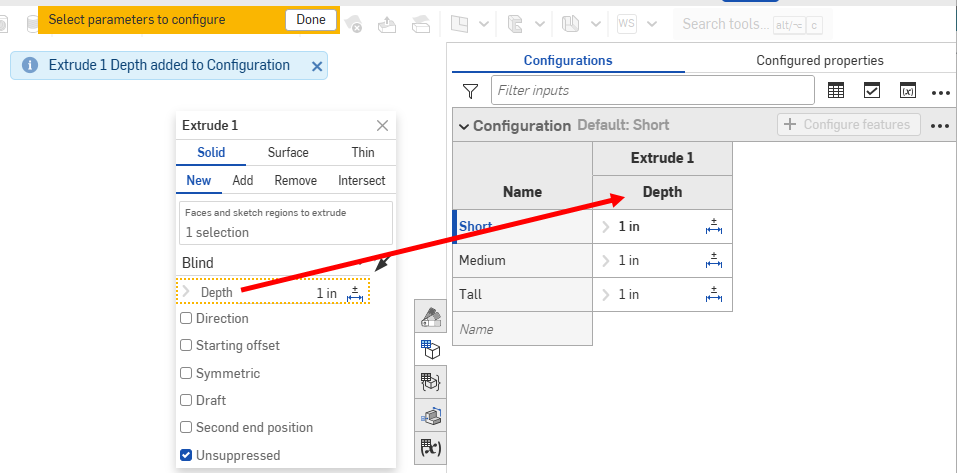
The column name defaults to the feature name (as a top-level heading) plus the parameter name (as the subordinate-level heading), in this case Extrude 1 is the Feature name and Depth is the field name.
Hover over the fields in the feature dialog to see which parameters can be configured. Parameters available for configuration are highlighted in yellow when you hover over them.
You can configure Tolerance options (
 ) for many sketch and feature dimensions directly in the Configurations table. Each option value can have their own Tolerance options settings.
 - To configure the parameter:
- To edit a value, double-click it, and enter the new value.
For this example, set the depths for the 3 input values: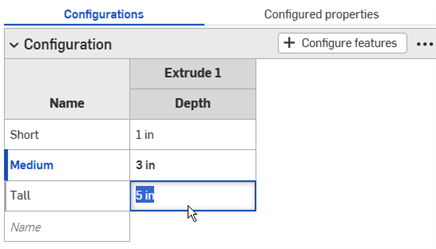
- To edit a selection in a dialog, double-click the configured parameter in the table to open the feature dialog.
The parameter in the feature dialog is highlighted in blue. Remove any unwanted selections, and make the new selections on the model or sketch. Click the green checkmark in the feature dialog to close it.
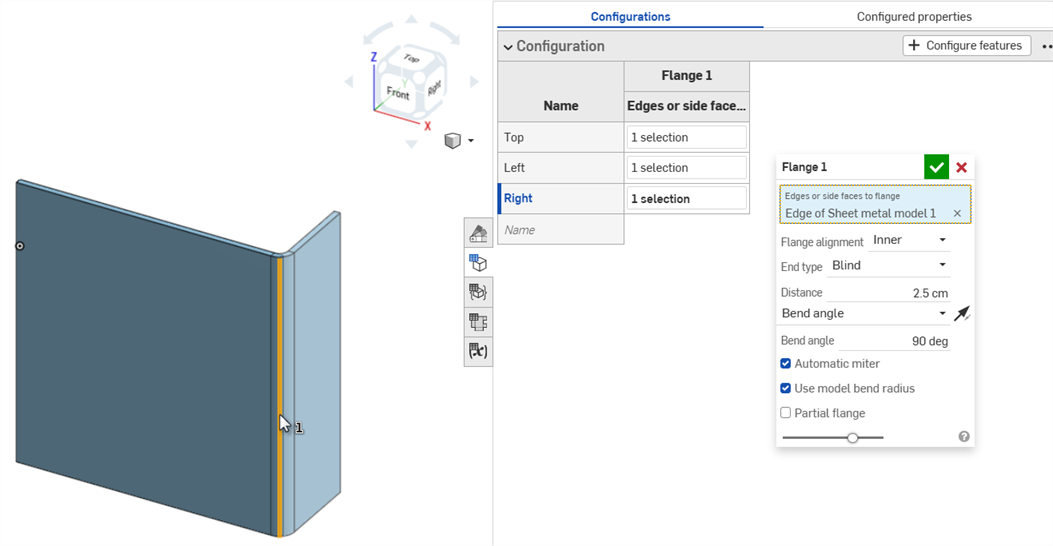
- To edit a value, double-click it, and enter the new value.
- When finished defining the configurations, click the Done button in the yellow banner.
- To add another parameter (column) to the input, repeat Steps 4-7.
- To add additional list inputs, click the Add configuration input button at the bottom of the Configuration panel, then select List.
- To test the inputs with the model, under
Configurations in the left panel, use the down arrow to select from the menu:
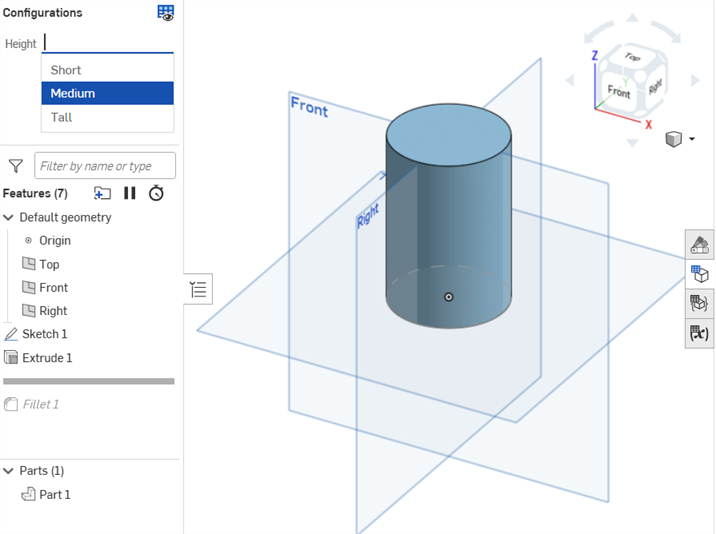
The model should update accordingly. If it does not, check the model for design intent and the configurations definition for accurate selection.
Creating a checkbox input
Create a checkbox to turn options on or off (such as fillets or chamfers), and suppress or unsuppress features. This presents a checkbox in the Insert dialog during insertion time.
-
Click the Add configuration input button at the bottom of the Configuration panel, then select Checkbox:
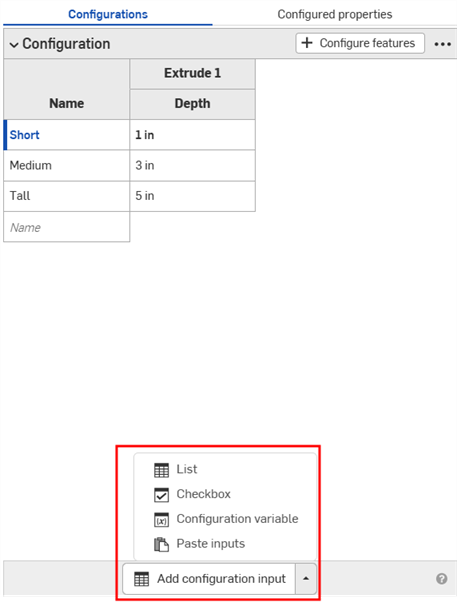
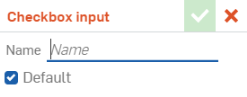
- The Checkbox input dialog opens. Enter a name for the input.
-
The configuration input has one column with an empty checkbox row and a checked checkbox row. Click + Configure features (or + Configure assembly features).
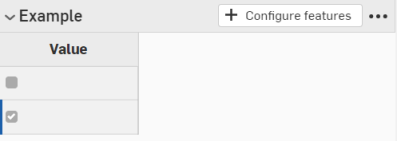
- In the Feature list, click the feature that contains the parameter and select the parameter. The parameter is then outlined with a broken yellow line and a new column is created for that parameter in the table. (Parameters that are configured in another input are outlined with a broken yellow line and are unavailable for configuration.)
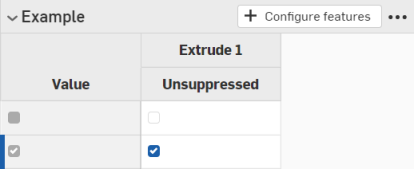
In this example, Unsuppressed is selected as a configuration input parameter.
- Click X to close the feature dialog.
- Uncheck the box in the first column to indicate that a checked box should insert an unsuppressed feature:
Creating a configuration variable input
-
Click the Add configuration input button at the bottom of the Configuration panel, then select Configuration variable:
- Enter a name for the variable input in the Variable input dialog. This becomes an actual variable in the system, referenced as #variableName.
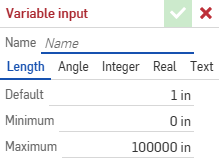
- Select a type for the variable: Length, Angle, Integer, Real, Text. Text can be any type of text that can be used in custom FeatureScript.
- Enter values for the type of variable you selected.
- Click the checkmark to save your definition.
- Apply the variable to a feature:
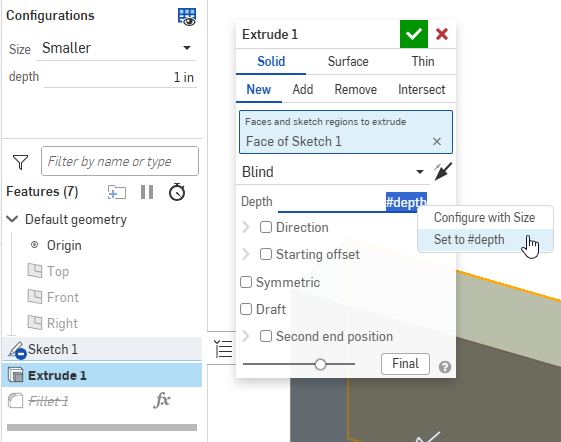
- Double-click a feature in the Feature list to open it.
- Right-click the input, and click
Set to #variableName. You can also type the variable name (preceded by #) directly into any expression.
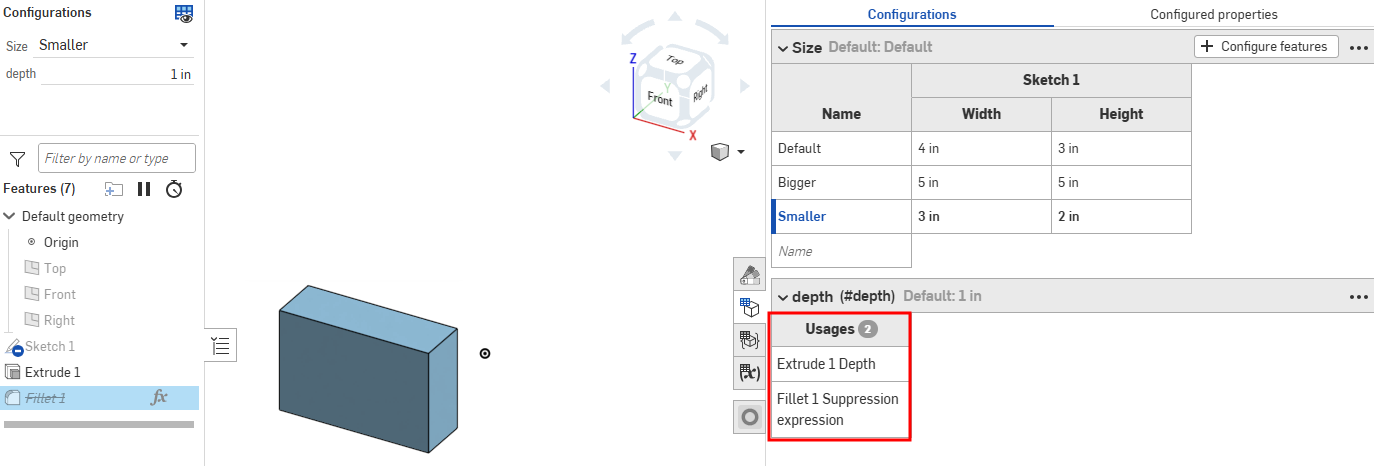
- Close the feature dialog. The variable input's usages are listed in the Configuration panel.
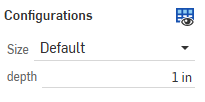
- Test the value by selecting it in the Configurations list above the Feature list on the left side of the page:
Using configurations
You can use the configuration inputs you create directly in the Part Studio or assembly to preview their design. The main use for creating configuration inputs, however, is to select specific configurations to insert into other assemblies, drawings, releases, etc.
Previewing configurations
Use the Configurations area at the upper-left of the screen to select configuration inputs to see how they affect the overall design. The design updates to match the selected inputs so you can preview the final design. Every permutation of possible configuration inputs is one configuration.
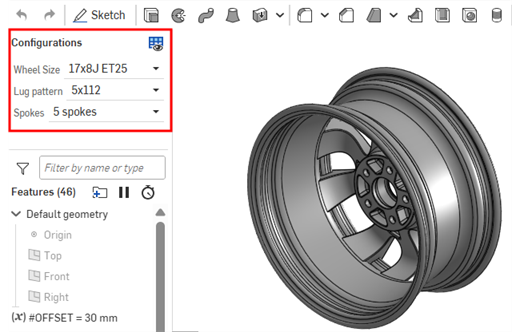
To open the Configuration visibility conditions dialog for all inputs, click the Manage visibility conditions ( ) button.
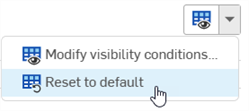
To reset a Part Studio or assembly back to its default configurations, click the Manage visibility conditions () dropdown and select Reset to default ( ) from the menu. If the default values are hidden due to visibility condition logic, they cannot be used, and the first visible option is used instead.
Inserting configurations
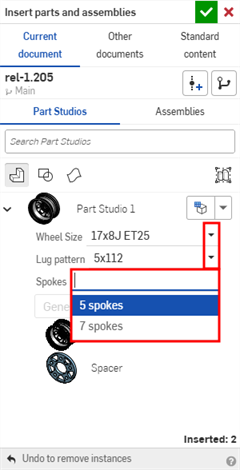
You can insert configured parts, Part Studios, or assemblies into assemblies, releases, and drawings via the Insert Part Studios and Assemblies dialog
-
Select the desired inputs directly in the Insert dialog:
-
Click the Set to last viewed configuration icon (
 ) to select the last active configuration previewed in the Part Studio or assembly tab, or click the arrow and select Reset to default to set all inputs to their default values.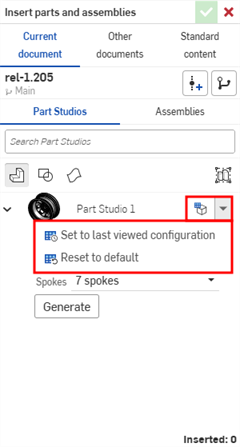
-
When you are satisfied with the configuration, click Generate.
-
Click the configuration to insert.
In an Assembly, configured parts and assemblies are indicated by the
 icon in the Instances list:
Changing configurations
After a configured part or assembly has been inserted into an assembly, you can change the configuration:
- Right-click on the part or assembly in the Instances list and select
Change configuration.
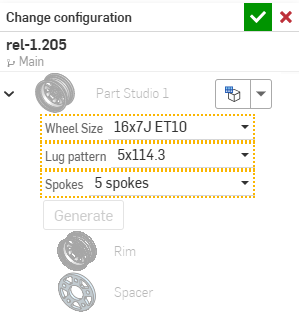
- Select the new configuration values.
-
Click
 when you are satisfied with your selection. (Use
 to cancel the operation.)
To see which configuration is currently active in the Assembly, hover over a part in the Instances list and a tooltip appears with the configuration information:
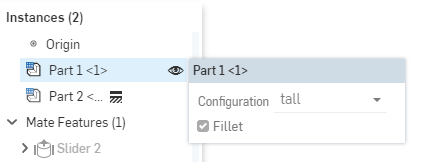
Configurations: iOS and Android
iOS and Android support for configurations is limited to the following:
-
Viewing the Configuration panel (
) on the right. -
Selecting between Configurations in the left side panel (above the Features list):
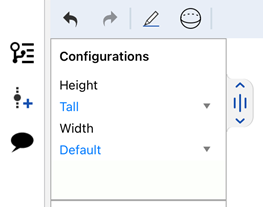
Selecting Configurations on iOS
-
(iOS only) Visibility conditions are applied, if they are present in the configuration.
You cannot create or edit configurations or visibility conditions from the iOS or Android platforms. This can only be done from the desktop (browser) platform.
For additional Learning center resources, see: Self-Paced Courses > Configurations. You can also follow the learning pathway course here: Introduction to Part Configurations (Onshape account required), and the technical briefing article here: Parametric Variables vs Configuration Variables (Onshape account required).