Available in: Part Studio, Assembly
You can configure properties (metadata) for each configuration input and option you define. You can configure part properties, appearance properties, and assembly properties. Administrators can also configure custom properties.
 Configuring properties
Images are from a configured Part Studio. Functionality is the same for a configured Assembly.
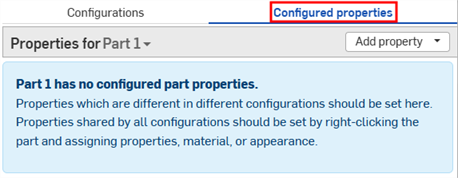
- With an existing configuration input in the Configuration panel, click
Configured properties (or Configured assembly properties) at the top of the panel.
- Click the Properties for drop down to select the part or appearance to configure.
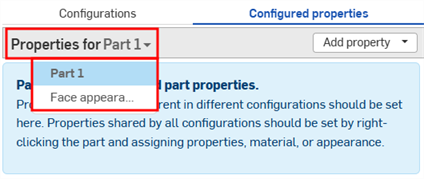
Parts, appearances, and assemblies that include configured properties are displayed with a checkmark in the list: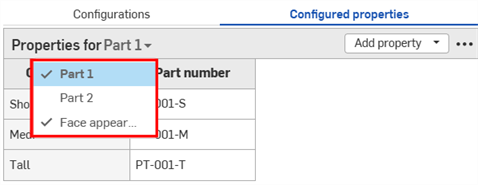
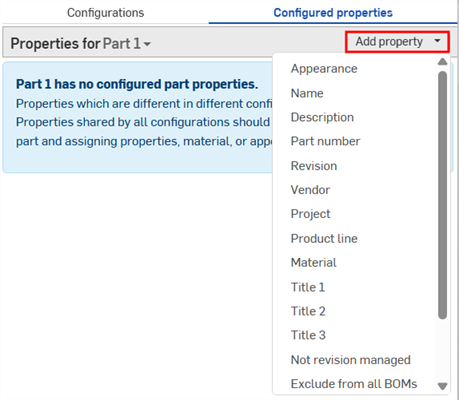
- Click Add property.
-
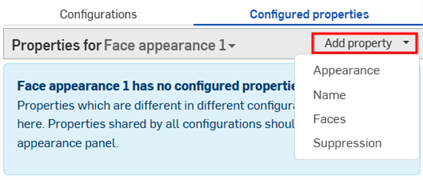
Select the property you wish to configure; properties are available for parts, appearances, assemblies and for custom properties. All the configuration inputs are added to the table.
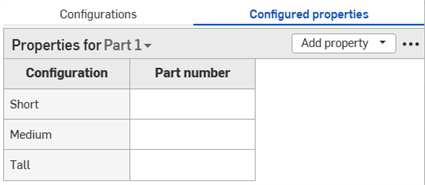
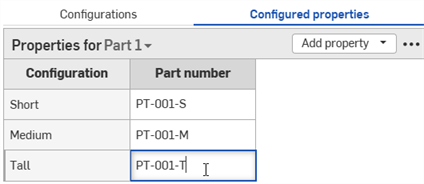
- Double-click a cell in the Property column to edit it. Press Tab to move to the next row.
- To edit a value, type the new value and hit Enter to accept.
- To edit a dialog selection, make the new selections in the dialog, then click
 to close the dialog.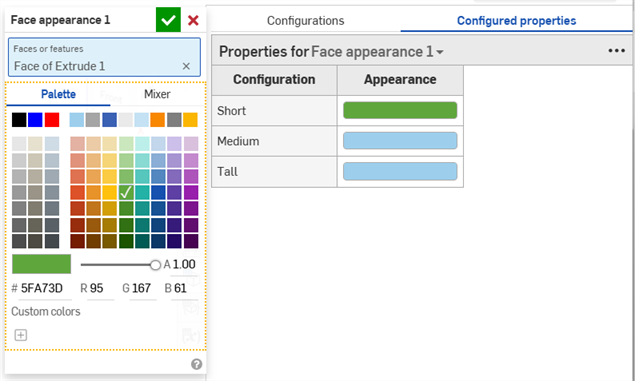
- To edit a value, type the new value and hit Enter to accept.
-
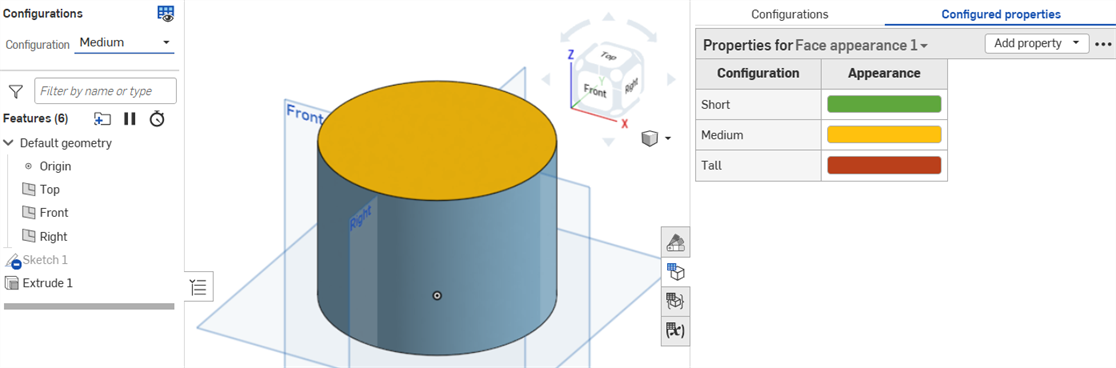
Repeat as necessary to configure additional properties. The example below has both had part number and face appearance properties configured.
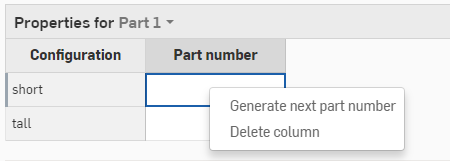
If you have automatic part number generation turned on (through your Professional company or Enterprise numbering schemes), you can right-click in the Part number property column and select Generate next part number:
If any properties in the table are made read-only, you cannot delete the table, add properties to the table, or remove the read-only property column. Cell values for editable properties can still be modified. Make the read-only property editable again to modify the table.
Excluding configurations from affecting properties
(Parts and Part Studios only)
Some configuration tables can be excluded from properties. This is useful when you don't want to repeat configuration inputs in the Configured properties table.
Excluded configurations are treated as having their default values. Release packages and revision references use those defaults. If visibility conditions prevent using the default value, the first visible value is used.
For example, consider a spring. Configurations are available for both the spring's diameter and height.
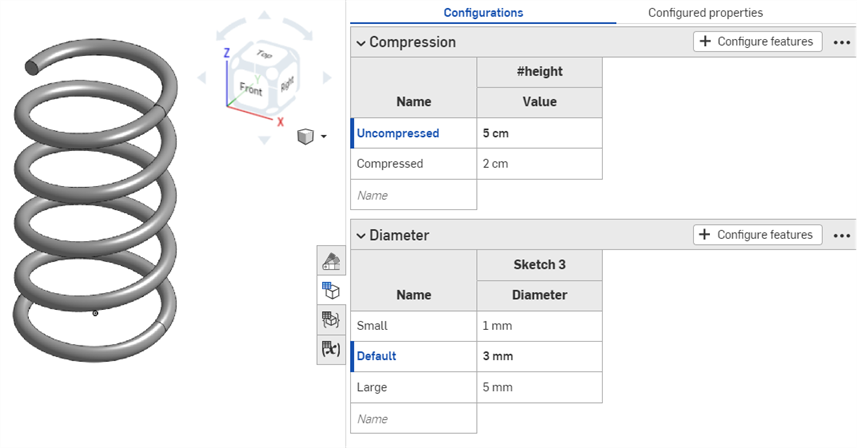
Whether or not the spring is compressed impacts geometry, but not part number; it is the same part when it's compressed and uncompressed. To specify that all part numbers should be assigned irrespective of spring height, you would have to individually add each input to the Configured properties table and specify the part number for each.
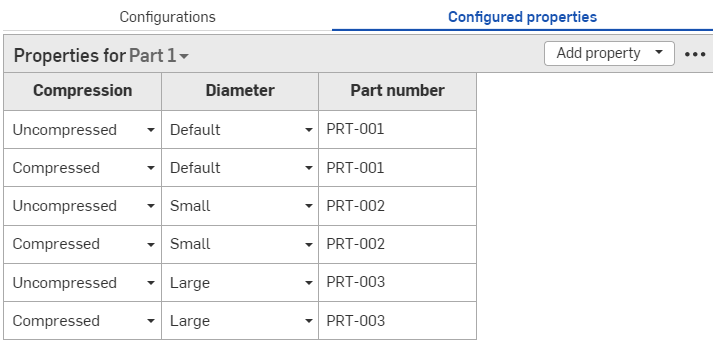
Part number set for each configuration possibility.
If you instead exclude the Compression configuration from the properties, you can specify part numbers based only on diameter:
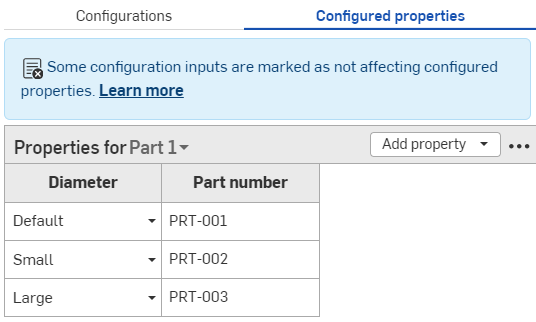
Compression configuration table excluded from the Configured properties table. Part numbers are set regardless of spring height.
Steps: Excluding a configuration input from properties
-
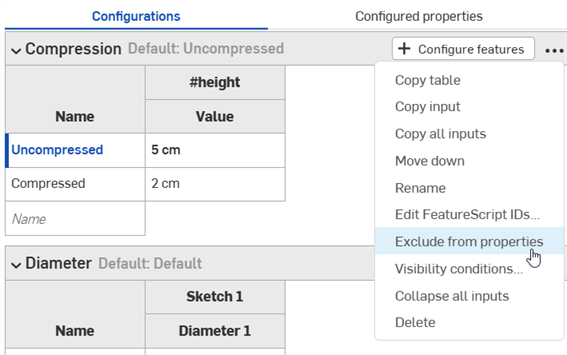
In the Configuration panel, click the configuration's three-dot button, and select Exclude from properties from the menu. The Excluded from properties icon
 appears next to the configuration's name.
Steps: Adding an excluded configuration back to properties
-
In the Configuration panel, click the configuration's three-dot button, and select Include in properties from the menu.
Excluded configuration notes
- Parts that only differ in excluded configurations are treated as the same part by the Bill of Materials (BOM) and release management.
- If something with an excluded configuration is released, it is considered released for all values of that configuration.
- Excluded configurations are still included in:
- Geometry calculations
- Computed properties
- The Mass Properties tool
- If you see discrepancies between the mass provided in the BOM and the mass provided in the Mass Properties tool, it is likely due to some configurations being ignored in the BOM.
-
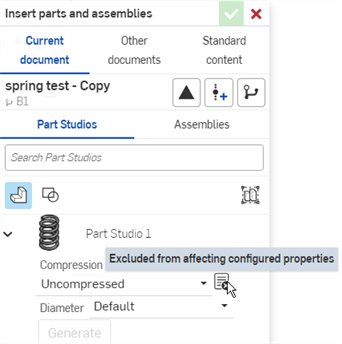
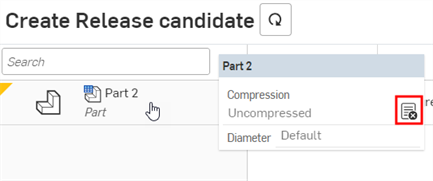
When using a part with excluded configurations, you'll see the Excluded from affecting configured properties icon.