 Part Studio 與組合件組態


在 Part Studio、組合件中提供此功能
建立零件、Part Studio、或組合件的變化。例如,您可以組態擠出特徵的深度,圓角的抑制,自訂特徵的 FeatureScript、零件編號、色彩與材料等等。
在組合件中您可以僅組態結合 (不是結合連接器)、實例與複製排列。您可以設定組合件組態而無需考慮任何 Part Studio 的組態。
僅能在瀏覽器上建立組態,但可以在 iOS 與 Android 上檢視。
關於操作組態的詳細資訊,請參考下方的頁面:

 Video example (List input)
影片字幕
A List configuration input is a table where each named row sets values for selected parameters, letting the model switch between predefined design permutations in a Part Studio or assembly. Open the Configuration panel. If the Part Studio has no configurations, no tables exist, and the Configurations selector is not available above the Features list.
To create a list input table, click Configure Part Studio, or click the dropdown arrow and select List. The Configurations selector is now available. The table starts with one column for configuration names, including the first Default configuration. Configure the required parameters. Click Configure features to enter configure mode; a yellow banner indicates the mode is on. Select sketches or features to configure their parameters.
For this example, the variables that define the outer, and inner, circle diameters are selected. The parameters are added as columns in the table. Configured parameters in a sketch or feature are outlined with a dashed yellow line. When the table includes all required columns, select Done on the banner. Edit the cells in the table to include all required sizes.
To rename the input table, click the current name or click the overflow icon and select Rename. Renaming the table updates the input in the Configurations selector, which is especially important when multiple input tables exist. If a dimension uses an expression, the expression populates the cells.
The active configuration shows a blue bar in the name column. To switch the active configuration, use the Configuration selector or right-click a row and select Switch to. When a new configuration becomes active, the model updates based on the table values.
Video example (Checkbox input)
影片字幕
A checkbox input toggles a parameter on or off.
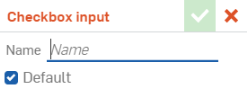
Open the Configuration panel. Click the arrow next to Add configuration input and select Checkbox. Name the input and set the default option as either checked or cleared. The machined features are organized into folder. Configure Extrude 14. Select Configure features and then click the Extrude feature. Hover over the Unsuppressed checkbox until the yellow highlight appears and then click. The feature’s suppression state is now a column in the input table.
Alternatively, right-click a feature or sketch in the Features list and select Configure suppression. Once in the input table, check the boxes in the column to suppress the Extrude feature when the Machined configuration is active. When the table includes all required columns, select Done on the banner. In the Configuration selector, clear the Machined checkbox to suppress the Machined features.
A checkbox input can include multiple parameter columns, and not just suppression. In the pneumatic cylinder, a rod clevis with one hole is configured using a checkbox input that controls End type and the Up to face selection. The flat blind cap checkbox is configured by suppression of several features to achieve the desired result. Use checkbox inputs to create parameters that toggle on or off.
Video example (Configuration variable input)
影片字幕
Configuration variable inputs control design parameters and constrain values to a defined range.
Open the Configuration panel. Click the Add configuration input arrow, and select Configuration variable. Enter a Name for the variable that informs the user of its purpose. Select the Variable type. In this example, the Length type is selected. The variable will be used to drive the sound hole radius.
With the exception of the text type, all other types define values for Default, Minimum, and Maximum. Enter values to finish defining the parameter. After creating the variable, use it to drive sketch dimensions, feature values, and more.
To adjust the sound hole radius, edit the sketch dimension that controls it. Double-click the dimension, enter a valid expression, converting the radius into a diameter, then enter the configuration variable name. Select the variable from the list, and accept both the dimension and the sketch. The configuration input table adds a column with a Default configuration row. The feature updates based on the value in the Configuration selector.
Video example (Inserting configurations into an assembly)
影片字幕
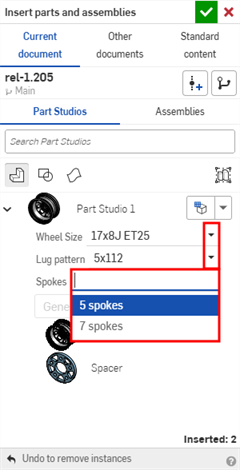
When inserting instances into an assembly, configurations make it easy to manage variations without creating separate models. The Insert dialog includes the Configurations selector to set the configuration option before insertion.
The instance initially has the default configuration options selected. Default options are designated during creation, but can be changed at any time. To set a default option, navigate to the Part Studio or assembly Configuration panel, right-click the row in the desired input table, and select Set as default.
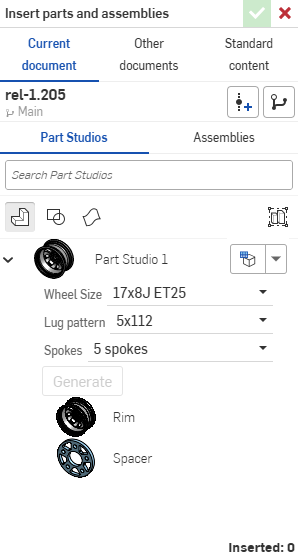
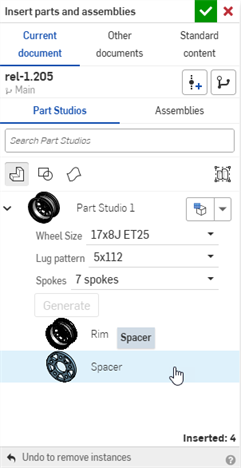
In an assembly, click Insert, and expand a configured Part Studio or assembly to access the Configuration selector. Click the Set to last viewed configuration dropdown for two options. Select Set to last viewed to use the configuration most recently viewed in the Part Studio. Select Reset to default to restore the options to their defaults. Select the desired options. Click Generate to refresh the preview if needed. Then select the parts, Part Studio, or assembly, and accept to insert.
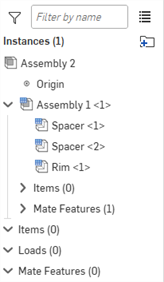
Instances with configurations are indicated with the configuration icon. An instance's configuration can be changed after it is inserted into the assembly. Right-click an instance in the graphics area or in the Instances list and select Change configuration. Select parameters and accept.
Patterning, replicating, or mirroring a configured instance creates additional instances that reference the same configuration as the seed instance. Changing the configuration of the seed instance updates all patterned instances. Independently inserted or pasted instances have their own referenced configurations. This includes instances of a dissolved replication.
Select all instances of a part with the same configuration by right-clicking the part and choosing Select instances with same part and same configuration. Use Select instances with same configuration to select all parts configured in the same input table that currently reference the same configuration options. Then right-click a selected instance and click Change configuration to update in bulk.
基本步驟:建立一個清單輸入項
- 按一下螢幕右側的「組態面板」圖示 (
 ) 。
) 。 -
「組態」面板開啟。按一下組態 Part Studio 或組態組合件來加入輸入項:
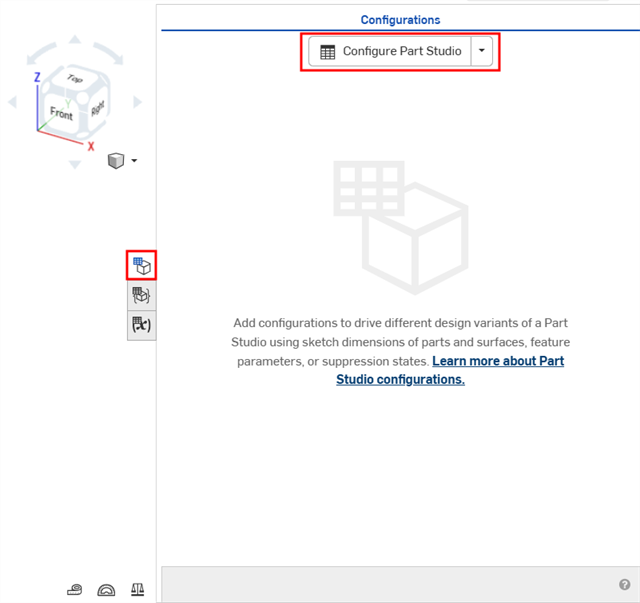
在 Part Studio 中建立一個組態
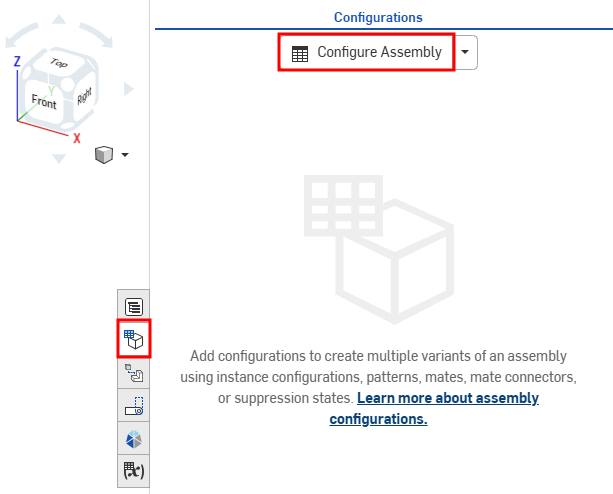
在組合件中建立一個組態
根據預設,「組態」左側的插入符號是展開的,當您完成面板中該部分的操作時,按一下插入符號來摺疊該部分。
- 在第一列上按一下來將其啟用,然後在第一欄中鍵入輸入項名稱。按下 Tab 來移動到下一列。列左邊的藍條代表在 Onshape 視窗中目前選取的組態。
這個範例有三種可能的組態:Short、 Medium、與 Tall。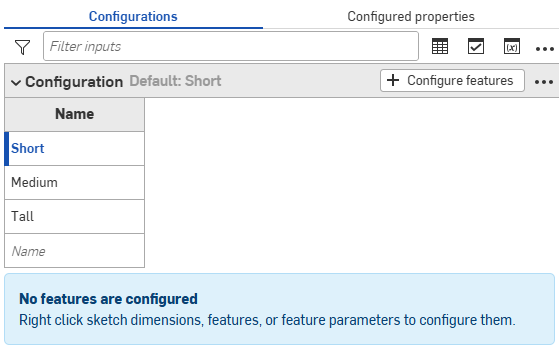
- 若要為所選輸入項值設定一個特徵的組態,按一下 + 組態特徵 (或 + 組態組合件特徵)。
- 按一下要組態的特徵或實例,然後選擇一個參數。參數會出現在黃色虛線邊框中,同時會為該參數建立新的欄位。
例如,按一下「特徵」清單中的「擠出」特徵,然後選擇「擠出」對話方塊中的深度參數。在對話方塊中會以黃色強調顯示參數,並有一個新欄位出現在表格中。
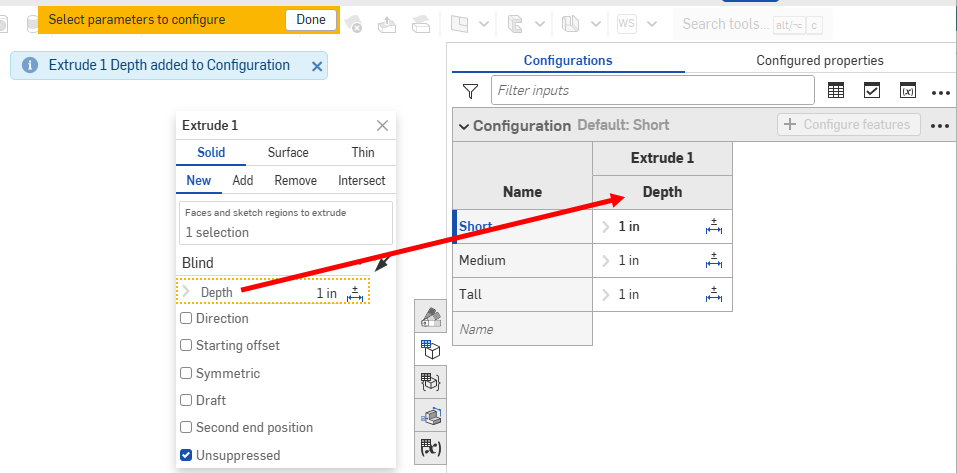
欄的預設名稱是特徵名稱 (最上層的標題) 加上參數名稱 (次級階層標題),在這個範例中 Extrude 1 是特徵名稱,Depth 則是欄位名稱。
將游標移動到特徵對話方塊中的欄位上暫留,查看可以組態設定那些參數。當您移動暫留游標時,可供組態使用的參數會以黃色強調顯示。
您可以直接在「組態」表中為許多草圖及特徵尺寸組態公差選項 (
 )。每個選項值可以有自己的「公差選項」設定。
 - 組態參數:
- 若要編輯值,請在值上連按兩下,然後輸入新的值。
為這個範例設定三個輸入項值的深度: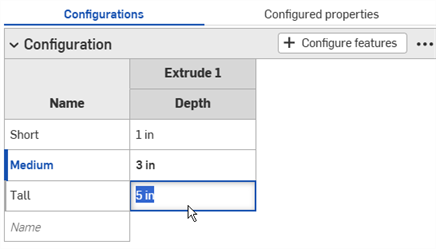
- 若要在對話方塊中編輯一個選取項目,請在表格中連按兩下經組態的參數以開啟特徵對話方塊。
在特徵對話方塊中的參數會以藍色強調顯示。移除任何不想要的選取項目,然後在模型或草圖上做出新的選擇。按一下特徵對話方塊中的綠色核取記號來關閉對話方塊。
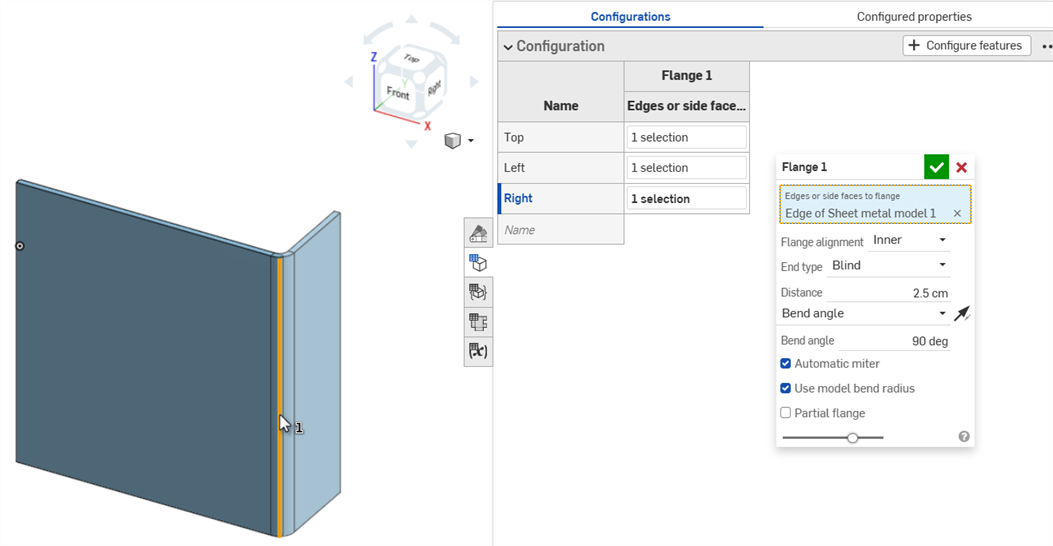
- 若要編輯值,請在值上連按兩下,然後輸入新的值。
- 在完成定義組態時,按一下黃色橫幅中的完成按鈕。
- 若要將另一個參數 (攔) 加入到輸入項中,請重複步驟 4-7。
- 若要加入額外的清單輸入項,按一下「組態面板」底部的新增組態輸入項 按鈕,然後選擇清單。
- 若要在模型上測試您的輸入項,請在左側面板的組態之下,使用下拉箭頭來從功能表中選擇:
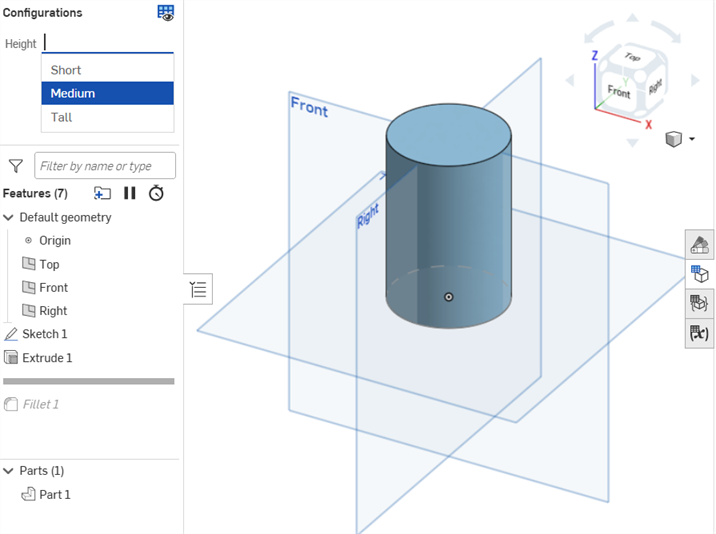
模型應會相對應地更新。如果沒有,請檢查模型確定有正確傳達設計意圖,並已為組態定義做出正確的選擇。
建立核取方塊輸入項
建立核取方塊來開啟或關閉選項 (像是圓角或倒角),然後抑制或取消抑制特徵。這樣在插入的過程中會在插入對話方塊內出現一個核取方塊。
-
按一下「組態面板」底部的新增組態輸入項按鈕,然後選擇核取方塊:
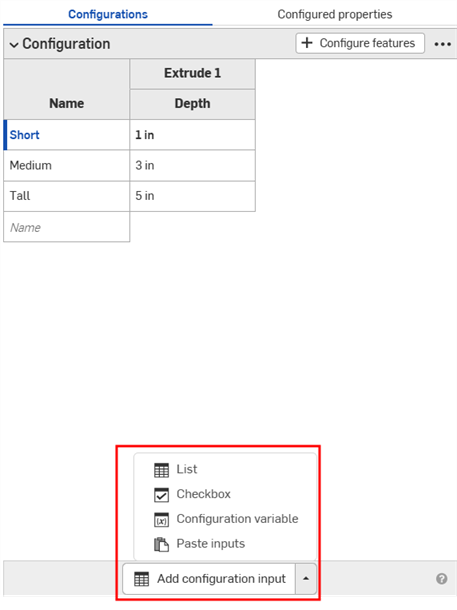
- 核取方塊輸入項對話方塊開啟。請輸入輸入項的名稱。
-
組態輸入項欄位中會有一個空白的核取方塊列與一個已勾選的核取方塊列。按一下 + 組態特徵 (或 + 組態組合件特徵)。
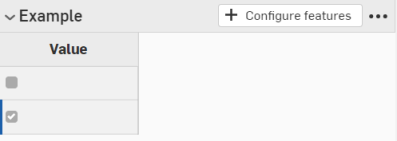
- 在「特徵」清單中按一下包含參數的特徵,然後選擇參數。此時參數會出現在黃色虛線邊框中,同時會在表格中為該參數建立新的欄位 (在另一個輸入項中設定的參數會出現在黃色虛線邊框中,無法用於組態之中)。
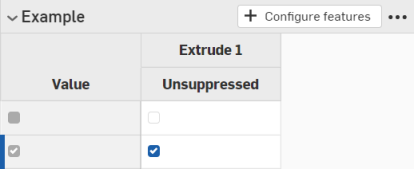
在這個範例中,選擇了 Unsuppressed 做為組態輸入項的參數。
- 按一下 X 來關閉特徵對話方塊。
- 取消核取在第一欄中的方塊,表示經核取的方塊應插入一個取消抑制的特徵:
建立組態變數輸入項
-
按一下「組態面板」底部的新增組態輸入項按鈕,然後選擇組態變數:
- 在變數輸入項對話方塊中輸入變數的名稱。這會變為系統中的實際變數,被稱作 #variableName。
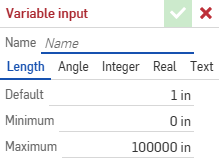
- 選擇變數的類型:長度、角度、 整數、實數與文字。文字可以是任何可用於 FeatureScript 中的文字類型。
- 為您選取的變數類型輸入值。
- 按一下核取記號來儲存您的定義。
- 將變數套用至特徵上:
- 在「特徵」清單中連按兩下特徵來開啟它。
- 在輸入項上按右鍵,然後按一下設定為 #variableName。您也可以直接在任何表達式中輸入變數名稱 (前面加上 #)。
![在尺寸上按右鍵,選擇 [組態尺寸] 的範例](../Resources/Images/feature-tools/config-set-variable-01.png)
- 關閉特徵對話方塊。變數輸入項的使用情形會列在「組態」面板中。
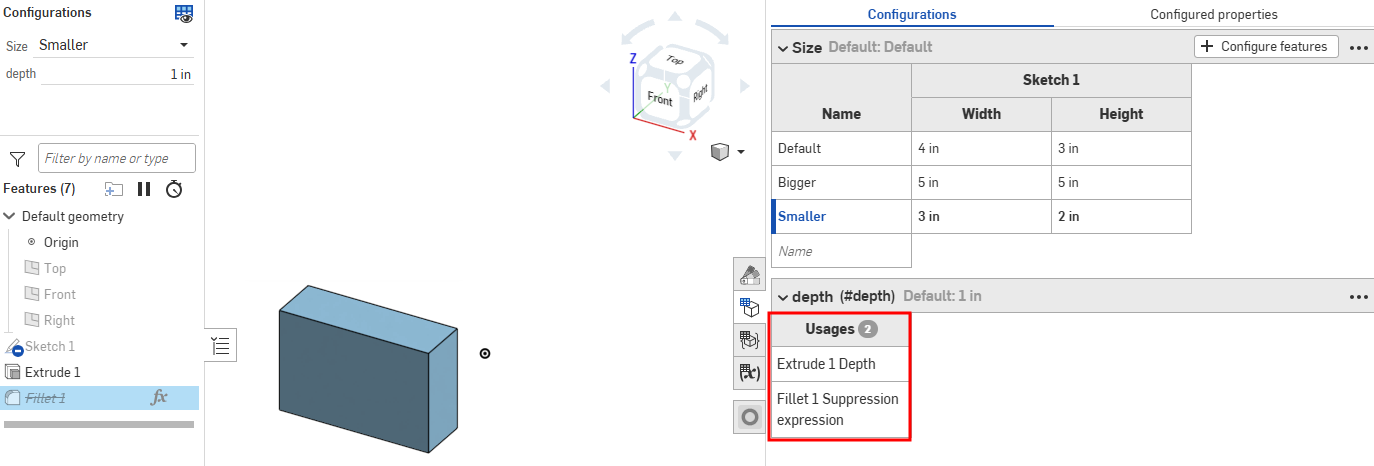
- 在頁面左側「特徵」清單上方的「組態」清單中選取值來加以測試:
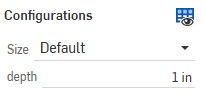
使用組態
您可以使用在 Part Studio 或組合件中直接建立的組態輸入項來預覽設計。不過,建立組態輸入項的主要用途是要選擇要插入至其他組合件、工程圖、發行等的特定組態。
預覽組態
使用螢幕左上角的組態區域來選擇組態輸入項,以查看其如何影響整體的設計。設計會配合所選的輸入項更新以讓您檢視最終的設計。每種可能組態輸入項的排列是一個組態。
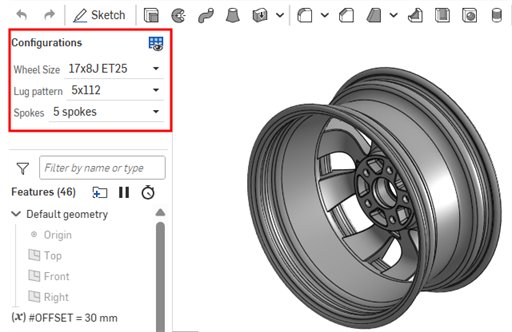
To open the Configuration visibility conditions dialog for all inputs, click the Manage visibility conditions ( ) button.
To reset a Part Studio or assembly back to its default configurations, click the Manage visibility conditions () dropdown and select Reset to default ( ) from the menu. If the default values are hidden due to visibility condition logic, they cannot be used, and the first visible option is used instead.
![在「組態」區域中按一下「管理顯示情形條件」圖示下拉清單,然後從功能表中選擇 [重設為預設]。](../Resources/Images/feature-tools/config-reset-default-01.png)
插入組態
您可以將組態的零件、Part Studio、或組合件透過插入 Part Studios 與組合件對話方塊插入到組合件、發行、與工程圖中。
-
直接在插入對話方塊中選擇所需的輸入項:
-
按一下設定為最後檢視的組態 圖示 (
 ) 來選擇在 Part Studio 或組合件分頁中預覽的最後使用組態,或按一下箭頭並選擇重設為預設來將所有的輸入項重設回其預設值。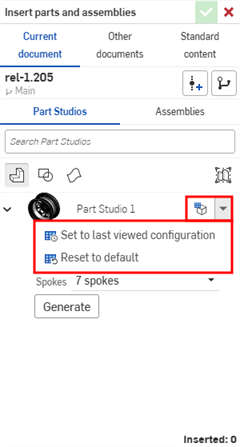
-
當您對組態感到滿意時,按一下產生。
-
按一下要插入的組態。
在組合件中,經組態的零件與組合件在實例清單中會以  圖示表示:
圖示表示:
變更組態
在將已組態零件或組合件插入至組合件之後,您可以變更組態:
- 在「實例」清單中的零件或組合件上按右鍵,然後選擇變更組態。
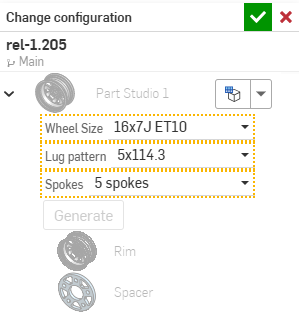
- 選擇新的組態值。
- 當對所做選擇滿意時,按一下
 (使用
(使用  來取消操作)。
若要查看組合件中的啟用組態為何,將游標移動到「實例」清單中的零件上暫留,會出現帶有組態資訊的工具提示:
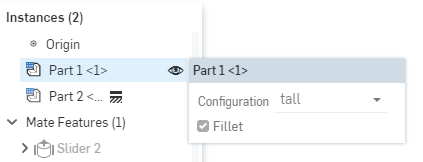
組態:iOS 與 Android
iOS 與 Android 對組態的支援僅限於下方的功能:
-
檢視在右側的「組態」面板 (
)。 -
在左側面板中的組態之間選擇 (位在「特徵」清單上方):
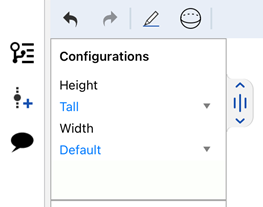
在 iOS 上選擇組態
-
(僅限於 iOS 中) 如果在組態中有顯示情形條件,則會套用顯示情形條件。
您無法在 iOS 或 Android 平台中建立或編輯組態或是顯示情形條件。這些僅能在桌機 (瀏覽器) 平台上操作。
關於在「學習中心」的其他資源,請參考:Self-Paced Courses > Configurations。您也可以參照此處的學習途徑課程:Introduction to Part Configurations (需要有 Onshape 帳戶),與此處的技術簡報文章:Parametric Variables vs Configuration Variables (需要有 Onshape 帳戶)。