


在 Part Studio、組合件中提供此功能
您可以為您定義的每個組態輸入項及選項設定屬性 (中繼資料)。您也可以組態零件屬性、外觀屬性以及組合件屬性。管理員也可以組態自訂屬性。
 組態屬性
組態屬性
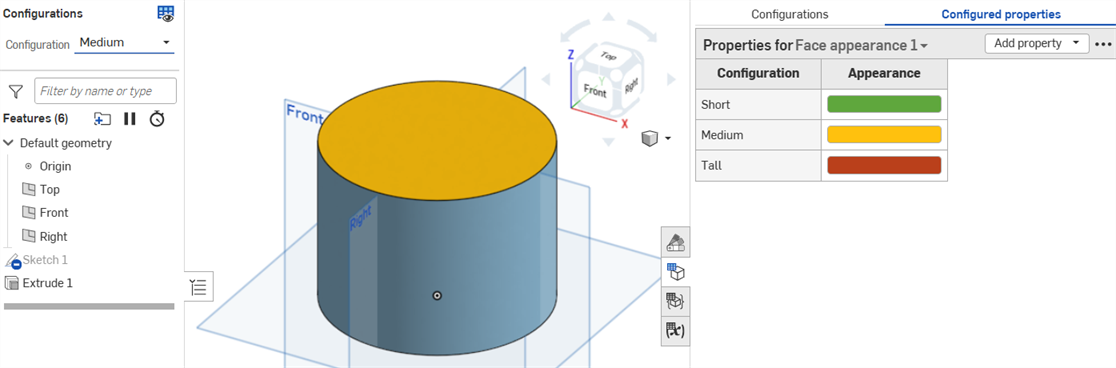
圖片是來自已組態的 Part Studio。在已組態組合件中有相同的功能。
- 在「組態」面板中有現存的組態輸入項的情況下,按一下面板最上方的已組態屬性 (或已組態的組合件屬性)。
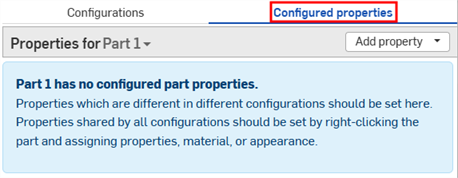
- 按一下此項目屬性下拉清單來選擇要組態零件或外觀。
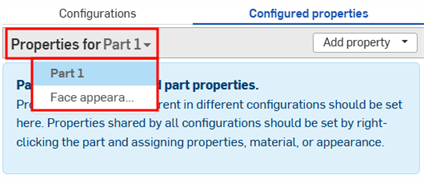
包含已組態屬性的零件、外觀與組合件在清單中會有一個核取記號: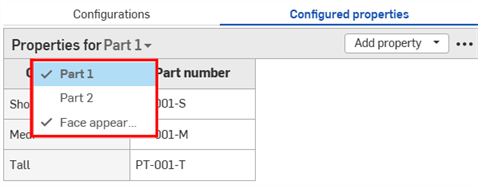
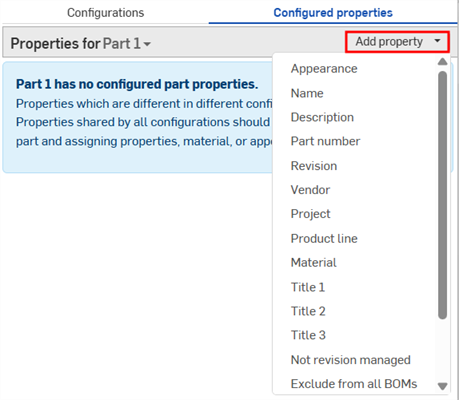
- 按一下新增屬性。
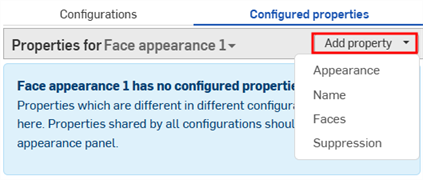
-
選擇您要組態的屬性;會為零件、外觀、組合件以及自訂屬性提供屬性。系統會將所有的組態輸入項加入至表格中。
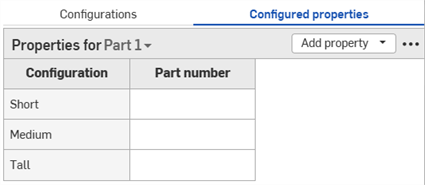
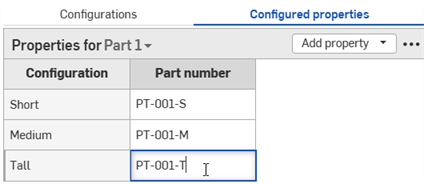
- 在屬性欄中的一個儲存格上連按兩下以編輯該儲存格。按下 Tab 鍵來移動至下一個列。
- 若要編輯值,請輸入新的值並按下 Enter 鍵來接受。
- 若要編輯對話方塊的選取項目,請在對話方塊中做出新的選擇,然後按一下
 來關閉對話方塊。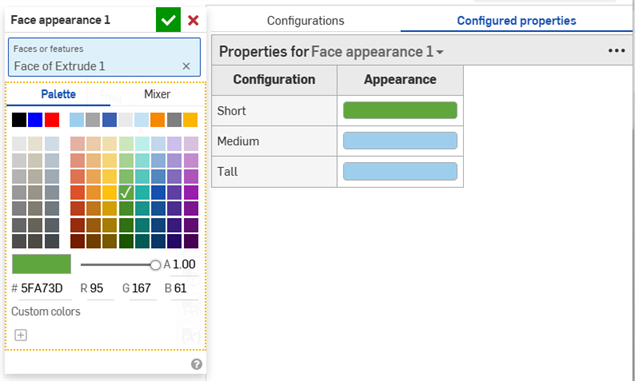
- 若要編輯值,請輸入新的值並按下 Enter 鍵來接受。
-
根據需要重複這些步驟來組態設定其他的屬性。下方的範例組態了零件編號與面外觀屬性。
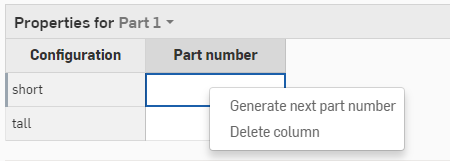
If you have automatic part number generation turned on (through your Professional company or Enterprise numbering schemes), you can right-click in the Part number property column and select Generate next part number:
如果在表格中有任何屬性是設定為唯讀的,則您無法刪除表格,將屬性加入至表格中,或移除唯讀的屬性欄。仍可修改可編輯屬性的儲存格值。
從受影響的屬性中排除組態
(僅適用於零件與 Part Studio)
可以將某些組態表格從屬性中排除。當您不要在已組態屬性表格中重複組態輸入項時相當有用。
系統會將經排除組態視為擁有其預設值。發行套件與修訂版參考會使用這些預設。如果顯示情形條件不允許使用預設值,則會使用第一個可見的值。
例如,考慮一個彈簧零件。同時可為彈簧的直徑與高度使用組態。
![按一下「組態」面板中的溢位功能表然後選擇 [從屬性中排除]](../Resources/Images/feature-tools/configurations-exclude-spring-01.png)
彈簧是否壓縮會影響幾何,但不會影響零件編號;彈簧壓縮或不壓縮時都是同一個零件。若要不論彈簧高度來指定所有零件編號,您會需要將每個輸入項個別地加入至已組態屬性表格中,然後為每個輸入項指定零件編號。
![按一下「組態」面板中的溢位功能表然後選擇 [從屬性中排除]](../Resources/Images/feature-tools/configurations-exclude-before-01.png)
為每個可能的組態設定零件編號。
如果您改採從屬性中排除 Compression 組態,您可以僅根據直徑來指定零件編號:
![按一下「組態」面板中的溢位功能表然後選擇 [從屬性中排除]](../Resources/Images/feature-tools/configurations-exclude-after-01.png)
從「已組態屬性」表格中排除 Compression 組態表格。系統會設定零件編號而不考慮彈簧高度。
步驟:從屬性中排除組態輸入項
-
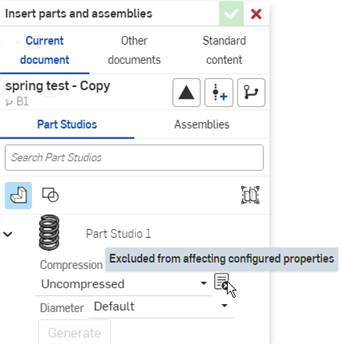
在組態面板中,按一下組態的三點按鈕,然後從功能表中選擇從屬性中排除。從屬性中排除圖示
 會出現在組態名稱旁。
![按一下「組態」面板中的溢位功能表然後選擇 [從屬性中排除]](../Resources/Images/feature-tools/configurations-exclude-menu-04.png)
步驟:將已排除的組態加入至屬性中
-
在組態面板中,按一下組態的三點按鈕,然後從功能表中選擇包括在屬性中。
![按一下「組態」面板中的溢位功能表然後選擇 [從屬性中排除]](../Resources/Images/assembly/configuration-exlude-rm-indicator-01.png)