Properties (Metadata)
Set properties (also called metadata) to attach important information to documents, parts, tabs, and more. You can set the name, description, part number, revision, state, and other default properties, as well as any custom properties you or your company create. Any properties you set are shared for the entire company.
Do not confuse drawing properties (metadata) with Drawing properties. Metadata applies to the drawing itself. Drawing properties set things like units, precision, views defaults, construction geometry, formatting, etc.
-
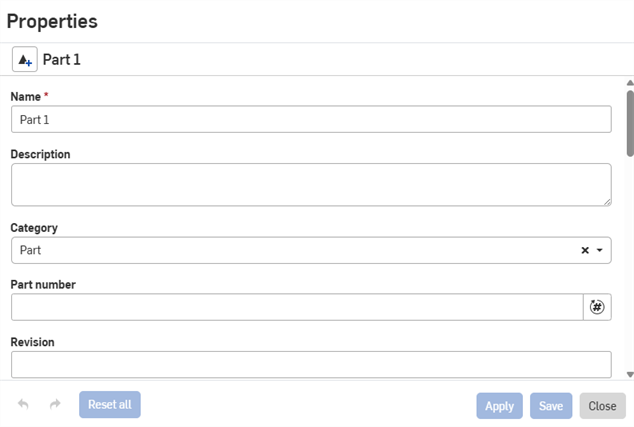
Right-click on a part, tab, document, etc., to open the context menu, and select Properties to open the Properties dialog:
-
(Optional) Click the Create release button to initiate a release.
-
Edit any available properties.
-
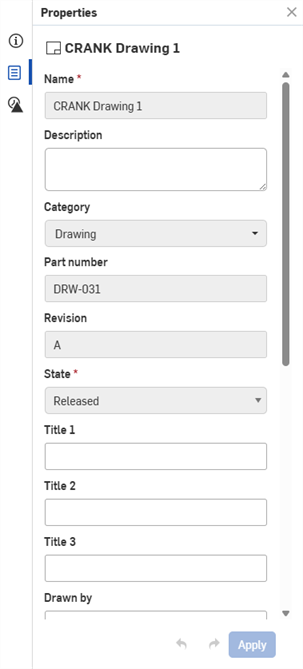
Grayed-out properties are set by your company administrator and cannot be edited.
-
To get the next available part number, click the Generate next part number icon (
). -
Custom properties are shown at the bottom of the dialog.
-
-
When finished, click Apply. When working in a company, classroom, or enterprise, your changes are applied throughout the company.
-
Click Save to save your edits but not apply them yet. Open the dialog later to apply them.
-
Click Reset all to reset all properties to default.
Any properties included in your Bill of Materials are automatically updated when the assembly property is set.
-
You can also set properties via the Properties panel on the Documents page:
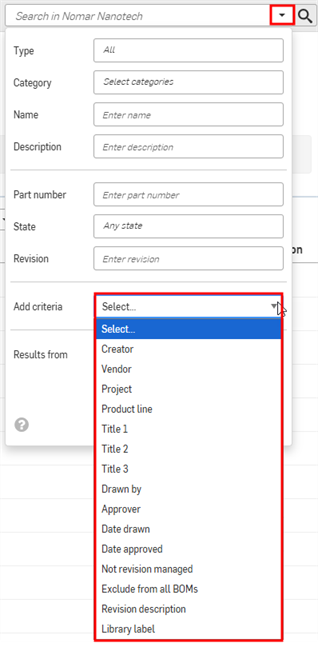
When searching from the Documents page, you can filter your search by property.
Click the Advanced search dropdown, click the Add criteria dropdown, and then select the property to search by.
- Any properties included in your Bill of Materials are automatically updated when the assembly property is set.
- Administrators can create Custom Properties for the entire company.
- Adding text to a drawing's Revision Table Description column automatically updates the drawing's Revision description property.
- Some properties can be configured. See:
For additional Learning Center resources, see: Tech Tip: Optimizing Property Editing and Release Workflow in Onshape.