 公差选项
公差选项


可用于:草图、Part Studio
“公差”用于定义指定草图尺寸或特征参数(如拉伸深度、旋转角度或孔直径)的允许取值范围。并非所有草图尺寸或特征参数都可以使用公差。
公差可在 FeatureScript 中使用,也可用于自定义特征。有关更多信息,请参见“自定义特征”,有关其他文档,请参见“FeatureScript”。
 尺寸上下文对话和公差设置
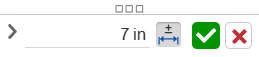
“尺寸上下文”对话用于编辑草图和特征尺寸以及添加公差。双击草图中的尺寸或图形区域中的 MBD 尺寸可访问此对话。请参见“编辑 MBD 尺寸”。
-
单击公差图标 (
 ) 为尺寸添加公差。
 -
设置公差后,单击下拉箭头 (
 ) 设置“公差参数”: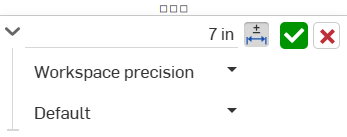
-
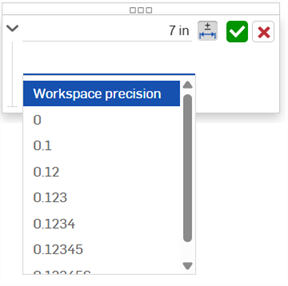
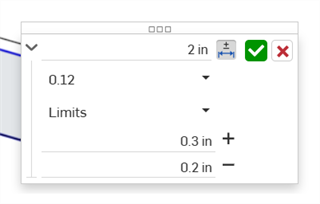
精度 - 使用下拉列表选择单位精度,即“工作区精度”或下拉列表中的其他精度值;0 到 6 位小数。
-
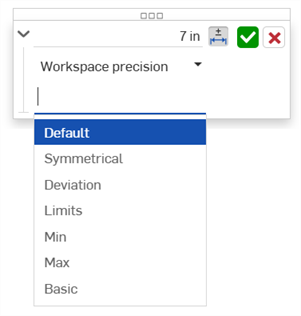
公差类型 - 从下拉列表中选择公差类型。选项有“默认”、“无公差”、“对称”、“偏差”、“极限”、“最小值”、“最大值”、“基本”。
孔和草图直径公差还提供“拟合”、“以公差拟合”以及“拟合(仅限公差)”选项。有关更多信息,请参见“孔特征”。
当选择“默认”时,公差将基于默认公差值进行计算。有关进一步的信息,请参见“Onshape 默认公差库”和“默认公差库”。
-
偏差 - 适用于对称公差类型。请输入偏差值。
-
上限 - 适用于“偏差”和“极限”公差类型。请输入上限公差值。
-
下限 - 适用于“偏差”和“极限”公差类型。请输入下限公差值。
-
标准 - 适用于“拟合”、“以公差拟合”以及“拟合(仅限公差)”公差类型。请从下拉列表中选择 ANSI 或 ISO 标准。
- 拟合类型 - 适用于“拟合”、“以公差拟合”以及“拟合(仅限公差)”公差类型。请从下拉列表中选择“用户定义”、“间隙”、“过渡”或“干扰”。
- 孔类别 - 适用于“拟合”、“以公差拟合”以及“拟合(仅限公差)”公差类型。请从下拉列表中选择一个“孔类别”选项。
- 轴类别 - 适用于“拟合”、“以公差拟合”以及“拟合(仅限公差)”公差类型。从下拉列表中选择一个“轴类别”。
-
-
-
单击复选标记图标 (
 ) 接受在上下文对话中输入的值。
 -
单击 x 图标 (
 ) 退出上下文对话,并且不做任何更改。
 -
单击并拖动对话句柄 (
 ),将对话移动到屏幕上的新位置。放开鼠标将其放置在新的位置。
为草图尺寸设置公差
以下草图尺寸可以使用公差*:
-
2 条线之间的距离
-
两点之间的距离**
-
草图几何图元和平面之间的距离**
-
对角线距离**
-
直径
-
角度
-
直线距离**
-
线性距离**
-
半径
-
中心线
以下草图尺寸不能使用公差:
-
单线距离。或者,在两条线、点或草图几何图元与一个平面之间创建距离。
-
弧长
* 在可设置公差的尺寸中,只有在根据草图创建零件后,并且打开检查表(并使用“模型”下拉菜单选中该零件)时,才会显示可查看的尺寸。
** 虽然这些草图尺寸可以设置公差,但在打开检查表时,它们并不会生成可查看的尺寸。这是因为 MBD 尺寸数据依赖于对单个零件面的测量,而这些尺寸使用的是被测零件外部的点或面。
有关更多信息,请参见“草图工具尺寸”。
-
绘制草图图元,并在动态值输入框中输入任意值。
-
双击尺寸(下面的第一张图像)。“尺寸”上下文对话打开(下方第二张图像):
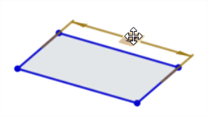
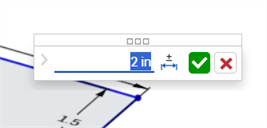
-
要为尺寸添加公差,请单击“公差”选项图标(
;下方第一张图像),然后单击下拉箭头(;下方第二张图像):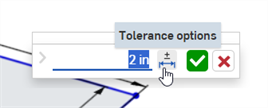
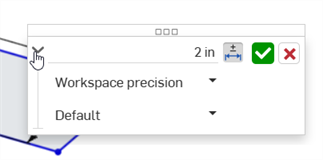
-
输入“精度”和“公差类型”,并指定值:
-
单击复选标记 (
) 接受草图尺寸: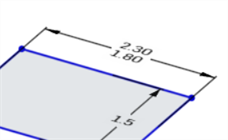
为特征选项设置公差
以下特征选项可以使用公差:
-
拉伸
-
实体/曲面/薄壁 - 深度
-
实体/曲面/薄壁 - 偏移距离
-
实体/曲面/薄壁 - 第二个终止位置 - 偏移距离
-
薄壁 - 厚度 1
-
薄壁 - 厚度 2
-
薄壁 - 中间平面 - 厚度
-
-
旋转
-
实体/曲面/薄壁 - 单向/对称/双向 - 旋转角度
-
薄壁 - 厚度 1
-
薄壁 - 厚度 2
-
薄壁 - 中间平面 - 厚度
-
-
圆角
-
半径
-
-
倒角
-
距离(等距离)
-
距离 1、距离 2(两个距离)
-
距离和角度(距离、角度)
-
-
孔
-
直径(简单孔/沉头孔/倒角孔)
-
距离(深度:简单孔/沉头孔/倒角孔)
-
直径(沉头孔/倒角孔直径)
-
距离(沉头孔深度)
-
角度(倒角孔角度)
-
距离(螺纹孔深度)
-
距离(攻丝底孔直径)
-
-
创建接受公差的特征(在本示例中为“拉伸”)。
-
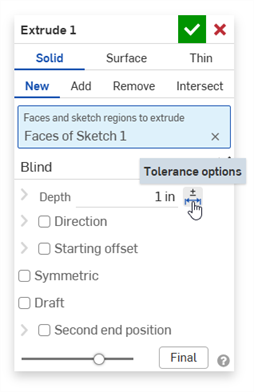
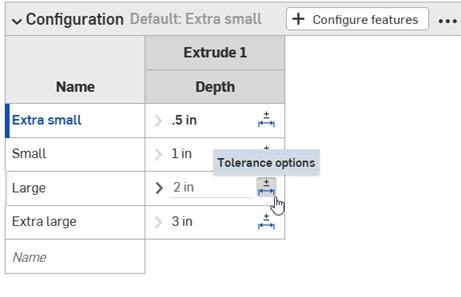
单击参数右侧的“公差”选项图标 (
):
-
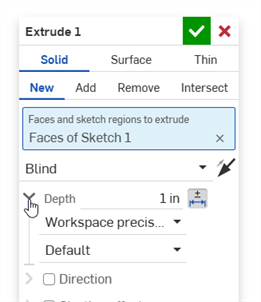
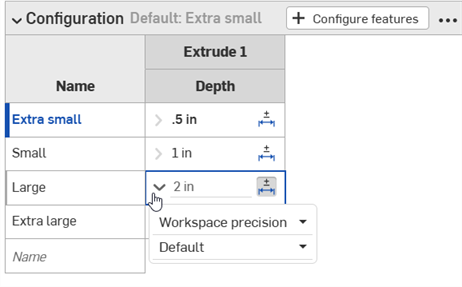
单击参数左侧的下拉箭头 (
):
-
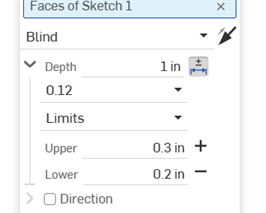
输入“精度”和“公差类型”,并指定值:
-
输入任何其他特征设置,然后单击复选标记 (
) 以接受该特征。 -
确保检查表格 (
 ) 处于打开状态,以查看带有公差的特征尺寸值: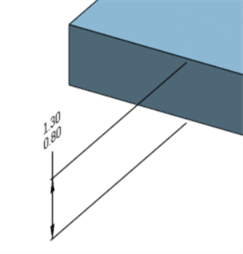
移除特征的公差并不会从模型中移除该尺寸,因为它仍然是有效尺寸。
 公差选项和比较
公差选项会自动与“比较”机制结合使用。比较两个历史记录条目时,选择要比较的特征(如下例中的“拉伸 1”)。条目中不同公差选项之间的比较结果会以黄色亮显:
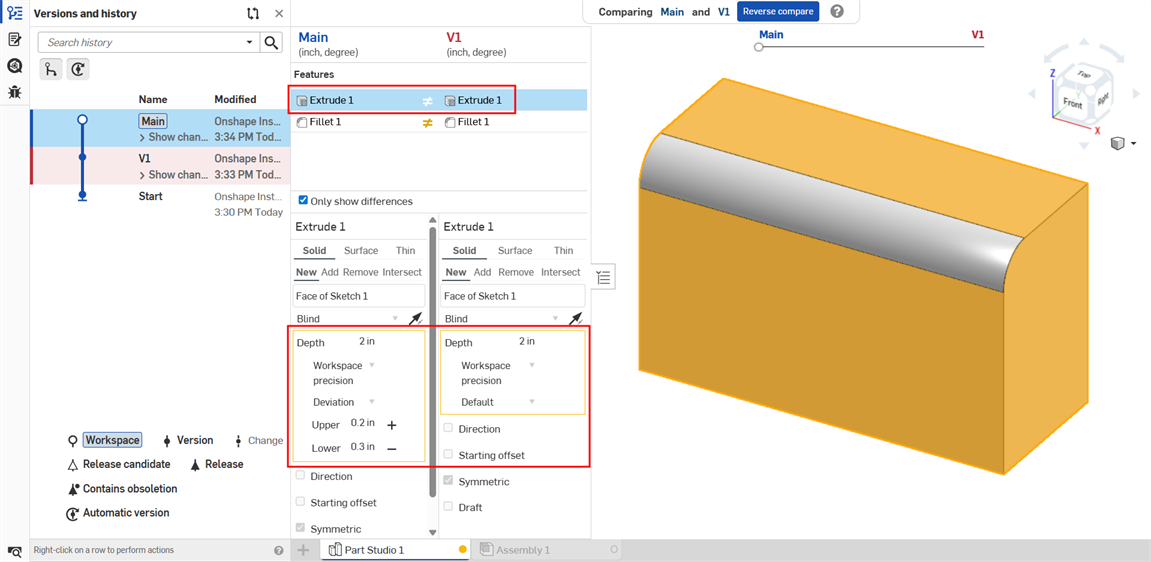
拉伸:两个历史记录条目之间的“深度”公差选项的比较
请参见“比较”了解更多信息。
公差选项:iOS 和 Android
下方图像来自 iOS。iOS 和 Android 系统的工作流程是相同的。
草图尺寸公差:
-
双击屏幕上的尺寸。
-
单击 Android 尺寸上下文对话右下角的“公差选项”按钮,将尺寸设置为公差:
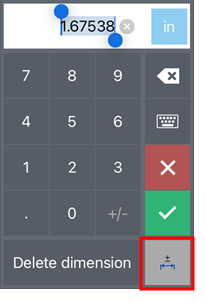
-
在“公差选项”对话中,输入“精度”和/或“公差类型”,然后单击复选标记接受选项:
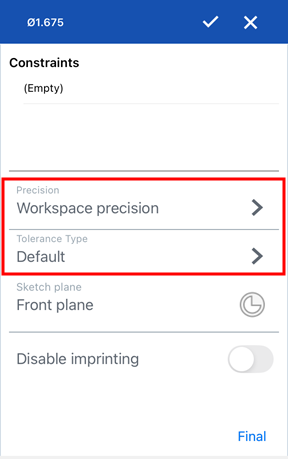
特征尺寸公差:
特征尺寸的设置和编辑方式与桌面平台相同:
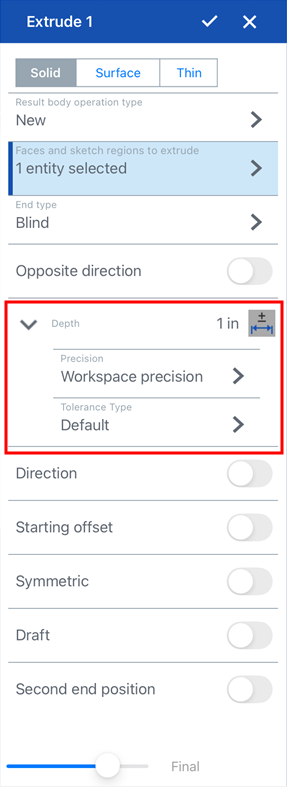
拉伸特征的公差选项:深度值
由于“检查表”仅在桌面端可用,因此公差只能在桌面平台上查看,无法在 iOS 或 Android 端查看。