 공차 옵션
공차 옵션


이용 가능 플랫폼: 스케치, Part Studio
공차는 돌출 깊이, 회전 각도 또는 홀 지름과 같은 지정된 스케치 치수 또는 피처 매개변수에 대해 허용되는 값의 범위를 정의합니다. 모든 스케치 치수 또는 피처 매개변수에 공차를 사용할 수 있는 것은 아닙니다.
공차는 FeatureScript로 이용 가능하며, 사용자 지정 피처에서 사용할 수 있습니다. 자세한 내용은 사용자 지정 피처를, 추가 문서는 FeatureScript를 참조하십시오.
 치수 컨텍스트 대화상자 및 공차 설정
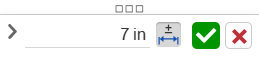
치수 컨텍스트 대화상자는 스케치 치수와 피처 치수를 편집하고 공차를 추가하는 데 사용됩니다. 스케치의 치수 또는 그래픽 영역의 MBD 치수를 두 번 클릭하면 이 대화상자에 액세스할 수 있습니다. MBD 치수 편집을 참조하십시오.
-
치수에 공차를 추가하려면 공차 아이콘(
 )을 클릭합니다.
 -
공차를 설정한 후 드롭다운 화살표(
 )를 클릭하여 공차 매개변수를 설정합니다.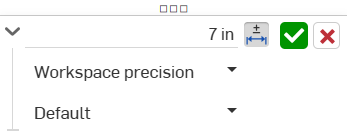
-
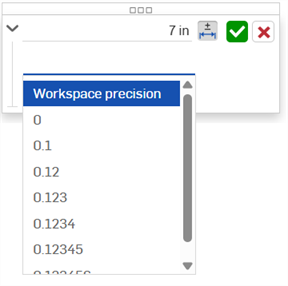
정밀도 - 드롭다운을 사용하여 단위 정밀도를 선택합니다. 작업공간 정밀도 또는 드롭다운 목록에서 다른 정밀도 값을 선택할 수 있습니다. 소수점 이하 0~6자리까지 가능합니다.
-
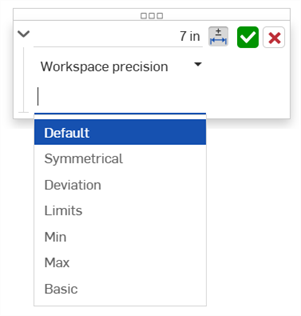
공차 유형 - 드롭다운 목록에서 공차 유형을 선택합니다. 옵션으로는 기본, 공차 없음, 대칭, 편차, 한계, 최소, 최대, 기본이 있으며,
홀 및 스케치 지름 공차에는 맞춤, 공차에 맞춤, 맞춤(공차만 해당) 옵션이 있습니다. 자세한 내용은 홀 피처를 참조하십시오.
기본값이 선택된 경우, 공차는 기본 공차를 기준으로 합니다. 자세한 내용은 Onshape 기본 공차 라이브러리 및 기본 공차 라이브러리를 참조하십시오.
-
편차 - 대칭 공차 유형에 사용 가능합니다. 편차 값을 입력하십시오.
-
상한 - 편차 및 한계 공차 유형에 사용할 수 있습니다. 상한 공차 값을 입력하십시오.
-
하한 - 편차 및 한계 공차 유형에 사용할 수 있습니다. 하한 공차 값을 입력하십시오.
-
표준 - 맞춤, 공차에 맞춤, 맞춤(공차만 해당) 공차 유형에 사용할 수 있습니다. 드롭다운 목록에서 ANSI 또는 ISO 표준을 선택하십시오.
- 맞춤 유형 - 맞춤, 공차에 맞춤, 맞춤(공차만 해당) 공차 유형에 사용할 수 있습니다. 드롭다운 목록에서 사용자 정의, 여유 값, 전환 또는 간섭을 선택하십시오.
- 홀 클래스 - 맞춤, 공차에 맞춤, 맞춤(공차만 해당) 공차 유형에 사용할 수 있습니다. 드롭다운 목록에서 홀 클래스 옵션을 선택하십시오.
- 샤프트 클래스 - 맞춤, 공차에 맞춤, 맞춤(공차만 해당) 유형에 사용할 수 있습니다. 드롭다운 목록에서 샤프트 클래스를 선택하십시오.
-
-
-
컨텍스트 대화상자에 입력된 값을 적용하려면 체크마크 아이콘(
 )을 클릭합니다.
 -
변경 사항 없이 컨텍스트 대화상자를 종료하려면 x 아이콘(
 )을 클릭합니다.
 -
대화상자의 핸들(
 )을 클릭하고 드래그하여 화면의 새 위치로 이동합니다. 마우스를 놓으면 새 위치에 배치됩니다.
스케치 치수 공차 설정하기
다음 스케치 치수에는 공차*를 사용할 수 있습니다.
-
두 선 사이의 거리
-
두 점 사이의 거리**
-
스케치 형상과 면 사이의 거리**
-
대각선 거리**
-
지름
-
각도
-
직선 거리**
-
선형 거리**
-
반지름
-
중심선
다음 스케치 치수에는 공차를 적용할 수 없습니다.
-
단일 선 거리
-
호 길이
* 공차를 설정할 수 있는 치수 중에서, 스케치에서 파트가 생성되고 검사 테이블이 열린 후에만 표시 가능한 치수가 표시됩니다(그리고 모델 드롭다운을 사용하여 파트가 선택됩니다).
** 이러한 스케치 치수는 공차를 가질 수 있지만 검사 테이블을 열었을 때 표시되는 치수를 생성하지 않습니다. 이는 MBD 치수 데이터가 단일 파트의 면에서 측정하는 것에 의존하는데, 이러한 치수는 측정 대상 파트 외부의 점이나 면을 사용하기 때문입니다.
자세한 내용은 스케치 도구 치수를 참조하십시오.
-
스케치 요소를 그린 뒤 즉석 값 입력란에 값을 입력하십시오.
-
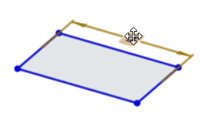
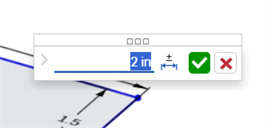
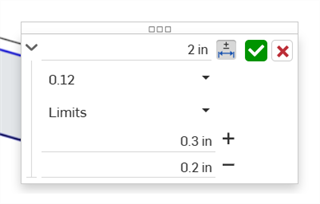
치수를 두 번 클릭합니다(아래 첫 번째 이미지). 치수 컨텍스트 대화상자가 열립니다(아래 두 번째 이미지).
-
치수에 공차를 추가하려면 공차 옵션 아이콘(
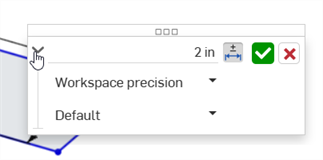
, 아래 첫 번째 이미지)을 클릭한 다음 드롭다운 화살표(, 아래 두 번째 이미지)를 클릭합니다.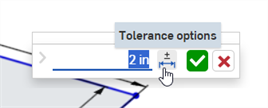
-
지정된 값으로 정밀도 및 공차 유형을 입력하십시오.
-
스케치 치수를 적용하려면 체크표시(
)를 클릭합니다.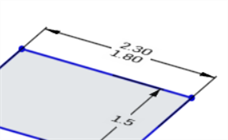
피처 옵션에 대한 공차 설정
다음 피처 옵션에서 공차를 사용할 수 있습니다.
-
돌출
-
솔리드/표면/얇게 - 깊이
-
솔리드/표면/얇게 - 오프셋 거리
-
솔리드/표면/얇게 - 두 번째 방향 - 오프셋 거리
-
얇게 - 두께 1
-
얇게 - 두께 2
-
얇게 - 중간 면 - 두께
-
-
회전
-
솔리드/표면/얇게 - 한 방향/대칭/두 방향 - 회전 각도
-
얇게 - 두께 1
-
얇게 - 두께 2
-
얇게 - 중간 면 - 두께
-
-
필렛
-
반지름
-
-
챔퍼
-
거리(동일 거리)
-
거리 1, 거리 2(두 거리)
-
거리 및 각도(거리, 각도)
-
-
홀
-
지름(단순/카운터보어/카운터싱크)
-
거리(깊이: 단순/카운터보어/카운터싱크)
-
지름(카운터보어/카운터싱크 지름)
-
거리(카운터보어 깊이)
-
각도(카운터싱크 각도)
-
거리(탭 가공된 깊이)
-
거리(탭 드릴 지름)
-
-
공차를 허용하는 피처를 생성합니다(이 예에서는 돌출).
-
매개변수 오른쪽에 있는 공차 옵션 아이콘(
)을 클릭합니다.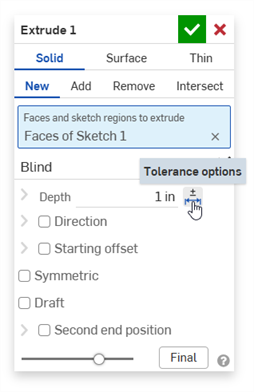
-
매개변수 왼쪽에 있는 드롭다운 화살표(
)를 클릭합니다.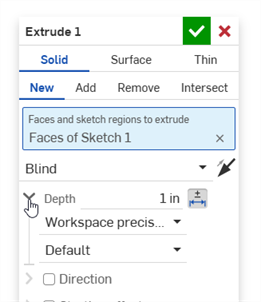
-
지정된 값으로 정밀도 및 공차 유형을 입력하십시오.
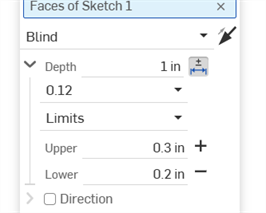
-
다른 피처 설정을 입력하고 체크표시(
)를 클릭하여 피처를 적용합니다. -
피처의 치수 값과 공차를 확인하려면 검사 테이블(
 )이 열려 있는지 확인하십시오.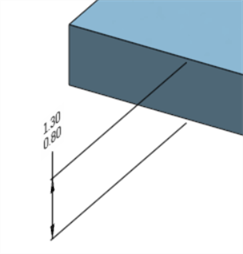
피처의 공차를 제거해도 해당 치수는 모델에서 완전히 제거되지 않으며, 여전히 유효한 치수입니다.
공차 옵션 및 구성
공차 옵션은 구성과 함께 사용할 수 있습니다.
-
구성의 옵션 값 공차를 설정하려면 공차 옵션 아이콘(
)을 클릭합니다.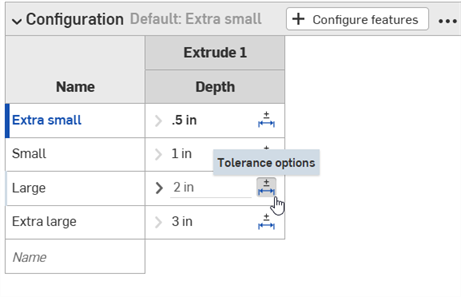
-
매개변수 왼쪽에 있는 드롭다운 화살표 아이콘(
)을 클릭하여 공차 정밀도 및 유형을 설정합니다.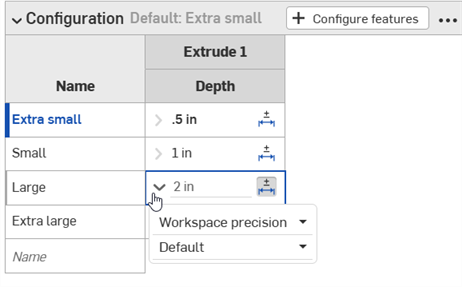
자세한 내용은 구성을 참조하십시오.
공차 옵션 및 비교
공차 옵션은 자동으로 비교 메커니즘과 함께 사용됩니다. 두 개의 히스토리 항목을 비교할 때는, 비교할 피처를 선택합니다(아래 예시의 돌출 1 참조). 항목에서 서로 다른 공차 옵션 간의 비교는 노란색으로 표시됩니다.
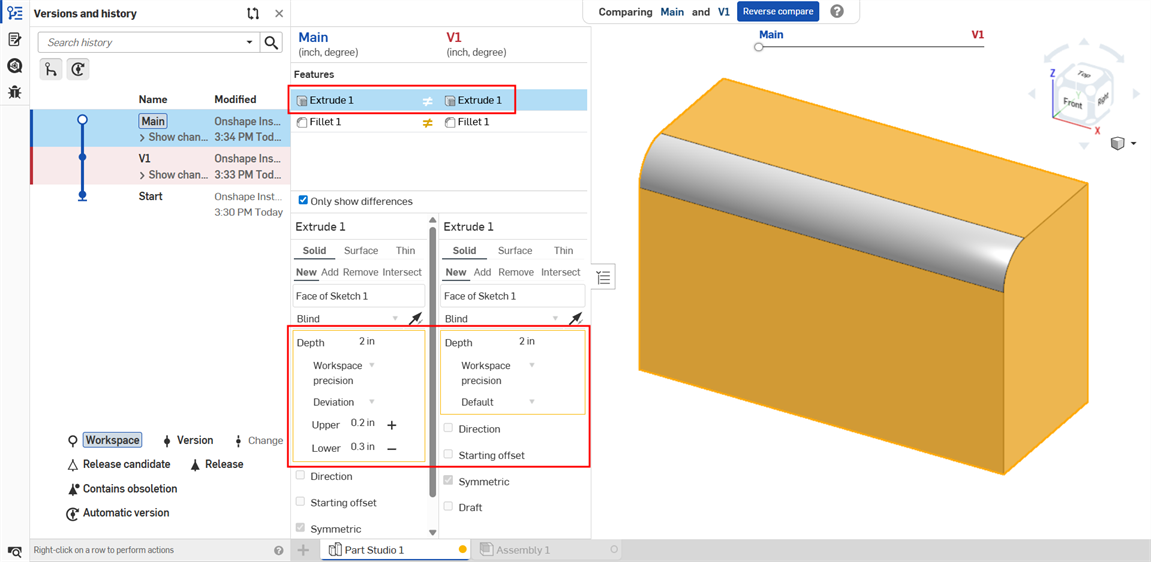
돌출: 두 히스토리 항목 간의 깊이 공차 옵션 비교
자세한 내용은 비교를 참조하십시오.
공차 옵션: iOS 및 Android
아래 이미지는 iOS 화면입니다. iOS와 Android 모두 동일한 워크플로우를 따릅니다.
스케치 치수 공차:
-
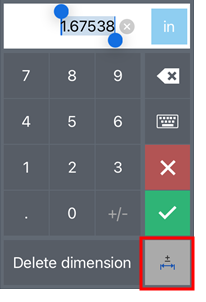
화면에서 치수를 두 번 탭합니다.
-
치수를 공차로 설정하려면 Android 치수 컨텍스트 대화상자의 오른쪽 아래 모서리에 있는 공차 옵션 버튼을 클릭합니다.
-
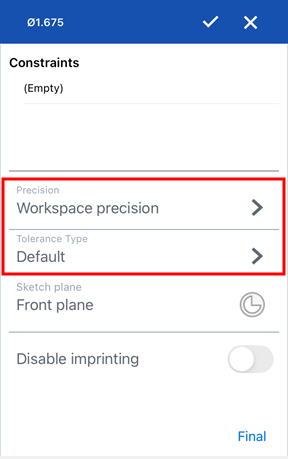
공차 옵션 대화상자에서 정밀도 및/또는 공차 유형을 입력하고 확인란을 클릭하여 옵션을 적용합니다.
피처 치수 공차:
피처 치수는 데스크톱 플랫폼에서와 동일한 방식으로 설정하고 편집할 수 있습니다.
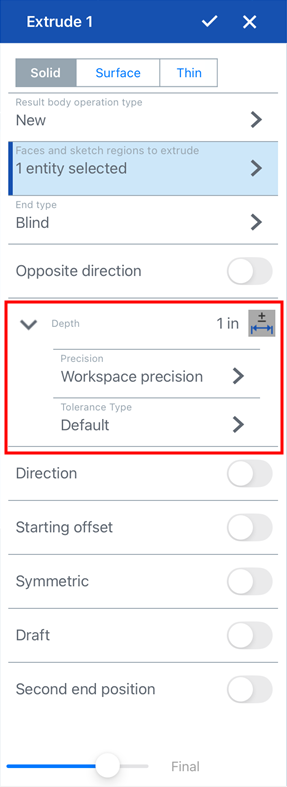
돌출에 대한 공차 옵션: 깊이 값
검사 테이블은 데스크톱에서만 사용 가능하므로 공차는 iOS 또는 Android가 아닌 데스크톱 플랫폼에서만 볼 수 있습니다.