
アクセス許可ダッシュボードは、特定のドキュメントについてユーザーに付与されたアクセス許可に関する情報を提供します。
ダッシュボードに変更を加えた場合 (フィルターを編集したり、カスタマイズした場合)、これらの変更は新しいダッシュボードに保存できます。詳しくは、ダッシュボードの保存を参照してください。
ダッシュボードのビジュアルデータをエクスポートするには、ビジュアルデータを CSV または Excel ファイルにエクスポートするを参照してください。
さらに詳しくは、アナリティクスダッシュボードの操作とアナリティクスダッシュボードのビジュアルの操作を参照してください。
 アクセス許可ダッシュボードへのアクセス
左側のドキュメントパネルからアナリティクス ( ) をクリックします。次に、アナリティクスナビゲーションパネルにあるアクセス許可フィルターをクリックします。
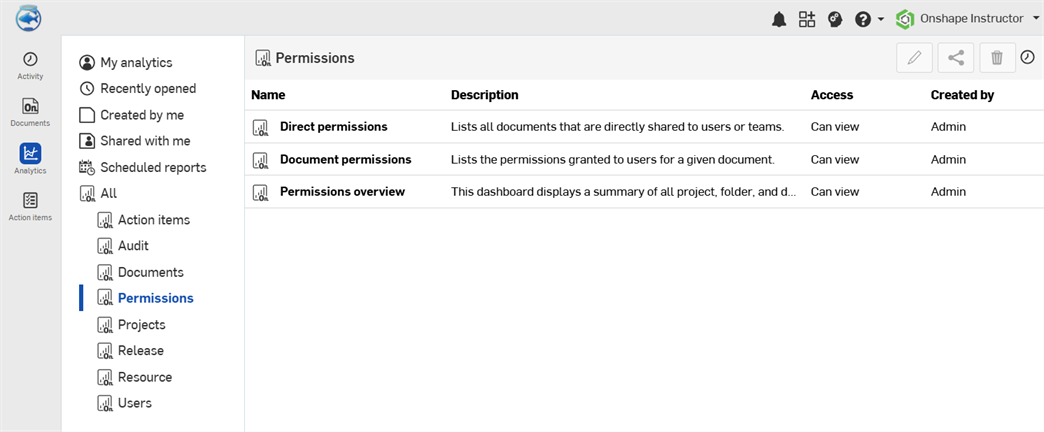
既定のアクセス権ダッシュボード
- 直接アクセス許可 - 特定のユーザーまたはチームに直接共有されているすべてのドキュメントのリスト。
- ドキュメントのアクセス許可 - 特定のドキュメントについてユーザーに付与されたアクセス許可のリスト。
- アクセス許可の概要 - Enterprise で割り当てられサポートと共有したプロジェクト、フォルダ、およびドキュメントのすべてのアクセス許可の概要。
直接アクセス許可
このダッシュボードには、ユーザーやチームに直接共有されているプロジェクトやフォルダ内のすべてのドキュメントを一覧表示する単一のテーブルビジュアルが含まれています。プロジェクトやフォルダにないドキュメントは含まれません。
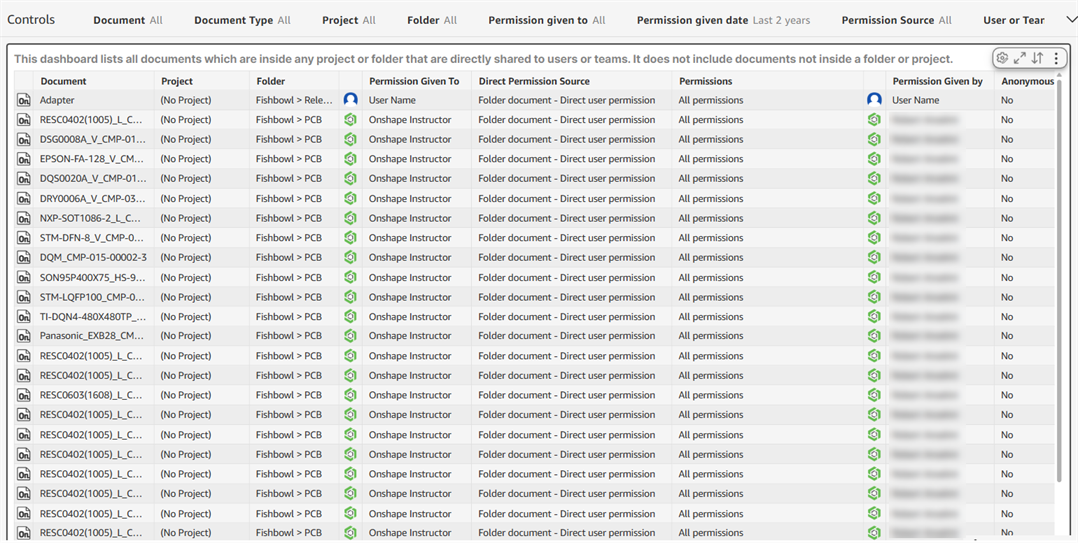
フィルターコントロール
-
ドキュメント - ドキュメント名
-
ドキュメントタイプ - ドキュメントまたはパブリケーション
-
プロジェクト - プロジェクト名
-
フォルダ - ドキュメントフォルダのパス
-
アクセス許可が付与されている人 - アクセス許可が付与されているユーザーまたはチームの名前
-
アクセス許可の付与日 - ユーザーまたはチームにアクセス許可が付与された日付、日付範囲、または期間
-
アクセス許可のソース - アクセス許可が付与されたソース (例: フォルダのドキュメント - ユーザーの直接アクセス許可、またはプロジェクトのドキュメント - ユーザーの直接アクセス許可)
-
ユーザーまたはチームの ID - ユーザーまたはチームの ID の値
-
ドキュメント ID - ドキュメントの ID の値
-
ユーザー - ユーザー名
-
Onshape サポートと共有 - ドキュメントが Onshape サポートと共有されているかどうか: はいまたはいいえ
-
リンク共有 - ドキュメントがリンクで共有されているかどうか: はいまたはいいえ
-
メールアドレス - ユーザーのメールアドレス
ビジュアル列
-
ドキュメント - ドキュメント名
-
プロジェクト - プロジェクト名
-
フォルダ - ドキュメントフォルダのパス
-
アクセス許可が付与されている人 - アクセス許可が付与されているユーザーの名前
-
直接アクセス許可のソース - アクセス許可が付与されたソース (例: フォルダのドキュメント - ユーザーの直接アクセス許可、またはプロジェクトのドキュメント - ユーザーの直接アクセス許可)
-
アクセス許可 - ユーザーまたはチームのアクセス許可
-
アクセス許可の付与者 - アクセス許可を付与したユーザーの名前
-
匿名アクセス - ユーザーが匿名アクセス許可を持っているかどうか: はいまたはいいえ
-
Onshape サポートと共有 - ドキュメントが Onshape サポートと共有されているかどうか: はいまたはいいえ
-
アクセス許可の付与日 - ユーザーにドキュメントのアクセス許可が付与された日時
ドキュメントのアクセス許可
このダッシュボードには、特定のドキュメントに対してユーザーに付与されたアクセス許可のリストを表示する単一のテーブルビジュアルがあります。
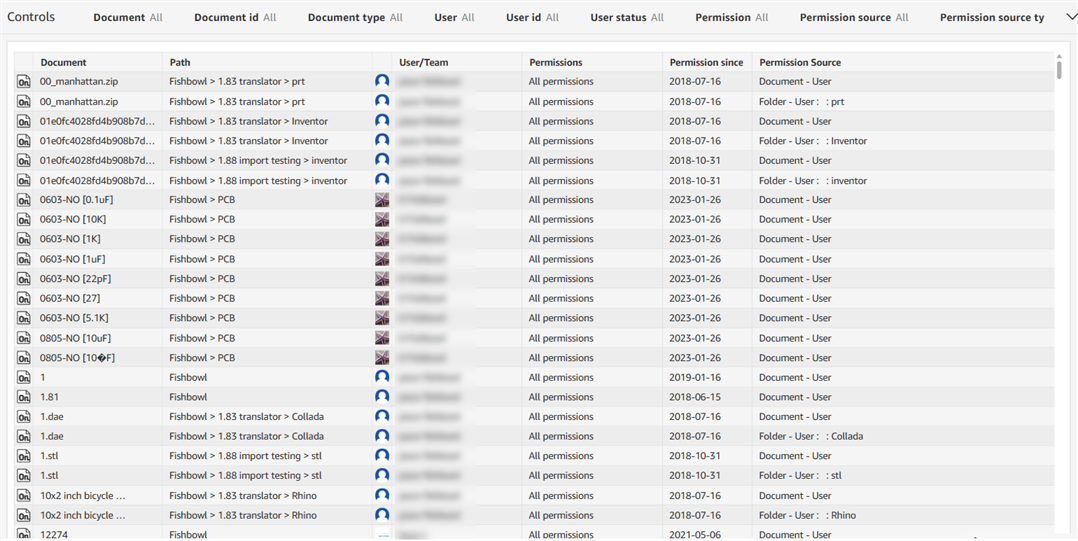
フィルターコントロール
-
ドキュメント - ドキュメント名
-
ドキュメント ID - ドキュメントの ID の値
-
ドキュメントタイプ - ドキュメントまたはパブリケーション
-
ユーザー - ユーザーのメールアドレス
-
ユーザー ID - ユーザー ID の値
-
ユーザーの状態 - 管理者、ゲスト、またはメンバー
-
アクセス許可 - 付与されているアクセス許可: 編集、表示、表示 (コメント)、すべてのアクセス許可
-
アクセス許可が付与されたソース - アクセス許可が付与されたソース (例: ドキュメント - チーム: レビューアチーム、またはプロジェクト - ユーザー: 設定済みリリース: プロジェクト管理者)
-
アクセス許可のソースタイプ - アクセス許可が付与されたソースタイプ (例: ドキュメント - チーム、フォルダ - ユーザー)。
-
プロジェクト - プロジェクト名
-
フォルダ - ドキュメントフォルダのパス
-
チーム - チーム名
ビジュアル列
-
ドキュメント - ドキュメント名
-
パス - ドキュメントフォルダのパス
-
ユーザー/チーム - ユーザーまたはチームの名前
-
アクセス許可 - ユーザーまたはチームのアクセス許可
-
アクセス許可の付与日 - アクセス許可が付与された日付
-
アクセス許可のソース - アクセス許可が付与されたソース (例: ドキュメント - ユーザー、またはフォルダ - ユーザー: : prt)
アクセス許可の概要
アクセス許可の概要 - Enterprise で割り当てられサポートと共有したプロジェクト、フォルダ、およびドキュメントのすべてのアクセス許可の概要。
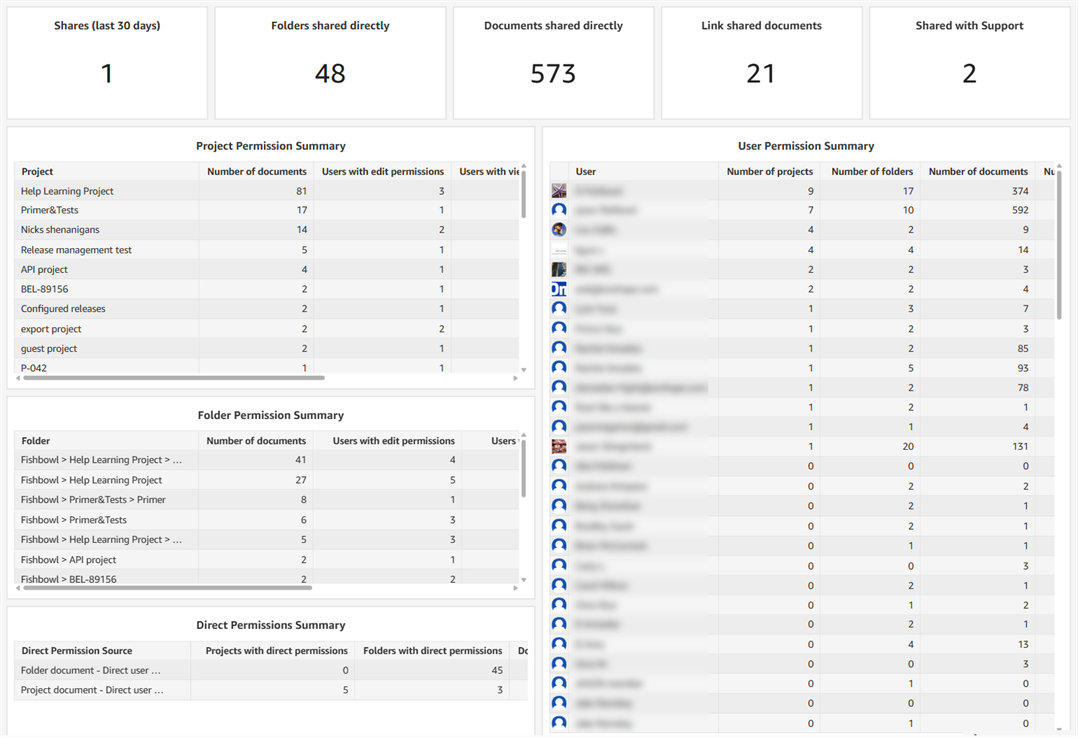
ビジュアル
-
共有 (過去 30 日間) - 過去 30 日間の共有回数を表示するカウントビジュアル
-
直接共有されたフォルダ - 直接共有されたフォルダの数を表示するカウントビジュアル
-
直接共有されたドキュメント - 直接共有されたドキュメントの数を表示するカウントビジュアル
-
リンクによる共有ドキュメント - リンクで共有されたドキュメントの数を表示するカウントビジュアル
-
サポートと共有 - サポートと共有されたドキュメントの数を表示するカウントビジュアル
-
プロジェクトのアクセス許可の概要 - プロジェクトのアクセス許可を表示するテーブルビジュアル。列は、プロジェクト、ドキュメント数、編集のアクセス許可を持つユーザー、表示のアクセス許可を持つユーザー、直接共有されたリンク、直接共有されたドキュメントです。
-
ユーザーのアクセス許可の概要 - ユーザーのアクセス許可を表示するテーブルビジュアル。列は、ユーザー、プロジェクト数、フォルダ数、ドキュメント数、直接アクセス許可の数です。
-
フォルダのアクセス許可の概要 - フォルダのアクセス許可を表示するテーブルビジュアル。列は、フォルダ、ドキュメント数、編集のアクセス許可を持つユーザー、表示のアクセス許可を持つユーザー、直接共有されたリンク、直接共有されたドキュメントです。
-
直接アクセス許可の概要 - 直接アクセス許可を表示するテーブルビジュアル。列は、直接アクセス許可のソース、直接アクセス許可のあるプロジェクト、直接アクセス許可のあるフォルダ、直接アクセス許可のあるドキュメント、直接アクセス許可のあるチーム、直接アクセス許可のあるユーザーです。