 Bezier

Available in: Sketch
Sketch a multiple point bezier curve with points along the bezier curve's control polygon. The bezier curve follows the path of its control polygon.
 Steps
Steps
-
Click
 .
.
- Click to start, click to establish points, double-click to end.
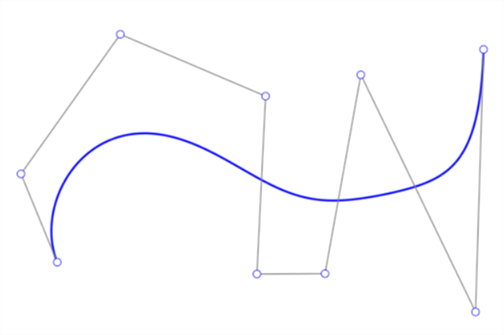
Example of the bezier curve (blue), control polygon (black), and control points (white circles).
Adjusting the Bezier curve
- Ensure the Bezier curve sketch tool is deselected on the Sketch toolbar.
- Click and drag any control point (white point) along the bezier curve's control polygon to make adjustments to the curve.
You can use the bezier control points with dimensions:
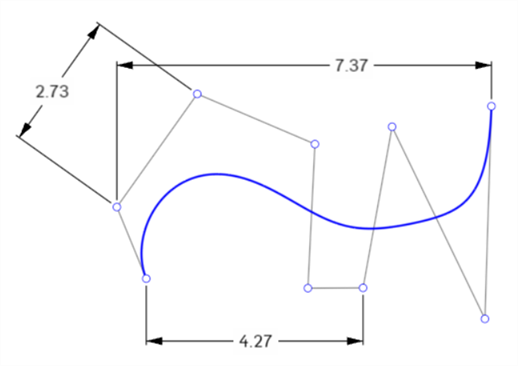
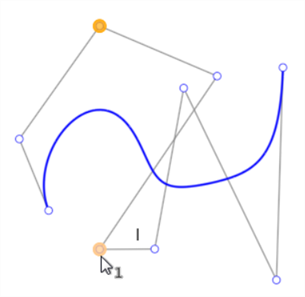
You can use bezier control points with constraints. For example, the two orange highlighted points in the image below are vertically constrained:
Trimming and splitting a Bezier curve
Trimming a Bezier curve results in the trimmed portion being removed, with the remaining section of the curve retaining the original number of degrees and control points:
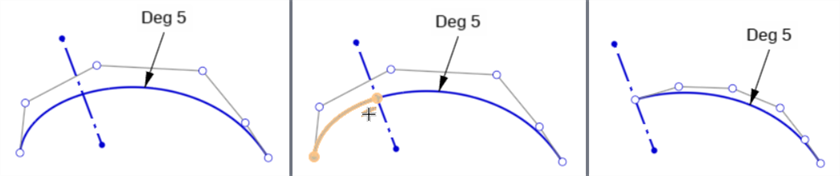
Original curve (left), Trimming at the construction line (middle), result of the trim (right)
Splitting a Bezier curve splits the original curve into two new curves on either side of the split point. Each curve has the same number of degrees and control points. The original curve's shape and length remains the same.

Original curve (left), Splitting the curve (middle), result of the split (right)
Both new curves are coincident to each other. Moving one curve also moves the other. However, control points for each curve are independent from each other.
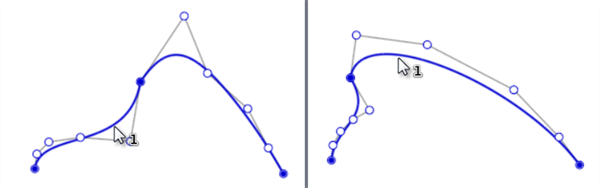
Moving either curve moves both, since they are coincident at the split point.
Notes
- A bezier curve cannot be a closed loop (the first control point connected to the last control point). Use the Spline tool to create a closed loop.
- You can add more control points with the Spline control point tool.
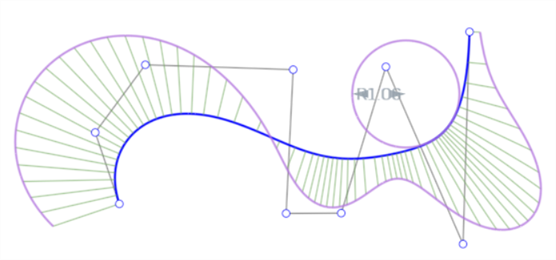
- Visualize the curvature in more detail with the
Curve/surface analysis
context menu command:
-
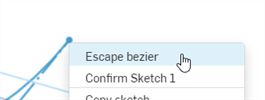
Use the right-click context menu > Escape bezier to exit the bezier creation. This removes the current bezier curve:
-
Edit the degree of a Bezier sketch entity by double-clicking on the degree to activate the field, then enter the preferred number of degrees. Press enter on your keyboard to accept. (The maximum degree of Bezier curves created is 15.)
See the Learning center course Introduction to Sketching (Onshape account required) for more information.