Exporting Files


Onshape enables you to export parts and surfaces (from Part Studios), entire Part Studios, entire Assemblies, linked documents (on browser and Android platforms), as well as sketches and planar faces to your hard drive or cloud-source (for example, Google Drive or Dropbox) for use elsewhere.
To have the option to export to a cloud-source, you must give Onshape permission to access your accounts. For information on integrating your cloud accounts with Onshape, see Managing Your Onshape Professional Subscription.
- Surfaces may be exported individually from the list (in Part Studios and Assemblies) or selected in the graphics area (use the context menu, Export option) to:
- Native or standard formats (Parasolid, ACIS, STEP, STEP AP242, IGES, SOLIDWORKS, JT, PVZ, and Rhino)
- Parts may be exported individually from the Parts list (in Part Studios) or selected in the graphics area (use the context menu, Export option) to:
- OBJ, STL
- Native or standard formats (Parasolid, ACIS, STEP, STEP AP242, IGES, SOLIDWORKS, Collada, 3MF, Rhino, JT, PVZ, and GLTF).
- You can select multiple parts at once in Part Studios. For STL and Parasolid formats, choose to export as one file or as individual files.
- In Assemblies, use the tab Export option to export the entire Assembly at once. For STL and Parasolid formats, choose to export as one file or individual files.
- You can export multiple Part Studios, Drawings, or Assemblies simultaneously from the Tab manager.
- You can export linked documents.
- Exporting composite parts results in the export of separate parts, not as one part.
Exporting as individual files creates a zip file with multiple files each containing a single part.
- Sketches can be exported to DWG and DXF formats.
- Planar faces can be exported to DWG and DXF formats.
- Flattened views of sheet metal models can be exported to DWG and DXF formats.
- You can use metadata to name export files, see the Export rules subheading in your plan's Managing Your Onshape Plan topic.
The download location is browser-specific. If you'd like to be prompted to save to a different location, look in your browser settings for an option to Ask where to save each file before downloading.
Note that the downloaded data will not contain features or parametric history. See the topics below for more information.
 Exporting parts, Part Studios, instances, Assemblies, or subassemblies
Onshape enables you to export parts and surfaces (from Part Studios), Part Studios, instances (from assemblies), subassemblies, and Assemblies.
-
Select one of the following methods:
-
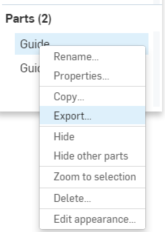
To export one or more parts from a Part Studio, select the parts in the Parts list or directly in the graphics area. To select one or more instances from an Assembly, select the instances in the Features list or directly in the graphics area. Then right-click to access the context menu and click Export:
-
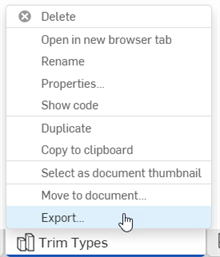
To export the Part Studio, Assembly, or subassembly, right-click on the tab and click Export:
-
To export multiple Part Studios or multiple Assemblies at once, open the Tab manager
 and Ctrl+click to select multiple Part Studios or Assemblies. Right-click to open the context menu, and click Export. You cannot export a combination of Part Studios and Assemblies:
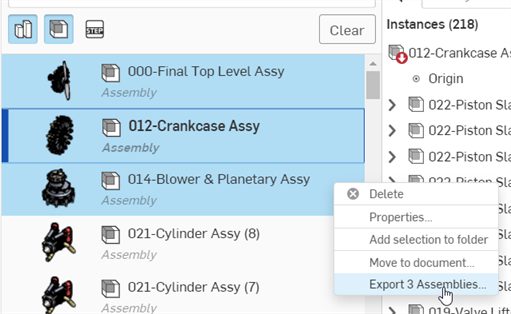
Exporting multiple Assemblies
-
-
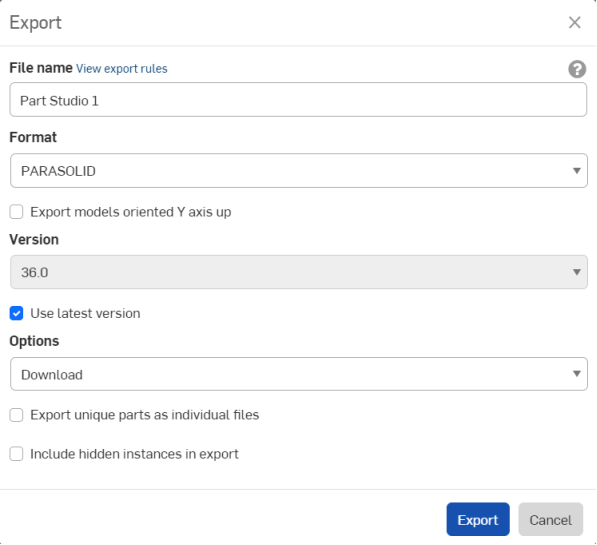
Specify the parameters to use:
-
File name - By default, this is the name of the current tab or tab from which the part was derived (Part Studio, Assembly) and Part name (if an individual part is selected). Optionally, enter a new name.
-
Format - The format to which the Parts, Part Studio, or Assembly are exported. Options are PARASOLID, ACIS, STEP, IGES, SOLIDWORKS, PVZ, JT, COLLADA, RHINO, GLTF, OBJ, 3MF, URDF, and STL.
-
Export models oriented Y axis up - Check this option to reorientate the model.
-
Preprocessing (STEP format only) - The options for parasolid preprocessing. Options are:
- None - Default behavior of the Parasolid reader with no model preprocessing.
- Automatic - Uses the Translator preprocessing algorithm used in Parasolid model exporting, which includes model centering (if outside the valid Parasolid bounding box) and the HealAndSew algorithm.
- Remove small entities only (advanced) - Parasolid reader uses the Bodyshop algorithm of removing small entities (i.e., small edges, small and sliver faces, and spikes) and periodic entity splitting (i.e., periodic faces and ring edges). Also includes advanced preprocessing for split ring edges, re-parameterization of the underlying surfaces of split faces, force setting a trimming loop to all faces, and trimming fins' SP-curves.
- Remove small entities only (basic) - Parasolid reader uses the Bodyshop algorithm of removing small entities (i.e., small edges, small and sliver faces, and spikes) and periodic entity splitting (i.e., periodic faces and ring edges).
- Remove small entities only (advanced) and convert all surfaces to b-surfaces - Similar to the Remove small entities only (advanced) option, with the additional preprocessing step where all surfaces are converted to b-surfaces.
-
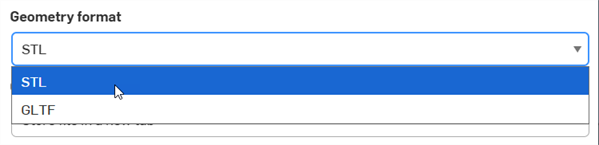
Geometry format (URDF format only) - Select from either STL or GLTF formats.
-
Version (PARASOLID, RHINO, and STEP formats only) - Specify the format version.
-
Use latest version (PARASOLID, RHINO, and STEP formats only) - When checked (default), the latest supported version is used and the Version field is uneditable. Uncheck to edit the version field and select the format version of your choice.
-
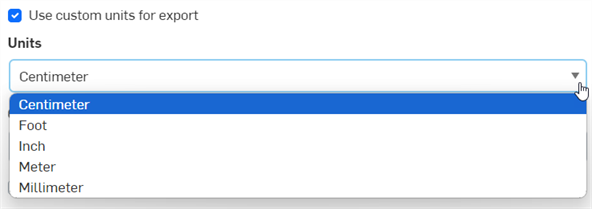
Use custom units for export (STEP format only) - Check to select a custom unit of measurement when exporting. Options are Centimeter, Foot, Inch, Meter, or Millimeter. If unchecked, the STEP file defaults to unitless.
-
Include derived tolerances in export (STEP format only) - Includes derived MBD data when exported.
-
Use custom annotation text height for MBD export (STEP format only) - If working with small models, enable the Use custom annotation text height for MBD export and select an appropriate Annotations text height to correspond to your model size. See Model Based Definition for more information.

-
Use compatibility mode for surfaces and curves (IGES format only) - Check this option to export to older IGES version for compatibility with legacy CAD and CAM systems.
-
Resolution (GLTF, OBJ, 3MF, and STL formats only) - Select the resolution of the file: Coarse, Medium, Fine, or Custom. If Custom is selected, for GLTF, OBJ, and 3MF formats specify the Distance tolerance, Angular tolerance, and Maximum chord length. For the STL format, specify the Angular deviation, Chordal tolerance, and Minimum facet width.
-
Compress (GLTF format only) - Compress meshes while exporting. Non-mesh geometry is not compressed.
-
STL Format (STL format only) - Specify whether the STL export is Text or Binary.
-
Units (STL format only) - Specify the measurement units used for the STL export: Centimeter, Foot, Inch, Meter, Millimeter, or Yard.
-
Options - Select either:
-
Download - Downloads the file to your computer.
-
Download and store file in a new tab - Downloads the file to your computer and also creates a new tab in the current Document where the file is stored.
-
Email with file download link - Email the exported file as a download link (that is, with all plan types except Free and Education). See Exporting via email with the file download link section below.
-
Store file in a new tab - Creates a new tab in the current document where the file is stored.
The download location is browser-specific. If you'd like to be prompted to save to a different location, look in your browser settings for an option to Ask where to save each file before downloading.
-
-
Export unique parts as individual files - By default (unchecked), if multiple parts are selected, they are exported as one file. When checked, the parts are exported as individual files, zipped together.
-
Apply export rules to contents (available only when multiple Part Studios or Assemblies are selected prior to export) - When checked (default), the export rules are applied to all files within the zip folder. When unchecked, export rules are applied only to the zip folder, and not to individual files inside the zip folder.
When this option is available, a View export rules link is provided on a second line below, which opens the Account > Preferences > Export rules in a new browser tab.
-
Include hidden instances in export - Optionally, click this checkbox to include hidden instances in the export.
Special characters entered into the File name field, such as back slash (\), forward slash (/), asterisk (*), colon (:), pipe (|), greater than (>), less than (<), question mark (?), and quote (") are automatically replaced with a hyphen (-) when exported, to prevent different operating systems file manager issues. This includes characters referenced by Date type properties and other properties.
If the Date type property format is not changed from its Default setting, the format is YYYY-MM-DD when exported.
See Export rules and Property settings.Not all options are available in all situations. For example, URDF is only available during Assembly export.
-
-
Click Export.
When exporting in OBJ format, the export is a .zip file containing the .obj and .mtl files. The .obj file is in meters only. To re-import the .obj file, you must first extract the .zip file and only import the .obj file. Files containing .obj and .mtl files are not supported.
Suppressed parts and instances are not included in Assembly exports.
Exporting via email with file download link
With every export, you have the option to email the exported file as a download link (that is, with all plan types except Free or Education). For the Option, select Email with file download link:
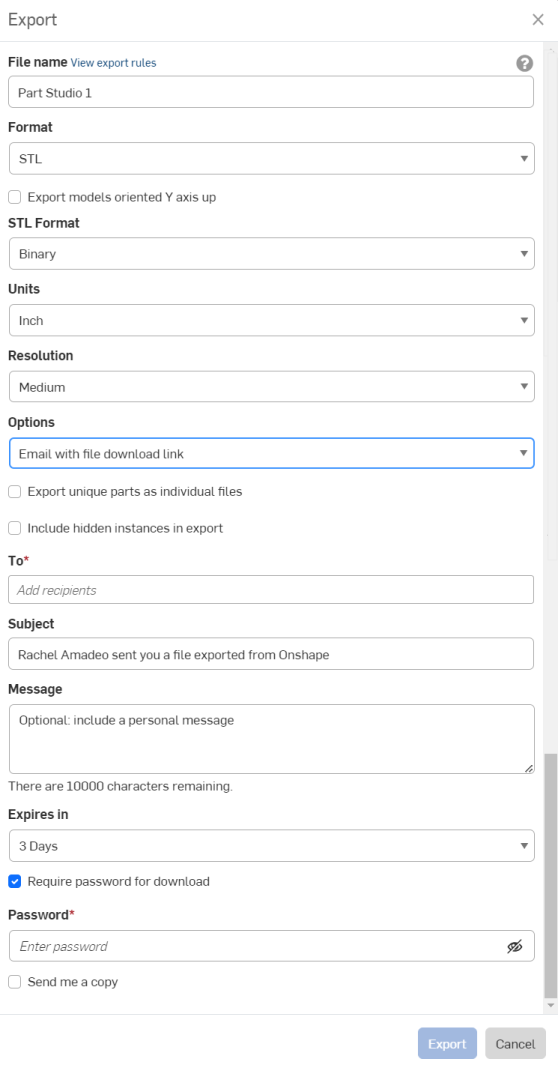
Enter the recipients' email, a customized subject for the email, and an optional message. Specify how long you want the download link to be available: the default is 3 days.
If you want to password-protect the link you are emailing, check Require password for download and supply a password in the next field. Note: Never email a password, a better practice is to specify in the message for the recipient to contact you for the password by other means.
The recipient receives an Onshape-branded email with the link to download the exported part or assembly.
Exporting sketches or planar faces
Sketches are exported in the document's default units, and planar faces are exported with outer solid geometry only, no dimensions or interior geometry. Specify a file name, select the format and version. Optionally check the box next to Set z-height to zero and normals to positive (use this option to ensure that all normal vectors of components with coordinates on the z plane have a positive z component). Click Export.
Splines are exported as splines. If you prefer to explode the spline into polylines, check the Export splines as polylines check box in the Export dialog.
Export a sketch from the Feature list
Specify a file name, select the format and version. Optionally check the box next to Set z-height to zero and normals to positive (use this option to ensure that all normal vectors of components with coordinates on the z plane have a positive z component). Click Export.
Splines are exported as splines. If you prefer to explode the spline into polylines, check the Export splines as polylines check box in the Export dialog.
Export a planar face from the context menu in the graphics area
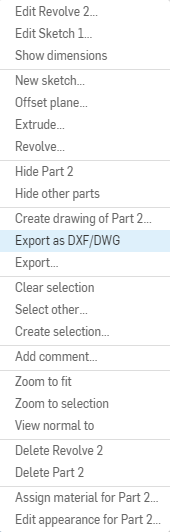
When exporting a planar face from the graphics area, you can use the Export as DXF/DWG option from the context menu.
-
Right-click a face or plane to open the context menu and choose Export as DXF/DWG.
-
Specify a file name.
-
Select the format (DXF or DWG).
-
Select the version.
-
Select the units for the export, or check the option to Use workspace units.
-
Select an option for downloading the exported file.
-
Optionally check the Export splines as polylines box.
-
Optionally check the Set z-height to zero and normals to positive box to ensure all normal vectors of components with coordinates on the z plane have a positive z component.
-
Click Export.
Exporting a Drawing
See Exporting a Drawing for more information.
-
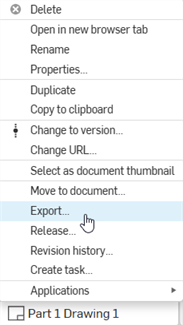
Right-click the drawing tab and select Export.
To export multiple drawings at once, open the tab manager (
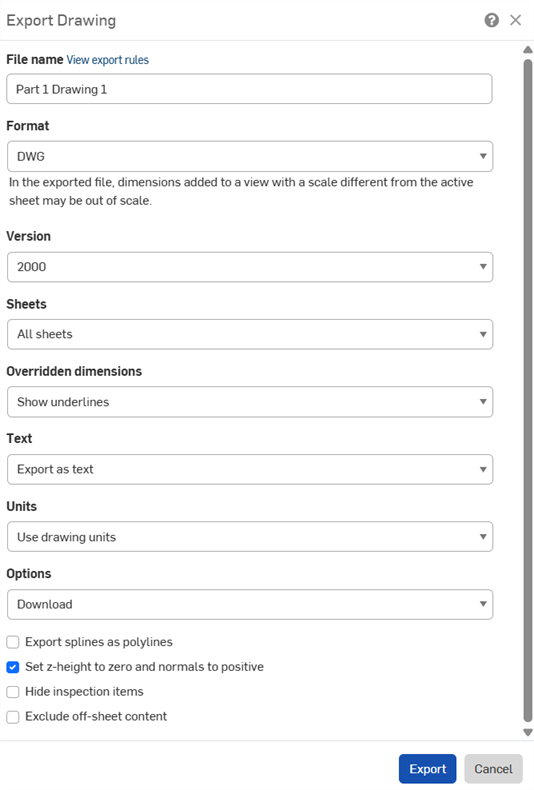
) and Ctrl+click to select multiple drawings. Right-click the selection to open the context menu, and select the Export drawings option. - Fill out the Export Drawing dialog. The dialog fields vary depending on the selected Format:
- File name: Specify a name for the export file.
- Format: Select the desired export format.
- Version: Select the appropriate version.
- Sheets: Select the sheets to export.
- If selecting Custom sheets, enter a range or the sheet number(s).
- Overridden dimensions: Choose to show or hide underlines in overridden dimensions.
- Text: Indicate how to export text and text-based annotations:
- If exporting to a PDF, select one of:
- Normal - Export text normally
- Selectable - Export as selectable text
- For DWG, DXF, and DWT formats, select one of:
- Export as text - Export the text as shown in the drawing.
- Explode into polylines (notes) - Explode the drawing notes into polylines.
- Explode all into polylines - Explode all drawing annotations, notes, table cell text, and dimensions into polylines.
- If exporting to a PDF, select one of:
- Color: Export PDFs in color, black and white, or grayscale.
- Units: For DWG and DXF formats, choose to use the drawing units or specify another unit.
- Options: Select what to do with the export file.
- Apply export rules to contents: If multiple drawings are exported at once, check this option to have export rules applied to all the files within the zip folder. When unchecked, export rules are applied only to the zip folder, and not to individual files inside the zip folder. When this option is available, a View export rules link is provided, which opens the Account > Preferences > Export rules in a new browser tab.
- Export splines as polylines: Available for all formats except PDF.
- Set z-height to zero and normals to positive: For DWG, DWT, and DXF exports, check this option to set the z-height/direction of any hole normals to be positive (+1) for drawings with view geometry.
- Hide inspection items: Inspection items are shown in the export by default.
- Exclude off-sheet content: For DWG, DWT, and DXF exports, you can include or exclude content that extends beyond the edges of the sheet.
- Click Export.
Exporting from a release
When you have released entities, you can export directly from the revision history:
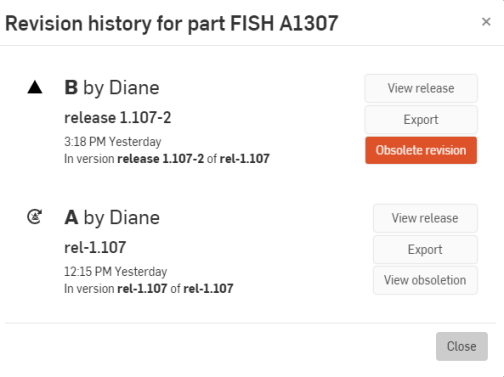
- Right-click on the entity that has been released, for example an Assembly tab, and select Revision history.
- The Revision history dialog opens.
- Click the Export button for the release containing the entities you wish to export:
- Select your preferred export options.
Notes
-
Filename characters such as back slash (\), forward slash (/), asterisk (*), colon (:), pipe (|), greater than (>), less than (<), question mark (?), and quote (") are automatically replaced with a hyphen (-) when exported, to prevent different operating systems file manager issues.
-
Use the Notifications button
 to view the export progress and any errors or warnings.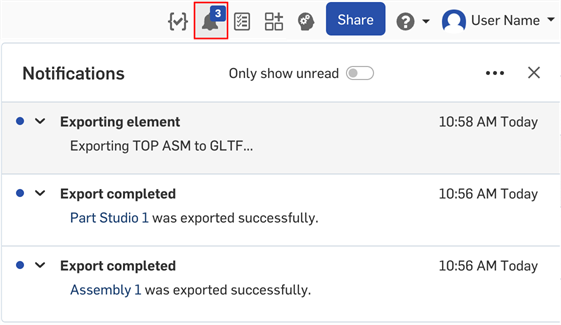
Exporting Files: iOS
Onshape enables you to export parts and surfaces (from Part Studios), Part Studios, Instances (from assemblies), subassemblies, and Assemblies.
To export, select one of the following methods:
- Enter a file name for the export file.
- Specify a format: PARASOLID, ACIS, IGES, SOLIDWORKS, COLLADA, GLTF, OBJ, RHINO, STL, 3MF, or STEP.
- Keep the Use latest version toggle enabled, or disable the toggle and select a Version (PARASOLID, RHINO, and STEP formats only).
-
Select a Preprocessing option (STEP format only). Options are:
- None - Default behavior of the Parasolid reader with no model preprocessing.
- Automatic - Uses the Translator preprocessing algorithm used in Parasolid model exporting, which includes model centering (if outside the valid Parasolid bounding box) and the HealAndSew algorithm.
- Remove small entities only (advanced) - Parasolid reader uses the Bodyshop algorithm of removing small entities (i.e., small edges, small and sliver faces, and spikes) and periodic entity splitting (i.e., periodic faces and ring edges). Also includes advanced preprocessing for split ring edges, re-parameterization of the underlying surfaces of split faces, force setting a trimming loop to all faces, and trimming fins' SP-curves.
- Remove small entities only (basic) - Parasolid reader uses the Bodyshop algorithm of removing small entities (i.e., small edges, small and sliver faces, and spikes) and periodic entity splitting (i.e., periodic faces and ring edges).
- Remove small entities only (advanced) and convert all surfaces to b-surfaces - Similar to the Remove small entities only (advanced) option, with the additional preprocessing step where all surfaces are converted to b-surfaces.
- Select one of the export Options:
- Download
- Download and store file in a new tab
- Store file in a new tab
- When there are multiple parts in the Part Studio, tap the checkbox to Export parts as individual files.
- Tap Export in the lower right.
When downloading to OBJ format, you can select a custom resolution (Coarse, Medium, Fine, Custom).
Exporting parts, Part Studios, instances, Assemblies, or subassemblies
Onshape enables you to export parts and surfaces (from Part Studios), Part Studios, instances (from assemblies), subassemblies, and Assemblies.
-
Select one of the following methods:
-
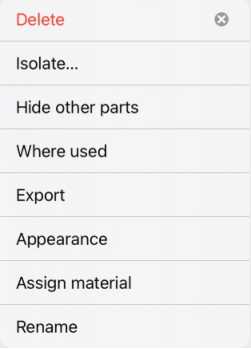
To export one or more parts from a Part Studio, select the parts in the Parts list or directly in the graphics area. To export one or more instances from an Assembly, select the instances from the Features list or directly in the graphics area, then select Export from the three dot context menu.
-
To export the Part Studio, Assembly, or subassembly, select the overflow menu in the Part Studio or Assembly tab (make sure the tab is not open when you select the menu), then tap Export.
-
-
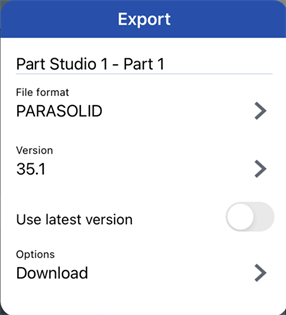
Specify the parameters to use:
-
File name - By default, this is the name of the current tab or tab from which the part was derived (Part Studio, Assembly) and Part name (if an individual part is selected). Optionally, enter a new name.
-
Format - The format to which the Parts, Part Studio, or Assembly are exported. Options are PARASOLID, ACIS, STEP, IGES, SOLIDWORKS, PVZ, JT, COLLADA, RHINO, GLTF, OBJ, 3MF, and STL.
-
Version (PARASOLID, RHINO, and STEP formats only) - Specify the format version.
-
Use latest version (PARASOLID, RHINO, and STEP formats only) - When checked, the latest supported version is used and the Version field is uneditable. Uncheck to edit the version field and select the format version of your choice.
-
Resolution (GLTF, OBJ, 3MF, and STL formats only) - Select the resolution of the file: Coarse, Medium, Fine, or Custom. If Custom is selected, for GLTF, OBJ, and 3MF formats specify the Distance tolerance, Angular tolerance, and Maximum chord length. For the STL format, specify the Angular deviation, Chordal tolerance, and Minimum facet width.
-
Compress (GLTF format only) - Compress meshes while exporting. Non-mesh geometry is not compressed.
-
STL Format (STL format only) - Specify whether the STL export is Text or Binary.
-
Units (STL format only) - Specify the measurement units used for the STL export: Centimeter, Foot, Inch, Meter, Millimeter, or Yard.
-
Options - Select either:
-
Download - Downloads the file to your computer.
-
Download and store file in a new tab - Downloads the file to your computer and also creates a new tab in the current Document where the file is stored.
-
Store file in a new tab - Creates a new tab in the current document where the file is stored.
The download location is browser-specific. If you'd like to be prompted to save to a different location, look in your browser settings for an option to Ask where to save each file before downloading.
-
Special characters entered into the File name field, such as back slash (\), forward slash (/), asterisk (*), colon (:), pipe (|), greater than (>), less than (<), question mark (?), and quote (") are automatically replaced with a hyphen (-) when exported, to prevent different operating systems file manager issues. This includes characters referenced by Date properties and other properties.
If the Date type property format is not changed from its Default setting, the format is YYYY-MM-DD when exported.
See Export rules and Property settings. -
-
Tap Export.
When exporting in OBJ format, the export is a .zip file containing the .obj and .mtl files. The .obj file is in meters only. To re-import the .obj file, you must first extract the .zip file and only import the .obj file. Files containing .obj and .mtl files are not supported.
Hidden and suppressed parts and instances are NOT included in Assembly exports.
Exporting a Drawing
You have the ability to export Onshape drawings to the following file types:
- DWG
- DXF
- DWT (see, Exporting a drawing to a template)
The export function presents the opportunity to select the desired format; when the translation is finished, the file is also downloaded to your local machine.
- Tap the three dot context menu.
- Select Export.
- Specify a name for the export file.
- Select the desired export format:
- .DWG
- .DXF
- .DWT
- If exporting to DXF or DWG, select the version and sheets. If exporting to PDF, select whether to export text normally, or as selectable text.
- Choose how to treat overridden dimensions: Show underlines or Hide underlines
- Indicate whether to explode the text upon export, if desired.
- Select what to do with the export file:
- Download the file only
- Download the file and store the file in a new tab in the document
- Store the file in a new tab only
- For DWG, DWT, and DXF exports, check the box to Set z-height to zero and normals to positive. This sets the z-height/direction of any hole normals to be positive (+1) for drawings with view geometry.
Tips
- Surfaces are able to be exported individually from the Parts list in Part Studios or from the graphics area context menu.
- Parts are able to be exported individually from the Parts list (in Part Studios).
- You have the ability to select multiple parts at once in Part Studios. For STL and Parasolid formats, choose to export as one file or as individual files
- In Assemblies, use the tab Export option to export the entire Assembly at once or select instances and sub-assemblies for export in the Instances list.
Exporting as individual files creates a zip file with multiple files each containing a single part.
The downloaded data will not contain features or parametric history. See the topics below for more information.
Exporting sketches or planar faces
Sketches are exported in the document's default units, and planar faces are exported with outer solid geometry only, no dimensions or interior geometry. Specify a file name, select the format and version. Optionally check the box next to Set z-height to zero and normals to positive (use this option to ensure that all normal vectors of components with coordinates on the z plane have a positive z component). Click Export.
Splines are exported as splines. If you prefer to explode the spline into polylines, check the Export splines as polylines check box in the Export dialog.
Export a sketch from the Feature list
- Tap the overflow menu next to the sketch in the Feature list.
- Select
Export as DXF/DWG.
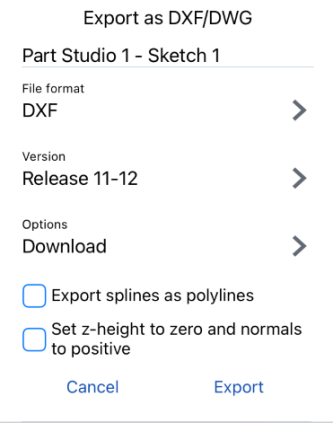
- Select the format and Tap Export.
Export a planar face from the context menu in the graphics area
When exporting a planar face from the graphics area, use the Export as DXF/DWG option. Specify a file name, select the format and version. Optionally check the box next to Set z-height to zero and normals to positive (use this option to ensure that all normal vectors of components with coordinates on the z plane have a positive z component). Click Export.
Exporting Files: Android
Onshape enables you to export parts and surfaces (from Part Studios), entire Part Studios, linked documents, and subassemblies and instances (from Assemblies) as well as entire Assemblies.
To export a Part Studio or Assembly containing a single part or multiple parts:
- Select the overflow menu in the Part Studio or Assembly tab:
- Tap Export.
- Enter a file name for the export file.
- Specify a format: PARASOLID, ACIS, IGES, SOLIDWORKS, COLLADA, GLTF, OBJ, RHINO, STL, 3MF, PVZ, JT, or STEP.
- Keep the Use latest version toggle enabled, or disable the toggle and select a Version (PARASOLID, RHINO, and STEP formats only) - Specify the format version.
-
Select a Preprocessing option (STEP format only) - The options are:
- None - Default behavior of the Parasolid reader with no model preprocessing.
- Automatic - Uses the Translator preprocessing algorithm used in Parasolid model exporting, which includes model centering (if outside the valid Parasolid bounding box) and the HealAndSew algorithm.
- Remove small entities only (advanced) - Parasolid reader uses the Bodyshop algorithm of removing small entities (i.e., small edges, small and sliver faces, and spikes) and periodic entity splitting (i.e., periodic faces and ring edges). Also includes advanced preprocessing for split ring edges, re-parameterization of the underlying surfaces of split faces, force setting a trimming loop to all faces, and trimming fins' SP-curves.
- Remove small entities only (basic) - Parasolid reader uses the Bodyshop algorithm of removing small entities (i.e., small edges, small and sliver faces, and spikes) and periodic entity splitting (i.e., periodic faces and ring edges).
- Remove small entities only (advanced) and convert all surfaces to b-surfaces - Similar to the Remove small entities only (advanced) option, with the additional preprocessing step where all surfaces are converted to b-surfaces.
-
Optionally, select to Export models oriented Y axis up.
- Choose a version. Optionally, select Use latest version to ensure the latest version of the file is always used for exporting.
- Select one of the export Options:
- Download
- Download and store file in a new tab
- Store file in a new tab
- When there are multiple parts in the Part Studio or Assembly, you have the option to Export parts as individual files.
- Tap Export in the upper right.
Exporting parts, Part Studios, instances, Assemblies, or subassemblies
Onshape enables you to export parts and surfaces (from Part Studios), Part Studios, instances (from assemblies), subassemblies, and Assemblies.
-
Select one of the following methods:
-
To export one or more parts from a Part Studio, select the parts in the Parts list or directly in the graphics area. To export one ore more instances from an Assembly, select the instances from the Features list or directly in the graphics area. Then select Export from the overflow menu.
-
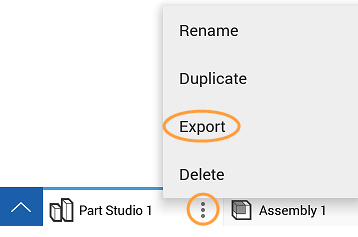
To export the Part Studio, Assembly, or subassembly, select the overflow menu in the Part Studio or Assembly tab (make sure the tab is not open when you select the menu). Then tap Export.
-
-
Specify the parameters to use:
-
File name - By default, this is the name of the current tab or tab from which the part was derived (Part Studio, Assembly) and Part name (if an individual part is selected). Optionally, enter a new name.
-
Format - The format to which the Parts, Part Studio, or Assembly are exported. Options are PARASOLID, ACIS, STEP, IGES, SOLIDWORKS, PVZ, JT, COLLADA, RHINO, GLTF, OBJ, 3MF, and STL.
-
Export models oriented Y axis up - Check this option to reorientate the model.
-
Version (PARASOLID, RHINO, and STEP formats only) - Specify the format version.
-
Use latest version (PARASOLID, RHINO, and STEP formats only) - When checked, the latest supported version is used and the Version field is uneditable. Uncheck to edit the version field and select the format version of your choice.
-
Resolution (GLTF, OBJ, 3MF, and STL formats only) - Select the resolution of the file: Coarse, Medium, Fine, or Custom. If Custom is selected, for GLTF, OBJ, and 3MF formats specify the Distance tolerance, Angular tolerance, and Maximum chord length. For the STL format, specify the Angular deviation, Chordal tolerance, and Minimum facet width.
-
STL Format (STL format only) - Specify whether the STL export is Text or Binary.
-
Units (STL format only) - Specify the measurement units used for the STL export: Centimeter, Foot, Inch, Meter, Millimeter, or Yard.
-
Options - Select either:
-
Download - Downloads the file to your computer.
-
Download and store file in a new tab - Downloads the file to your computer and also creates a new tab in the current Document where the file is stored.
-
Store file in a new tab - Creates a new tab in the current document where the file is stored.
The download location is browser-specific. If you'd like to be prompted to save to a different location, look in your browser settings for an option to Ask where to save each file before downloading.
-
Special characters entered into the File name field, such as back slash (\), forward slash (/), asterisk (*), colon (:), pipe (|), greater than (>), less than (<), question mark (?), and quote (") are automatically replaced with a hyphen (-) when exported, to prevent different operating systems file manager issues. This includes characters referenced by Date properties and other properties.
If the Date type property format is not changed from its Default setting, the format is YYYY-MM-DD when exported.
See Export rules and Property settings. -
- Tap Export in the upper right.
When exporting in OBJ format, the export is a .zip file containing the .obj and .mtl files. The .obj file is in meters only. To re-import the .obj file, you must first extract the .zip file and only import the .obj file. Files containing .obj and .mtl files are not supported.
Hidden and suppressed parts and instances are NOT included in Assembly exports.
Tips
- Surfaces can be exported individually from the Parts list in Part Studios.
- Parts can be exported individually from the Parts list (in Part Studios).
- You can select multiple parts at once in Part Studios. For STL and Parasolid formats, choose to export as one file or as individual files.
- You can export linked documents.
- In Assemblies, use the tab Export option to export the entire Assembly at once.
Exporting as individual files creates a zip file with multiple files each containing a single part.
- Sketches can be exported to DWG and DXF formats, in Release 11 format
- Planar faces can be exported to DWG and DXF formats, in Release 11 format
The downloaded data will not contain features or parametric history. See the topics below for more information.
Exporting a Drawing
You can export Onshape drawings to the following file types:
- DWG
- DXF
- DWT (see, Exporting a drawing to a template)
The export function presents the opportunity to select the desired format; when the translation is finished, the file is also downloaded to your local machine.
- Tap the Drawing tab.
- Select Export.
- Specify a name for the export file.
- Select the desired export format:
- .DWG
- .DXF
- .DWT
- If exporting to DXF or DWG, select the version and sheets. If exporting to PDF, select whether to export text normally, or as selectable text.
- Choose how to treat overridden dimensions: Show underlines or Hide underlines
- Indicate whether to explode the text upon export, if desired.
- Select what to do with the export file:
- Download the file only
- Download the file and store the file in a new tab in the document
- Store the file in a new tab only
- For DWG, DWT, and DXF exports, you can check the box to Set z-height to zero and normals to positive. This sets the z-height/direction of any hole normals to be positive (+1) for drawings with view geometry.
Exporting sketches or planar faces
Access the Export command from the overflow menu next to the sketch in the Feature list. Access the Export command for a planar face after selecting the face and using the context menu. Sketches are exported in the document's default units, and planar faces are exported with outer solid geometry only, no dimensions or interior geometry.
Export a sketch from the Feature list
Select the format and click Export.
Export a planar face from the context menu in the graphics area
When exporting a planar face from the graphics area, use the Export as DXF/DWG option (this exports in Release 11 format). Using the Export... option exports the entire part not just the planar face.