Drawing - Foreshorten Dimension

Available in: Drawing
Shortcut: Shift+h
Place a foreshorten dimension on a silhouette edge, or on a centerline and an arc or circle edge, to create a half-diameter dimension in a Drawing. A foreshortened dimension shows one extension line and one arrow instead of two, and is commonly used in Section and Detail views.
 Steps
Steps
-
In the drawing toolbar, open the dimension dropdown and click the Foreshorten dimension icon (
 ).
).
- Select the silhouette edge of a cylindrical feature, or select a centerline and then an arc or circle edge.
- Drag to place the dimension, then click to set it.
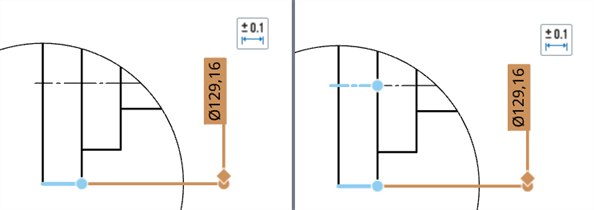
Foreshorten dimension from a cylinder's silhouette edge (left) and from a centerline and circle edge (right)
The Diameter dimension command is unchanged and can still create both regular and foreshortened dimensions. See Diameter dimension.
When you drag a foreshortened dimension created from a centerline and an arc or circle, you can snap it to the edge's Min or Max point.
Converting between a foreshortened and direct dimension
-
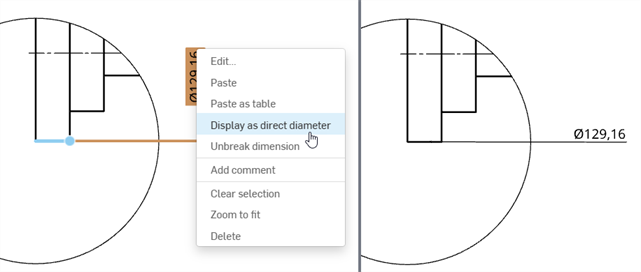
Right-click on the dimension and select Display as direct diameter.
-
If the foreshortened dimension is from the edge of a cylindrical feature, the display is converted to a direct diameter and the measured value remains unchanged.
-
If the foreshortened dimension is from a centerline to an arc or circle edge, the measured value is updated in addition to the display of both extension lines and arrows.
-
-
To convert it back, right-click the dimension and select Display as foreshorten diameter.
Flipping the dimension
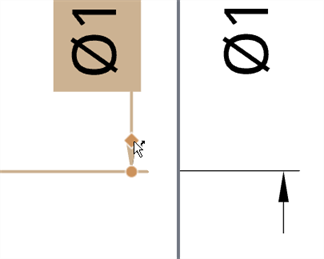
To flip a foreshortened dimension to the opposite side of the extension line, hover your cursor over the grip point. When you see the flip arrow attached to the cursor, left-click the mouse. Left-click again to flip it back to the original side of the extension line: