


The Document toolbar is available in all Onshape documents (aligned horizontally with the Onshape logo).
 Document toolbar options
Below is an outline of the functionality available:

- Onshape or company logo - Click the Onshape logo (or your company logo if you are part of an enterprise account) to return to the Documents page from anywhere in the system.
- Document menu
 - Click this icon to open a menu of commands available for the active document workspace or version.
- Document name (bold; Mirror in the example image above) - The name in bold is the document in which you are currently working.
You can change the document name by clicking on the current name and typing a new one.
- Workspace name (light gray; Main in the example image above) - The name of the workspace in which you are currently working.
- Copy link
 - Copy link to the document, including the active configuration, render mode, exploded view, panel states, and view orientation.
- Folder name
 - If the document is located in a folder, the folder name is listed to the right of the folder icon. The folder is also a link. Clicking the link opens the folder in a new browser tab.
- FeatureScript notices
 - Click to see any notices sent by the
FeatureScript
compiler.
- Click to see any notices sent by the
FeatureScript
compiler.
- Notifications
 - Displays notifications alerting you to document changes.
- App Store
 - Click to access (and sign into, if necessary) the
Onshape App store
for purchasing apps that partner with Onshape.
- Click to access (and sign into, if necessary) the
Onshape App store
for purchasing apps that partner with Onshape.
- Learning Center
 - Click to access the Onshape Learning Center (in a new window tab) that offers recorded webinars, technical briefings, and self-paced learning pathways.
- Share - Click to open the Share dialog and make the active document accessible to another user or team and select permissions for those users to have on this document.
- Help menu
 - Open the Help menu to access: the online Help system, Learning Center (same as the Learning Center button), FeatureScript documentation, a listing of product keyboard shortcuts, a list of What's New for this release, Forums, Contact Support, Refer a friend to use Onshape, check your system for compatibility with Onshape's requirements, and information about this version of Onshape.
- User account menu - Access your account preferences and other settings through this menu. For more information see, Managing Onshape Accounts.
If the current document is Public, additional icons are available:

-
Public document
 - Indicates the current document is public.
-
Copies
 - Indicates total number of current document copies. See
Share Documents
for more information.
- Indicates total number of current document copies. See
Share Documents
for more information.
-
Links
 - Indicates total number of current document links. A link is when the current document is inserted into other documents. See
Linking Documents
for more information.
- Indicates total number of current document links. A link is when the current document is inserted into other documents. See
Linking Documents
for more information.
-
Likes
 - Indicates total number of likes. Click the icon to like the current document.
Document toolbar: iOS
Below is an outline of the functionality available:

-
> - Tapping this takes the user back to the Documents page.
-
Document and workspace names - Name of the document above, with the name of the workspace below. In the example image, the Name of the document is Bevel Gear Assembly-and-Valve Reduced preview - RA, and the workspace is Main.
-
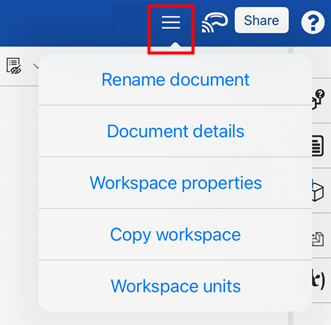
Options menu - Tap the options menu in the upper right to open a dropdown with additional document and workspace options:
-
Rename document - Opens a dialog to update the name of the current document.
-
Document details - Opens a dialog to update the description of the current document.
-
Workspace properties - Opens a dialog to display the current workspace Name, Description and Category.
-
Copy workspace - Opens a dialog to copy the active workspace to a new document.
-
Workspace units - Opens a dialog to change units for the currently selected workspace.
-
-
Apple Vision Pro - Connects to the Apple vision pro. See Viewing Models with Apple Vision Pro for more information.
-
Share - Opens the Share settings dialog, which allows the user to set Share settings for the current document. See Share documents for more information.
-
Help menu - Opens a dropdown to access mobile Help, Review gesture controls, Contact support, and information About Onshape. See Feedback and Help for information on these options.
On mobile phone devices, the Versions and history, Create version, Comments, and Share buttons are located on a horizontal toolbar along the bottom of the application.