


Available in: Assembly
Perform several functions from the BOM table, such as inserting non-geometric items, generating next or missing part numbers, switching to a Part Studio or Assembly from an item, open a linked document, suppress/show parts or subassemblies, and export the table to a CSV file.
See the Bill of Materials (BOM), BOM table formatting, and BOM table templates for additional information.
On the iOS and Android platforms, BOM tables can be viewed and changed between types; flattened and structured.
 Insert a non-geometric item
You can insert non-geometric items (items not modeled in CAD, like glue, tape, paint, thread locker, etc) into your bill of material, through the BOM panel in an Assembly tab. Onshape refers to these types of entities simply as items.
There is some setup required in order to have the information available for insertion into the bill of material. Refer to Managing Your Onshape Professional Subscription if you have a Professional subscription or to Managing Your Onshape Enterprise Subscription if you have an Enterprise subscription. Once you have items added to your subscription (in your company/enterprise settings Properties), you can follow these instructions to insert those items into a bill of material within an Assembly tab.
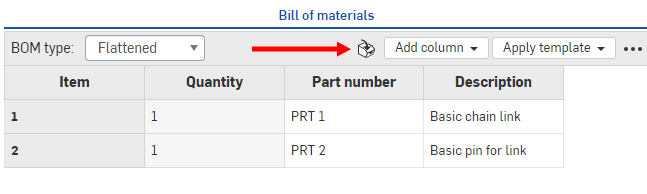
- In the Bill of Material panel, select the
Insert items
icon at the top of the panel:
- In the dialog:
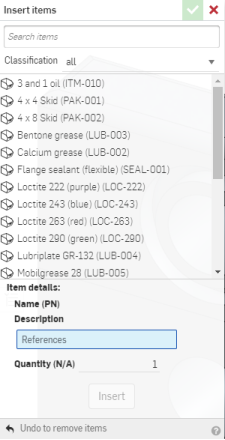
- Select the item to include in the BOM, and the quantity. You can search the items and also filter by classification (click the down arrow next to Classification all).
- Click Insert to add the selected items to the BOM.
- When you click Insert, the item is added to the Items list in the Instances list first. You can click Undo to remove items, if you change your mind about an item.
- When you click the checkmark to accept your actions and close the dialog, the items appear in the BOM panel.
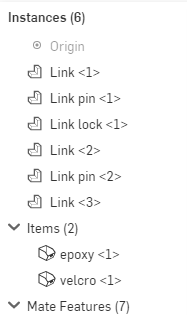
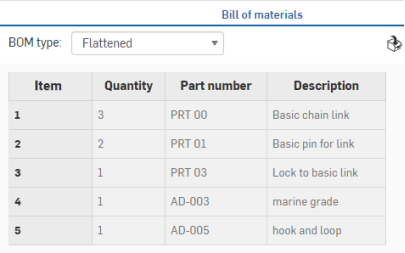
You can edit the items through the Instances list.
Right-click an item to:
- Edit - Change the quantity
- Suppress - Temporarily take the item out of the BOM (and assembly)
- Add comment - Add a comment to the assembly that directly references the item
- Delete - Delete the item from the assembly and the BOM
Generate next or missing part numbers
If you have automatic part numbering turned on in the Numbering schemes settings, in a BOM you can:
- Generate part numbers for a particular part - Right-click the Part number cell of the part and select Generate next part number.
- Generate part numbers for any parts in the table that are missing part numbers - Right-click the Part number column header and select Generate missing part numbers.
Switch to Part Studio/Assembly or Open linked document
Right click on the BOM item's row and select:
-
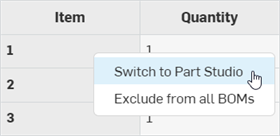
Switch to Part Studio/Assembly - Displays when the BOM item is located in a tab in the current document. The BOM item's Part Studio or Assembly tab opens in the current browser tab.
-
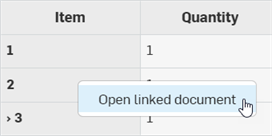
Open linked document - Displays when the BOM item is located in a linked document outside the current document. The BOM item's linked document opens in a new browser tab.
Suppress/show a part or subassembly locally
To suppress a specific part or subassembly and its corresponding data from the current BOM table only, without deleting it from record:
-
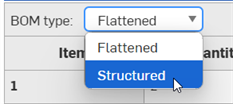
In the BOM type dropdown, select Structured view. You cannot suppress a part or subassembly from the Flattened view:
-
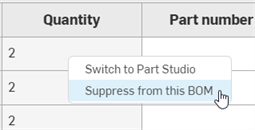
In the BOM, Right-click in the instance or subassembly row and select Suppress from this BOM:
-
The row of data is removed completely from the table but the instance/subassembly still exists in the Assembly. The remaining items are renumbered accordingly.
-
To view excluded instances/subassemblies in the BOM table, click on the overflow menu (
 ) at the top right corner of the BOM table and select Show excluded: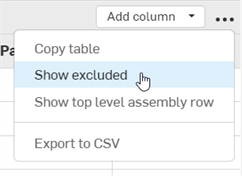
-
All suppressed instances/subassemblies are displayed in the BOM table, and item numbers are replaced with dashes and an asterisk (--*).
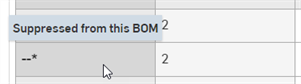
-
To include an instance/subassembly back into the BOM table, right-click on its row and select Unsuppress from this BOM:
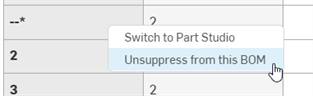
When a subassembly is excluded, all the of its instances are also excluded.
Tips
-
Aggregate properties are updated when a part/Assembly are globally excluded from all BOMs. They are not updated when a part/Assembly are included or excluded in a local BOM, This means, for example, if you exclude a part from the BOM globally, and then include that part in a BOM locally, the aggregate properties for the local BOM still excludes the part (the global BOM exclusion setting takes precedence). The aggregate properties are no longer accurate for this local BOM.
-
Suppressing is only allowed on immediate children of the assembly. To suppress children of sub-assemblies, the suppression must be done in their respective BOMs.
-
Suppressing a part or subassembly only affects the current instance. Nested instances in the same BOM are not suppressed.
-
If a part or subassembly is suppressed, all instances of it are suppressed if its assembly is inserted in other assemblies. For example, if part 1 is suppressed in Assembly A, and Assembly A is inserted into Assembly B, part 1 is also suppressed in Assembly B.
-
Globally excluded parts take precedence over locally suppressed parts.
-
You cannot include or exclude parts or subassemblies in a BOM in a version.
Exclude/include a part or subassembly globally
You can specify whether a part or subassembly is excluded from all BOMs globally. When an excluded part is inserted into any Assembly, the part and all its corresponding data is excluded from the Assembly's BOM. When the excluded subassembly is inserted into any Assembly, the subassembly, all its instances, and all corresponding data is excluded from all BOMs globally.
Excluding a part or subassembly
Do one of the following:
-
To exclude one or more parts from all BOMs, in a Part Studio select the part(s) you want to exclude from the BOM in the Parts list, then right-click and select Properties. Check Exclude from all BOMs and click Save:
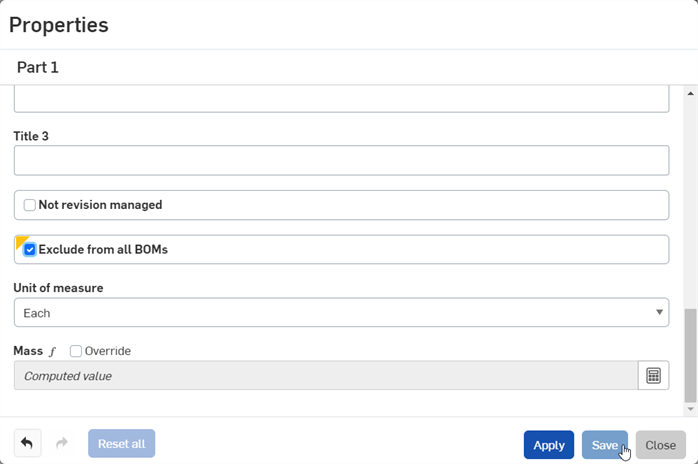
-
To exclude a subassembly and all its instances from all BOMs, right-click on the Assembly tab and select Properties. Check Exclude from all BOMs and click Save.
-
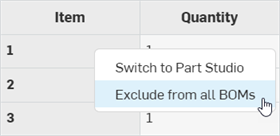
To exclude a part or subassembly from the BOM table, right-click on the part or subassembly row and select Exclude from all BOMs from the context menu:
Viewing excluded parts or subassemblies
To view globally excluded parts that are inserted into an Assembly on the BOM:
-
Click on the overflow menu (
) at the top right corner of the BOM table and select Show excluded:
-
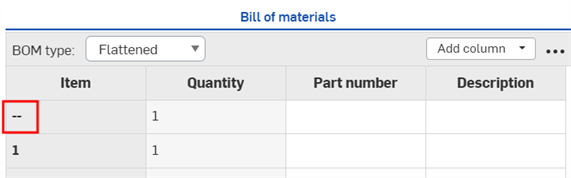
Parts are viewed with dashes (--) under the Item column:
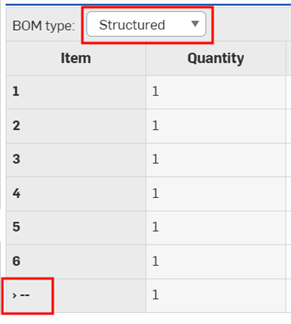
To view globally excluded subassemblies that are inserted into an Assembly, click Structured view from the BOM type dropdown. The subassembly item number is replaced with dashes (--):
Including parts or subassemblies
To include the Part or subassembly back into all BOMs, do one of the following:
-
Uncheck the Exclude from all BOMs box in the corresponding part Properties dialog or Assembly Properties dialog and click Save.
-
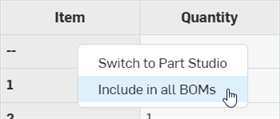
Ensure the excluded part or subassembly is viewable in the BOM table (see Viewing excluded parts or subassemblies). Then right-click on the part or subassembly row in the BOM table, and select Include in all BOMs from the context menu:
Calculating mass with excluded data
To calculate mass when some data has been excluded, click the Calculate value button in the Mass section of the Properties panel. An alert appears to indicate excluded instances have not been included in the mass calculation.
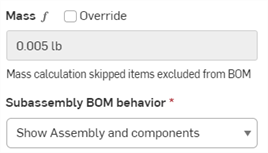
Subassembly BOM behavior
You can choose how to list a subassembly in a BOM, either as the assembly and its components, as the assembly only, or as the components only:
-
Open the Properties dialog for the Assembly (the tab or the subassembly listed in the Instances lists).
-
Scroll to the Subassembly BOM behavior field:
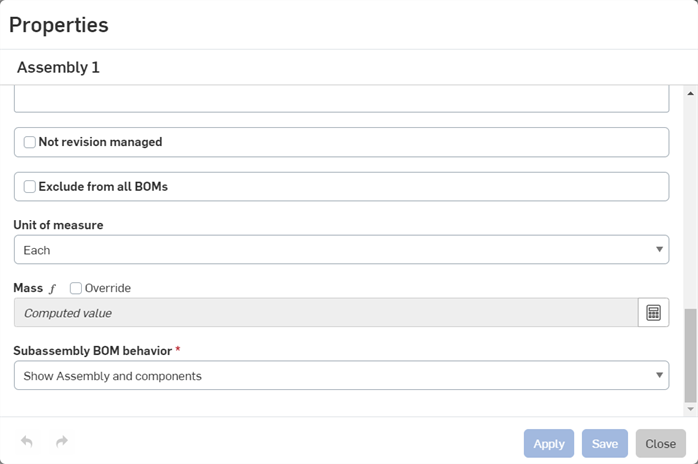
-
Select one of the options:
-
Show assembly and components - In a Structured view of the BOM, the assembly is listed along with individual line items for each of the assembly components.
-
Show assembly only - In a Structured view of the BOM, only the assembly is listed (no components).
-
Show components only - In a Structure view of the BOM, only the components are listed (no assembly line item).
-
-
Click Apply to register the change, or Save to register the change and close the dialog, or Close to close the dialog without registering the change.
The changes to the Assembly property affect all BOMs the assembly is inserted into, including BOMs in drawings.
Override an aggregated computed property
An aggregated computed property can be overridden from the BOM table:
-
Open the BOM table with the aggregated computed property.
-
Click the drop-down arrow from the top level assembly row's aggregate computed property table cell and select an alternative property:
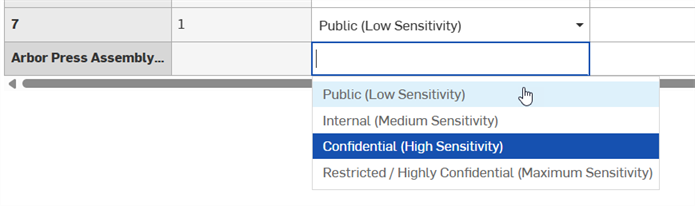
Overridden computed properties (and properties that are aggregated from overridden computed properties) are indicated by an icon next to the property, with a tooltip upon hovering over the icon:

To remove the override, right-click on the aggregate computed property table cell once again and select Remove override:
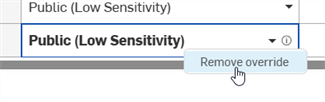
Export to CSV
Use the overflow menu's Export to CSV command to export the entire BOM table to a comma-separated file so it can be imported into an external spreadsheet program such as Microsoft excel or Google sheets.
If subassemblies are not expanded, the entire BOM is not exported.