


Available in: Assembly
Add, remove, move, and resize columns, and sort items in the BOM table.
See the Bill of Materials (BOM), Working with the BOM table, and BOM table templates for additional information.
On the iOS and Android platforms, BOM tables can be viewed and changed between types; flattened and structured.
 Add or remove a column
Item number, Quantity, Part number and Description are the default property columns displayed for parts and subassemblies in the BOM table. More columns can be added according to the properties defined for your account.
-
Click the
Add column
drop down and select a property to insert from the list. Additional columns are inserted at the far right side of the table.
- The Category column cannot be added if the property is multivalued.
- Any Category that can be edited via the Properties dialog can also be edited via the BOM table if added as a column.
- For properties marked as editable (in your account Properties), you can click in the cell and add data. This data is saved for the specific part, in the specific property and is available throughout your document and company for that part.
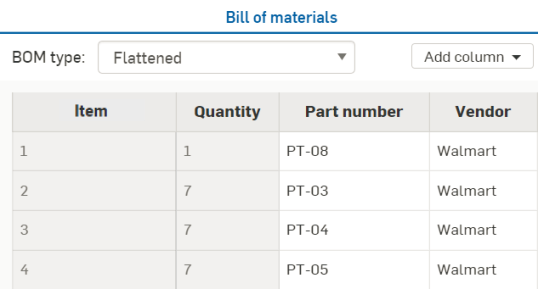
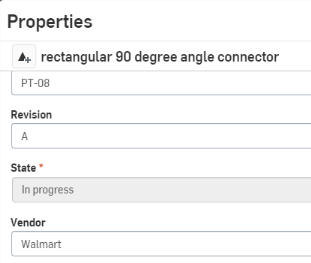
For example, you can enter information in the Vendor cell for each part. That information is saved in that part's Properties, Vendor field.
The Vendor cell with a value in a BOM table:
The Properties dialog for the part:
When creating a property (through the Properties tab in your account settings), you can mark it Edit value in workspace, Edit value in version or both. If you mark it Edit value in version only, you can edit that value in a BOM table for any released parts since released parts become part of a version. However if Edit value in version is not marked, you would have to branch a workspace from that version, edit the values, then either create a version, or re-release the parts.
An Onshape standard content instance cannot be edited from the BOM table, and is grayed out. To edit a standard content instance, right-click on the instance in the Instances list and select Edit standard content instance. See Editing the standard content instance for more information.
Custom standard content instances can be edited from the BOM table if you have write access to the library document. See Custom standard content in the Bill of Materials.
Remove a column
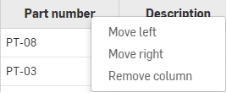
Any column except Item can be removed. To remove a column, right-click on the column header and select Remove column:
Removed columns can always be added back in using the Add column dropdown.
Move a column
Any column except Item can be moved. To move a column to the right or left, right-click on the column header and select Move left or Move right:
Resize a column
To resize a column:
-
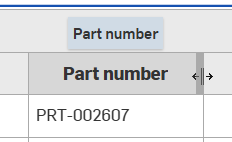
Hover over a column header's right side edge. The cursor displays a double-sided arrow and the column highlight is a darker gray.
-
Click and drag left to make the column narrower, or drag right to make the column wider.
Sort BOM table items
You can sort items in the BOM table alphanumerically by any column except Item. Each column header acts as a three-way toggle, from (1) unsorted to (2) ascending sort order to (3) descending sort order. Double-click on the column header to toggle from one sort state to the next.

BOM table items sorted by ascending (left) and descending (right) Quantity.
Table data can only be sorted by one column at a time.