


Available in: Assembly
Only available for
Once you have edited the BOM format, you can save that as a template and use it.
See the Bill of Materials (BOM), Working with the BOM table, and BOM table formatting for additional information.
On the iOS and Android platforms, BOM tables can be viewed and changed between types; flattened and structured.
 Steps
Steps
-
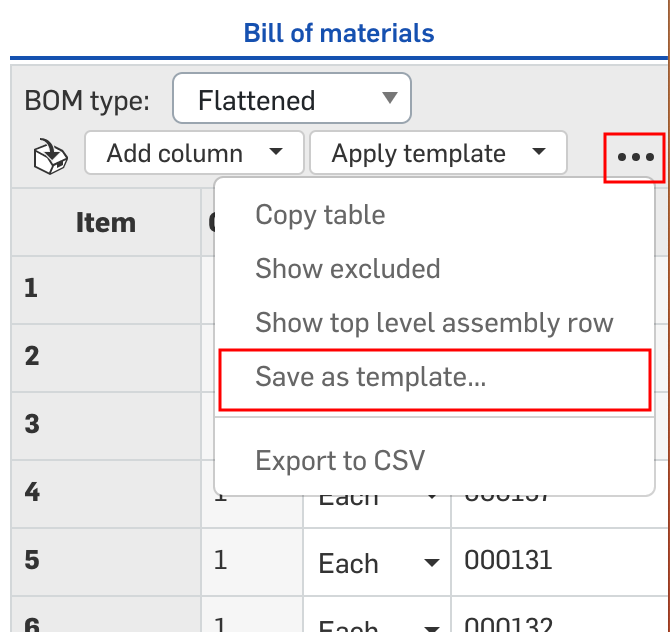
Click the three-dot menu in the upper right corner of the Bill of Materials table, and click Save as template...
-
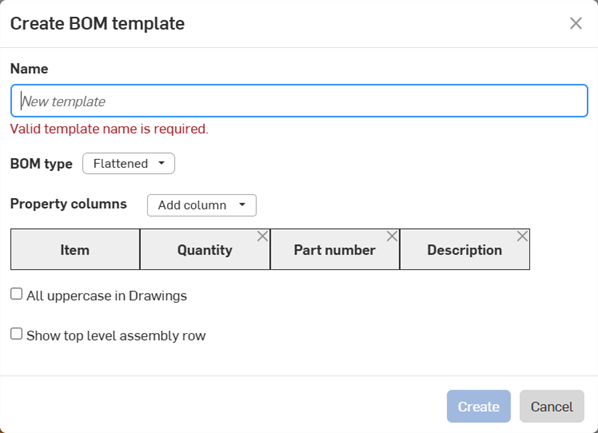
The Create BOM template dialog opens. Provide a Name for the template. This is mandatory.
-
Select the BOM Type, either Flattened or Structured. This is used as the template default when a new BOM is created using this template.
-
Using the Property columns dropdown list, add the columns you require. The Item column is required and cannot be removed.
-
Check All uppercase in Drawings to enforce uppercase column headings and Property strings when inserting BOM tables using this template in Drawings.
-
Check Show top level assembly row to display the top level assembly row at the bottom of the BOM table.
-
Click Create to create the template. Click Cancel to close the dialog without creating the template.
New templates you create can be applied by clicking the Apply template dropdown at the top of the panel, and selecting a template from the list:
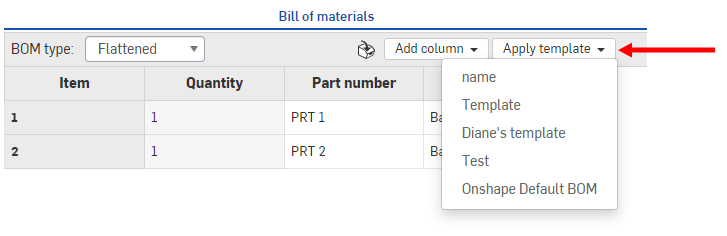
The selected template is used in your Assembly's BOM table.
You may also have templates in that list created by your Company/Classroom/Enterprise administrator.