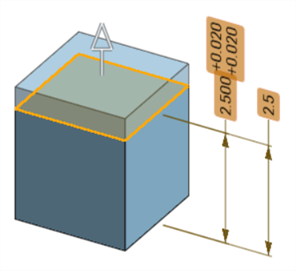
Model-Based Definition (MBD)
Available in: Part Studio
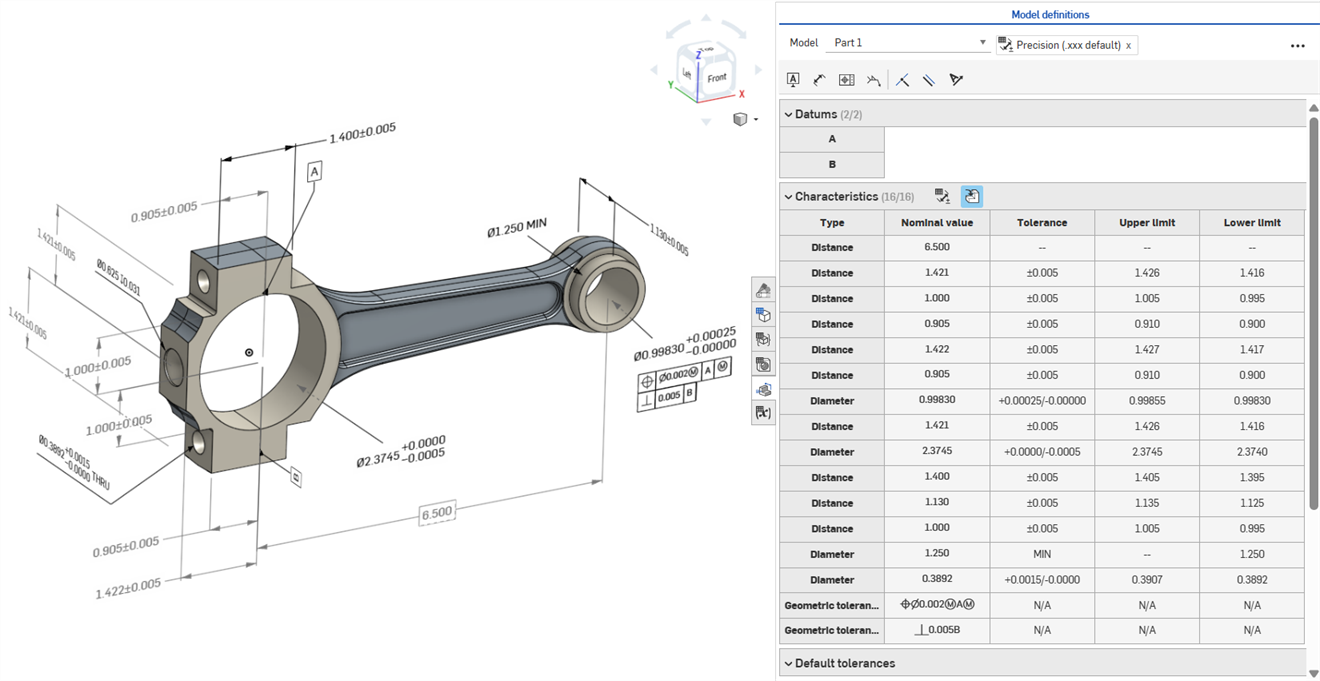
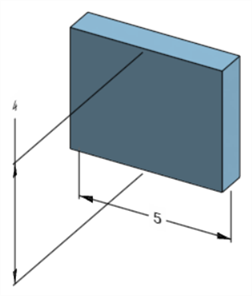
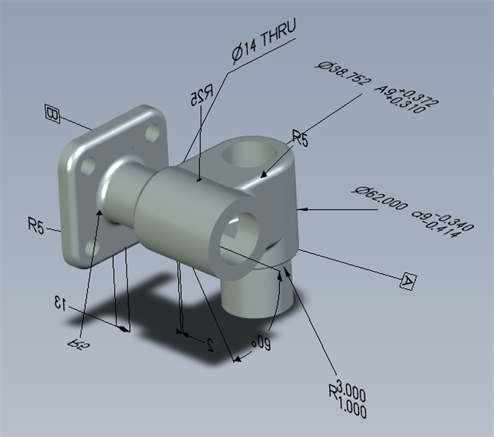
Model-based definition (MBD) refers to the process of dimensioning and annotating the model in the Part Studio so the model contains all the data needed to define a product, With MBD, the model becomes the source authority that drives all engineering activities. This model may further be used downstream by suppliers and across organizations.
MBD data works in conjunction with the Inspection table, where MBD data can be viewed, added, and exported for each part in a Part Studio.
MBD is not intended to replace Drawings. MBD is intended to capture and extend a model's Product manufacturing information (PMI) and Model-based enterprise (MBE) information for additional or alternative downstream usage.
Some features of MBD:
-
Dimension and annotation metadata embedded in the model in the Part Studio.
-
Improve real-time collaboration on the model in the Part Studio.
-
Provide a single source of truth for engineers across the organization.
-
Link to downstream processes like Coordinate measuring machine (CMM) inspection.
公差定義了特定草圖尺寸或特徵參數的允許值範圍,像是擠出深度、旋轉角度、或鑽孔直徑。並非所有草圖尺寸或特徵參數都可以使用公差。
在 FeatureScript 中提供公差,可用於自訂特徵中。詳細資訊請參考自訂特徵,並參考 FeatureScript 來獲得更多的文件資料。
尺寸環境選單對話方塊是用來編輯草圖與特徵尺寸,以及加入公差的。連按兩下草圖中的一個尺寸,或是連按兩下圖形區域中的 MBD 尺寸來存取這個對話方塊。請參考編輯 MBD 尺寸。
-
按一下公差圖示 (
) 來將公差加入到尺寸中。 -
在設定公差之後,按一下下拉箭頭 (
) 來設定公差參數:
-
精度 - 使用下拉清單來選擇一個單位精度,可以是工作區精度 或是來自下拉清單中的另一精度值;0 到 6 位小數。
-
公差類型 - 從下拉清單中選擇一個公差類型。選項有「預設」、「無公差」、「對稱」、「偏差」、「界限」、「MIN」、「MAX」、「基本」。
鑽孔與草圖尺寸公差同時提供「配合」、「配合與公差」和「配合 (僅顯示公差)」的選項。詳細資訊請參考鑽孔特徵。
當選取「預設」時,公差是根據「預設」的公差。詳細資訊請參考 Onshape 預設公差資源庫與預設公差資源庫。
-
偏差 - 適用於「對稱」公差類型。請輸入偏差值。
-
上限 - 適用於「偏差」與「界限」公差類型。請輸入上限公差值。
-
下限 - 適用於「偏差」與「界限」公差類型。請輸入下限公差值。
-
標準 - 適用於「配合」、「配合與公差」與「配合 (僅顯示公差)」的公差類型。請從下拉清單中選擇 ANSI 或 ISO 標準。
- 配合類型 - 適用於「配合」、「配合與公差」與「配合 (僅顯示公差)」的公差類型。從下拉清單中選擇「使用者定義」、「餘隙」、「轉換」或「干涉」。
- 鑽孔等級 - 適用於「配合」、「配合與公差」和「配合 (僅顯示公差)」的公差類型。請從下拉清單中選擇鑽孔等級選項。
- 軸等級 - 適用於「配合」、「配合與公差」和「配合 (僅顯示公差)」的公差類型。從下拉清單中選擇一個軸等級。
-
-
-
按一下核取記號圖示 (
) 來接受於環境選單對話方塊中輸入的值。 -
按一下 x 圖示 (
) 來退出環境選單對話方塊而不做出任何變更。 -
點按並拖曳對話方塊的控制器 (
) 來將對話方塊移動到螢幕上的新位置。放開滑鼠即可將其放置在新的位置。
下列的草圖尺寸可以使用公差:
-
兩條直線間的距離
-
兩點間的距離
-
草圖幾何與平面間的距離
-
對角距離
-
直徑
-
角度
-
直接距離
-
線性距離
-
半徑
下列的草圖尺寸無法使用公差:
-
單一線距離
-
弧長
-
中心線尺寸
詳細資訊請參考草圖工具尺寸。
-
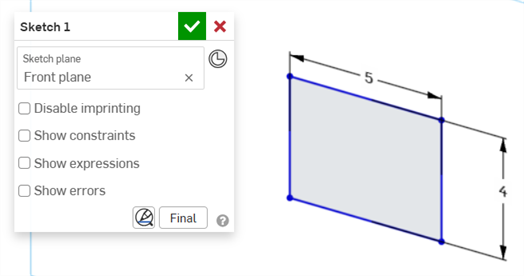
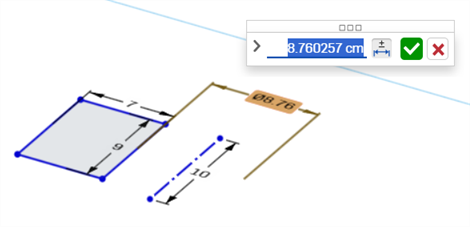
繪製草圖圖元,並在操作時出現的值輸入框中輸入任意值。
-
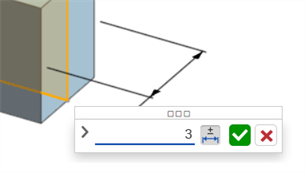
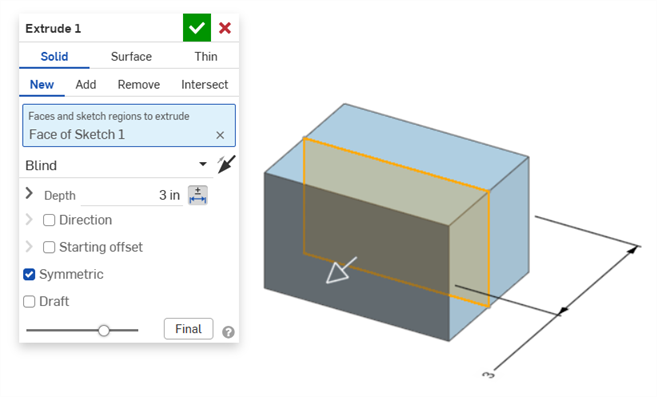
在尺寸上連按兩下 (下方第一個圖片)。尺寸環境對話方塊隨即開啟 (下方第二個圖片):
-
若要加公差加入至尺寸中,按一下「公差選項」圖示 (
;下方第一個圖片)、然後按一下下拉箭頭 (
;下方第二個圖片):
-
在精度與公差類型中輸入指定值:
-
按一下核取記號 (
) 來接受草圖尺寸:
下列的特徵選項可以使用公差:
-
擠出
-
實體/曲面/薄件 - 深度
-
實體/曲面/薄件 - 偏移距離
-
實體/曲面/薄件 - 第二結束位置 - 偏移距離
-
薄件 - 厚度 1
-
薄件 - 厚度 2
-
薄件 - 中間平面 - 厚度
-
-
旋轉
-
實體/曲面/薄件 - 一個方向/對稱/兩個方向 - 旋轉角度
-
薄件 - 厚度 1
-
薄件 - 厚度 2
-
薄件 - 中間平面 - 厚度
-
-
圓角
-
半徑
-
-
倒角
-
距離 (同等距離)
-
距離 1、距離 2 (兩個距離)
-
距離和角度 (距離、角度)
-
-
鑽孔
-
直徑 (簡易/埋頭孔/沉頭孔)
-
距離 (深度:簡易/埋頭孔/沉頭孔)
-
Diameter (Counterbore/Countersink diameter)
-
距離 (埋頭孔深度)
-
角度 (沉頭孔角度)
-
Distance (Tapped depth)
-
Distance (Tap drill diameter)
-
-
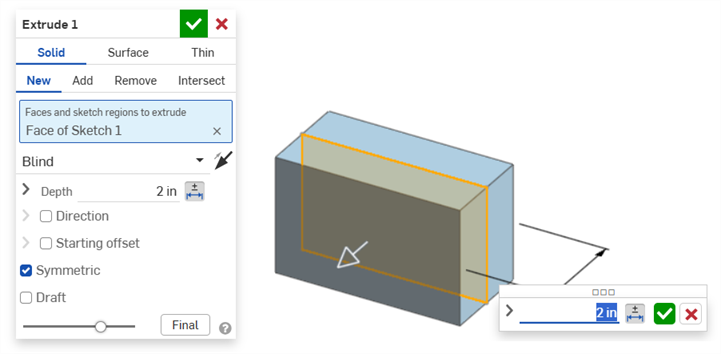
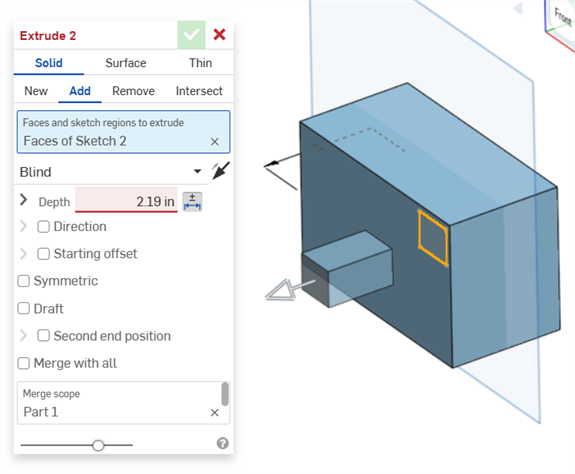
建立一個接受公差的特徵 (在這個範例中的擠出)。
-
按一下參數右側的「公差選項」圖示 (
):
-
按一下參數左側的下拉箭頭 (
):
-
在精度與公差類型中輸入指定值:
-
Enter any other Feature settings and click the checkmark (
) to accept the Feature. -
請確定檢查表格 (
) 是開啟的以查看帶有公差的特徵尺寸值:
移除特徵的公差並不會從模型中移除尺寸,其仍然是有效的尺寸。
Tolerance options can be used in conjunction with configurations.
-
Click the Tolerance options icon (
) to make the configuration's option value tolerant:
-
Click the dropdown arrow icon (
) to the left of the parameter in order to set the tolerance Precision and Type.
詳細資訊請參考組態。
公差選項會自動與比較機制結合使用。 在比較 2 個歷程記錄項目時,請選擇要比較的特徵 (下方範例中的 Extrude 1)。不同公差選項之間的比較是以黃色輪廓線框出:
擠出:兩個歷程記錄項目間深度公差選項的比較
See Compare for more information.
Images below are from iOS. The workflow is the same for both iOS and Android.
Sketch dimension tolerances:
-
Double-tap the dimension on-screen.
-
Click on the Tolerance options button at the lower right corner of the Android Dimension context dialog to set the dimension as tolerant:
-
In the Tolerance options dialog, enter the Precision and/or Tolerance type and click the checkmark to accept the options:
Feature dimension tolerance:
Feature dimensions can be set and edited in the same way as on the desktop platform:
Tolerance options for the Extrude: Depth value
Tolerances can only be viewed on the desktop platform, not iOS or Android, since the Inspection table is available only on desktop.
Driving MBD sketch and feature dimensions can be edited directly from the graphics area.
Product Manufacturing Information can be edited in the graphics area when the Inspection table is open, as well as within the sketches and features where they were originally defined.
Edit tolerances by double-clicking on the dimension in the graphics area. If the dimension references the Features list, Onshape opens the sketch or feature for editing. If the dimension was created using the Annotation toolbar, edit from the graphics area. As the model and tolerances change, the Inspection table updates in real time.
In the Characteristics table, filter rows using two toggle buttons. Initially, annotations with default tolerances applied are shown, and annotations from derived geometry are hidden. Derived annotations can only be updated by modifying the source.
Use cross‑highlighting to quickly identify and locate associated model references. Hover over cells in the Inspection table to cross-highlight the referenced part, faces, features, and associated annotations in the graphics area. Select an annotation in the graphics area or click a Datum or Type cell to keep the highlight visible.
Remove an annotation by selecting it in the graphics area and pressing Delete. Deleting an annotation that references the Features list removes the tolerance options from the sketch dimension or feature value, and removes the row from the Characteristics table. Deleting an annotation placed with the annotation toolbar removes it from the table. Derived annotations cannot be deleted.
-
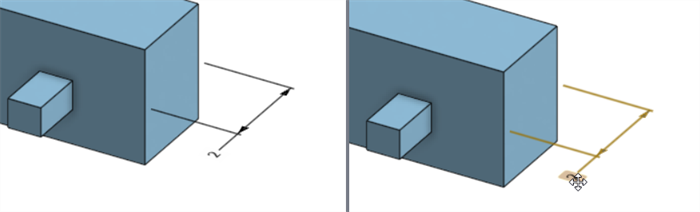
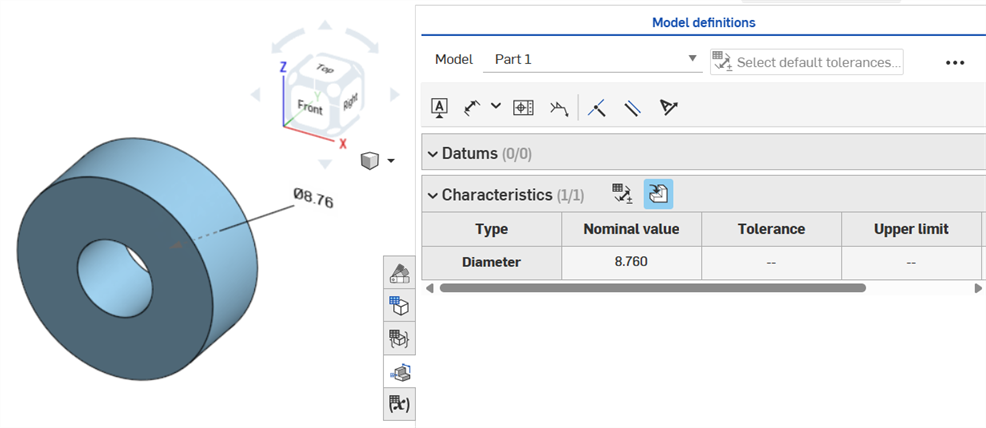
Open the Inspection panel (
) to display the MBD dimensions in the graphics areas (left image below). -
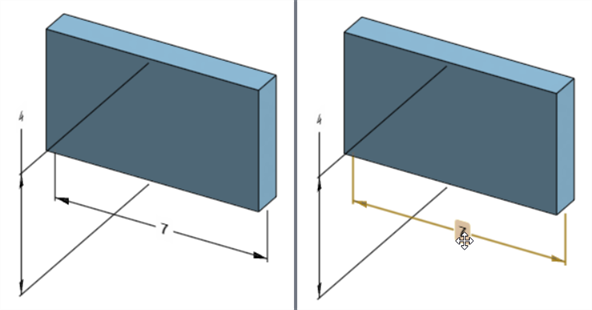
Double-click on the driving dimension that is associated with a sketch (right image below):
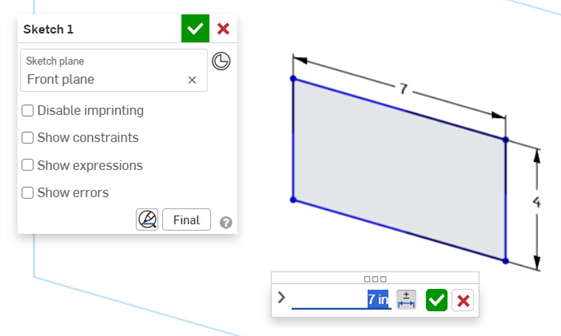
The Dimension context dialog opens with context placed on the dimension value. Simultaneously, the Sketch dialog opens:
-
Using the keyboard, enter a numeric value or use the up/down arrows to increment the value in the Dimension context dialog. As this value is adjusted, the sketch is updated dynamically.
If entering a value numerically, press the tab key to see the sketch value update.
-
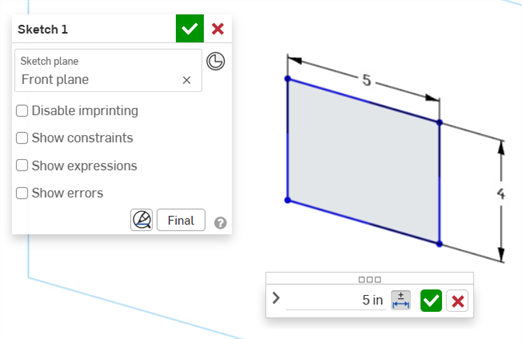
Press Enter on the keyboard or click the checkmark (
) in the Dimension context dialog to close this dialog:
-
Press the checkmark (
) in the Sketch dialog to accept the new sketch value.
The edited sketch dimension that adjusts the model's dimension
-
Open the Inspection panel (
) to display the MBD dimensions in the graphics areas (left image below). -
Double-click on the driving dimension that is associated with a feature (right image below):
The Dimension context dialog opens with context placed on the dimension value. Simultaneously, the associated Feature dialog opens (Extrude in this example):
-
Using the keyboard, enter a numeric value or use the up/down arrows to increment the value in the Dimension context dialog. As this value is adjusted, both the model and the value in the Feature dialog are updated dynamically.
If entering a value numerically, press the tab key to see the value update in the Feature dialog.
-
Press Enter on the keyboard or click the checkmark (
) in the Dimension context dialog to close this dialog:
-
Press Enter on the keyboard again or click the Feature dialog checkmark (
) to close this dialog:
The edited feature dimension that adjusts the model's dimension
To delete an annotation:
-
Select the annotation in the graphics area:
-
Press the Delete key.
-
The annotation is deleted from the graphics area and Inspection table.
If the annotation is a sketch or feature dimension:
-
The dimension's Tolerance options values are deleted.
-
The Tolerance options icon (
) is deselected. -
The dimension value in the sketch or Feature dialog is not deleted.
-
Annotations cannot be deleted if:
-
The annotation is derived.
-
The annotation is created in a custom feature where the parameter is made tolerant but the tolerant toggle is not made available for user input.
In either case the following message is displayed:
-
Driven dimensions cannot be edited. Double-clicking on a driven dimension opens the Dimension context dialog, but values in the dialog cannot be edited.
-
Derived dimensions cannot be edited. Double-clicking on a driving or driven dimension from a derived part does not open the Dimension context dialog.
-
To cancel out of the Dimension context dialog, press the Esc key. If editing a feature dimension, the Dimension context dialog and Feature dialog close simultaneously. If editing a sketch dimension, only the Dimension context dialog closes. The sketch dialog must be manually closed (clicking the x icon).
-
Alternatively, with both the Feature dialog and Dimension context dialog open, the value in the Feature dialog can be selected and edited, which updates both the Dimension context dialog and model dynamically. Once edited here, pressing Enter closes both the Feature dialog and the Dimension context dialog simultaneously.
-
The location of the model dimension and location of its corresponding sketch dimension are not locked together. They are independent:
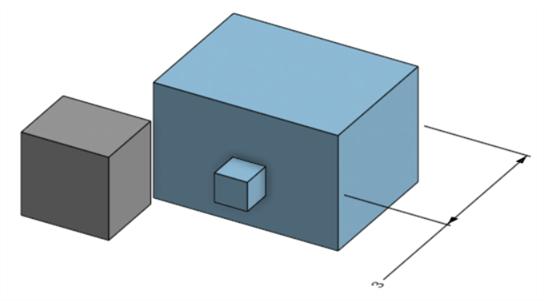
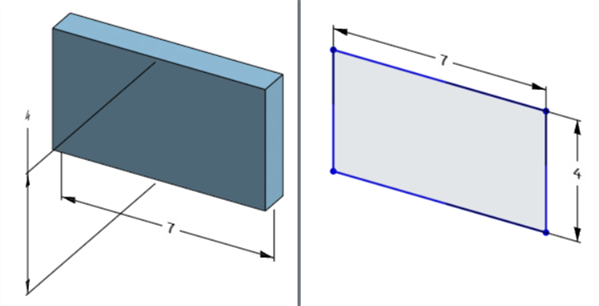
The model's width dimension is located below the model (left) but above the sketch (right)
-
In Pause regeneration mode, the model's dimension cannot be edited or deleted. However, you can still edit the feature or toggle a dimension's tolerance on or off. Changes take effect after clicking the Regenerate features and exit checkmark on the Paused regeneration banner.
-
Configurations work as expected. However, the dimension in the Dimension context dialog is not surrounded by a dashed orange outline to indicate it is configured. Configured sketch dimensions cannot be edited.
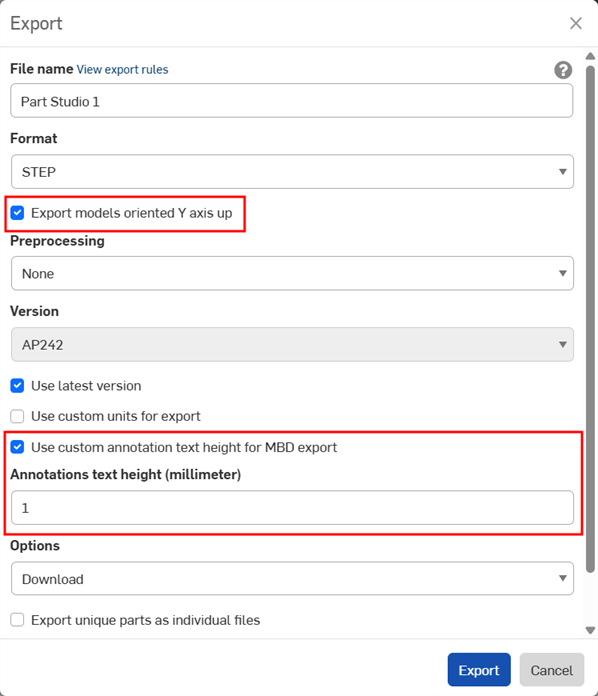
MBD data can be exported to STEP file format when exporting parts. The following settings are recommended:
MBD data is not exported with composite parts.
-
Enable the Export models oriented Y axis up checkbox.
-
Depending on the size of your model, you may need to enable the Use custom annotation text height for MBD export and select an appropriate Annotations text height to correspond to your model size.
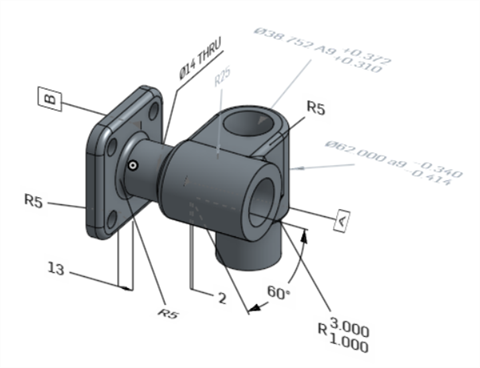
Original model in Onshape
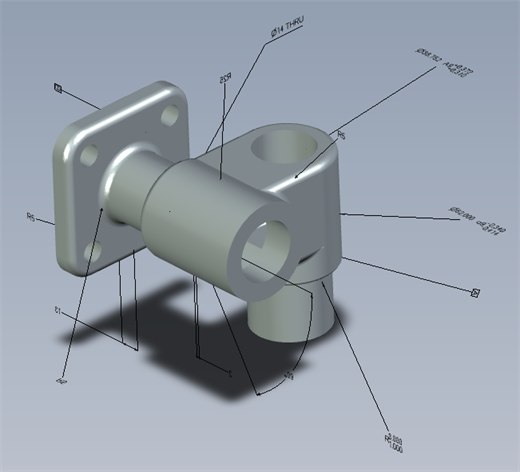
Exported model with the "Use custom annotation text height for MBD export" option disabled
Exported model with the "Use custom annotation text height for MBD export" enabled and set to 10 mm.
When exported, Geometric tolerances with multiple Tolerance frames have Upper text combined with the top frame, and Lower text combined with the bottom frame.
The following provides MBD examples when working with Feature and dimension tolerances:
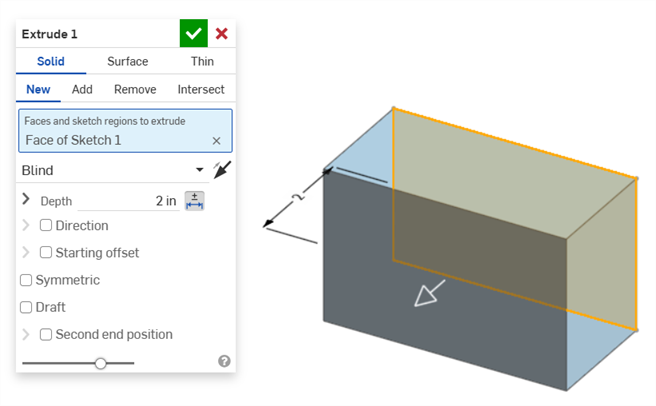
Depth dimension:
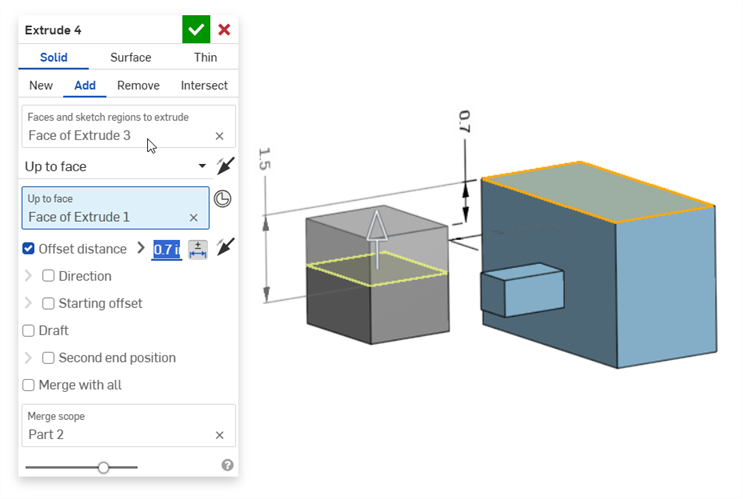
Offset distance dimension (with a composite part):
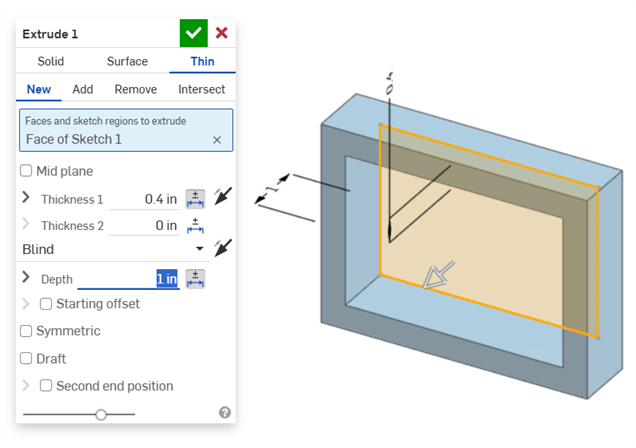
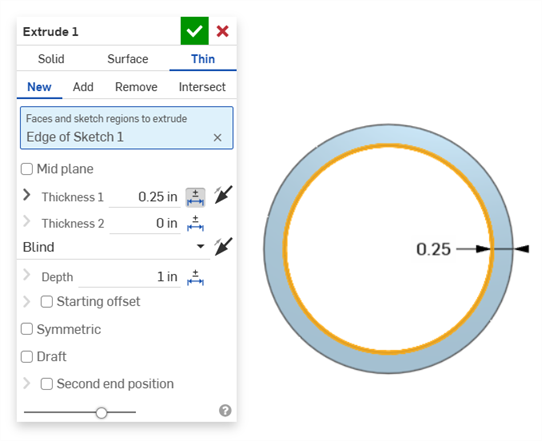
Thin extrude (Thickness 1 and Depth dimensions):
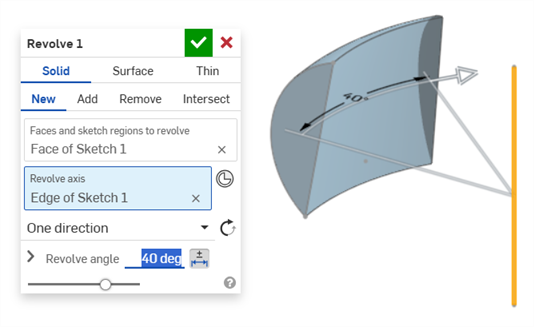
Revolve (Revolve angle dimension):
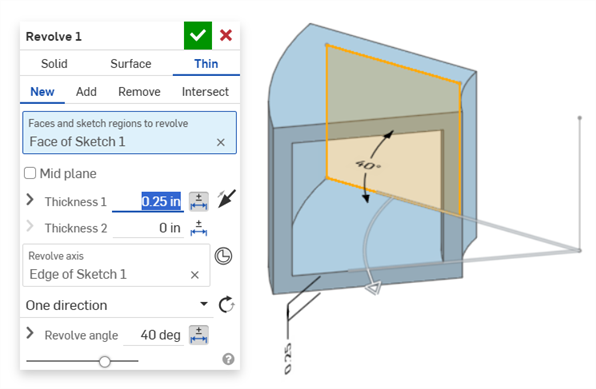
Revolve (Thickness 1 and Revolve angle dimensions):
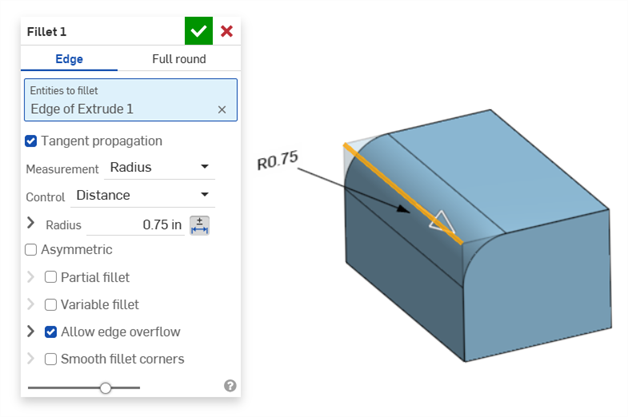
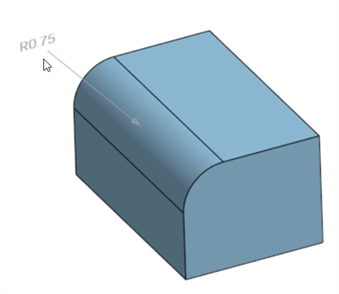
Fillet (Radius dimension):
Creating a driven fillet dimension using the Inspection table's Fillet dimension tool on the Annotation toolbar:
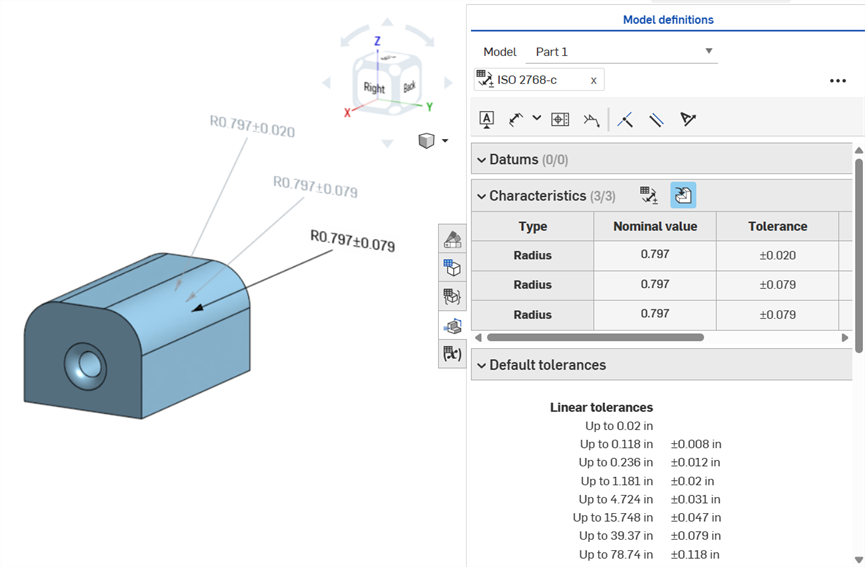
「檢查」面板的「尺寸」工具 (
) 永遠是使用線性或角度的預設公差。使用此工具來標註圓角面的尺寸會套用線性的預設公差類型。基於此一理由,建議在「圓角」特徵對話方塊中套用圓角公差 (對於驅動尺寸),或是使用「檢查」面板內的圓角尺寸 (對於從動尺寸)。
標註圓角面尺寸:按順時針方向註解:使用「尺寸」工具 (從動;以灰色註解),使用圓角尺寸工具 (從動;以灰色註解),使圓角特徵的半徑值具有公差 (從動;以黑色註解)。3 個尺寸都會列在 Characteristics 表格中。
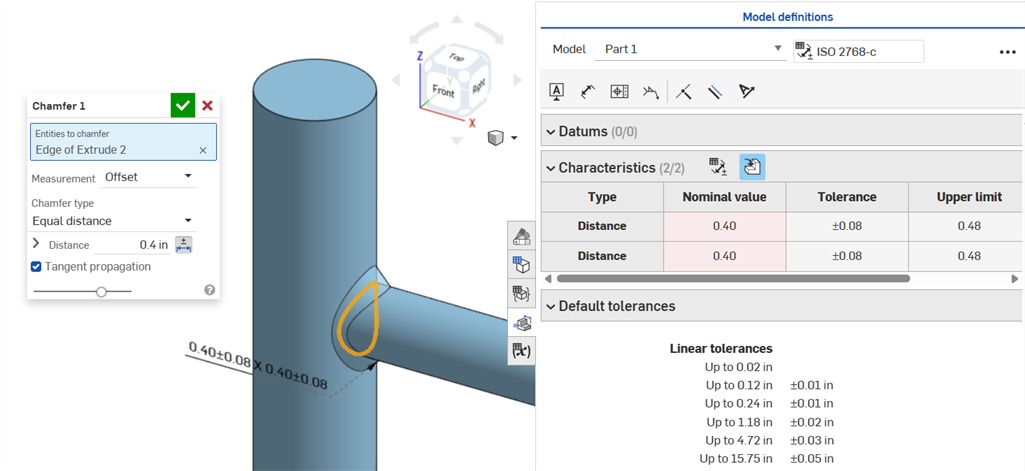
A Chamfer is defined as a distance to angle or distance to distance between a face and an edge. The Chamfer width dimensions are specified as the distance from an edge to the virtual sharp. The display for virtual sharps is added to the dimensioned edge, including a dashed curve.
-
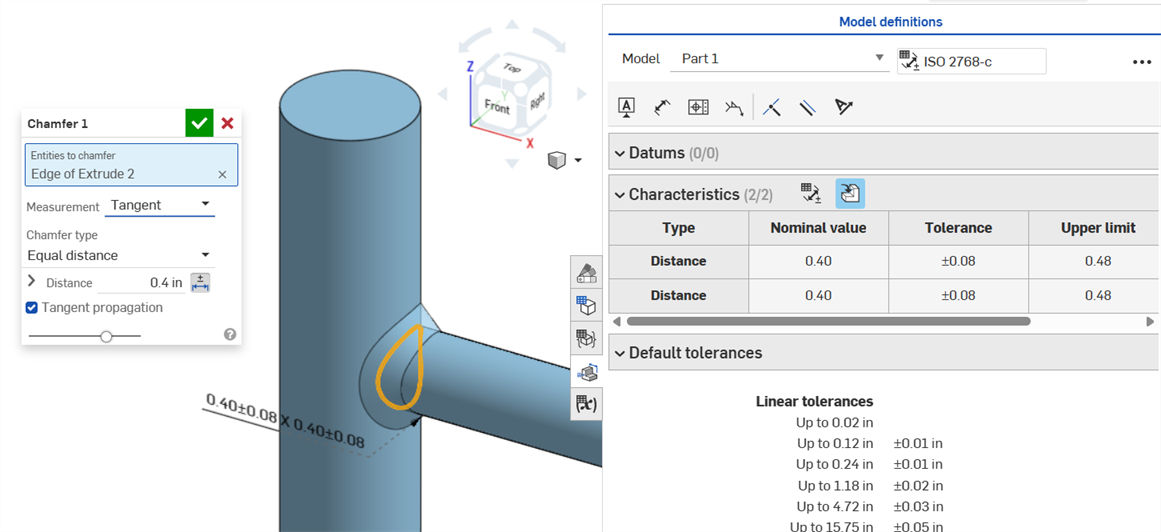
Tolerances are not disabled When a tangent measurement is used, since they can work in certain cases, and especially when accounting for the specified tolerance.
-
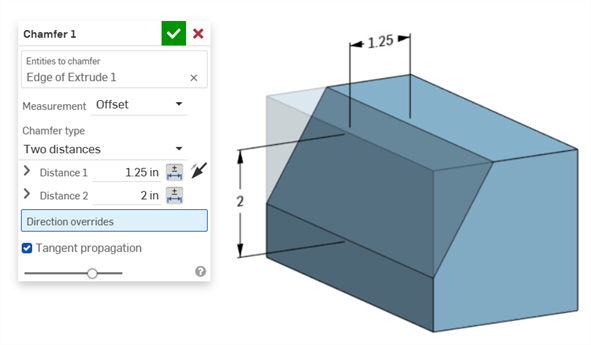
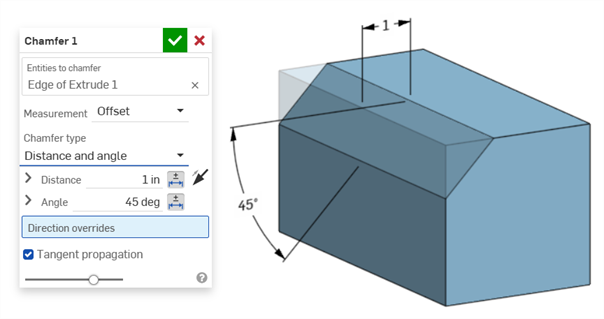
In situations where two chamfer measurements are used (Two distances or Distance and angle), the user does not have to create tolerances for both. Tolerances can be added to only one parameter, if required.
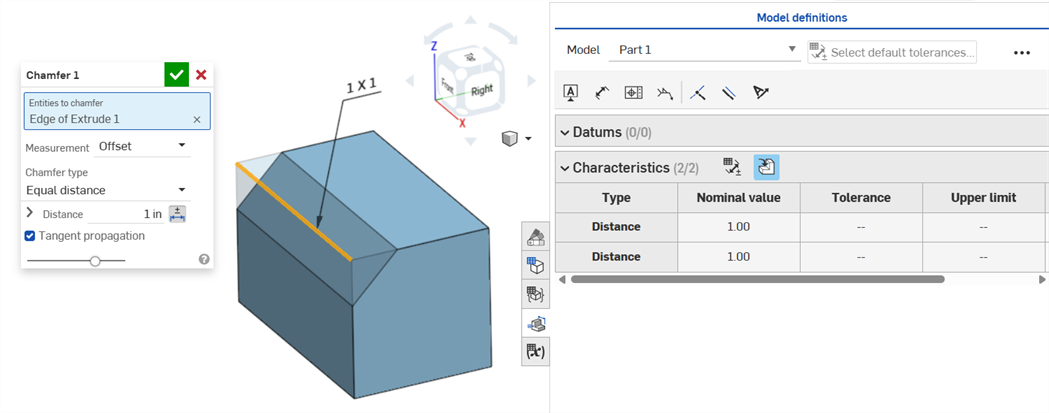
Equal distance Chamfer type displays 2 Distance tolerance values, which are reflected in the table, even though there is only one distance tolerance option in the dialog:
Two distances example:
Distance and angle example:
For cases where the chamfer results in a variable distance (for example, if the chamfer is applied to a cylinder face that is perpendicularly connected to another cylinder), try selecting tangent for the Measurement, to make the distance uniform along the edge:
Non-uniform chamfer using an Offset measurement displaying a Nominal value error.
Uniform chamfer using a Tangent measurement results in a Nominal value without error.
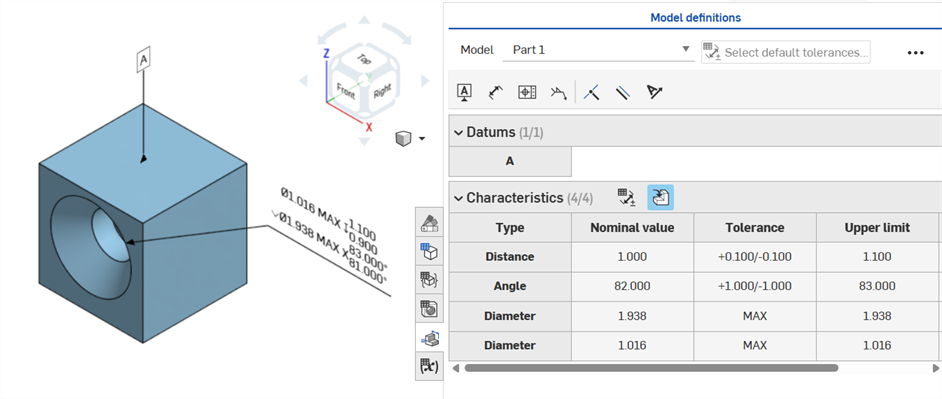
If a tolerance is placed on a hole feature, it can be displayed in the Inspection table.
Some things to keep in mind:
-
Hole dimensions are only visible as rows in the Inspection table. There are no dimensions placed in the graphics area. This is done so as not to clutter the graphics area with callouts.
-
Before hole dimensions are visible in the Inspection table, another callout (a datum, for example) must be placed on the part.
-
Only one set of dimensions (Diameter, Distance, and/or Angle) are shown per hole feature. Patterned holes or additional holes in the same feature are not dimensioned separately.
-
The custom Tip angle dimension is not currently supported and does not create a row in the Inspection table.
-
Cross-highlighting works as follows:
-
Distance (Depth) is not cross-highlighted because there are no faces at either end of the hole, and edges are not currently supported for MBD.
-
Diameter, Distance (Counterbore depth), and Angle (Countersink angle) cross-highlights a single face.
-
Hole dimensions are visible in the Inspection table after a Datum is added to one of the part's faces.
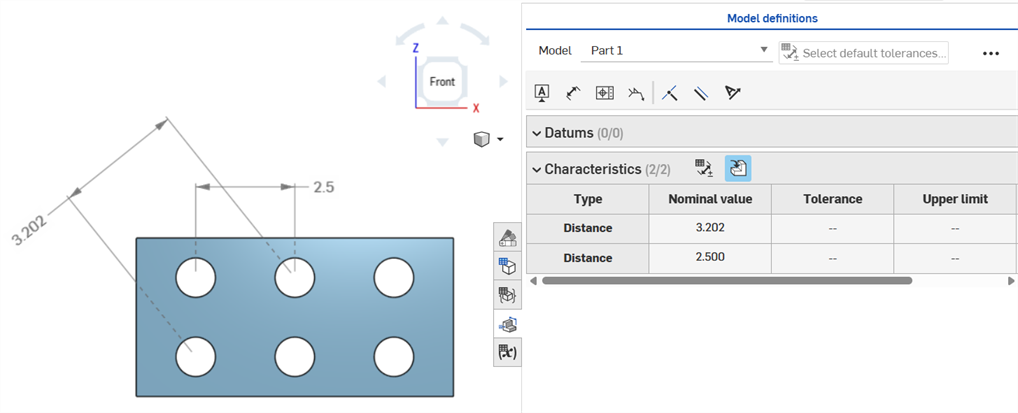
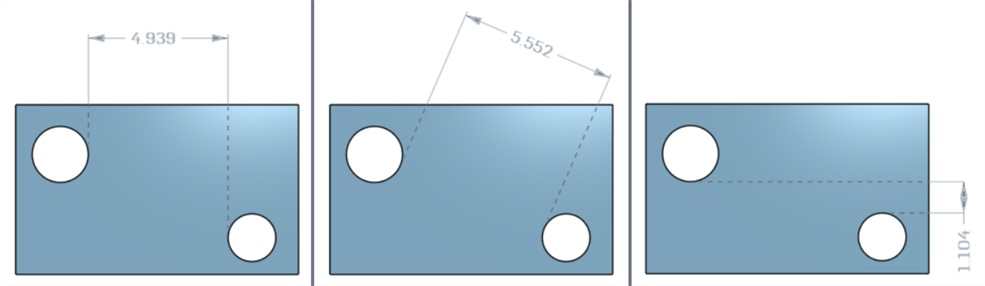
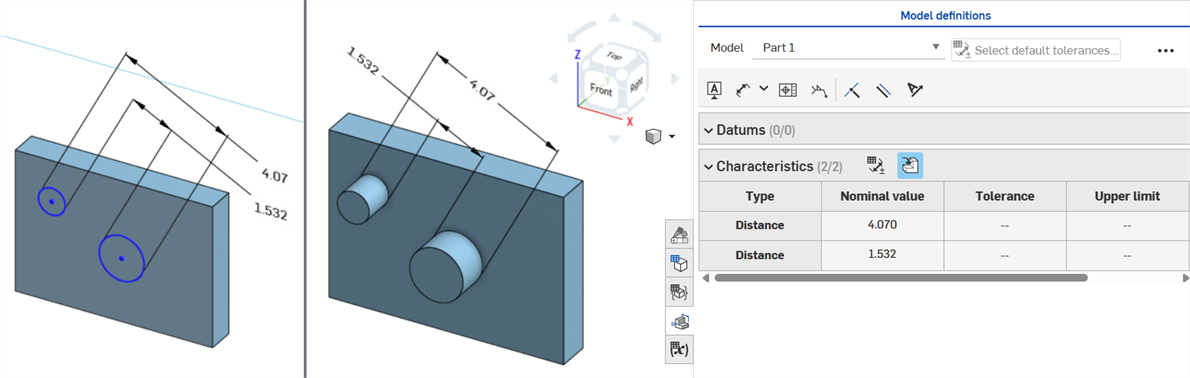
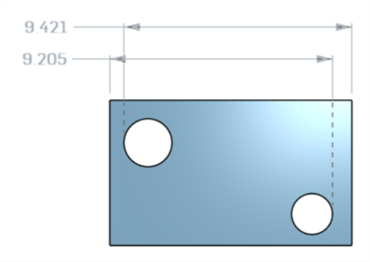
Axis distance dimensions between center circles using the Dimension (
) tool:
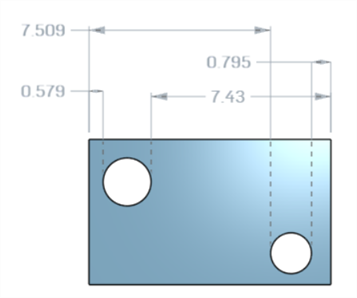
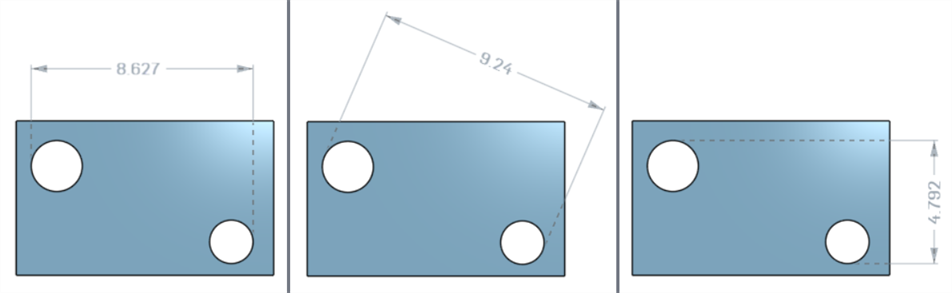
Minimum horizontal, diagonal, and vertical dimensions between two cylindrical faces using the Minimum dimension tool (
):
Minimum dimensions between cylinders and edges:
A minimum diagonal dimension added in a sketch (left) is displayed in the Characteristics table once the part is created (right):
Horizontal and vertical minimum dimensions cannot currently be created in a sketch.
Minimum horizontal, diagonal, and vertical dimensions between two cylindrical faces using the Maximum dimension tool (
):
Maximum dimensions between cylinders and edges:
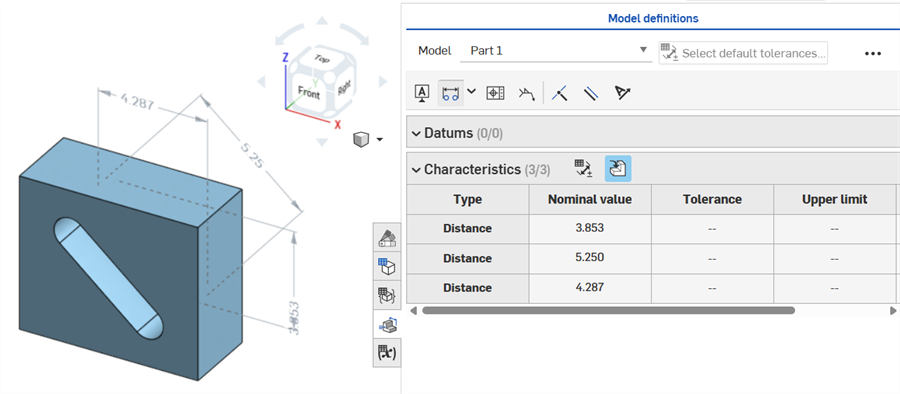
Maximum horizontal, diagonal, and vertical dimensions between arc faces in a slot:
A maximum diagonal dimension added in a sketch (left) is displayed in the Characteristics table once the part is created (right):
Horizontal and vertical maximum dimensions cannot currently be created in a sketch.
Thickness is displayed in the Inspection table as a Distance row.
Thin extrude (Thickness 1 dimension):
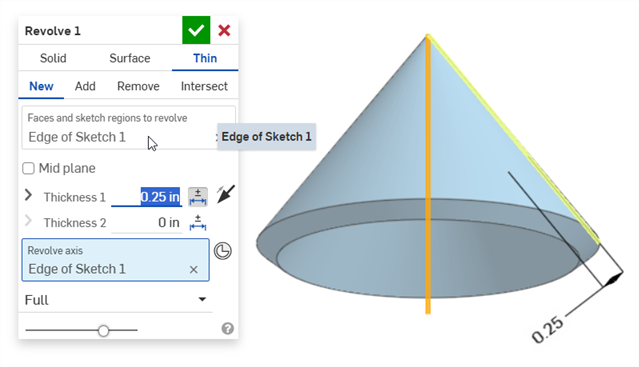
Thin revolve (Thickness 1 dimension):
MBD errors do not create annotations or row entries in the Inspection table, unless an adjustment to the model is made that invalidates an existing annotation row entry.
Errors are displayed in red, similar to other Onshape errors:
Error generated when extruding from or into a solid. The annotation does not generate a row entry in the Inspection table.
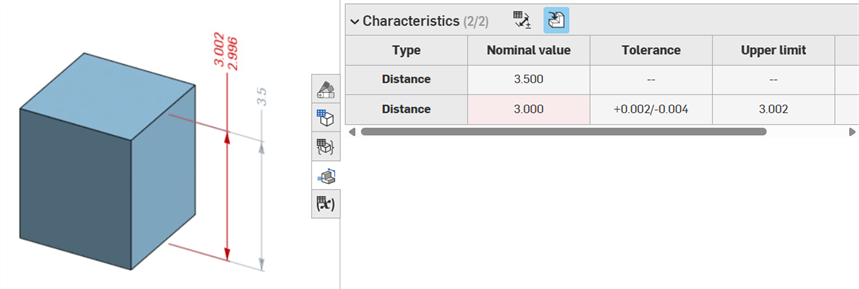
If the geometry is altered so as to invalidate a specified annotation, its corresponding annotation is red in the graphics area, and highlighted red in the Inspection table, signaling an error. For example, The top face of the box was moved .5 in., resulting in the measured value (3.5 in.) differing from the specified value (3.0 in.):
Error examples
-
A reference is missing for this annotation - Occurs when a reference is missing. For example, Part A is extruded up to the face of part B, and a tolerance is added to the Offset distance of the Part A extrusion.
-
Both faces must be from the same part - Model definitions are valid only on a per-part basis. For example, you cannot dimension the distance from a face on Part A to a face on Part B.
-
MBD annotations must always be associated with faces. Edges and vertices cannot currently be referenced.
-
Model definitions are valid only on a per-part basis. Composite parts are also valid. For example, you can dimension the distance between 2 faces on Part A or 2 faces on Part B, but not between a face on Part A and a face on Part B. To do this, first create a composite Part C from both Part A and Part B. You can then dimension the distance between these 2 faces.
-
Hovering over the Type row in the Inspection table cross-highlights the dimension in the graphics area.
-
When altering geometry of a part, all associated model definitions are highlighted orange:
-
If a part or Part Studio is derived via the Derived feature, all model definitions are read-only and cannot be edited. You can still move annotations, and driven dimensions are still updated if the derived geometry is altered; however, the underlying model definitions can only be adjusted in the source Part Studio, and then updated in the Derived Feature. See Derived for more information.
-
Comments can be added to and tag tolerant sketch dimensions, feature dimensions, hole callouts, and Inspection table annotations (Dimensions, Datums, Geometric tolerances) in the graphics area. See Adding Comments on MBD annotations for more information.