非同步模擬

僅為 提供
在組合件中提供此功能
通常會在使用者當前建構模型工作階段中動態地執行模擬 (即時),以對組合件或其零件的每個變更做出反應。這種行為非常適合快速、迭代式的設計導引。不過,會需要不同的方法來分析重要的設計里程碑,或進行長期分析。
非同步模擬可讓使用者獨立於其當前建構模型的工作階段執行模擬。模擬結果會永久儲存在「模擬」面板的結果與歷程表格中。模擬結果會顯示在佇列中、進行中與已完成的所有工作狀態。
功能包括:
-
在目前建構模型工作階段外計算模擬
-
儲存文件整個生命週期內的模擬結果
-
透過設定組合件的下列特點來從任何文件版本中提交模擬研究:
-
變數 (選用;如果存在)
-
組態 (選用;如果存在)
-
Named position (required, unless the Assembly is at the version's Default position)
-
模擬 (必要的)
-
-
在結果與歷程表格中清楚地安排模擬
-
簡單地監控進度或取消佇列中的工作,或從完成的工作中取得結果
-
每位使用者最多可連續啟動 50 次模擬,以進行比較分析。
-
取消即時模擬的時間限制,這對於長時間執行的分析非常有用。只有在分析執行超過 24 小時後,模擬才會逾時。
-
相較於即時模擬增加記憶體分配,這對於計算密集的分析非常有用。即時模擬使用 32 或 24 GB GPU 科學計算實例 (取決於可用程度),然而非同步模擬使用 128 或 64 GB CPU 科學計算實例 (取決於可用程度)。
 步驟
步驟
這個工作流程假定您在組合件頁籤中已有一個完成的 CAD 模型,其中有結合的實例,並充分約束組合件,然後適當地定義模擬:
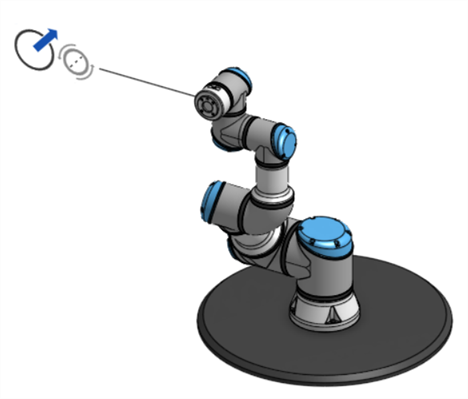
-
Optionally, create at least one Named position for the Assembly. The asynchronous simulation can be run at the version's Default position, which is the position of the Assembly at the moment the version was created.
-
選擇性地建立組合件需要的變數 。
-
選擇性地建立組合件需要的組態 。
-
建立一個文件版本。
-
從版本與歷程面板 (
 ) 中選擇要執行模擬的版本: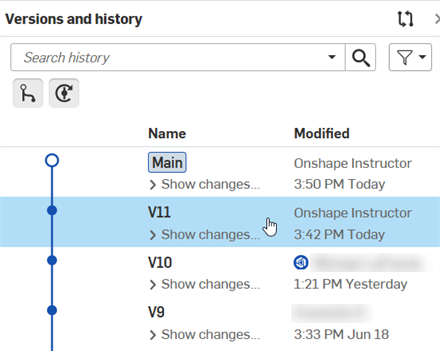
-
在命名位置面板 (
 ) 中,於命名位置上按右鍵,然後選擇套用命名位置: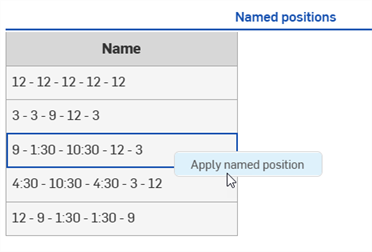
Skip this step to run the simulation at the version's Default position. Any change that creates a new history change entry makes the Default position unavailable. See the Default position note for additional information.
-
選擇性地為組合件在左側面板中的「實例」清單上方選擇變數或組態:
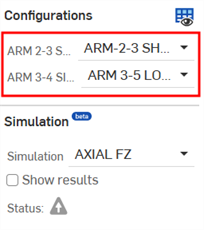
左側面板中的組態選取項目
-
在同一面板中選擇要執行的模擬:
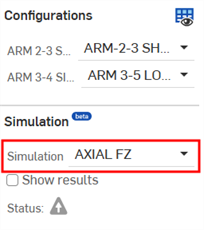
-
開啟模擬面板,按一下結果與歷程頁籤,然後按一下執行啟用中的模擬按鈕:
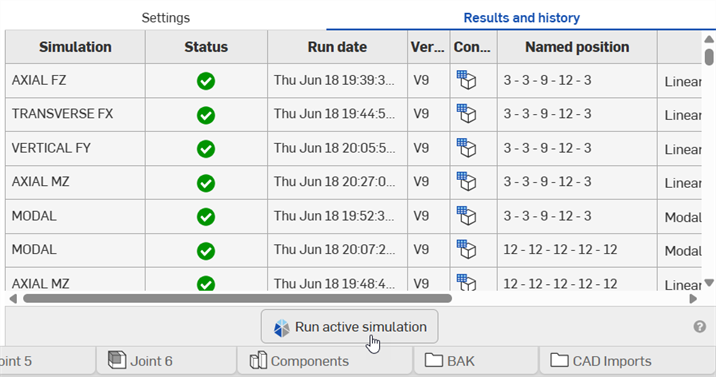
按一下這個按鈕來啟動非同步模擬。按鈕僅會出現在文件版本中,如果使用者連續模擬次數達到 50 次的上限,或是目前組合件的狀態與先前提交的非同步模擬相符,則會停用這個按鈕。
The user does not have to monitor the Results and history panel. Onshape sends a notification indicating the simulation's progress only to the user who started the simulation, with a link to view the simulation results:
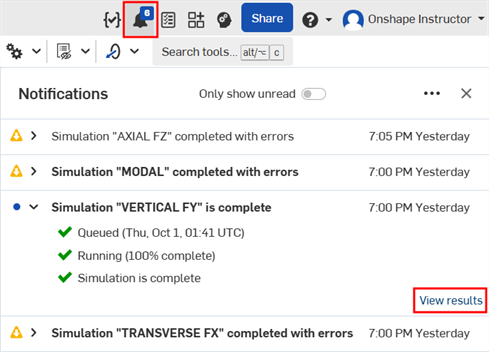
-
在模擬完成之後會顯示模擬的結果:

A simulation using the version's Default position
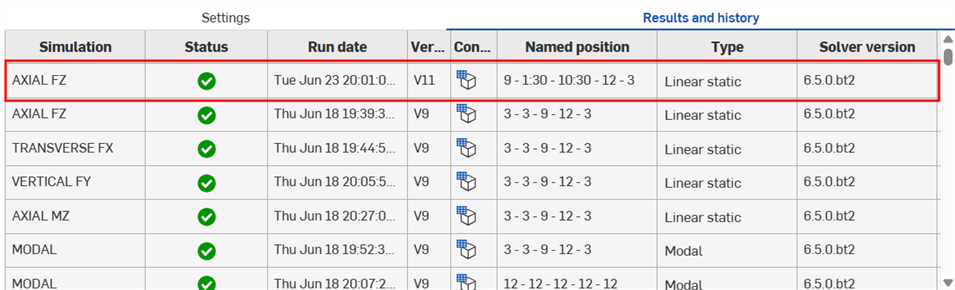
Simulations using Named positions
Deleting a simulation run
Permanently delete a completed or failed asynchronous simulation run, along with its results, from the document. You must have Delete permission for the document to delete a run.
-
Open the Results and history tab.
-
Open the menu for the simulation run you want to remove, and select Delete simulation results.

-
Click Delete in the confirmation dialog:
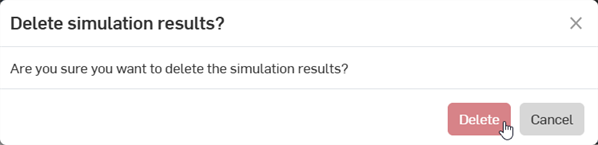
-
The run and its results are removed from the Results and history tab for everyone with access to the Document.
Deleting a simulation run is permanent. It cannot be undone, it is not recorded in the document's version history, and the run cannot be restored. Runs can be deleted from any workspace in the document.
Canceled runs are removed from the list automatically, and do not require deletion.
「結果與歷程」表格
在「結果與歷程」表格中的每個列代表一個模擬研究。包括的欄位有:
-
模擬 - 模擬的名稱。可以是線性靜態或模態模擬類型。
-
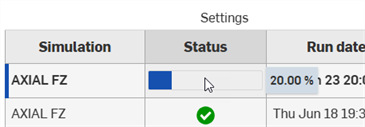
狀態 - 目前模擬的狀態。選項有佇列中 (轉盤),進行中 (藍色進度列),已完成 (
 ),或錯誤 (
 )。
)。 -
執行日期 - 在點按執行啟用中的模擬按鈕後,隨即開始這個工作。 當執行預先處理步驟時,這個欄位會顯示為佇列中。在完成這些步驟之後,欄位會顯示目前模擬工作開始執行的日期與時間。
-
版本 - 目前使用中模擬所執行的文件版本。
-
組態 - 移動游標至欄組態表格的圖示 (
 ) 上暫留會顯示未組態或組態設定的清單 (如果存在),做為目前啟用中模擬執行的工具提示: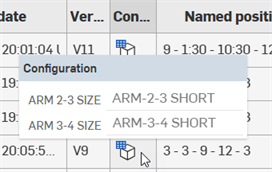
-
Named position - The applied Named position of the current active simulation run, or Default position if the simulation is run at the version's Default position.
-
求解器版本 - 目前模擬運行所用的求解器版本。由於求解器的持續改進, 新的模擬結果可能與之前的結果不符。
環境選單選項
-
顯示設定 - 當目前的模擬是在進行中或失敗時出現。按一下這個選項來開啟目前模擬的設定 (「啟用中模擬」、「命名位置」與「組態」)。
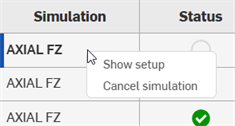
-
取消模擬 - 當啟用中模擬是在進行中時出現。按一下這個選項來取消模擬。
-
顯示結果/在新瀏覽器分頁中顯示結果 - 與「顯示設定」類似,這些選項會在模擬完成時顯示。按一下這個選項來開啟目前模擬的設定 (「啟用中模擬」、「命名位置」與「組態」),即使在文件版本中也可以,在目前頁籤與新瀏覽器分頁中顯示模擬結果。
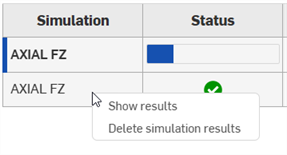
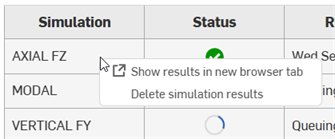
-
Delete simulation results - Permanently delete a completed or failed simulation run, along with its results, from the document. See Deleting a simulation.
-
重新執行模擬 - 在失敗的模擬 (
) 上按右鍵時會顯示。重新執行模擬。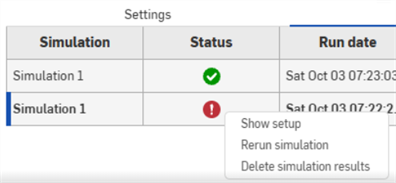
注意
-
無法刪除模擬。模擬會永遠儲存在結果與歷程表格中。
-
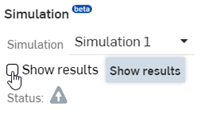
如果組合件狀態與先前完成的非同步模擬不完全相符,請按一下左側「模擬」面板中的顯示結果來執行動態 (即時) 模擬,即使要執行的模擬與一不完整的非同步模擬相符 (無論是在佇列或進行中)。不會儲存這些動態的結果。
如果組合件狀態與先前完成的非同步模擬完全相符,按一下顯示結果來從永久儲存中取出先前的非同步模擬,並不會執行新的模擬。
-
移動游標至狀態欄的進度列上暫留來顯示啟用中模擬執行完成的百分比:
-
如果模擬研究仍在佇列中等候但又急需結果,請考慮按一下顯示結果或在新瀏覽器分頁中顯示結果。
-
雖然很少發生,但如果模擬失敗是由於系統錯誤而不是設定或求解錯誤造成的,請考慮取消並重新提交工作。
-
Default position - An asynchronous simulation can be run on a version's Default position only while the Assembly is still at that version's original state, and there have been no history changes. For example, open V5 and the Default position is available. Rotate a part 30 degrees and it is no longer available. Rotate the part back 30 degrees and it is still not available. Undo both rotations and it is available again, because the original history state is restored.