自定义标准内容库

可用于:装配体
创建您自己的标准内容库,供用户插入其装配体中。管理员可以创建可在公司、教室或企业中共享的标准内容库。
 设置自定义标准内容库
要创建您自己的标准内容库,请执行以下操作:
-
在文档页面,创建新的文件夹,
-
(仅限管理员)管理员可以通过为公司的文件夹启用链接共享,与公司、教室或企业中的其他用户共享此库。
-
Add the document (or documents) that contains the parts for the library to this folder.
Documents added to the library must be marked as "Not revision managed".
-
Use the Tag feature to apply the Standard Content tag to the part in each Part Studio for the library.
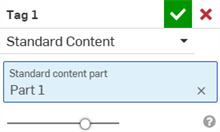
Each Part Studio in the library must contain at least one part tagged as Standard Content. The tagged part must be a solid part or a composite part. We recommend placing each standard content part in its own Part Studio.
-
在文件夹的每个文档中创建一个版本。
-
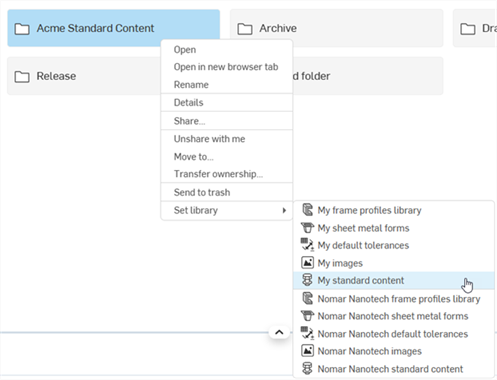
Return to the Documents page, right-click the folder, and select Set library > My standard content.
-
要为整个公司、课堂或企业设置标准内容库,请选择“设置库 > CompanyName 标准内容”。
-
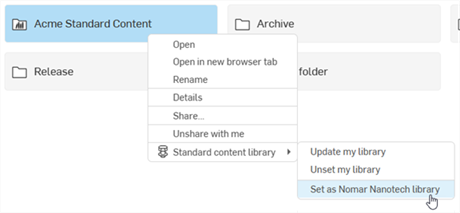
To set the same standard content library for a different account, select Standard content library > Set as ... library from the shortcut menu.
-
Using a custom standard content library
To insert a part from a custom standard content library into an assembly:
-
In an assembly, click Insert parts and assemblies (
 ) and click the Standard content tab.
-
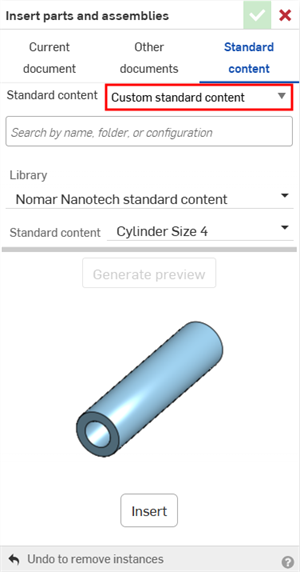
Click the Standard content dropdown and select Custom standard content.
-
Click the Library dropdown and select the library to insert from (for example, My standard content or CompanyName standard content).
-
Use the dropdowns below the Library field to navigate to the part. The dropdowns follow the library's folder and document structure. Alternatively, use the search bar at the top of the dialog to search the library for the part by name.
-
If the part is configurable, set its configuration options, then click Generate preview to update the preview image.
-
Click Insert. The part appears at your mouse location. Drag it to the preferred location and click to snap it to a Mate connector (implicit or explicit).
-
Click the checkmark (
 ) on the dialog to create the instance in the assembly and list it in the Instances list.
To insert from a company library, you must have access to the library folder and its documents. If you do not have access, the message Creation of linked document reference failed is displayed when you select a part. Contact your administrator to request access.
Editing a custom standard content instance
To change the configuration of a custom standard content instance in an assembly:
-
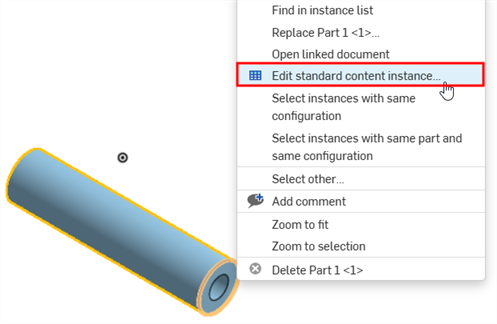
Right-click the part in the graphics area or the instance in the Instances list, and select Edit standard content instance from the context menu.
To edit several instances at once, first right-click an instance and select Select instances with same configuration or Select instances with same part and same configuration, then right-click again and select Edit standard content instance.
-
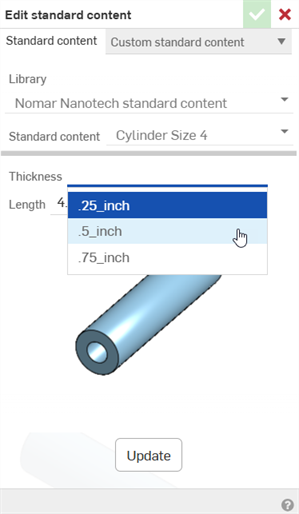
In the Edit standard content dialog, change the configuration options as needed. The library and part selections cannot be changed. To use a different part, replace the instance.
-
Optionally, click Generate preview to update the preview image.
-
单击更新。
-
Click the checkmark (
) to close the dialog.
An instance keeps the library version it was inserted from, and its configuration options come from that version. Instances inserted from different versions of a library document cannot be edited together.
Custom standard content in the Bill of Materials
Custom standard content instances are listed in the assembly's Bill of Materials (BOM) as follows:
-
Instances from the same element library are combined into a single BOM row if they have the same part number, even if they originate from different library versions.
-
Instances without a part number are listed like any other part. They are combined into one row only if they reference the same part, version, and configuration.
-
Instances in a subassembly whose BOM behavior is set to Show components only are combined with matching rows at the parent level.
-
If any instance in a combined row is excluded from the BOM, the whole row is excluded. A combined row is suppressed if all of its instances are suppressed, and partially suppressed if some of them are.
Unlike Onshape standard content, custom standard content properties can be edited from the BOM table or the Properties dialog, the same way as other parts from another document. You must have write access to the library document, and changes are saved to the library document. When release management is enabled, properties such as Part number and Revision are read-only. Edits to a combined row apply to the instance whose properties the row shows.
管理自定义标准内容库
通过其文件夹的环境菜单管理您的标准内容库:
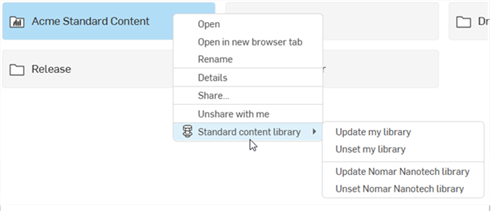
在此菜单中,您可以:
-
Update library - Update the library with any changes made to parts tagged as Standard Content. The updated library is available to everyone with whom the library is shared, the next time they insert standard content from it.
Updating the library does not update standard content instances already inserted in assemblies. Each instance continues to reference the library version it was inserted from. Editing the configuration of an existing instance also keeps its original library version. Custom standard content instances are not listed in the Reference manager and are not marked as out of date.
-
取消设置库——移除该文件夹作为标准内容库,允许您为该库设置不同的文件夹。