 替换实例

可用于:装配体
Replace instance allows you to replace selected or all instances of a part, surface, sketch, or subassembly within an assembly. Even if the replacement component is slightly different (for example, a derivative of the part), it will be inserted and all previously associated mates reapplied.
 步骤
- 打开一个插入了相关元件的装配体。
- 单击
 。
- 对话框打开后,选择希望替换的实例(或选择多个实例):
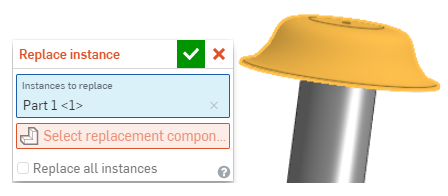
- 单击以激活选择替换元件输入框。
- 使用打开的对话框导航到包含替换实例的文档和 Part Studio。您可以选择“当前文档”,也可以选择“其他文档”并从其特征、零件、曲面、草图和子装配体中进行选择(如下所示)。
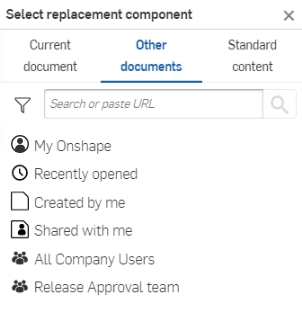
To replace the instance with standard content, select the Standard content tab. If your company or account uses a custom standard content library, click the Standard content dropdown and select Onshape standard content or Custom standard content. For custom standard content, select the Library, navigate to the part, set any configuration options and click Generate preview, then click Select.
- 使用筛选器和搜索栏查找并选择文档。
- 您可以按 Part Studio 或装配体中的实例名称和其他属性(包括自定义特性)进行搜索。
- 搜索接受多个词以及非字母数字字符,例如标点字符。
- 搜索栏左侧的筛选器显示了搜索所依据的常用属性(或所有属性)。您一次可以使用多个筛选器。
- 每个搜索结果都指出了满足搜索条件的图元类型,搜索条件首先是名称前面的图标,然后是图元的名称。在其下方,是工作区或版本图标、文档名称和工作区名称(或版本名称,属于搜索条件的一部分时)、零件编号和发布管理状态(如下所示)。

- 选择替换实例(对话框将自行关闭)。
- 如果装配体中有元件的多个实例,并且您希望将它们全部替换,请选中替换所有实例。
-
单击对话框中的
 以接受您所做的更改。
示例
在本例中,我们将喂鸟器的盖替换为不同的盖类型:
- 单击 。
- 选择要替换的零件实例:
- 单击以激活“选择替换元件”输入框:
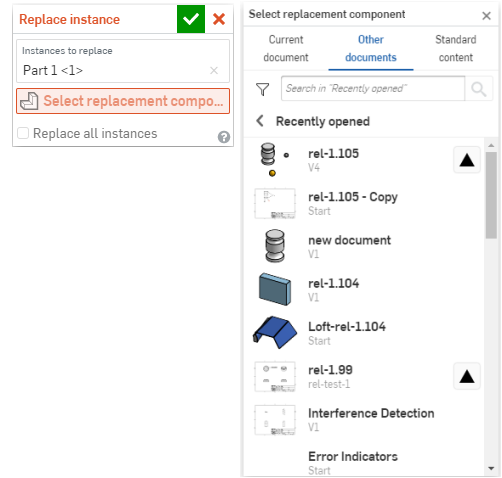
- 选择一个零件(对话框将立即关闭):
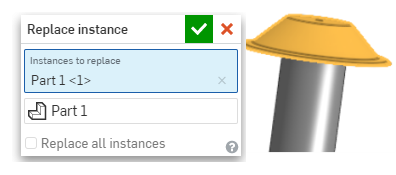
- 单击 。