リリースダッシュボード

リリースダッシュボードには、リリースアクティビティとリリースプロセスへの共同作成者に関する概要と詳細情報の両方が表示されます。リリース候補とパーツを検索します。
ダッシュボードに変更を加えた場合 (フィルターを編集したり、カスタマイズした場合)、これらの変更は新しいダッシュボードに保存できます。詳しくは、ダッシュボードの保存を参照してください。
ダッシュボードのビジュアルデータをエクスポートするには、ビジュアルデータを CSV または Excel ファイルにエクスポートするを参照してください。
さらに詳しくは、アナリティクスダッシュボードの操作とアナリティクスダッシュボードのビジュアルの操作を参照してください。
 リリースダッシュボードへのアクセス
左側のドキュメントパネルから [アナリティクス] ( ) をクリックします。次に、アナリティクスナビゲーションパネルにある [リリース] フィルターをクリックします。
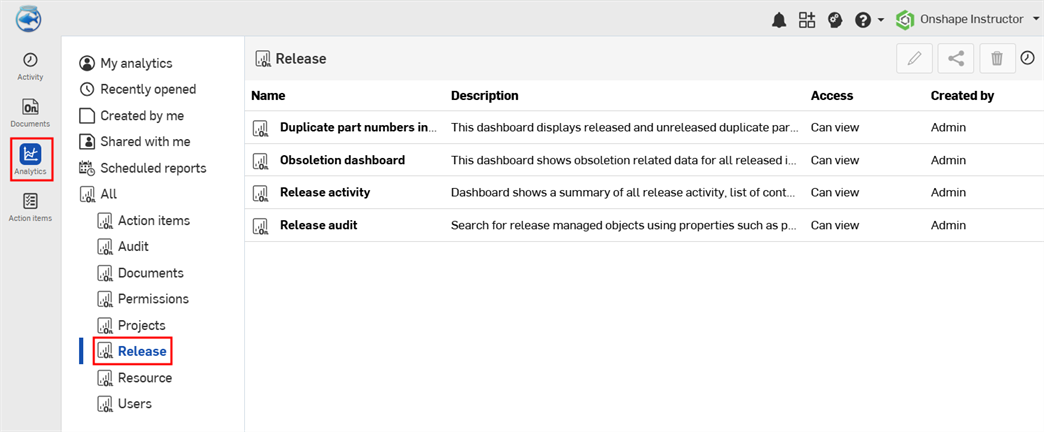
既定のリリースダッシュボード
-
複数のドキュメントの複製パーツ番号 - リリース済みとリリース前の複数のドキュメントの複製パーツ番号を表示するダッシュボード。
-
廃止ダッシュボード - リリースされたすべてのアイテムの廃止関連のデータを表示するダッシュボード。
-
リリースアクティビティ - すべてのリリースアクティビティの概要、コントリビューターのリスト、保留中のリリースを表示するダッシュボード。
-
リリース監査 - パーツ番号、状態、リリース名などのプロパティを使用して、リリース管理オブジェクトを検索します。
複数のドキュメントの複製パーツ番号
このダッシュボードには、リリース済みとリリース前の複数のドキュメントの複製パーツ番号を表示する単一のテーブルが表示されます。
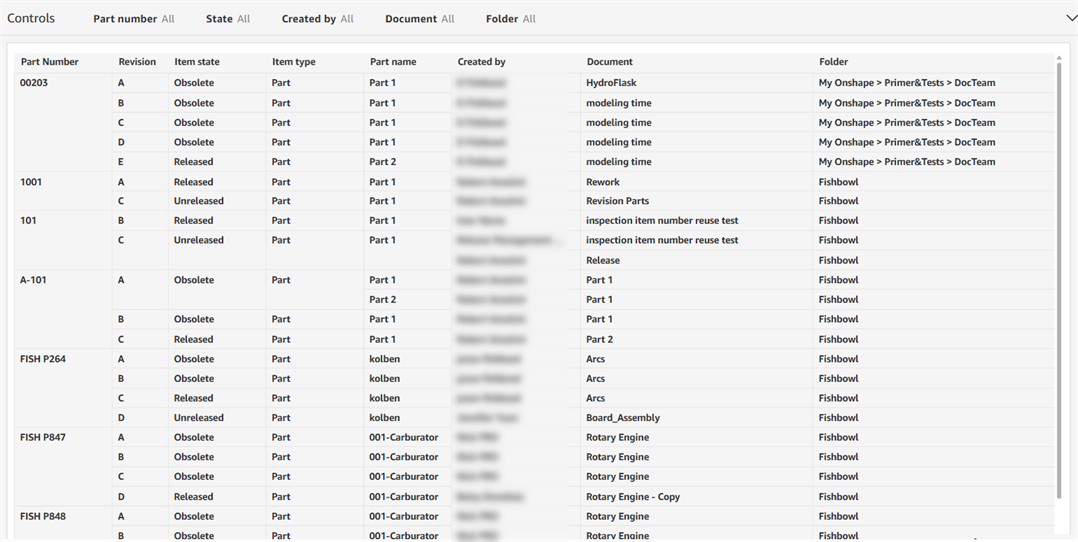
フィルターコントロール
-
パーツ番号 - アイテムに割り当てられたパーツ番号。
-
状態 - リビジョンの状態。たとえば、未リリースや廃止
-
作成者 - アイテムを作成したユーザーの名前。
-
ドキュメント - ドキュメント名
-
フォルダ - ドキュメントフォルダのパス
ビジュアル列
-
パーツ番号 - アイテムに割り当てられたパーツ番号。
-
リビジョン - リビジョン名。
-
アイテムの状態 - リビジョンの状態 (例: 未リリースや廃止)
-
アイテムタイプ - パーツ番号が割り当てられているアイテムのタイプ (例: パーツ、アセンブリ、図面)。
-
パーツ名 - パーツに割り当てられた名前。
-
作成者 - アイテムを作成したユーザーの名前。
-
ドキュメント - アイテムが配置されているドキュメントの名前。
-
フォルダ - ドキュメントが保存されているフォルダパス。
-
作成日時 - パーツ番号がアイテムに割り当てられた日時。
-
最終変更時刻 - パーツが最後に修正された日時 (たとえば、リビジョンに変更を加えた日時)。
-
最新リビジョン - アイテムの最新リビジョン。
-
パーツ番号のドキュメント数 - パーツ番号が表示されるドキュメントの数。
廃止ダッシュボード
このダッシュボードには、リリースされたすべてのアイテムの廃止関連のデータが表示されます。
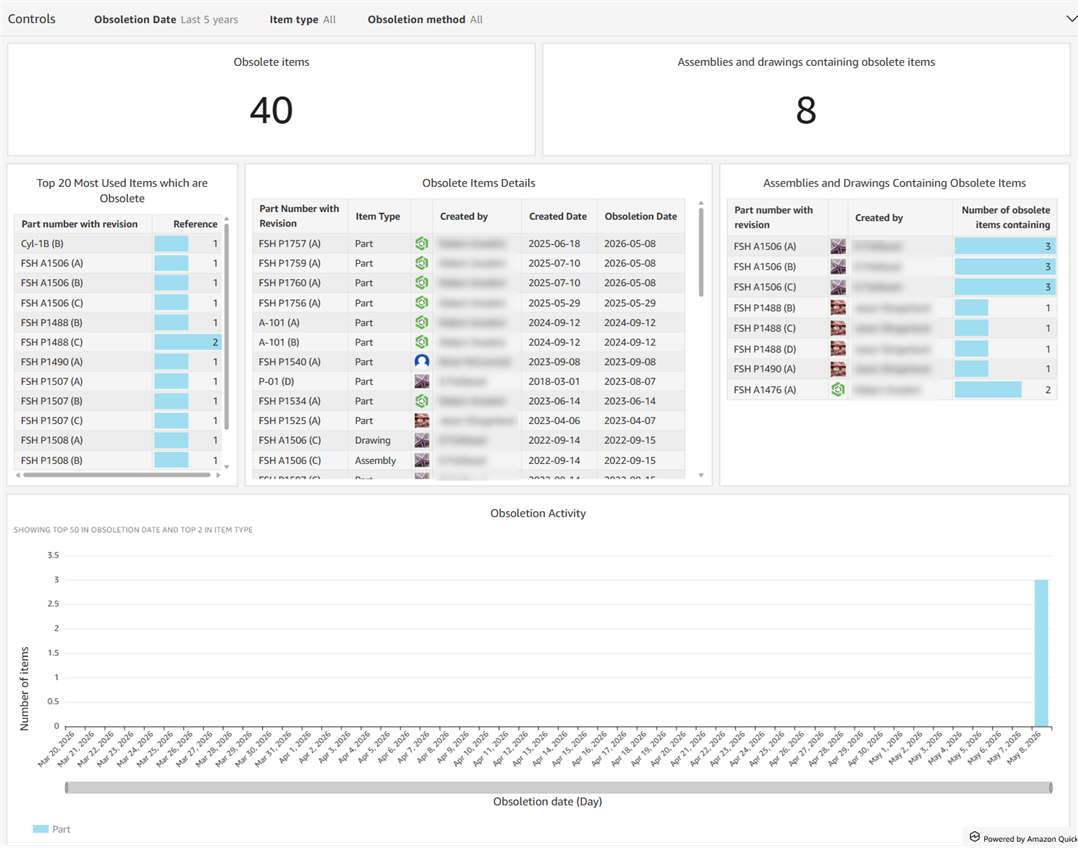
フィルターコントロール
-
廃止日-アイテムが廃止された日付、日付範囲、または期間
-
アイテムタイプ - アイテムのタイプ (例: パーツ、アセンブリ、図面、BLOB など)
-
廃止方法 - アイテムを廃止した方法 (例: 自動または手動)
ビジュアル
-
廃止アイテム - 廃止アイテムの数を表示するカウントビジュアル
-
廃止アイテムを含むアセンブリと図面 - 廃止アイテムを含むアセンブリと図面の数を表示するカウントビジュアル。
-
廃止アイテムの使用頻度上位 20 個 - 最もよく使われている廃止アイテムの上位 20 個を表示するテーブルビジュアル。列はリビジョン付きのパーツ番号と参照数です。
-
廃止アイテムの詳細 - 廃止アイテムの追加の詳細を表示するテーブルビジュアル。列は、リビジョン付きのパーツ番号、アイテムタイプ、作成者、作成日、および廃止日です。
-
廃止アイテムを含むアセンブリと図面 - 廃止アイテムを含むすべてのアセンブリと図面を表示するテーブルビジュアル。列は、リビジョン付きのパーツ番号、作成者、および含まれている廃止アイテムの数です。
-
廃止アクティビティ - アイテム (パーツ、アセンブリ、図面) の数 (Y 軸) を廃止日別 (X 軸) に表示する縦棒グラフのビジュアル
リリースアクティビティ
このダッシュボードには、すべてのリリースアクティビティの概要とコントリビューター、外部の PLM 関連情報、保留中のリリースのリストを表示します。
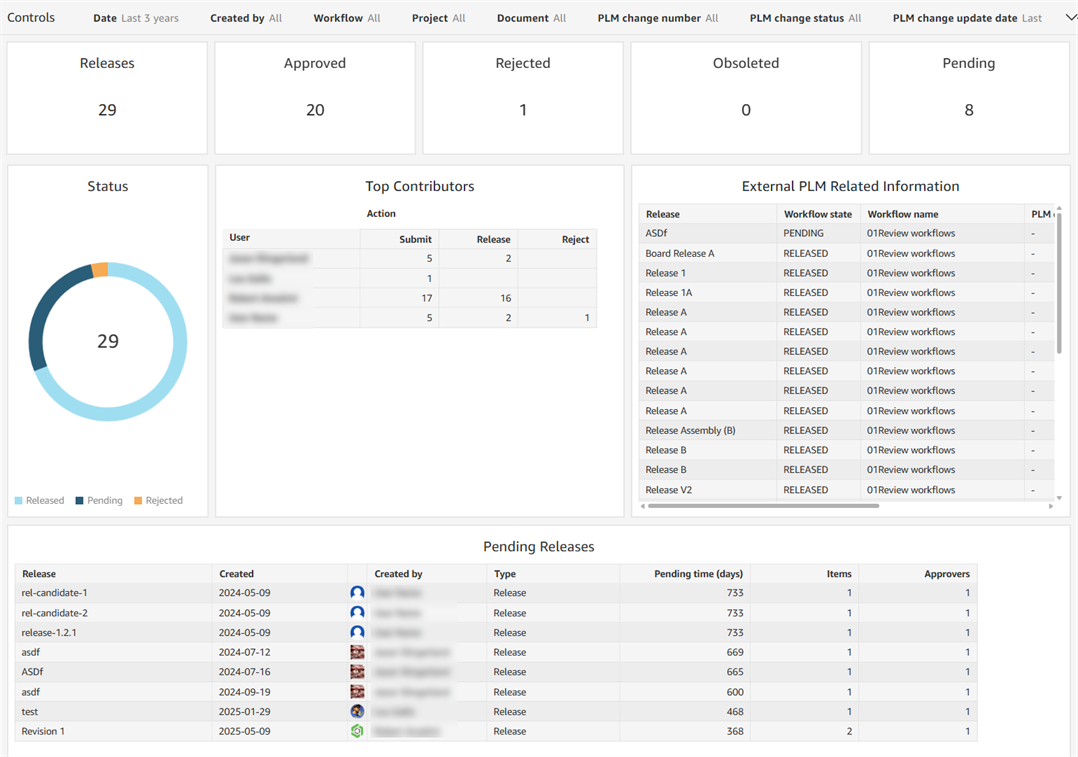
フィルターコントロール
-
日付 - リリースアクティビティを検索する日付、日付範囲、または期間
-
作成者 - ユーザーのメールアドレス
-
ワークフロー - ワークフロー名 (例: Onshape リリースワークフロー、Onshape 廃止ワークフローなど)
-
プロジェクト - プロジェクト名
-
ドキュメント - ドキュメント名
-
PLM 変更数 - PLM 変更数の値
-
PLM 変更ステータス - PLM の変更ステータス。リリース済み、保留中、または拒否済み
-
PLM 変更更新日 - PLM の変更更新を検索する日付、日付範囲、または期間
ビジュアル
- リリース - 検索条件を満たすリリース (進行中、保留中のリリース、リリース済み) の数を表示するカウントビジュアル。
- 承認済み - 承認されたリリースの数を表示するカウントビジュアル。
- 拒否済み - 拒否されたリリースの数を表示するカウントビジュアル。
- 廃止済み - 廃止されたリリースの数を表示するカウントビジュアル。
- 保留中 - 現在保留中のリリースの数を表示するカウントビジュアル。
- ステータス - 各カテゴリーのリリースの割合 (リリース済み、保留中、拒否済み) を表示するドーナツビジュアル。
- 上位コントリビューター - ユーザーとそのリリースアクション (送信、リリース、拒否、廃止、廃止、コメント) の数を表示するテーブルビジュアル。
- 外部 PLM 関連情報 - 外部 PLM データとリリース、ワークフロー状態、ワークフロー名、PLM 変更番号、PLM 変更ステータス、PLM 変更更新日を表示するテーブルビジュアル。
- 保留中のリリース - アクションが保留中のリリース、どのアクションが保留されていたか、アクションが保留されていた期間を表示するテーブルビジュアル。列は、リリース日、作成日、作成者、タイプ、保留時間 (日数)、アイテム、承認者です。
リリース監査
このダッシュボードには、パーツ番号、状態、リリース名などのプロパティを使用してリリース管理オブジェクトを検索するための単一のテーブルビジュアルが含まれています。
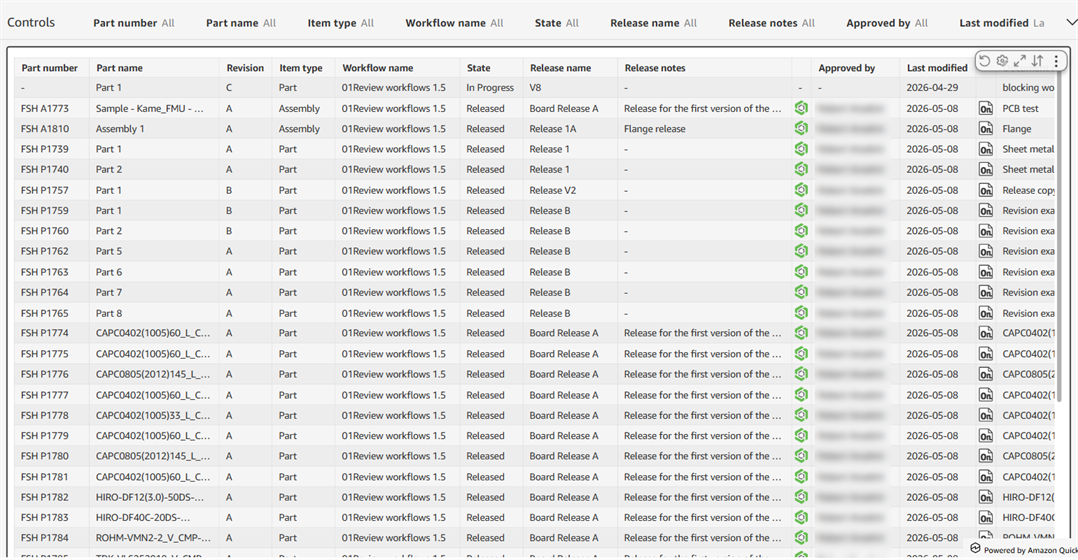
フィルターコントロール
-
パーツ番号 - リリース内のアイテムに割り当てられたパーツ番号。
-
パーツ名 - リリースでアイテムに割り当てられた名前
-
アイテムタイプ - パーツ番号が割り当てられているアイテムタイプ (例: 図面、アセンブリ、パーツ)。
-
ワークフロー名 - ワークフロー名 (例: Onshape リリースワークフローまたは Onshape 廃止ワークフロー)
-
状態 - アイテムのリビジョン状態 (例: 進行中、リリース済み、保留中、拒否済み、廃止)
-
リリース名 - リリース候補に割り当てられた名前。
-
リリースノート-リリース候補の注記
-
承認者 - リリース候補の承認者のユーザーのメールアドレス
-
最終更新日 - リリース候補が最後に変更された日時を検索する日付、日付範囲、または期間
-
ドキュメント - ドキュメント名
-
作成者 - リリース候補の作成者のユーザーのメールアドレス
-
プロジェクト - プロジェクト名
- PLM 変更数 - PLM 変更数の値
-
PLM 変更ステータス - PLM システムによって割り当てられた現在の変更ステータス (例: オープン、送信済み、承認済み、完了済み)。
-
PLM変更更新日 - PLM システムの変更ステータスに対する最新の変更日を検索する日付、日付範囲、または期間
ビジュアル列
- パーツ番号 - リリース内のアイテムに割り当てられたパーツ番号。
- パーツ名 - リリースでアイテムに割り当てられた名前
- リビジョン - アイテムのリビジョンに対する一意の英数字識別子。
- アイテムタイプ - Onshape オブジェクトの種類。パーツ、アセンブリ、図面、変数スタジオなど
- ワークフロー名 - ワークフロー名 (例: Onshape リリースワークフローまたは Onshape 廃止ワークフロー)
- 状態 - アイテムのリビジョンの状態 (例: 進行中、リリース済み、保留中、拒否済み、廃止)
- リリース名 - リリースに割り当てられた名前。
- リリースノート - リリースに追加された注記
- 承認者 - リリースを承認したユーザーの名前
- 最終更新日 - アイテムが最後に変更された日付
- ドキュメント名 - ドキュメントの名前。
- PLM 変更番号 - 割り当てられた PLM 変更番号。
- PLM 変更ステータス - PLM システムによって割り当てられた現在の変更ステータス (例: オープン、送信済み、承認済み、完了)。
- PLM 変更更新日 - PLM システムの変更ステータスの最終変更日。