


Available in: Sketch, Part Studio, Assembly
Learn how to move the model in the Graphics area using your input device, as well as how to use the View cube.
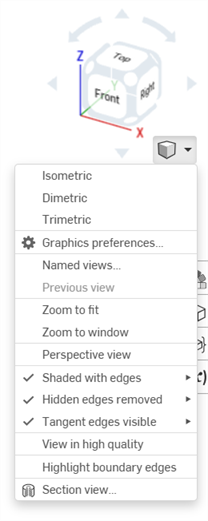
See Camera and render options for more information on these options.
 View navigation
(Desktop)
View navigation
(Desktop)
Onshape provides the following default input device navigation settings:
| Navigation | Windows | MacOS |
| 3D rotate (mouse) |
Right-mouse-button click, then drag Alt key animates to nearest 'floor down' view (nearest view without any roll) Alt + Right Mouse button: horizontal mouse movement about model; vertical mouse movement pitches over model Left-mouse-button click on View cube arrows: Rotate in 15 degree increments Shift + Left-mouse-button click on View cube arrows: Rotate in 90 degree increments Ctrl+ Left-mouse-button click on View cube arrows: Rotate in 5 degree increments |
Right-mouse-button click, then drag Left-mouse-button click on View cube arrows: Rotate in 15 degree increments Shift + Left-mouse-button click on View cube arrows: Rotate in 90 degree increments Ctrl+ Left-mouse-button click on View cube arrows: Rotate in 5 degree increments |
| 3D rotate (keyboard) |
Arrow key (← → ↑ ↓): Rotate 15 degrees Shift + Arrow key (← → ↑ ↓): Rotate 90 degrees Ctrl + Arrow key (← → ↑ ↓): Rotate 5 degrees Press + hold Arrow key (← → ↑ ↓): Continuously rotate
|
Arrow key (← → ↑ ↓): Rotate 15 degrees Shift + Arrow key (← → ↑ ↓): Rotate 90 degrees Ctrl + Arrow key (← → ↑ ↓): Rotate 5 degrees Press + hold Arrow key (← → ↑ ↓): Continuously rotate |
| 3D rotate (touchpad) | Right-touchpad-button click, then drag | Two finger click, then drag |
| Zoom (mouse) |
Scroll wheel down: Zoom out Scroll wheel up: Zoom in |
Scroll wheel down: Zoom out Scroll wheel up: Zoom in |
| Zoom (keyboard) |
Z: Zoom out Shift + Z: Zoom in |
Z: Zoom out Shift + Z: Zoom in |
| Zoom (touchpad) |
Two finger press, then pinch in: Zoom in Two finger press, then pinch out: Zoom out |
Two finger gesture to scroll down: Zoom out Two finger gesture to scroll up: Zoom in |
| 2D pan (mouse) | Ctrl + Right-mouse-button click, then drag / Middle-mouse-button click, then drag | Ctrl + Right-mouse-button click, then drag / Middle-mouse-button click, then drag |
| 2D pan (keyboard) | Ctrl + Shift + Arrow key (← → ↑ ↓) | Ctrl + Shift + Arrow key (← → ↑ ↓) |
| 2D pan (touchpad) | Ctrl + Right-touchpad-button click, then drag | While holding Ctrl key, Two finger click, then drag |
| Trimetric view (all devices) | Click View cube corner | Click View cube corner |
| Plane view (all devices) | Click View cube side (Top, Bottom, Front, Back, Left, Right) | Click View cube side (Top, Bottom, Front, Back, Left, Right) |
See also: My Account Preferences - Mouse Controls.
Zoom in/out is not supported on all browser/device combinations
Navigation commands can vary depending on your machine and input device settings.
View navigation (Touchscreen)
| Navigation | iOS, Android, and Browser |
| Select | Single finger tap |
| Clear selection | Single finger double-tap |
| 3D rotate | Single finger press, then drag |
| Context menu | Two finger tap |
| Box selection | Two finger long press |
| Zoom |
Two finger press, then pinch in or out |
| 2D pan | Two finger press, then drag |
| 2D rotate | Two finger rotate |
| Trimetric view | Click View cube, then select Trimetric from menu |
| Plane view | Click View cube, then select plane from menu (Top, Bottom, Front, Back, Left, Right) |
3D Rotate Lock: iOS and Android


3D Rotate Lock, when active, locks the user's ability to 3D rotate the graphics area. This is particularly useful when attempting to select and drag an entity.
It is located directly above the View Cube in both Part Studios and Assemblies.
To activate the 3D Rotate Lock, tap the button. To deactivate, tap the button again or commit a feature.
3D Rotate Lock activates by default in certain situations:
- Part Studio - If a sketch is open and an entity is selected, the 3D Rotate Lock turns on by default. This allows for the selection to be dragged without the view rotating. Unlock by tapping the button.
- Assembly - If an instance, Mate connector, or entity is selected, the 3D Rotate Lock turns on by default. This allows for the selection to be dragged without the view rotating. Unlock by tapping the button.
View Cube: iOS and Android
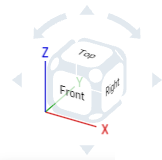
The View cube is located in the upper right corner of the graphics area. When selected, a list of different viewing options appears. Select one to change the view of your graphics area or the view settings of your part(s). This is an easy and quick way to get a well-oriented view of your part(s) without having to 2D/3D rotate or zoom.
Steps
- Tap the View cube. A list of options appears.
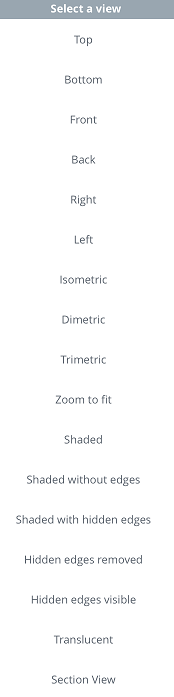
- Tap to select a view option or select Cancel.
- Scroll to see more options.
Options explained
- Top, Bottom, Front, Back, Right, and Left - Select any of these options for a front-facing view of the respective plane.
- Isometric, Dimetric, Trimetric - Select any of these for the respective angled view.
- Zoom to fit - Select to resize the graphics area to fit the screen. This could result in the view zooming in or out.
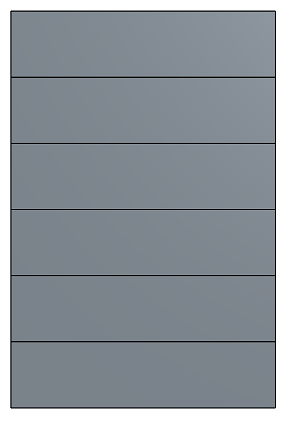
- Perspective View - Toggle perspective view on and off. Perspective view shows the relative distance from the point of view to the model, and creates a vanishing point as the point of view (or imaginary camera) approaches the model. The images below show a front view of the same part without perspective view and with perspective view, respectively.
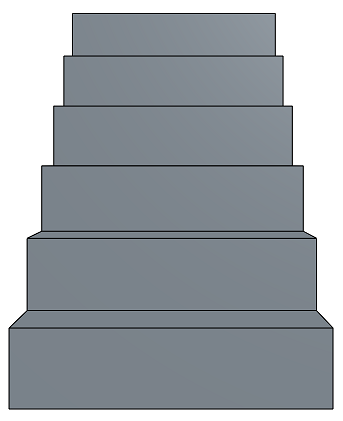
- Shaded - Select to show the part with shaded faces and edges. (Default)
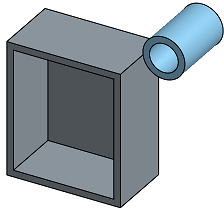
- Shaded without edges - Select to show part shaded, without edges.
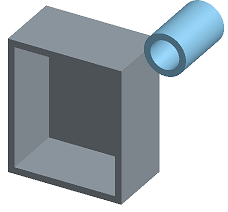
- Shaded with hidden edges - Select to show the part shaded and to show hidden edges (edges that aren't in the direct line of sight).
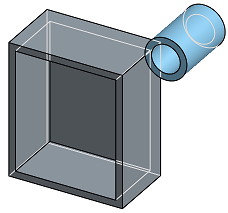
- Hidden edges removed - Select to show the part unshaded, with the hidden edges (edges not in direct line of sight) removed.
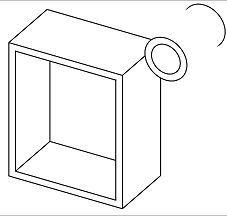
- Hidden edges visible - Select to show the part unshaded, with the hidden edges (edges not in direct line of sight) visible.
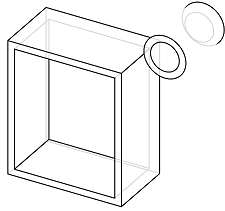
- Translucent - Select to show the part as translucent.
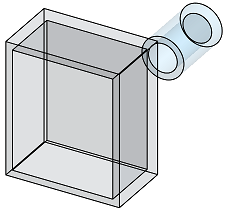
- Section View - Select to access a manipulator that allows you to adjust a section view of a part, via a plane or planar face.
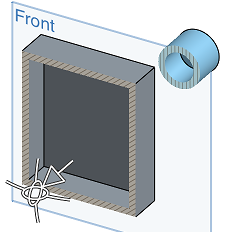
You must preselect a plane or planar face before selecting Section View.
Drag the arrow or either directional manipulator to adjust the section view plane that is created from the preselected plane or planar face. In this case, the Front plane is used to create a section view roughly halfway through the parts.