 Light (Render Studio Advanced)

Only available for.
Available in: Render Studio
A Light is a Render Studio Advanced scene entity that creates an explicit source of luminescence, with position and direction. Light is emitted into the scene based on one of 3 distribution types (Diffuse, Spot, and Profile) that determines how light varies with the angle to the light source. Lights may also have a surface area that cause them to cast softer shadows.
For information on scene lighting sourced from the environment, see Enviornments Library and Environment Panel.
For information on creating lighting from emissive appearances, see Light emission.
 Steps
Steps
To create and edit a light:
-
Click the Light icon (
 ) on the toolbar: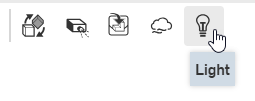
-
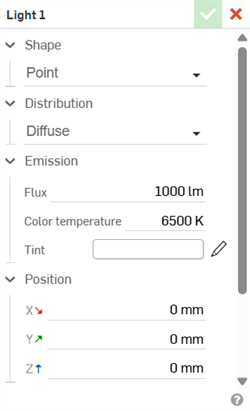
The Light dialog opens:
-
Select the following options:
-
Shape - Selects the form the light takes. Options are:
-
Point - The light source has no area. All light is emitted from a single point location to cast perfectly sharp shadows.
-
Sphere - The light source has a spherical emission area with a given radius to cast soft shadows and emit light in all directions.
-
Disc - The light source has a flat (infinitely thin) circular area with a given radius to casts soft shadows and emit light from one or both sides.
-
Rectangle - The light source has a rectangular-shaped area with a given width and height to cast soft shadows and emit light from one or both sides.
-
Cylinder - The light source has an open cylindrical-shaped area (tube) with a given radius and height to cast soft shadows and emit light in all directions except outward from either end.
-
Infinite - The light source has no area and emits light in parallel rays from an infinite area, much like the sun. When selected, Distribution is not available, since emission does not vary with angle in the traditional sense.
Depending on the Shape selected, additional options become available:
-
Radius - Available for Sphere, Disc, and Cylinder. Specifies the radius of the selected shape.
-
Width - Available for Rectangle. Specifies the width of the shape.
-
Height - Available for Rectangle and Cylinder. Specifies the height of the shape.
-
Emit from both sides - Available for Sphere, Disc, Rectangle, and Cylinder. Enables emission from both sides of the light source shape:
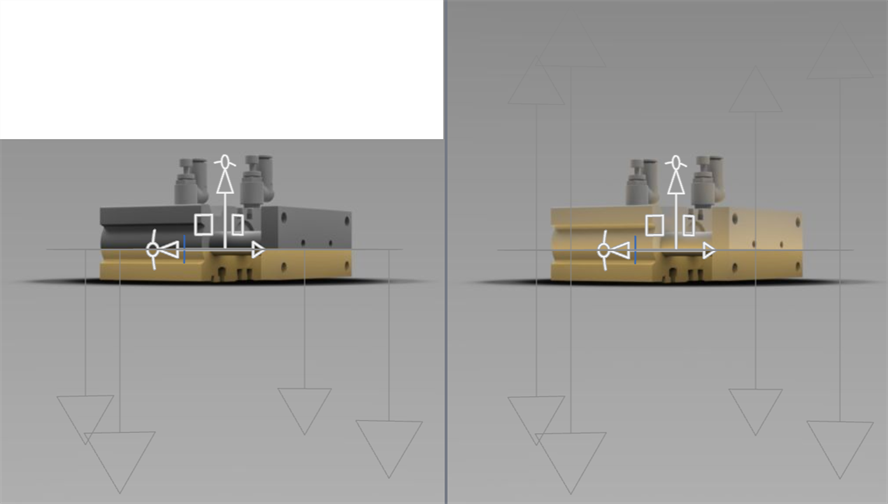
Emit from both sides disabled (left) and enabled (right)
-
Visible to camera - Available for Sphere, Disc, Rectangle, and Cylinder. Determines whether the emissive area of the light source is directly visible:
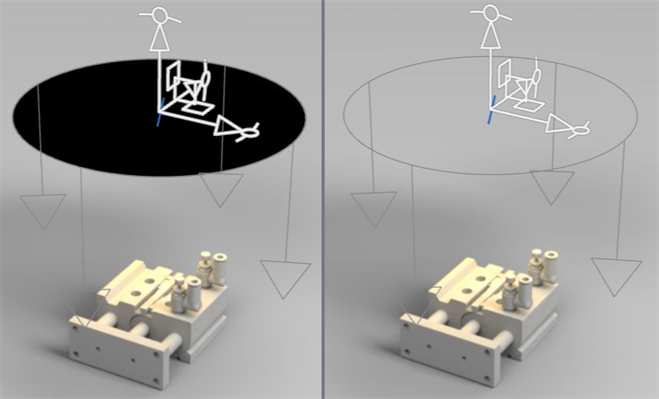
Visible to camera enabled (left) and disabled (right)
-
-
Distribution - Determines how the amount of light emitted varies with the angle to the light source. Select one of the following 3 options:
-
Diffuse - Uniform emission in all directions with simple physically-correct cosine falloff.
-
Spot - Spot-light emission with a cut-off angle defining a cone outside of which no light is emitted and a falloff exponent which defines how fast light falls off as it gets off axis from the direction to which the source is pointing.
-
Cutoff angle - Angle of the spot light cone outside of which no light is emitted.
-
Falloff exponent - Controls how quickly emission falls off, away from the light direction. Large values give a tightly-focused beam. Small values give a softer and more spread-out beam.
-
Uniform emission - Adds a uniform amount of emission from all directions.
-
-
Profile - Emission in each direction is defined by measured data read from an IESNA LM-63 compliant photometric file (an .ies file). The profile entirely defines how much light is emitted in each direction.
When Profile is selected, the Select light profile dialog opens. Click Import at the bottom of the dialog to select one or more .ies profiles from your device. Then click to select the appropriate file to load:
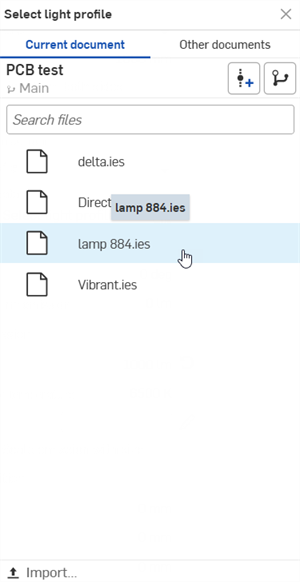
Once loaded, you can edit additional parameters:
-
Rotation - Rotates the light profile data around the direction to which it is pointed.
-
Tilt - Tilts the light profile data away from the direction to which it is pointed.
-
Uniform emission - Adds a uniform amount of emission from all directions.
-
-
-
Emission - Select from the following Emission parameters:
-
Flux - Total amount of visible light emitted by the light source, specified in lumens. If an .ies profile is used, and Flux is altered, use the Reset icon (
 ) to return the Flux back to the original .ies profile value.
 -
Color temperature - Blackbody color temperature of the emitted light, specified in Kelvin.
-
Tint - Tints the emission similar to a gel or filter. Click the edit icon (
 ) to open the Color picker dialog and select a color: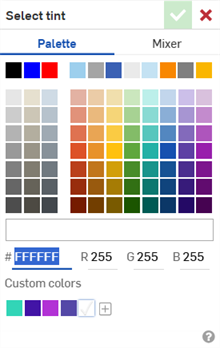
-
-
Scale emission with size - Available for Sphere, Disc, Rectangle, and Cylinder. Define the emission by unit area so that increasing the size of the emission area increases the amount of light emitted.
-
Aim (available when Distribution is set to Spot or Profile) - Provides 3 additional methods for positioning and orienting light sources. A target point is selected, and the additional Aim point options determine how light transforms to this target point. Useful to position highlights in certain locations.
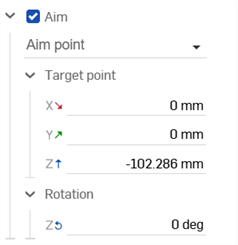
-
Aim point - The light remains in its current location and oriented to point towards the selected point. The point is either selected by clicking a location in the scene, which moves the Aim point to the intersected location, or by dragging a manipulator at the end of an aim line to a new location. When an Aim point has been established, the light always aims at that point, regardless of location.
Moving the light around causes its rotation to update, keeping it pointed at the selected aim location. Rotation is not available since the rotation is controlled by the target point location. The target position is displayed so the user can enter values numerically. if required.
-
Highlight location - The light is oriented so its ideal mirror reflection is seen at the clicked location, and is positioned accordingly. The position and rotation values are updated, but not stored. The current distance between the light and the clicked point is determined and then maintained when changing the direction of the light source.
-
Surface normal - The light is oriented to point in the same direction as the surface normal at the clicked location. The position and rotation values are updated, but not stored. The current distance between the light and the clicked point is determined and then maintained when changing the direction of the light source.
-
Target point - Target point location at the X, Y, and Z axes.
-
Rotation - Rotation of light about the Z axis.
-
-
Position - Light source position along the X, Y and Z axes. Enter a position numerically into each axis field, or use the triad manipulator in the graphics area to adjust light source position manually.
-
Rotation - Light source rotation along the X, Y, and Z axes. Enter a rotation numerically into each axis field, or use the triad manipulator in the graphics area to adjust light source rotation manually.
-
-
The light is added to the Scene list's Lights group, below Projectors and above Transforms:
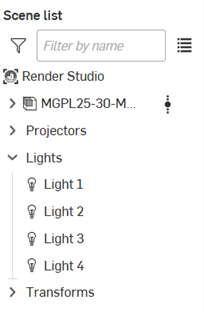
When a light is added, its triad manipulator, direction indicator arrows, and shape (if Visible to camera is enabled) are displayed in the graphics area.
Use the triad manipulator to adjust the position and rotation from the graphics area. Indicators cannot be edited and help visualize the light source direction only. The light Shape is visible to the camera by default, but can be hidden.
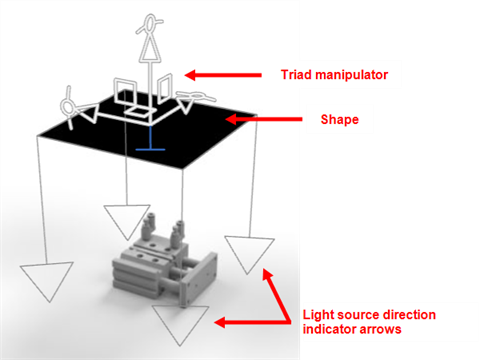
Example showing a Rectangular shaped light, with triad manipulator and light source direction indicator arrows.
In some scenarios, such as when a Profile is used or a Spot distribution is used, an additional light source mesh is displayed to help visualize the light source distribution:
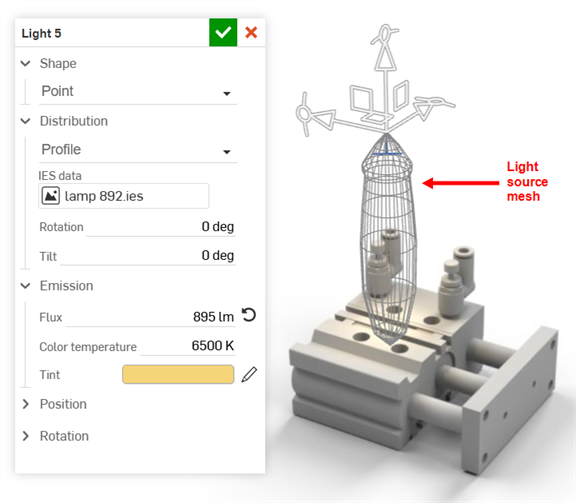
IES Profile example showing the profile's light source mesh.
Examples
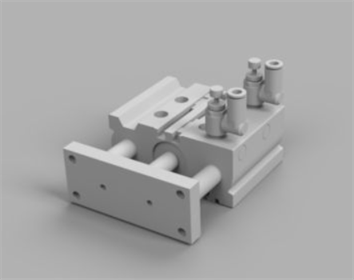
Original model
Point
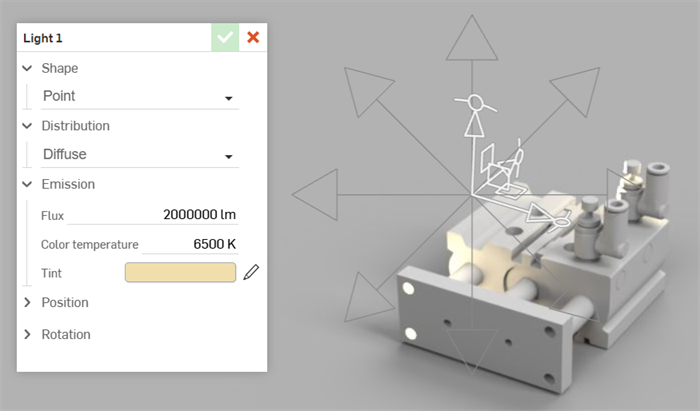
Distribution: Diffuse
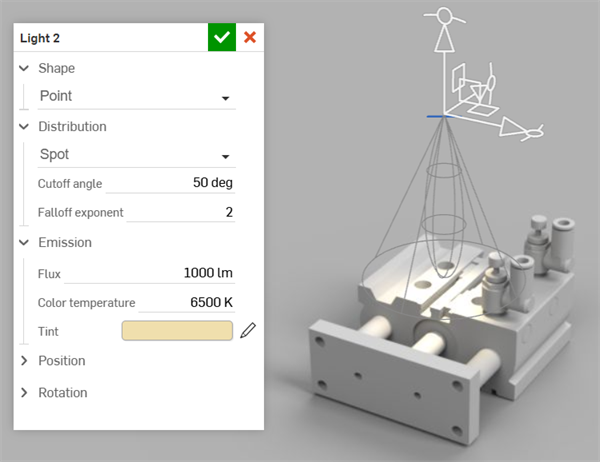
Distribution: Spot
Sphere
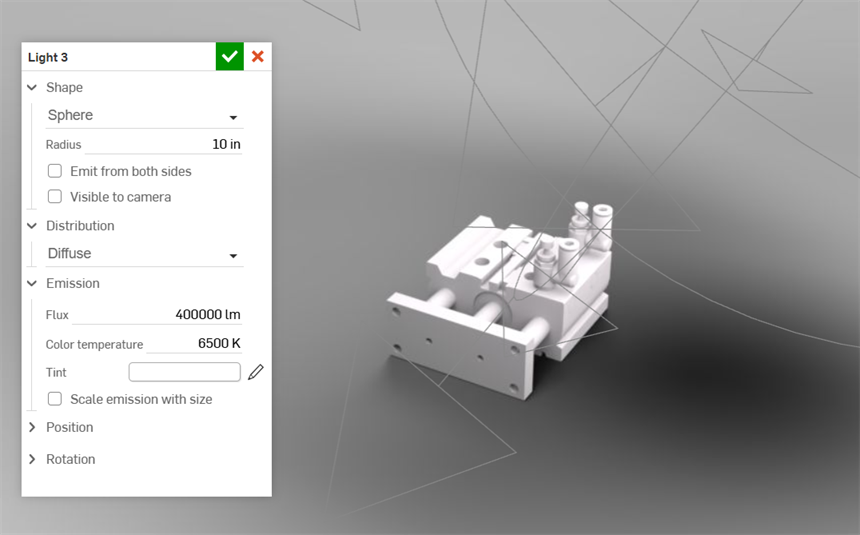
Distribution: Diffuse
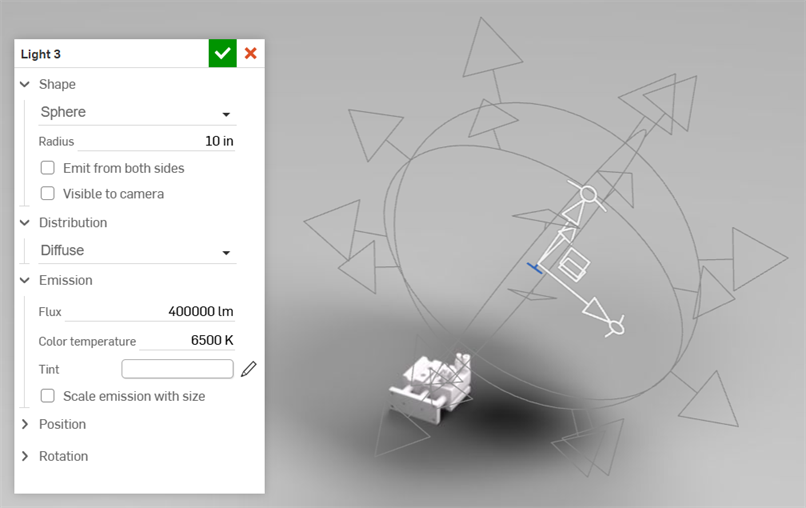
Same settings as above, but zoomed out to show the triad manipulator and direction indicator arrows.
Disc
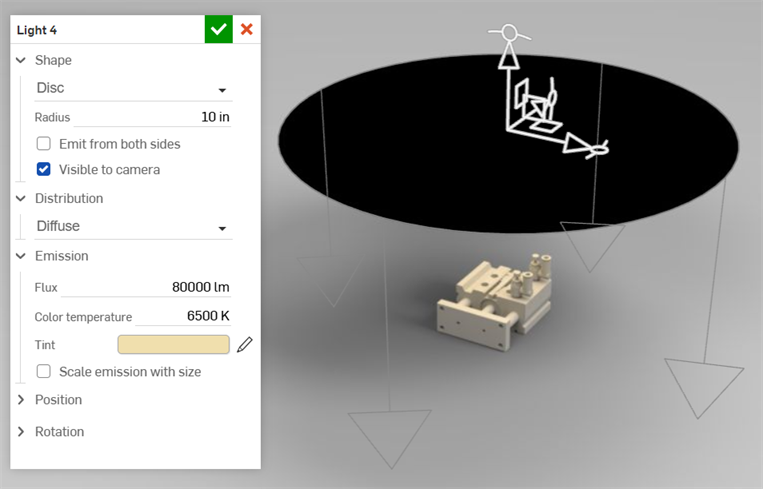
Distribution: Diffuse; disc direction downward from above.
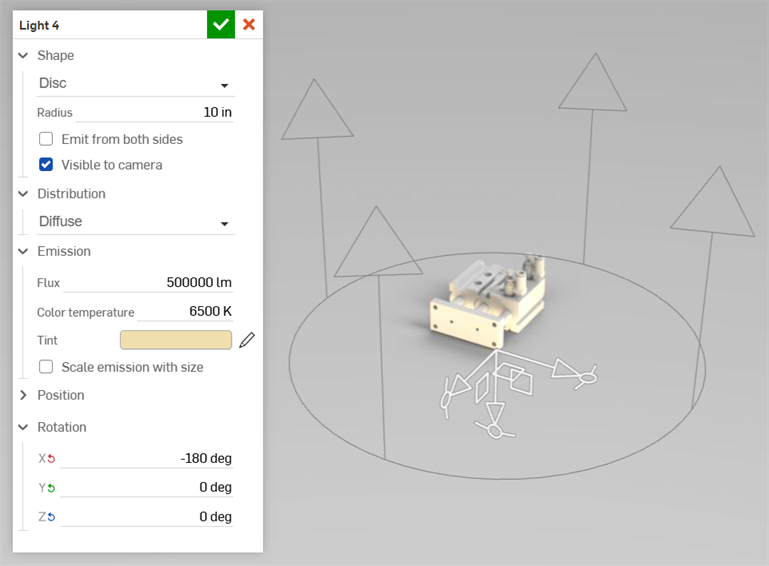
Distribution: Diffuse; disc direction upward from below.
Cylinder
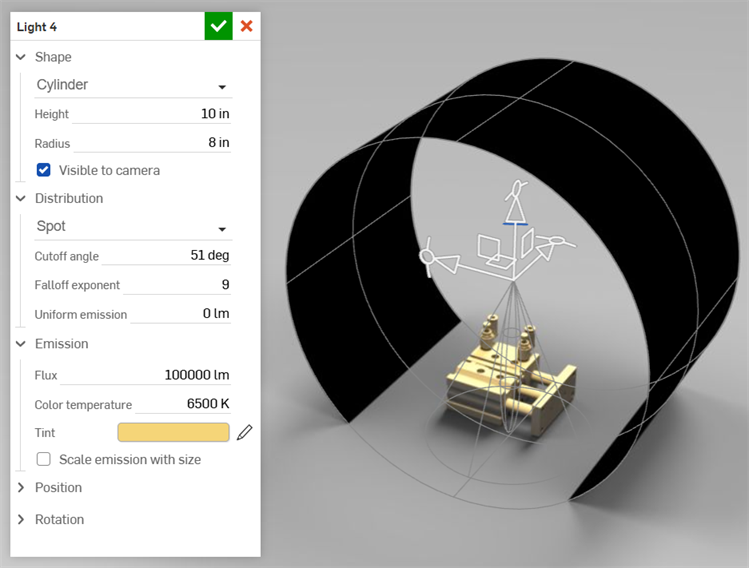
Distribution: Spot
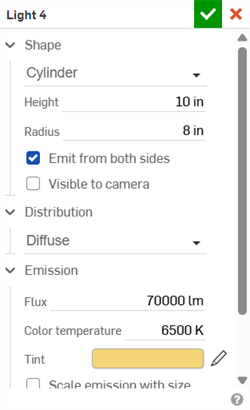
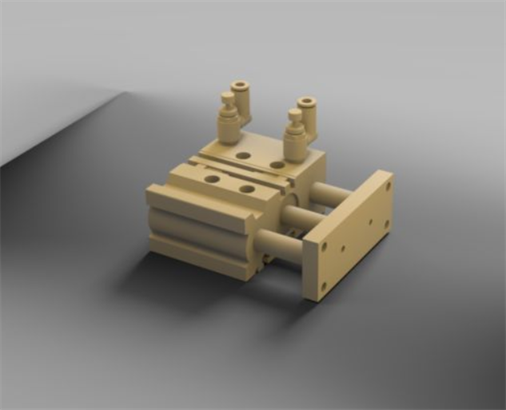
Distribution: Diffuse
Infinite
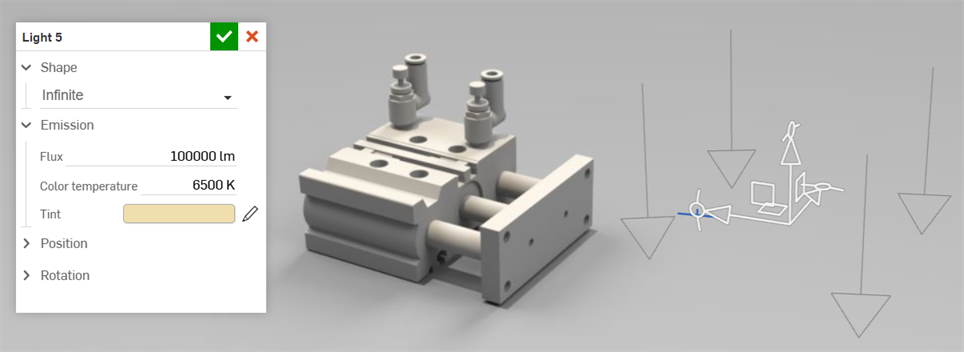
Triad manipulator and light direction indicator arrows are positioned away from the model but have no effect on the model lighting.
Notes
-
Lights can be transformed in the same way as other entities. However, there is a known limitation where an average of the 3 scale factors is used if a light is not uniformly scaled.
-
Position has no effect on an Infinite light shape. However, positioning an infinite light can be useful in order to move it out of the way of other entities in the graphics area, so they do not overlap.
-
Rotation has no effect on a Point-shaped light with Distribution: Diffuse, since all directions emit the same amount of light.
-
Lights can be duplicated one at a time by right-clicking on the Light in the Scene list and selecting Duplicate light from the context menu. The copy is placed directly under the currently-selected light.
-
If the Aim option is checked (enabled), the light cannot be transformed like other entities. An aimed light must be rotated around the Z-axis using the Aim option's rotate feature.