Variable Studios


在 Variable Studio 中提供此功能
這個主題說明如何使用 Variable Studio 的功能與機制來建立可用在自身文件與其他文件中變數。您僅能透過 Onshape 的瀏覽器平台來建立 Variable Studio,不過,您可以在所有行動裝置平台上檢視與使用變數。
Variable Studio 是在文件中建立的,可以立即在該文件工作區的所有 Part Studio 與組合件內使用其中的變數。
請同時參考:Variable Studio 組態。
 建立 Variable Studio
-
在文件中按一下左下角的「插入新分頁」圖示 (
 ),然後選擇 [建立 Variable Studio]: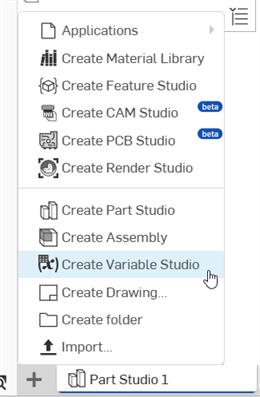
-
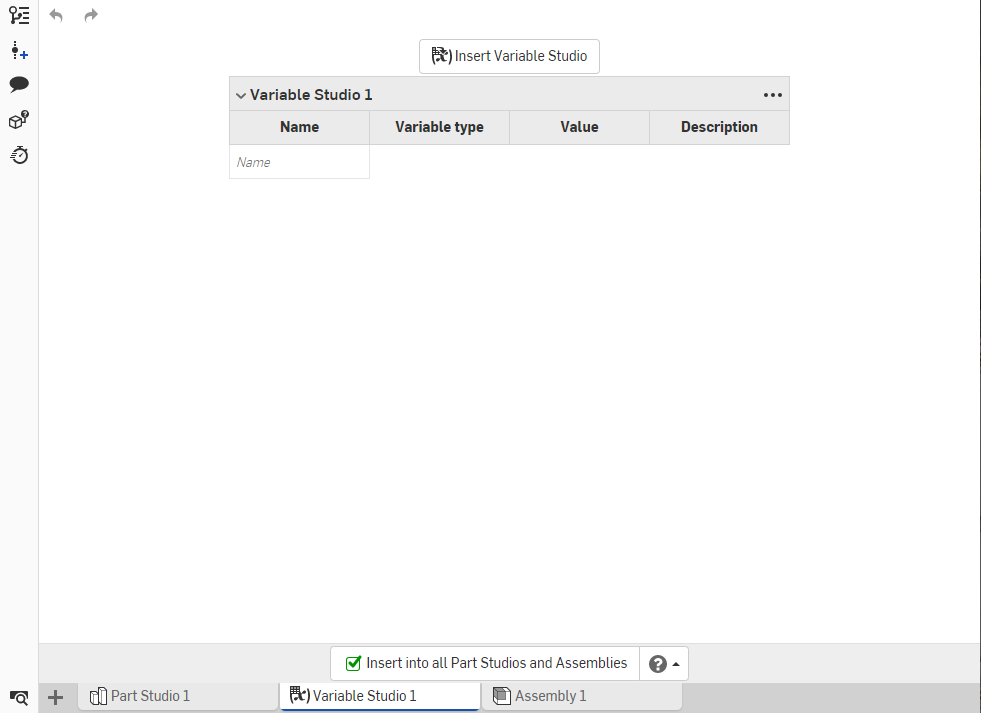
系統會開啟 Variable Studio 附有變數的表格以供輸入:
-
在「名稱」欄位中輸入第一個變數的名稱 (僅允許使用字母數字的字元)。
-
按下 Tab 鍵來移動至下一列。系統已為變數輸入 Length (長度) 這個預設類型;若要變更,請使用下拉箭號,然後選擇一個新的類型。
若要從 CSV 檔案中匯入一個變數,請選擇「來自匯入」選項,然後跟著這些指示操作:從 CSV 表格匯入變數。
-
輸入變數的預設值以及選擇性描述。
若要在表格中重新排序輸入項,按右鍵並選擇 [上移] 或 [下移]。您也可以拖曳輸入項來重新排列它們。
使用 Variable Studio 標題左側的插入符號來摺疊或展開該部分。若要一次摺疊 (或展開) 所有表格,按一下標題區塊右側的三點功能表,然後選擇 [摺疊所有表格] 或 [展開所有表格]。
您可以使用之前在表格中定義的變數來在之後於表格中定義另一個變數。例如:
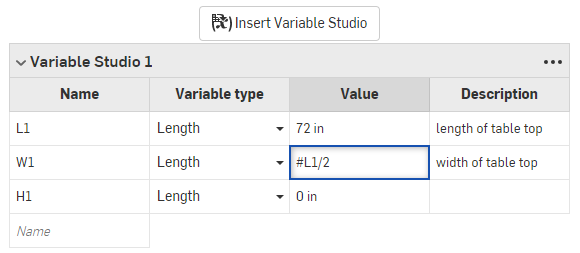
L1 變數 (length of the table top 桌面長度) 是用來計算 W1 變數 (width of the table top 桌面寬度)。
若要能夠在工作區內的所有 Part Studio 與組合件中使用變數,請核取 Variable Studio 分頁底部邊緣的方塊:

取消核取這個方塊將會無法在此文件工作區的 Part Studio 與組合件中使用變數 (如果變數仍是在草稿狀態,可繼續不核取這個方塊,當變數就緒可用時,再核取這個方塊)。
匯入來自 CSV 表格的變數
來自匯入變數類型可讓使用者建立一個單一變數,以儲存來自匯入 CSV 表格的列與欄的子集。列選項篩選列並決定變數的結果類型 (單一值、陣列、或對應)。欄選項接著篩選每個列,然後決定在最終變數中每個項目的類型。
- 在表格中按一下變數類型箭頭,然後選擇來自匯入。
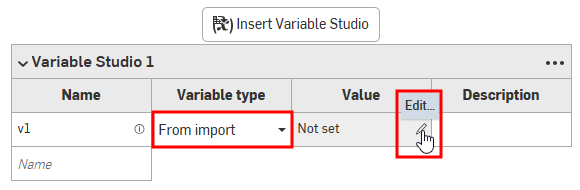
- 在「值」儲存格中,按一下編輯鉛筆圖示。變數對話方塊開啟,其中已選取來自匯入頁籤:
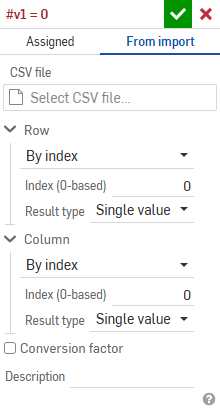
- 在對話方塊中:
- 在 CSV 檔案之下,按一下 選擇 CSV 檔案欄位來開啟對話方塊:

從目前的文件、其他文件中選擇 CSV 檔案,或按一下對話方塊底部的匯入按鈕來從您的裝置中選擇一個 CSV 檔案。
選擇之後,按一下檔案。系統會將檔案載入至選擇 CSV 檔案欄位中。
- 根據您的需要填寫列與欄欄位:
- Access type - Select By index, By index range, By label, or All values.
- 索引 - 如果選擇了根據索引,請輸入單一的索引值。
- 最小/最大索引 - 當選取根據索引範圍時,請同時輸入最小與最大索引值。
- 值 - 如果選取了根據標籤,請輸入標籤的字串值。
- 正規表達式 - 核取來模式匹配目標字串組。
- 結果類型 - 選擇單一值、陣列、或對應。
- 標籤欄/列索引 - 如果「結果類型」是對應,請輸入數字索引值或一個變數。
- Access type - Select By index, By index range, By label, or All values.
- 如果您是從一個測量轉換到另一個測量 (例如,如果表格使用英吋,而您要將這些值轉換為釐米),請核取轉換係數,然後輸入一個有測量單位的值。

- 選擇性地輸入一個說明來提供關於變數或所使用 CSV 檔案的一些細節。
- 在 CSV 檔案之下,按一下 選擇 CSV 檔案欄位來開啟對話方塊:
- 按一下
 。
。
請同時參考:變數:「來自匯入」的範例。
在其他文件中參考變數表格
若要在非定義變數表格的文件中使用變數表格 (以及其中定義的變數):
-
開啟您要使用於另一文件的 Variable Studio 中定義變數的文件。
-
按一下左下角的「插入新分頁」圖示 (
),然後選擇 [建立 Variable Studio]。 -
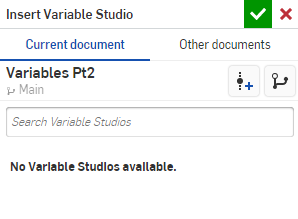
在新的 Variable Studio 中按一下上方的按鈕:插入 Variable Studio。「插入 Variable Studio」對話方塊開啟:
-
選擇對話方塊頂端的兩個分頁之一,以決定要在何處找出變數表格:「目前文件」或「其他文件」。
如果在目前文件中有任何的 Variable Studio,其會列在「目前文件」的下方。若要在另一文件中找出 Variable Studio,則請選擇「其他文件」的分頁:
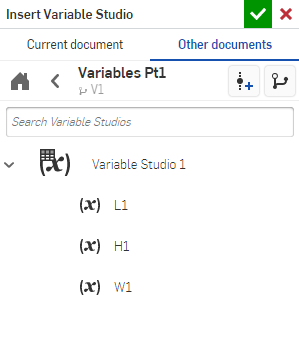
您可以選擇一整個 Variable Studio 表格 (如上方所示的 Variable Studio 1),或是從清單中選擇一或多個不同的變數。您做出的選取項目可立即用於目前的文件中。在插入來自另一文件的變數表格或變數的情況下,文件必須要有一個包含變數的版本。如果沒有版本存在,系統會提示您要建立一個版本才能繼續。
在成功選擇變數和/或變數表格之後,您會在目前文件的 Variable Studio 中看到選取的項目:
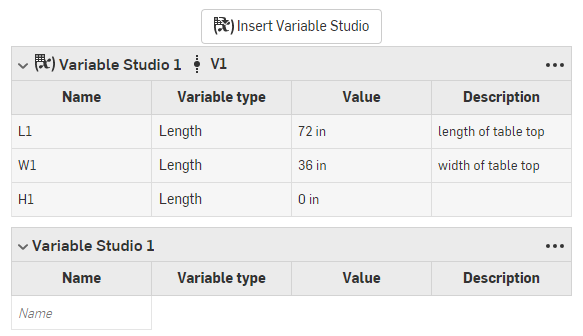
插入表格來源處的 Variable Studio 名稱和版本會顯示在表格的最上方,如上圖所示的 Variable Studio 1 V1。
經組態的 Variable Studio 在插入時必須設定其組態。請參考參考已組態的 Variable Studio。
發行 Variable Studio
在 Variable Studio 分頁上按右鍵,然後選擇 [發行]:
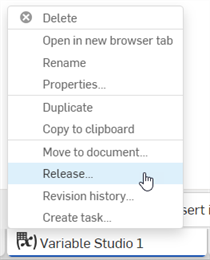
無法發行已組態的 Variable Studio。
關於「學習中心」的其他資源,請註冊使用下列的課程:Variables and Expressions (需要有 Onshape 帳戶)。