 图形首选项
图形首选项

可用于:Part Studio、装配体
在图形区域中调整模型的可视化参数。更改常规视口、着色主体、幻影边和网格主体参数,以及活动/非活动草图线宽和颜色,以及构造线间隙和虚线长度。
这些选项在对曲面建模时特别有用。
 访问图形首选项
-
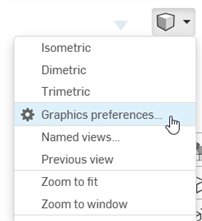
选择“相机和渲染”选项,然后选择“图形首选项”:
-
以下对话框打开:
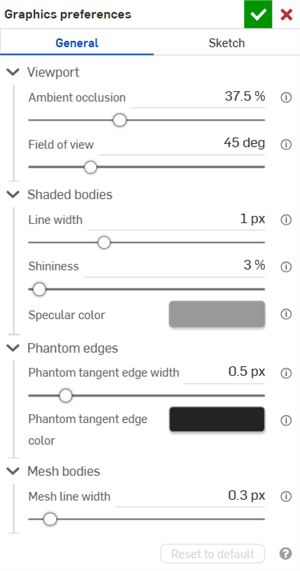
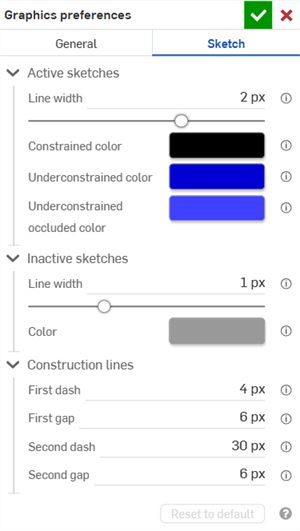
General graphics preferences (left) and Sketch graphics preferences (right)
-
按照以下部分的概述调整设置。单击“重置为默认值”按钮将所有常规和草图对话框选项恢复为其默认值。
常规首选项
视口
-
环境光遮蔽 - 控制环境光遮蔽阴影的强度,范围从 0% 到 100%(默认值:37.5%)。数值越高,边缘、角落、缝隙以及零件接触或相交处会产生柔和的暗部阴影。这有助于模拟这些位置在真实世界中的间接光照效果。数值越低,这些位置的阴影越少。
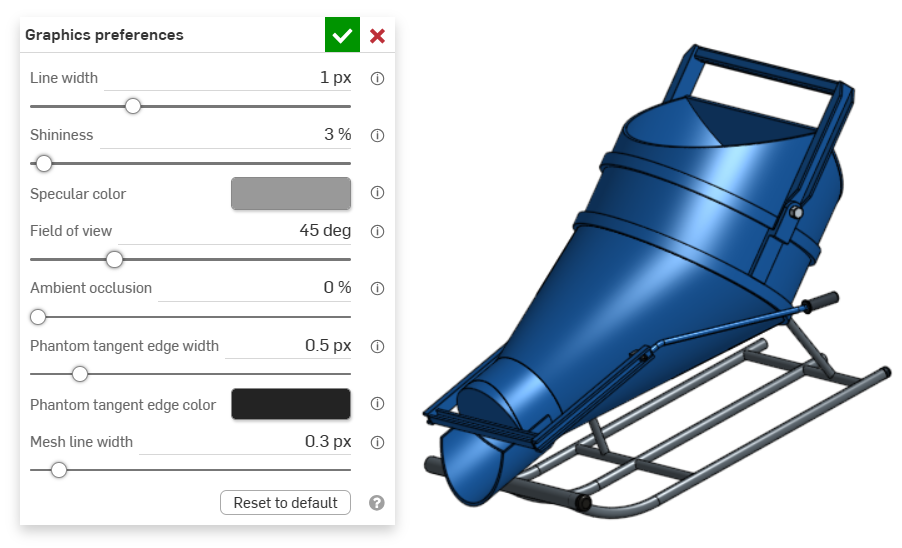
An example of an entity in the graphics area with Ambient occlusion at 0%
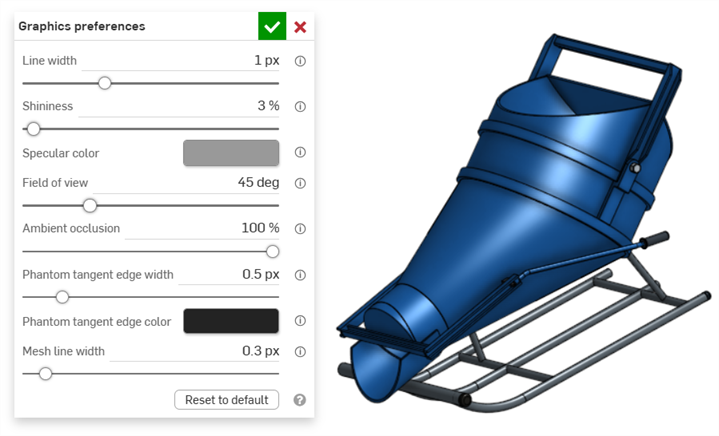
An example of an entity in the graphics area with Ambient occlusion at 100%
-
视野(仅在启用透视视图时可用) - 控制透视相机的视野。使用水平滑块或输入 20-120 度的数字。
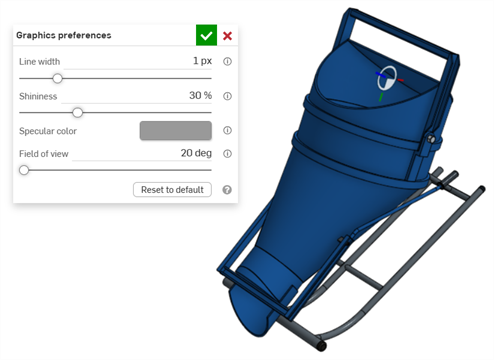
An example of an entity in the graphics area with Field of view set at 20 degrees
着色主体
-
线宽 - 控制曲面和边的线宽。使用水平滑块或输入 0.1-3 像素之间的数字。

An example of an entity in the graphics area with Line width set at 0.5 px
-
光泽度 - 控制着色曲面的默认光泽度。使用水平滑块或输入 1-100% 的数字。

An example of an entity in the graphics area with Shininess set to 1%
-
镜面反射颜色 - 控制着色曲面的默认镜面反射颜色。单击色板打开“颜色选择器对话框”并选择一种颜色。
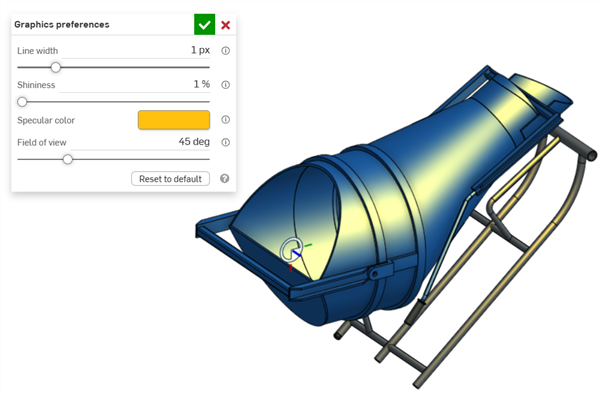
An example of Specular color being edited in the graphics area
-
Section interference color - Controls the default section interference color of overlapped parts or surfaces. Click the color swatch to open the Color picker dialog and select a color.
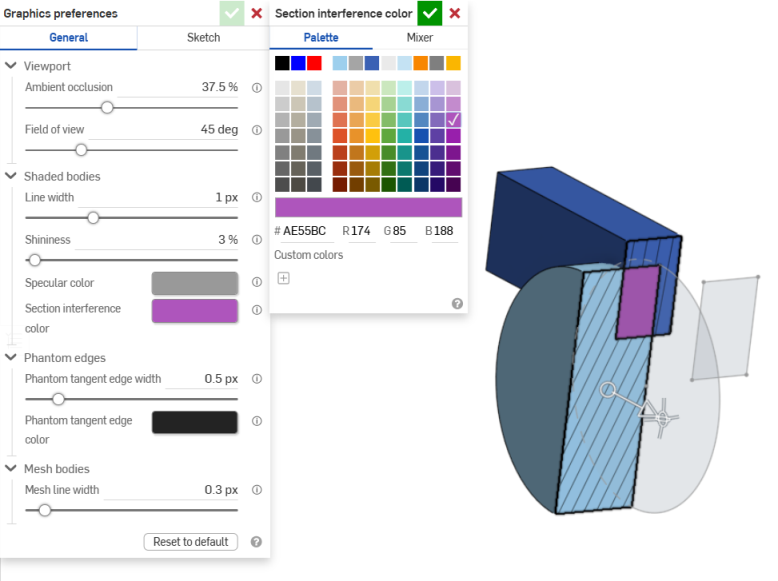
An example of Section interference color being edited in the graphics area
Phantom edges
-
影线相切边宽度 - 如果“相切边”设置为“影线”,此选项控制这些边的线宽,范围为 0.1 - 3 像素(默认值:0.5 像素)。
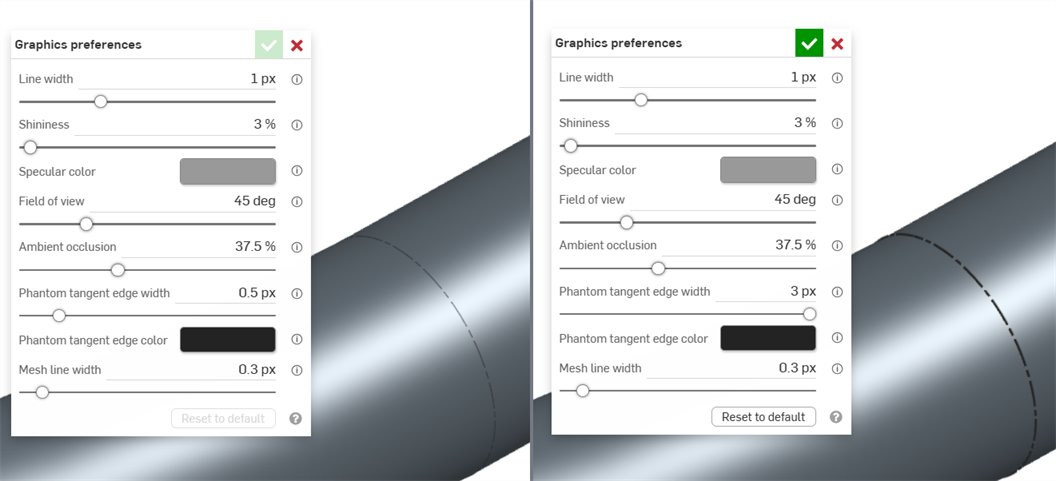
An example of an entity in the graphics area with Phantom tangent edge width set to 0.5 px (left) and 3px (right)
-
影线相切边颜色 - 如果“相切边”设置为“影线”,此选项控制这些边的默认颜色。单击色板打开“颜色选择器”对话框并选择一种颜色。
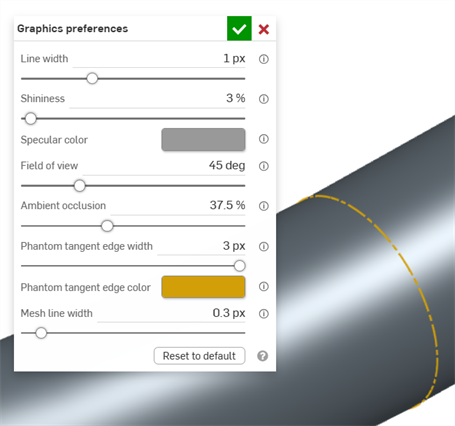
网格主体
-
网格线宽 - 控制网格曲面和边的线宽,范围为 0.1-3 像素(默认:0.3 像素)。
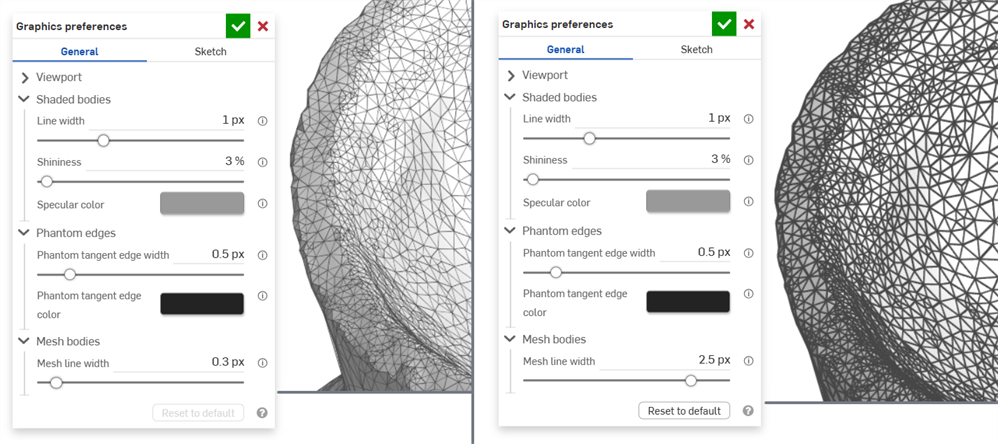
An example of an entity in the graphics area with Mesh line width set to 0.3 px (left) and 2.5 px (right)
草图首选项
活动草图
-
线宽 - 控制活动草图的线宽。使用水平滑块或输入 0.1-3 像素之间的数字。
-
受约束线颜色 - 控制受约束线或点的默认颜色。单击色板打开“颜色选择器”对话框并选择一种颜色。
-
欠约束颜色 - 控制欠约束线和点的默认颜色。单击色板打开“颜色选择器”对话框并选择一种颜色。
-
欠约束被遮挡颜色 - 控制欠约束且被遮挡的线和点的默认颜色。这些线和点在图形区域中被零件遮挡。单击色板打开“颜色选择器”对话框并选择一种颜色。
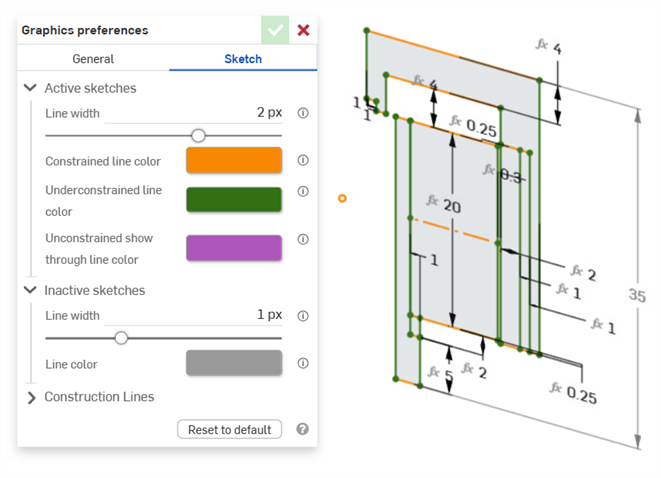
显示活动草图中受约束和欠约束的线颜色示例
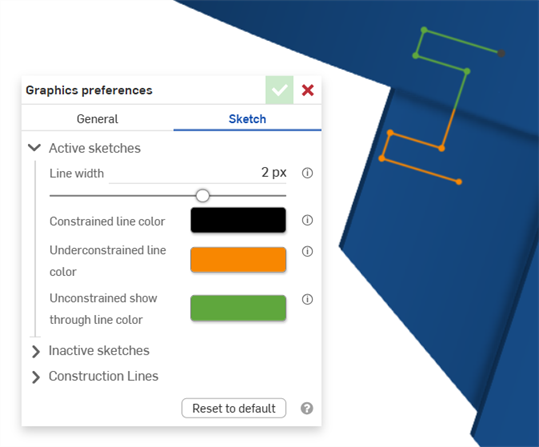
显示活动草图中欠约束的线颜色示例。绿色显示图形区域中被零件遮挡的草图线段。
非活动草图
-
线宽 - 控制非活动草图的线宽。使用水平滑块或输入 0.1-3 像素之间的数字。
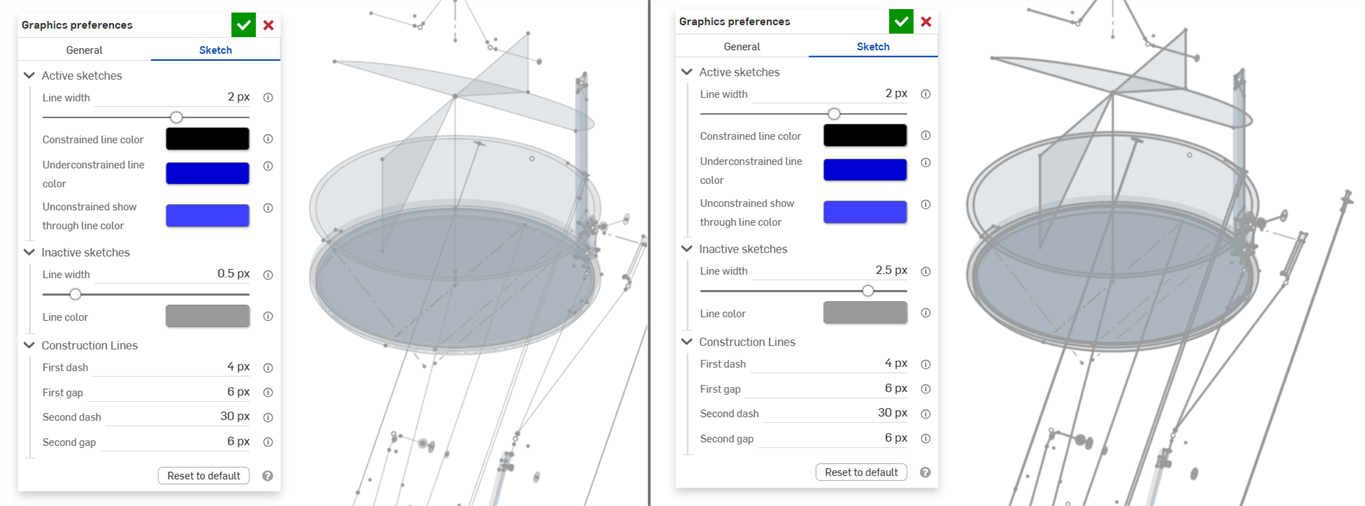
-
线颜色 - 控制非活动草图的线和点的默认颜色。单击色板打开“线颜色”对话框,从“颜色选择器”中选择一种颜色。
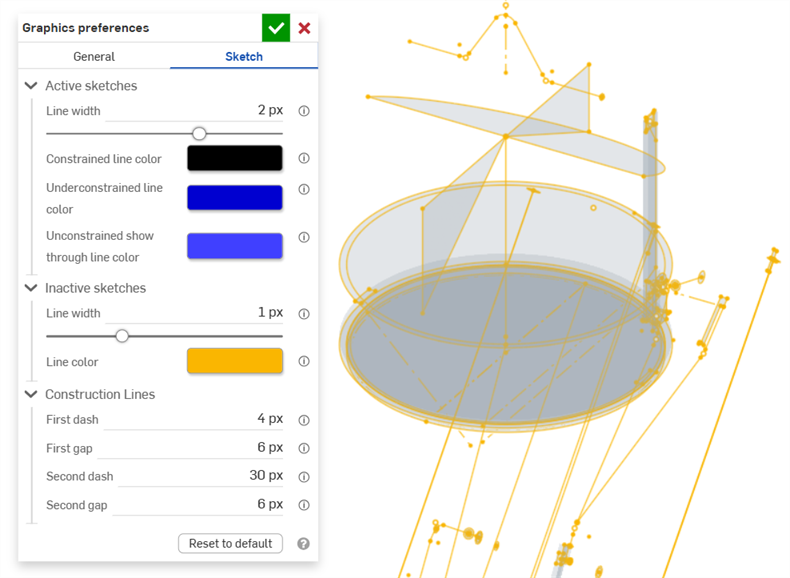
构造线
-
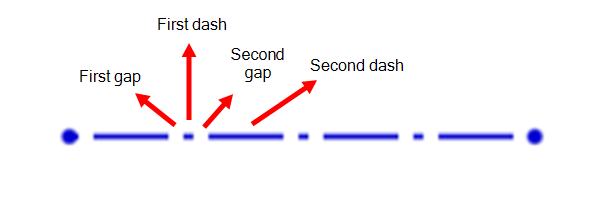
第一段虚线 - 控制构造线点划线图案中第一段虚线的长度。输入 1 到 50 像素之间的值(默认值为 4 像素)。
-
第一段间隙 - 控制构造线点划线图案中第一段间隙的长度。输入 0 到 50 像素之间的值(默认值为 6 像素)。
-
第二段虚线 - 控制构造线点划线图案中第二段虚线的长度。输入 1 到 50 像素之间的值(默认值为 30 像素)。
-
第二段间隙 - 控制构造线点划图案中第二段间隙的长度(以像素为单位)。输入 0 到 50 像素之间的值(默认值为 6 像素)。