 グラフィックの環境設定

利用可能: Part Studio、アセンブリ
グラフィック領域でモデルの視覚化パラメータを調整します。一般的なビューポート、シェードボディ、ファントムエッジ、メッシュボディのパラメータ、アクティブ/非アクティブなスケッチ線の幅と色、作図線のギャップとダッシュの長さを変更します。
これらのオプションは、サーフェスをモデリングする場合に特に便利です。
 グラフィックの環境設定へのアクセス
-
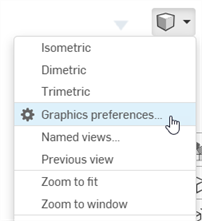
[カメラとレンダリングのオプション] を選択し、[グラフィックの環境設定] を選択します。
-
次のダイアログが開きます。
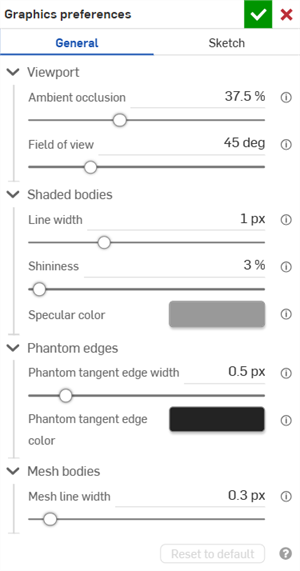
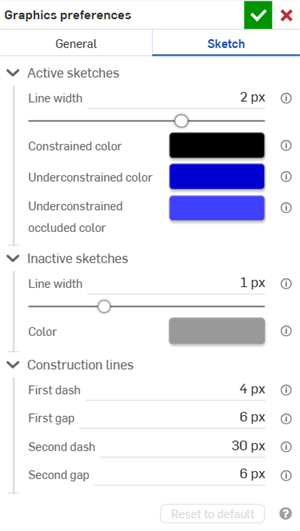
General graphics preferences (left) and Sketch graphics preferences (right)
-
以下のセクションの説明に従って設定を調整します。[既定にリセット] ボタンをクリックすると、一般オプションとスケッチダイアログオプションがすべて既定値に戻ります。
一般的な環境設定
ビューポート
-
アンビエントオクルージョン - アンビエントオクルージョンのシェーディングの強度を 0% から 100% まで制御します (既定: 37.5%)。値が大きいほど、エッジ、コーナー、隙間、あるいはパーツが接したり交差するその他の場所に沿って柔らかく暗いシェーディングになります。これは、これらの場所での実際の間接照明の範囲をシミュレートするのに役立ちます。値を小さくすると、これらの場所での陰影が少なくなります。
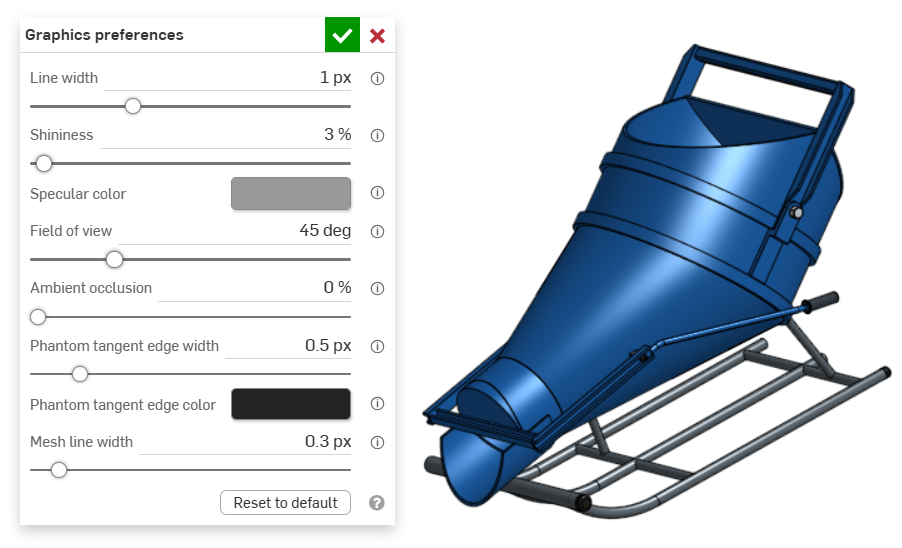
An example of an entity in the graphics area with Ambient occlusion at 0%
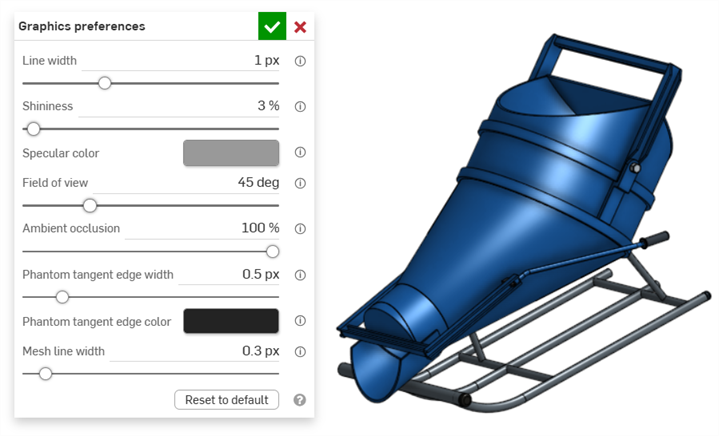
An example of an entity in the graphics area with Ambient occlusion at 100%
-
視野 (透視ビューが有効な場合のみ使用可能) - 透視カメラの視野を制御します。水平スライダを使用するか、20〜120 度の数値を入力します。
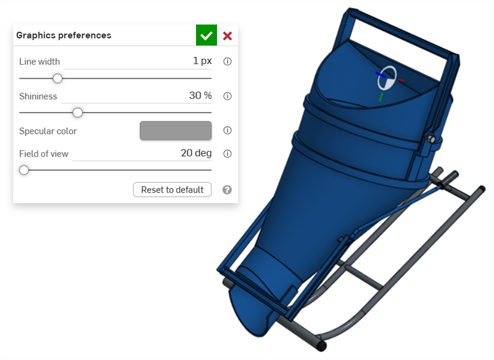
An example of an entity in the graphics area with Field of view set at 20 degrees
シェードボディ
-
線の幅 - サーフェスとエッジの線の幅を制御します。水平スライダを使用するか、0.1〜3 ピクセルの数値を入力してください。
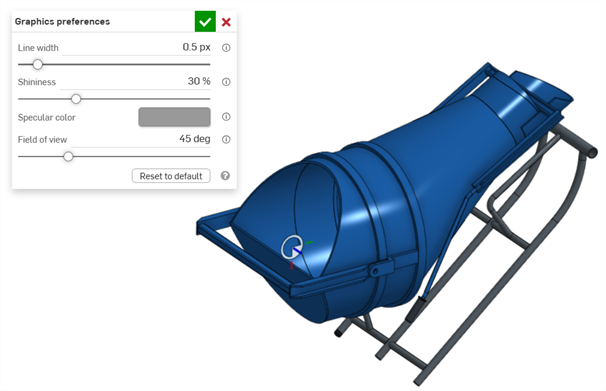
An example of an entity in the graphics area with Line width set at 0.5 px
-
光沢 - シェードサーフェスの既定の光沢を制御します。水平スライダを使用するか、1~100% の数値を入力してください。
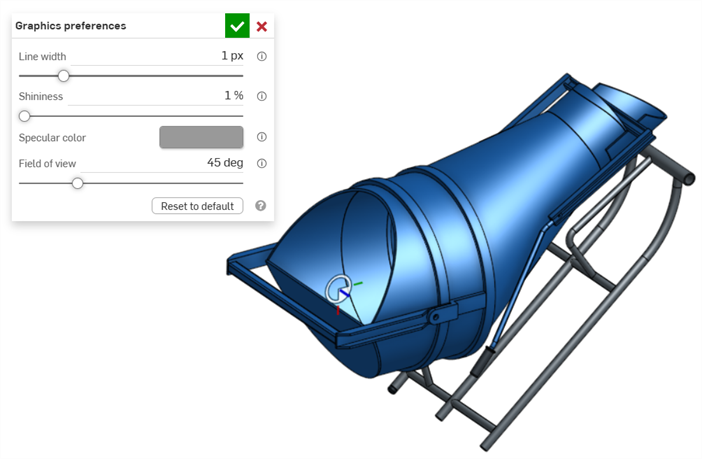
An example of an entity in the graphics area with Shininess set to 1%
-
鏡面反射の色 - シェードサーフェスの既定の鏡面反射の色を制御します。カラースウォッチをクリックしてカラーピッカーダイアログを開き、色を選択します。
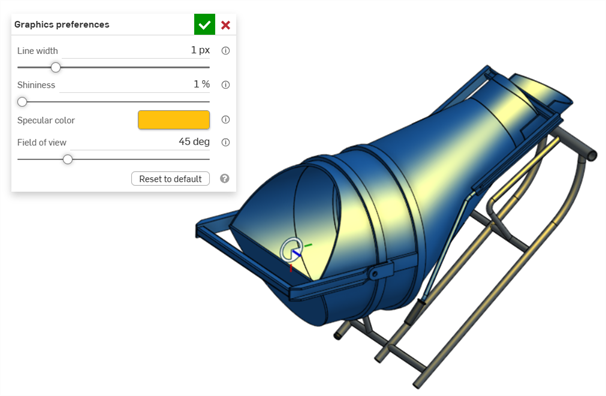
An example of Specular color being edited in the graphics area
-
Section interference color - Controls the default section interference color of overlapped parts or surfaces. Click the color swatch to open the Color picker dialog and select a color.
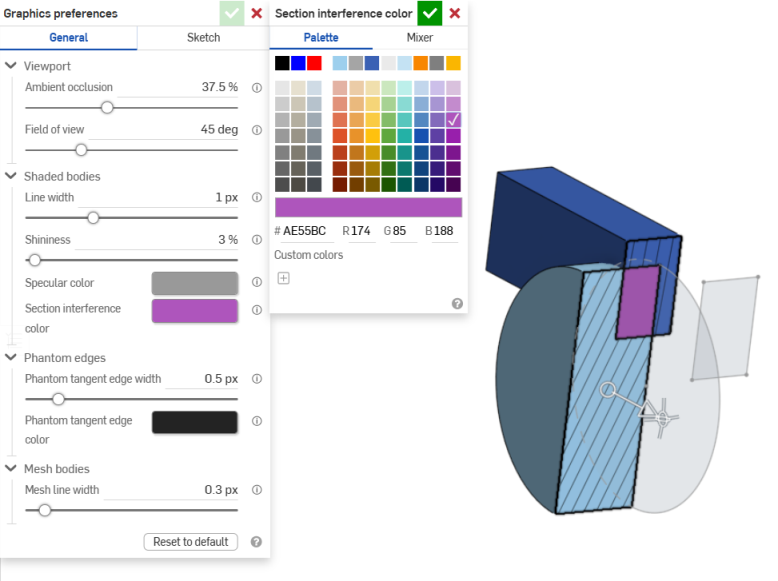
An example of Section interference color being edited in the graphics area
Phantom edges
-
ファントム接線エッジの幅 - [接線エッジ] を [ファントム] に設定すると、これらのエッジの線幅が 0.1〜3 ピクセル (既定: 0.5 ピクセル) の範囲で制御されます。
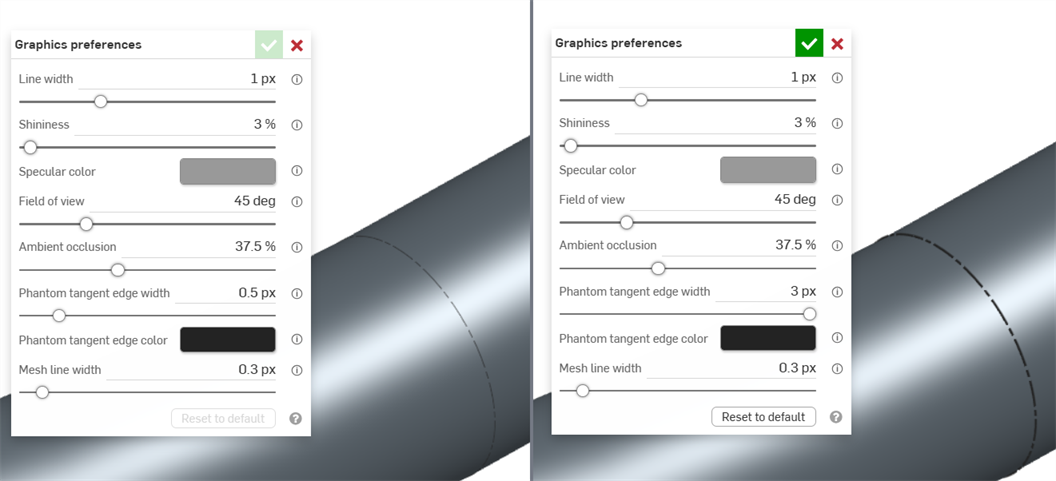
An example of an entity in the graphics area with Phantom tangent edge width set to 0.5 px (left) and 3px (right)
-
ファントム接線エッジの色 - [接線エッジ] を [ファントム] に設定した場合は、これによりそれらのエッジの既定の色が制御されます。カラースウォッチをクリックしてカラーピッカーダイアログを開き、色を選択します。
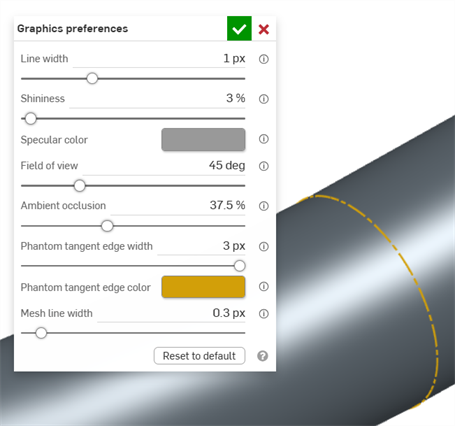
メッシュボディ
-
メッシュ線の幅 - メッシュのサーフェスとエッジの線の幅を 0.1〜3 ピクセル (既定: 0.3 ピクセル) の範囲で制御します。
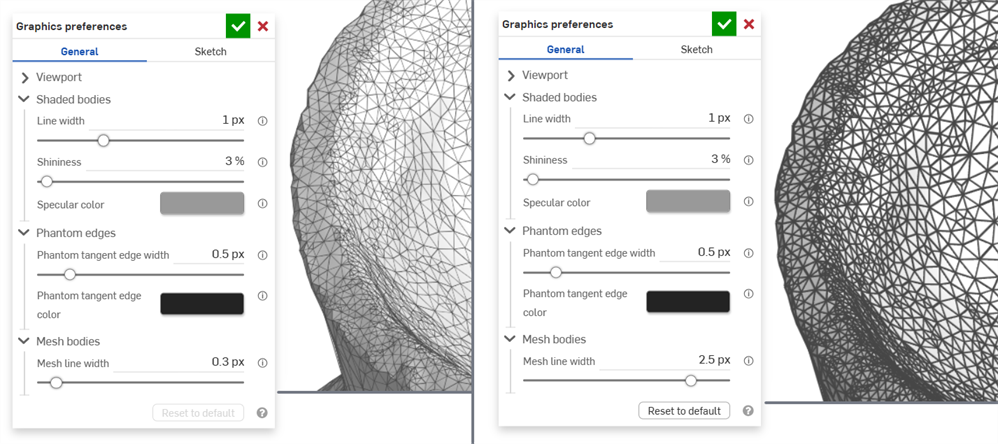
An example of an entity in the graphics area with Mesh line width set to 0.3 px (left) and 2.5 px (right)
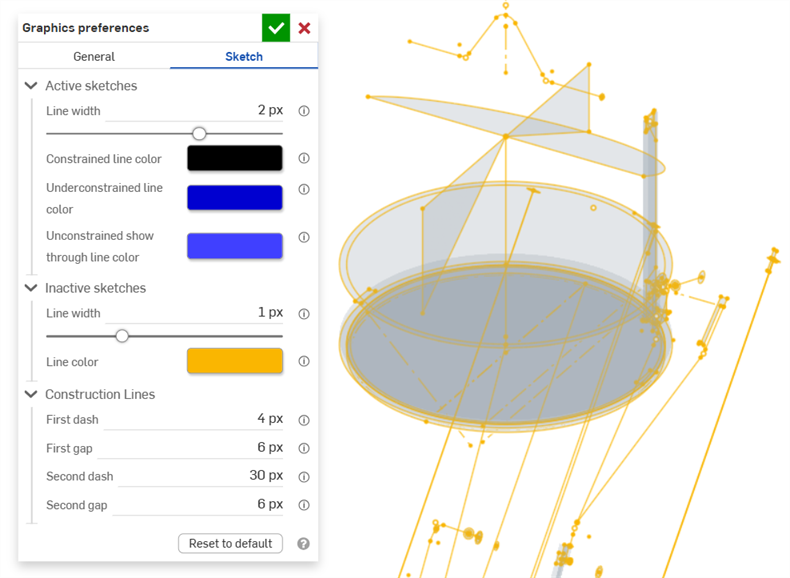
スケッチの環境設定
アクティブなスケッチ
-
線の幅 - アクティブなスケッチの線の幅を制御します。水平スライダを使用するか、0.1〜3 ピクセルの数値を入力してください。
-
拘束線の色 - 拘束された線または点の既定の色を制御します。カラースウォッチをクリックしてカラーピッカーダイアログを開き、色を選択します。
-
拘束が不十分な線の色 - 拘束が不十分な線と点の既定の色を制御します。カラースウォッチをクリックしてカラーピッカーダイアログを開き、色を選択します。
-
拘束が不十分な遮断色 - 拘束が不十分な遮断された線と点の既定の色を制御します。これらは、グラフィック領域のパーツによって隠されている線や点です。カラースウォッチをクリックしてカラーピッカーダイアログを開き、色を選択します。
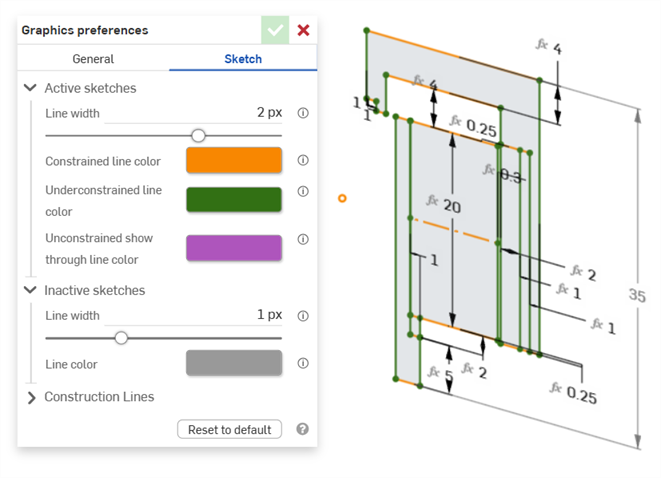
アクティブなスケッチの拘束線と拘束が不十分な線の色を示す例
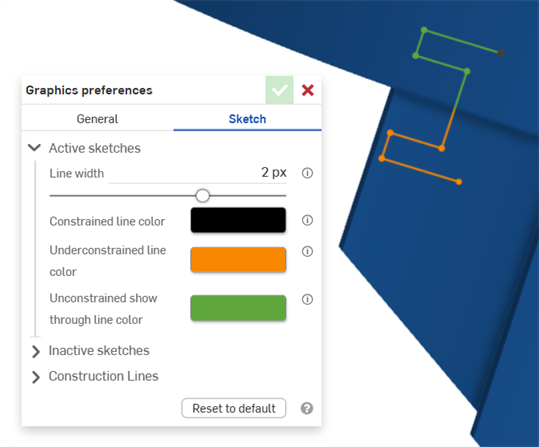
アクティブなスケッチの拘束線の色を示す例。緑は、グラフィック領域のパーツによって隠されているスケッチセグメントを示しています。
非アクティブなスケッチ
-
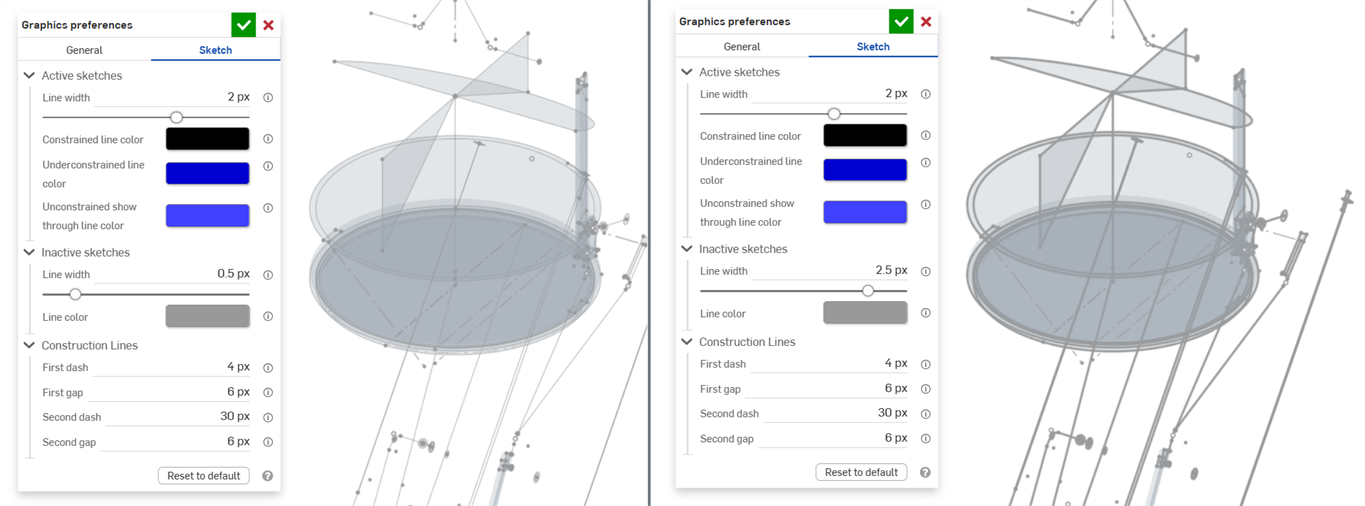
線の幅 - 非アクティブなスケッチの線の幅を制御します。水平スライダを使用するか、0.1〜3 ピクセルの数値を入力してください。
-
線の色 - 非アクティブなスケッチの既定の線と点の色を制御します。カラースウォッチをクリックして線の色ダイアログを開き、カラーピッカーから色を選択します。
作図線
-
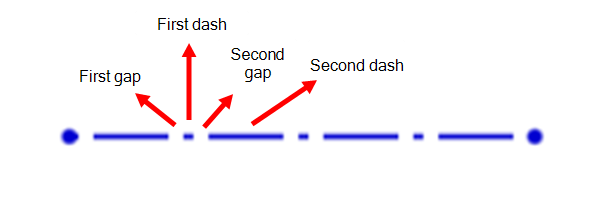
最初の破線 - 作図線の点描パターンの最初の破線の長さを制御します。1~50 ピクセルの値を入力します (既定は 4 ピクセル)。
-
最初のギャップ - 作図線の点描パターン最初のギャップの長さを制御します。0〜50 ピクセルの値を入力します (既定は 6 ピクセル)。
-
2 番目の破線 - 作図線の点描パターンの 2 番目の破線の長さを制御します。1~50 ピクセルの値を入力します (既定は 30 ピクセル)。
-
2 番目ギャップ - 作図線の点描パターンの 2 番目のギャップの長さをピクセル単位で制御します。0〜50 ピクセルの値を入力します (既定は 6 ピクセル)。