Interfaccia Render Studio - Barra degli strumenti

Disponibile solo per
Disponibile in: Render Studio
Situata nella parte superiore della pagina, la barra degli strumenti contiene diversi comandi che vengono comunemente eseguiti quando si lavora in Render Studio:

 Parametri della barra degli strumenti
-
Undo (
 ) - Cancels the last performed operation. The document is restored to a state before this operation took place. Continue to undo previous operations in backward succession.
-
Redo (
 ) - Repeats the last performed operation.
-
Insert (
 ) - Opens the Select part, Part Studio, or Assembly dialog, where you can Insert parts, Part Studios, or Assemblies into the scene. See Inserting a part, Part Studio, or Assembly into a Render Studio scene.
-
Render scene (
 ) - Opens the Render options dialog where you can Render the current scene to a document tab, or Download image to save the render as a JPEG or PNG file in the Documents folder on the local computer.
See Render options for information about this dialog.
- Transform (
 ) - Opens the Transform dialog and a transform manipulator. See Transforming a Scene list entity.
-
Projector (
 ) - Creates a projector in the scene. See Creating a Projector for a Scene list entity.
-
Match scene properties (
 ) - Match all scene properties of the current Render Studio tab with those of another Render Studio tab. These include Settings from the Scene panel, Environment from the Environment panel, and Named views. See Match scene properties.
-
Volume (
 ) (Render Studio Advanced only) - Opens the Volume dialog where you can add a cubic region in which the volumetric portion of an appearance exists and is rendered. The volume can optionally be an OpenVDB 3D texture. Non-advanced users can open a scene that contains Volumes, but their properties are non-editable. See Creating a Volume.
-
Light (
 ) (Render Studio Advanced only) - Opens the Light dialog where you can add an explicit source of luminescence, with position and direction. Light is emitted into the scene based on one of 3 distribution types (Diffuse, Spot, and Profile) that determines how light varies with the angle to the light source. Lights may also have a surface area that cause them to cast softer shadows. See Light.
-
Aggiorna Render Studio: apre la pagina Aggiorna a Render Studio Advanced, dove puoi aggiornare la tua versione di Render Studio.
Abbina le proprietà della scena
Abbina tutte le proprietà della scena della scheda Render Studio corrente a quelle di un'altra scheda di Render Studio. Queste includono Impostazioni, nel pannello Scena, Ambiente, nel pannello Ambiente e Viste con nome.
-
Fai clic sull'icona Abbina proprietà scena (
) nella barra degli strumenti. -
Nella finestra di dialogo Seleziona Render Studio che si apre, effettua la selezione nel documento corrente o in Altri documenti.

-
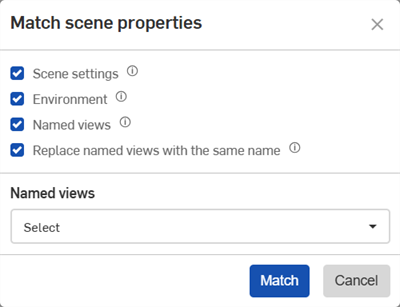
Seleziona una delle seguenti opzioni:
-
Impostazioni scena: le impostazioni del pannello Scena del Render Studio corrente sono sovrascritte da quelle del Render Studio selezionato.
-
Ambiente: le impostazioni del pannello Ambiente del Render Studio corrente sono sovrascritte da quelle del Render Studio selezionato.
-
Viste con nome: le viste con nome del Render Studio selezionato sono inserite nel Render Studio corrente.
-
Sostituisci le viste con nome con lo stesso nome: le viste con nome nel Render Studio corrente sono sostituite con quelle del Render Studio selezionato se hanno lo stesso nome.
-
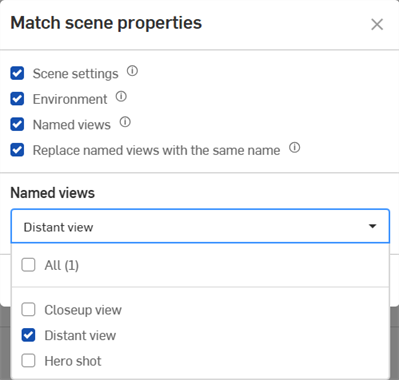
Viste con nome (Seleziona il menu a discesa): seleziona Tutto se desideri inserire tutte le viste con nome nel Render Studio corrente. In alternativa, seleziona singole viste con nome per portarle nel Render Studio corrente. Se non ci sono viste con nome nel Render Studio selezionato, questa opzione non è disponibile.
-
-
Fai clic sul pulsante Abbina per portare le impostazioni dal Render Studio selezionato nel Render Studio corrente. Fai clic su Annulla per chiudere la finestra di dialogo senza apportare modifiche.
Se una risorsa richiesta (ad esempio una vista con nome) è mancante, non valida oppure non si dispone dell'autorizzazione per accedervi, la relativa casella di controllo non è disponibile (è visualizzata in grigio) e non è possibile portarla nel Render Studio corrente.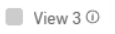
Posiziona il cursore sull'icona informativa per visualizzare un suggerimento sullo schermo che illustra l'opzione associata:
Per ulteriori informazioni, consulta Esempi e risorse di Render Studio.