 Preferencias gráficas

Disponible en: Part Studio, Ensamblaje
Ajuste los parámetros de visualización del modelo en el área gráfica. Modifique los parámetros generales de la ventana, el cuerpo sombreado, la arista fantasma y el cuerpo de la malla, así como el ancho y los colores de las líneas de boceto activas/inactivas, y las longitudes de las separaciones y guiones de las líneas de construcción.
Estas opciones son especialmente útiles al modelar superficies.
 Acceso a las preferencias gráficas
-
Seleccione Opciones de cámara y representación y, a continuación, Preferencias gráficas:
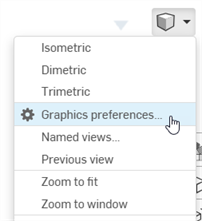
-
Se abre el siguiente cuadro de diálogo:
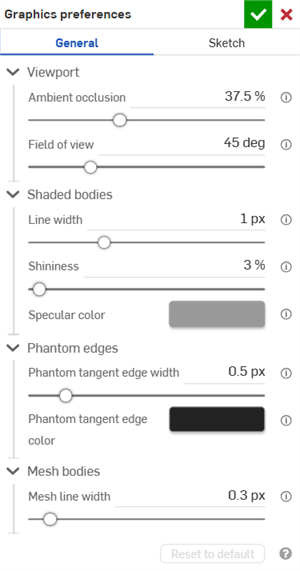
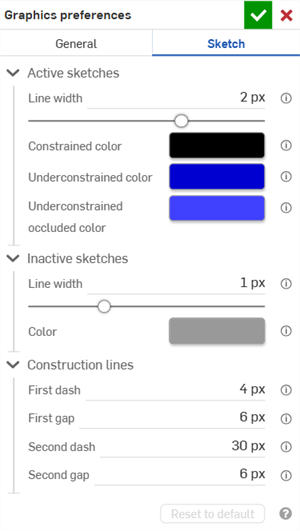
Preferencias generales (izquierda) y de boceto (derecha)
-
Ajuste la configuración tal y como se describe en las secciones siguientes. Haga clic en el botón Restablecer a valor por defecto para que todas las opciones generales y de los cuadros de diálogo de boceto vuelvan a sus valores predeterminados.
Preferencias generales
Ventana
-
Oclusión ambiental: permite controlar la intensidad del sombreado de la oclusión ambiental, del 0 % al 100 % (predeterminado: 37,5 %). Los valores más altos crean un sombreado oscuro y suave en las aristas, las esquinas, las hendiduras y otros lugares donde las piezas se unen o hacen intersección. Esto ayuda a simular la cobertura de luz indirecta del mundo real en estas ubicaciones. Los valores más bajos crean menos sombras en estas ubicaciones.
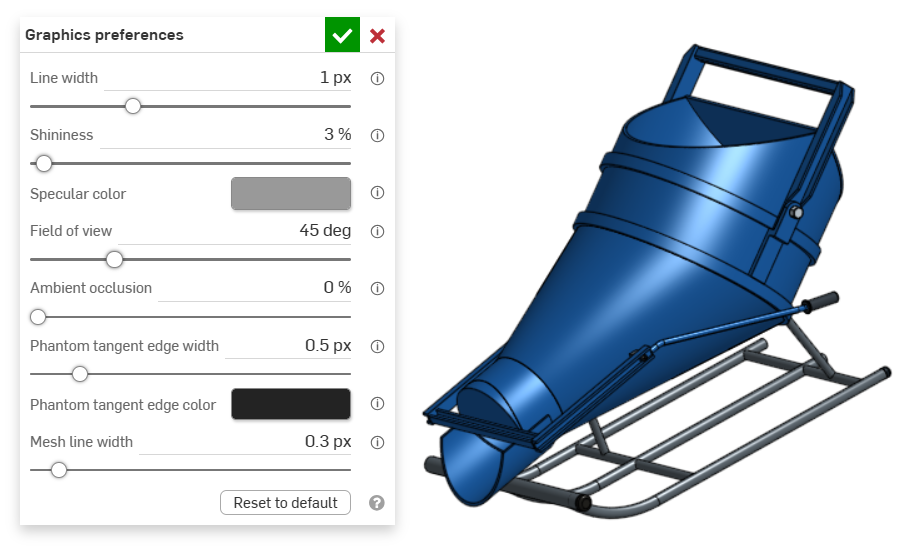
Oclusión ambiental: 0 %
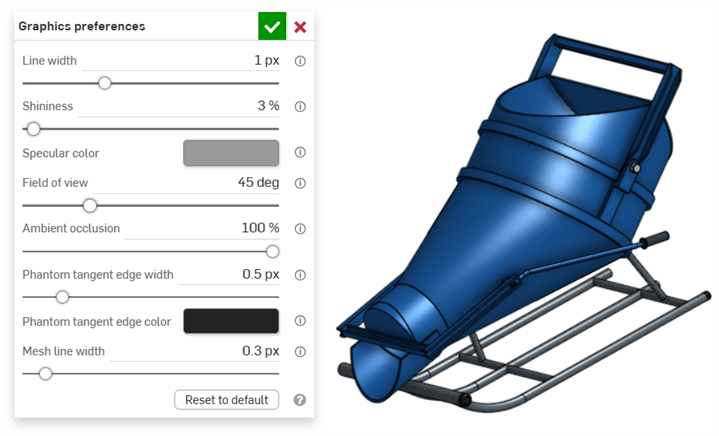
Oclusión ambiental: 100 %
-
Campo de visión (solo disponible cuando está activada la opción Vista en perspectiva): permite controlar el campo de visión de la cámara en perspectiva. Usa el control deslizante horizontal o introduce una entrada numérica de 20 a 120 grados.
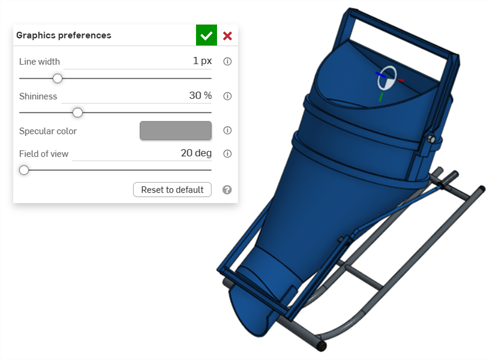
Campo de visión: 20 grados
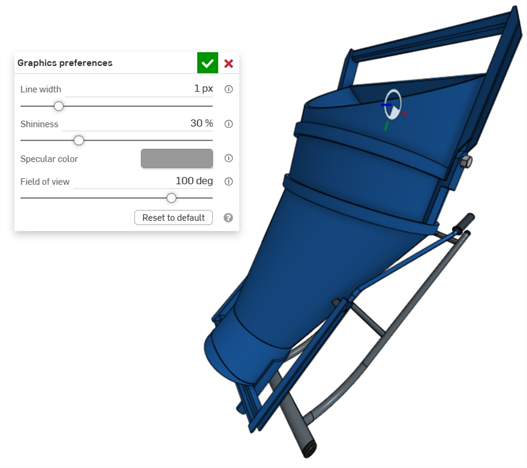
Campo de visión: 100 grados
Cuerpos sombreados
-
Ancho de línea: permite controlar el ancho de línea de las superficies y aristas. Utilice el control deslizante horizontal o introduzca una entrada numérica de 0,1 a 3 píxeles.
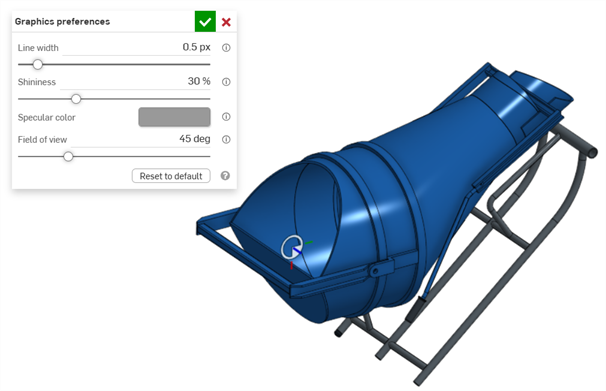
Ancho de línea = 0,5 px
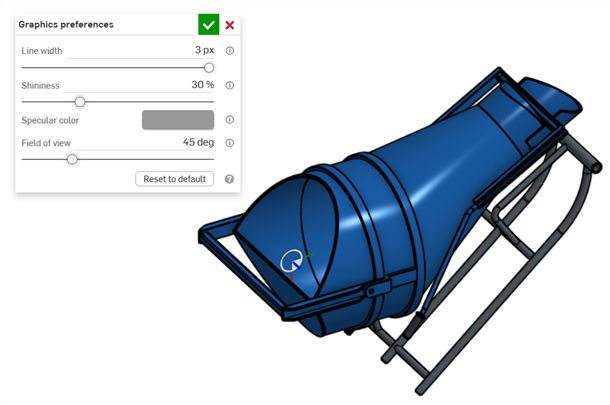
Ancho de línea = 3 px
-
Brillo: permite controlar el brillo predeterminado de las superficies sombreadas. Utilice el control deslizante horizontal o introduzca una entrada numérica del 1 al 100 %.
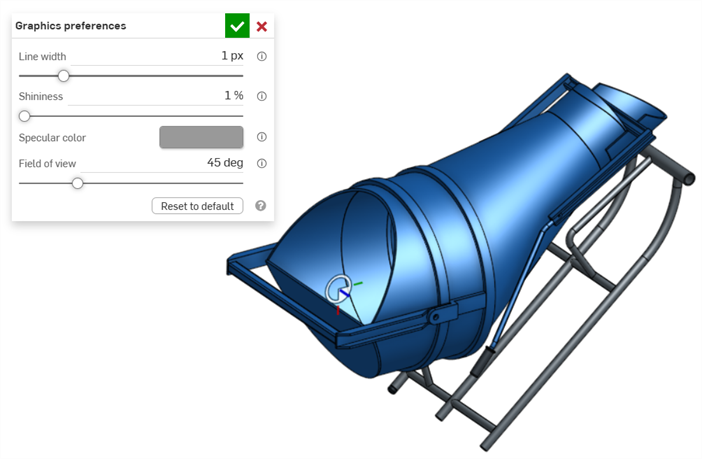
Brillo: 1 %
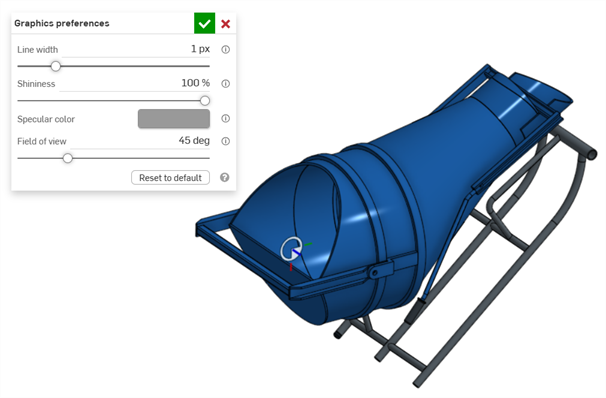
Brillo: 100 %
-
Color especular: permite controlar el color especular predeterminado de las superficies sombreadas. Haga clic en la muestra de color para abrir el cuadro de diálogo Color especular y seleccionar un color de la paleta o el mezclador:
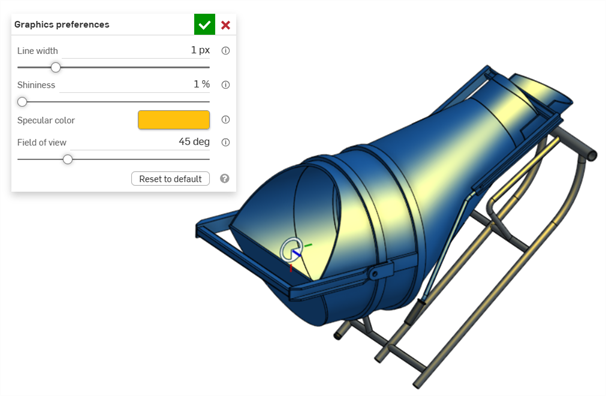
Ejemplo de color especular
Aristas fantasmas
-
Ancho de arista tangente fantasma: si la opción Aristas tangentes se define en fantasma, este valor permite controlar el ancho de línea de esas aristas, de 0,1 a 3 px (valor predeterminado: 0,5 px).
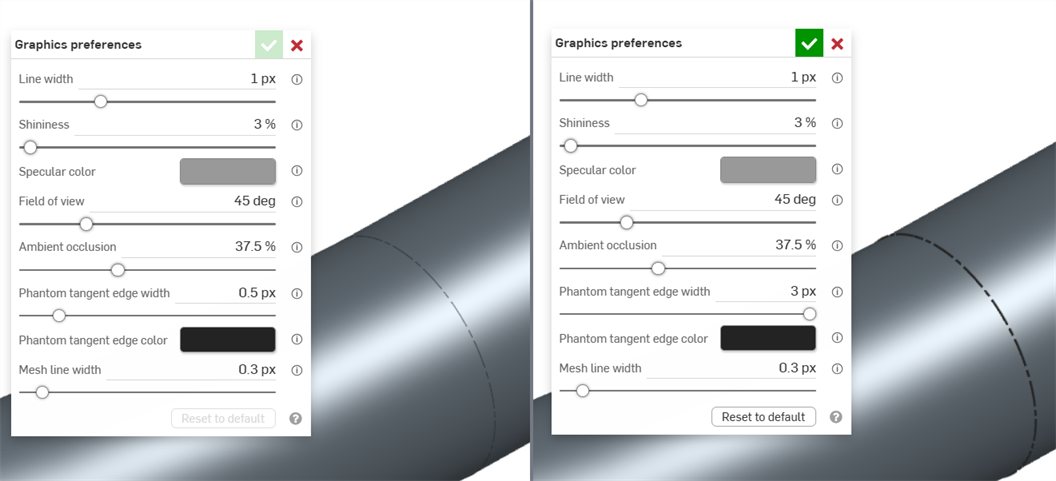
Ancho de arista tangente fantasma: 0,5 px (izquierda); 3 px (derecha)
-
Color de arista tangente fantasma: si la opción Aristas tangentes se define en fantasma, este valor permite controlar el color predeterminado de esas aristas. Haga clic en la muestra de color para abrir el cuadro de diálogo Selector de colores y seleccione un color.
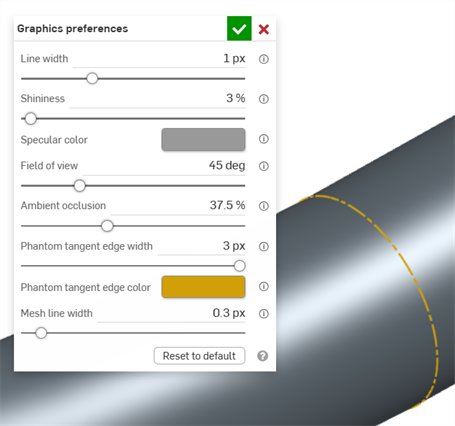
Cuerpos de malla
-
Ancho de línea de malla: permite controlar el ancho de línea de las superficies y aristas de la malla, de 0,1 a 3 px (valor predeterminado: 0,3 px).
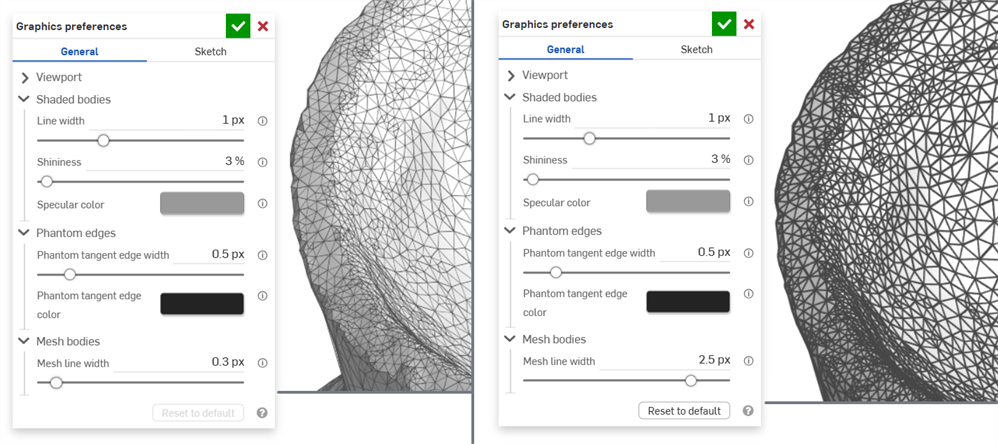
Ancho de línea de malla: 0,3 px (izquierda); 2,5 px (derecha)
Preferencias de boceto
Bocetos activos
-
Ancho de línea: permite controlar el ancho de línea de los bocetos activos. Utilice el control deslizante horizontal o introduzca una entrada numérica de 0,1 a 3 píxeles.
-
Color de línea restringida: permite controlar el color predeterminado de las líneas o puntos restringidos. Haga clic en la muestra de colores para abrir el cuadro de diálogo Selector de colores y seleccione un color.
-
Color subrrestringido: permite controlar el color predeterminado de las líneas y los puntos subrrestringido. Haga clic en la muestra de colores para abrir el cuadro de diálogo Selector de colores y seleccione un color.
-
Color ocluido subrrestringido: permite controlar el color predeterminado de las líneas y los puntos ocluidos subrrestringidos. Se trata de líneas y puntos ocultos por piezas del área gráfica. Haga clic en la muestra de colores para abrir el cuadro de diálogo Selector de colores y seleccione un color.
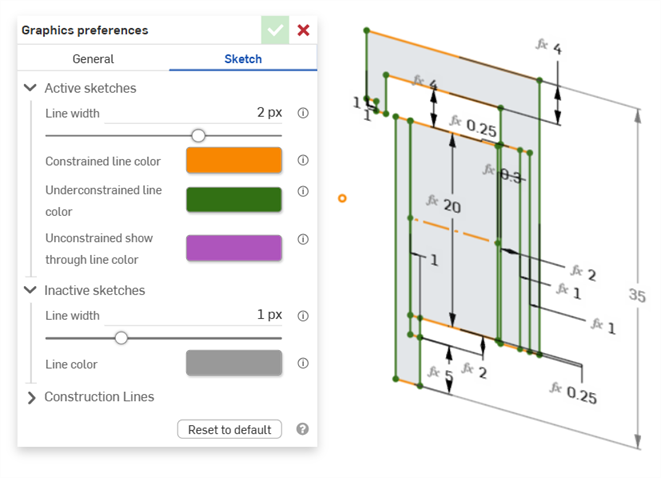
Ejemplo que muestra los colores de línea restringidos y subrrestringidos en un boceto activo
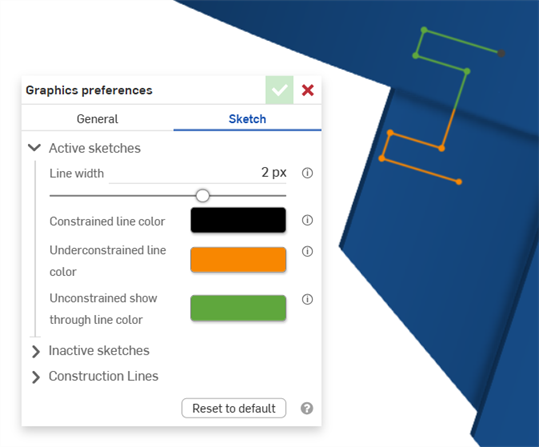
Ejemplo que muestra colores de línea subrrestringidos en un boceto activo. El verde muestra los segmentos del boceto ocultos por una pieza en el área gráfica.
Bocetos inactivos
-
Ancho de línea: permite controlar el ancho de línea de los bocetos inactivos. Utilice el control deslizante horizontal o introduzca una entrada numérica de 0,1 a 3 píxeles.
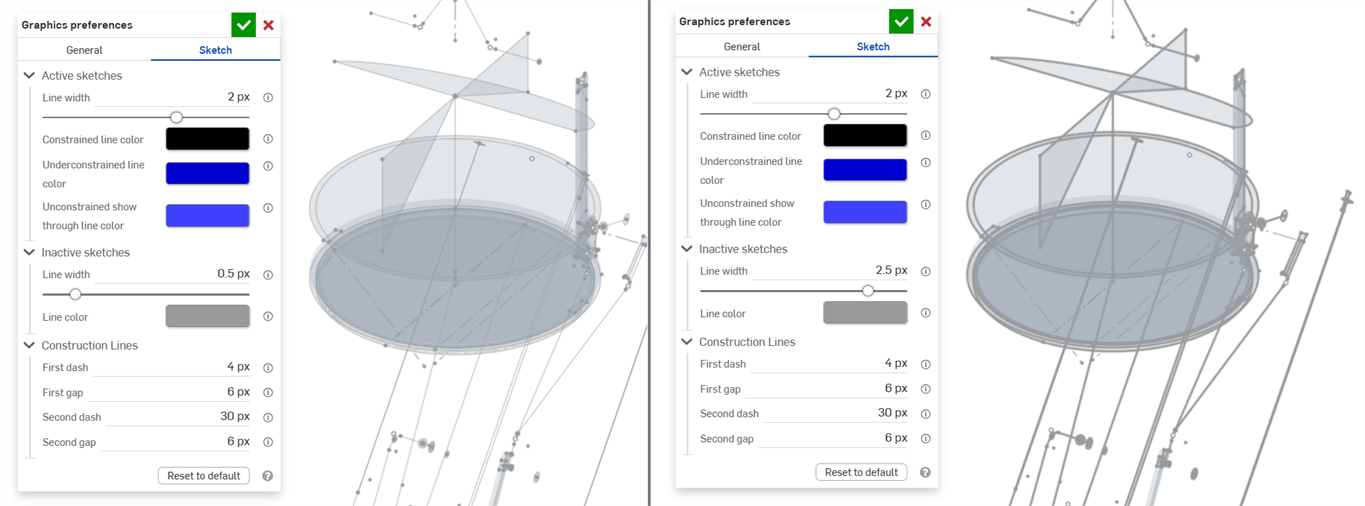
-
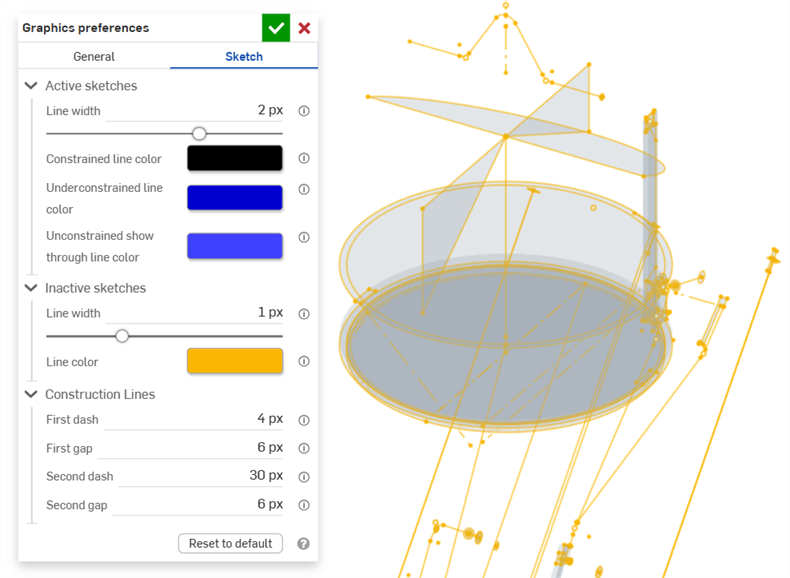
Color de línea: permite controlar el color predeterminado de las líneas y los puntos de los bocetos inactivos. Haga clic en la muestra de colores para abrir el cuadro de diálogo Color de línea y seleccione un color en el Selector de colores.
Líneas de construcción
-
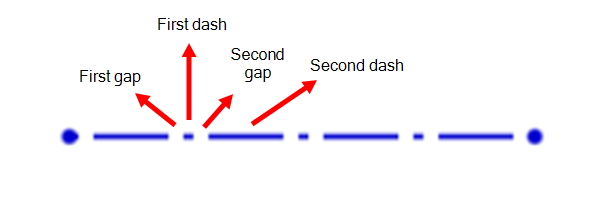
Primer guion: permite controlar la longitud del primer guion en el patrón de punteado de la línea de construcción. Introduzca un valor de 1 a 50 píxeles (el valor predeterminado es 4 px).
-
Primera separación: permite controlar la longitud de la primera separación en el patrón de punteado de la línea de construcción. Introduzca un valor de 0 a 50 píxeles (el valor predeterminado es 6 px).
-
Segundo guion: permite controlar la longitud del segundo guion en el patrón de punteado de la línea de construcción. Introduzca un valor de 1 a 50 píxeles (el valor predeterminado es 30 px).
-
Segunda separación: permite controlar la longitud, en píxeles, de la segunda separación en el patrón de punteado de la línea de construcción. Introduzca un valor de 0 a 50 píxeles (el valor predeterminado es 6 px).