MBD Status

Disponible en: dibujo
The MBD status panel lists the inserted part's model-based definitions data (annotations and dimensions) not visible in the drawing. If any visible data is deleted from a drawing view, it is also displayed in this panel and can be shown again.
 Opening the MBD status panel
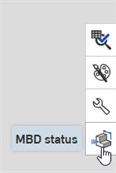
The illustration below shows the MBD status icon ( ), located at the right side of the drawing window. Click this icon to access the panel:
MBD status interface
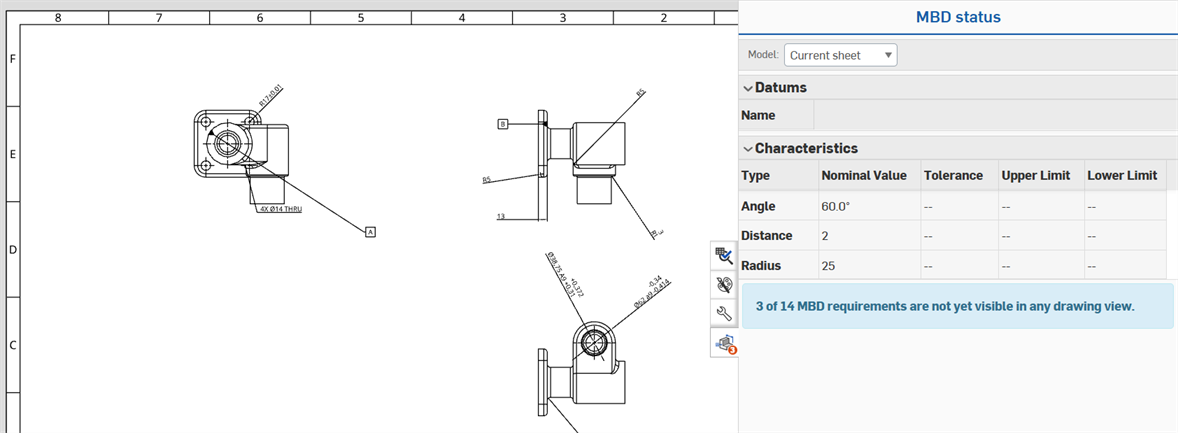
The following explains the MBD status interface:
-
Model - determines the missing annotations displayed in the panel tables.
-
Current sheet - Missing annotations are for the current sheet only, focusing only on part or data relevant to that sheet.
-
All Models - Missing annotations are for all parts/models in the document, and are not limited to the current sheet, enabling broader reference or selection.
-
Part - Missing annotations are for a specific part in the drawing view, isolating data for that part.
-
-
Datums table - Lists any missing datums for the selected Model. See Inspection table for more information.
-
Characteristics table - Lists any missing characteristics (annotations) for the selected Model. See Inspection table for more information.
Using the MBD status panel
Drawings can be created for multiple parts in a Part Studio, with each sheet referencing a specific part and its missing MBD data.
When views inserted in the drawing, there may be MBD data on other views that qualify as missing from the panel. In this case, a badge is placed on the MBD status panel icon to indicate the number of missing references (annotations or dimensions):

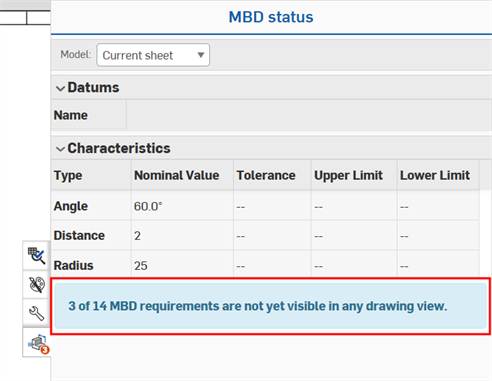
On the panel a blue message below the tables alerts the user to the number of missing references for the inserted part:
If a reference is not visible, the user can switch back to the model to determine its location and decide how to reveal it in the drawing, such as by creating a section, auxiliary, or broken-out view.
If all MBD data is present in the drawing views, the MBD status panel icon displays a checkmark:
Deleted annotations and dimensions
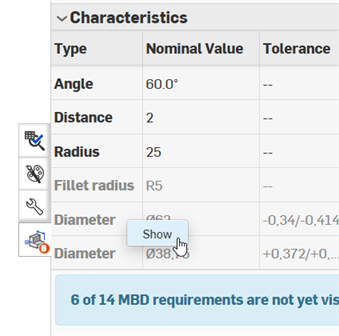
Deleting a reference (annotation or dimension) in the drawing view turns their reference gray in the table. Right-clicking on the row and selecting Show restores them in the drawing view: