


Verfügbar in: Baugruppen
Hinzufügen, Entfernen, Verschieben und Ändern der Größe von Spalten sowie Sortieren von Elementen in der Stücklistentabelle.
Weitere Informationen finden Sie unter Stückliste (BOM), Arbeiten mit der Stücklistentabelle und Vorlagen für Stücklistentabellen.
Auf den iOS- und Android-Plattformen können Stücklistentabellen angezeigt und die Art der Stücklistentabelle zwischen „vereinfacht“ und „strukturiert“ geändert werden.
 Eine Spalte hinzufügen oder entfernen
Objektnummer, Menge, Bauteilnummer und Beschreibung sind die standardmäßig angezeigten Eigenschaften-Spalten für Bauteile und Unterbaugruppen in der Stücklistentabelle. Je nach den für Ihr Konto definierten Eigenschaften können weitere Spalten hinzugefügt werden.
- Klicken Sie auf das Dropdown-Menü Spalte hinzufügen und wählen Sie eine einzufügende Eigenschaft zum Einfügen aus der Liste aus. Weitere Spalten werden ganz rechts in der Tabelle hinzugefügt.
- Die Kategorie Eine Spalte kann nicht hinzugefügt werden, wenn die Eigenschaft mehrwertig ist.
- Jede Kategorie, die über den Eigenschaftendialog bearbeitet werden kann, kann auch über die STL-Tabelle bearbeitet werden, wenn sie als Spalte hinzugefügt wird.
- Bei Eigenschaften, die als bearbeitbar gekennzeichnet sind (in den Konto-Eigenschaften), können Sie in die Zelle klicken und Daten hinzufügen. Diese Daten werden für das jeweilige Bauteil in den entsprechenden Eigenschaften gespeichert und stehen für dieses Bauteil im gesamten Dokument und in der Company zur Verfügung.
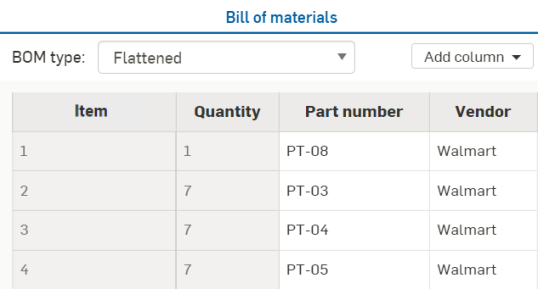
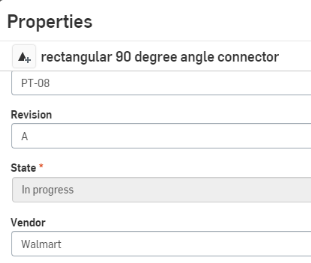
Beispielsweise können Sie für jedes Bauteil Informationen in die Zelle „Anbieter“ eingeben. Diese Informationen werden in den Eigenschaften des jeweiligen Bauteils im Feld „Anbieter“ gespeichert.
Die Anbieter-Zelle mit einem Wert in einer Stücklistentabelle:
Das Eigenschaften-Dialogfeld für das Bauteil:
Wenn Sie eine Eigenschaft erstellen (über die Registerkarte „Eigenschaften“ in den Kontoeinstellungen), können Sie diese mit „Wert im Arbeitsbereich bearbeiten“, „Wert in Version bearbeiten“ oder beidem kennzeichnen. Wenn Sie die Option „Wert im Arbeitsbereich bearbeiten“ auswählen, können Sie diesen Wert in einer Stücklistentabelle für alle freigegebenen Bauteile bearbeiten, da freigegebene Bauteile Teil einer Version werden. Ist die Option „Wert in Version bearbeiten“ jedoch nicht ausgewählt, müssten Sie eine Verzweigung des Arbeitsbereichs aus dieser Version durchführen, die Werte bearbeiten und anschließend entweder eine Version erstellen oder die Bauteile erneut freigeben.
Eine Standardinhalt-Instanz kann nicht von der Stücklistentabelle aus bearbeitet werden und ist ausgegraut. Um eine Standardinhalt-Instanz zu bearbeiten, rechtsklicken Sie auf die Instanz in der Instanzenliste und wählen Sie „Standardinhalt-Instanz bearbeiten“ aus. Weitere Informationen finden Sie unter Standardinhalt-Instanz bearbeiten.
Eine Spalte entfernen
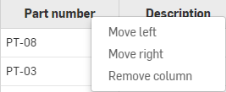
Jede Spalte außer Objekt kann entfernt werden. Um eine Spalte zu entfernen, rechtsklicken Sie auf die Spaltenüberschrift und wählen Sie Spalte entfernen aus:
Entfernte Spalten können jederzeit über das Dropdown-Menü Spalte hinzufügen wieder hinzugefügt werden.
Eine Spalte verschieben
Jede Spalte außer Objekt kann verschoben werden. Um eine Spalte nach rechts oder links zu verschieben, rechtsklicken Sie auf die Spaltenüberschrift und wählen Sie Nach links verschieben oder Nach rechts verschieben aus:
Spaltengröße ändern
So ändern Sie die Größe einer Spalte:
-
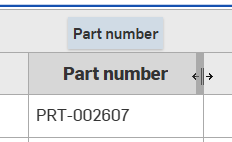
Bewegen Sie den Mauszeiger über die rechte Kante einer Spaltenüberschrift. Der Mauszeiger nimmt die Form eines Doppelpfeils an, und die Spalte wird in einem dunkleren Grauton hervorgehoben.
-
Klicken Sie und ziehen Sie nach links, um die Spalte zu verkleinern, oder ziehen Sie nach rechts, um die Spalte breiter zu machen.
Stücklistentabellen-Objekte sortieren
Sie können die Objekte in der Stücklistentabelle alphanumerisch nach jeder Spalte mit Ausnahme von Objekt sortieren. Jede Spaltenüberschrift fungiert als Dreifach-Umschalter, der zwischen (1) „Unsortiert“, (2) „Aufsteigender Sortierreihenfolge“ und (3) „Absteigender Sortierreihenfolge“ umschaltet. Doppelklicken Sie auf die Spaltenüberschrift, um von einem Sortierstatus zu einem anderen zu wechseln.

Positionen der Stücklistentabelle sortiert nach aufsteigender (links) und absteigender (rechts) Menge.
Tabellendaten können nur nach jeweils einer Spalte sortiert werden.