Asynchrone Simulation 

Nur verfügbar für
Verfügbar in: Baugruppen
Normalerweise wird die Simulation dynamisch (in Echtzeit) in der aktiven Modellierungssitzung des Benutzers ausgeführt und übernimmt jede Änderung an einer Baugruppe oder ihren Bauteilen. Dieses Verhalten ist ideal für eine schnelle, iterative Konstruktionshilfe. Allerdings ist ein anderer Ansatz erforderlich, um wichtige Meilensteine bei der Konstruktion zu analysieren oder langfristige Analysen durchzuführen.
Bei der asynchronen Simulation führt ein Benutzer Simulationen unabhängig von seiner aktiven Modellierungssitzung durch. Simulationsergebnisse werden dauerhaft in der Tabelle Ergebnisse und Historie in der Simulationspalette gespeichert. Die Simulationsergebnisse zeigen den Status aller Jobs an, die sich in der Warteschlange befinden, gerade bearbeitet werden oder abgeschlossen sind.
Zu den Features gehören:
-
Simulationen außerhalb der aktiven Modellierungssitzung berechnen
-
Simulationsergebnisse für die gesamte Lebensdauer des Dokuments speichern
-
Sie können Simulationsstudien einer beliebigen Dokumentversion senden, indem Sie die folgenden Baugruppenmerkmale festlegen:
-
Variablen (optional, falls vorhanden)
-
Konfiguration (optional, falls vorhanden)
-
Named position (required, unless the Assembly is at the version's Default position)
-
Simulation (erforderlich)
-
-
Simulationen übersichtlich in der Tabelle Ergebnisse und Historie organisieren
-
Fortschritt überwachen, Aufträge aus der Warteschlange nehmen oder Ergebnisse von abgeschlossenen Aufträgen abrufen
-
Bis zu 50 aufeinanderfolgende Simulationen pro Benutzer für vergleichende Analysen starten
-
Zeitbeschränkungen aus der Live-Simulation entfernen (nützlich für Analysen mit langer Laufzeit; eine Simulation läuft bei Analysen ab, die länger als 24 Stunden dauern)
-
Speicherzuweisung relativ zur Live-Simulation erhöhen (nützlich für rechenintensive Analysen); die Live-Simulation verwendet wissenschaftliche Recheninstanzen mit 32 oder 24 GB GPU (je nach Verfügbarkeit), die asynchrone Simulation wissenschaftliche Recheninstanzen mit 128 oder 64 GB CPU (je nach Verfügbarkeit)
 Schritte
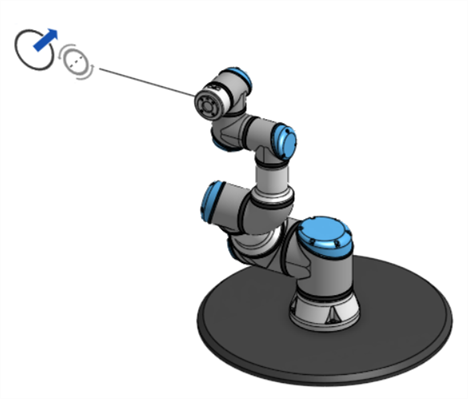
Bei diesem Workflow wird davon ausgegangen, dass Sie ein fertiges CAD-Modell in einer Baugruppen-Registerkarte haben, wobei die Instanzen verknüpft sind, die Baugruppe ausreichend beschränkt ist und eine Simulation korrekt definiert wurde:
-
Optionally, create at least one Named position for the Assembly. The asynchronous simulation can be run at the version's Default position, which is the position of the Assembly at the moment the version was created.
-
Erstellen Sie optional alle Variablen, die für die Baugruppe erforderlich sind.
-
Erstellen Sie optional alle Konfigurationen, die für die Baugruppe erforderlich sind.
-
Erstellen Sie eine Version des Dokuments.
-
Wählen Sie in der Palette Versionen und Historie (
 ) die Version aus, in der die Simulation ausgeführt werden soll: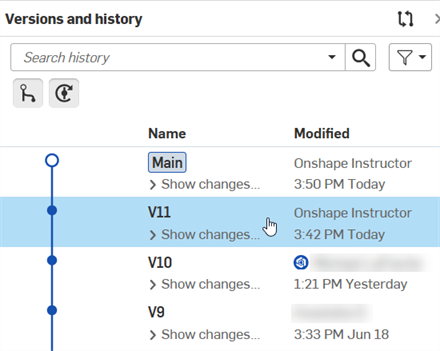
-
Rechtsklicken Sie in der Palette Benannte Positionen (
 ) auf die benannte Position und wählen Sie Benannte Position anwenden aus: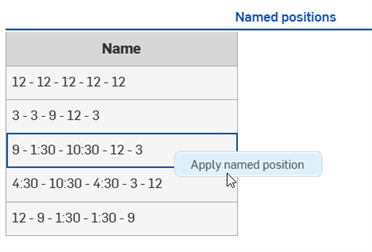
Skip this step to run the simulation at the version's Default position. Any change that creates a new history change entry makes the Default position unavailable. See the Default position note for additional information.
-
Wählen Sie optional beliebige Variablen oder Konfigurationen für die Baugruppe in der linken Palette über der Instanzenliste aus:
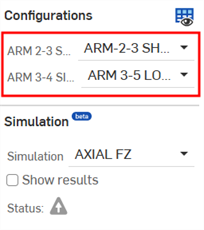
Auswahl der Konfiguration in der linken Palette
-
Wählen Sie in der selben Palette eine Simulation aus, die Sie ausführen möchten:
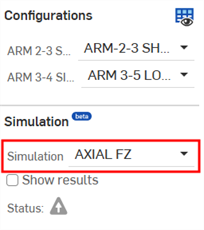
-
Öffnen Sie die Simulationspalette, klicken Sie auf die Registerkarte Ergebnisse und Historie und dann auf die Schaltfläche Aktive Simulation ausführen:
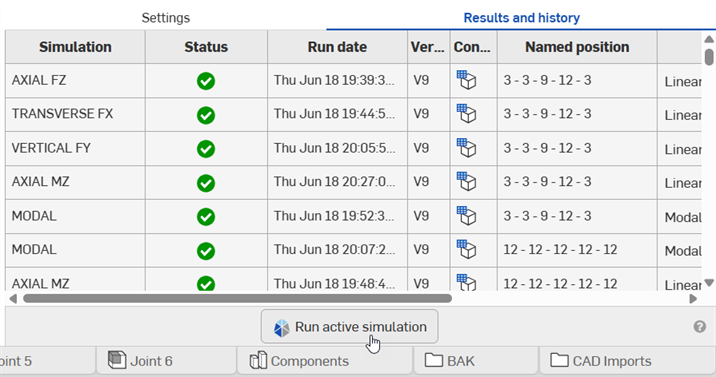
Wenn Sie auf diese Schaltfläche klicken, wird eine asynchrone Simulation gestartet. Sie erscheint nur in einer Dokumentversion und ist deaktiviert, wenn der Benutzer sein Limit von 50 aufeinanderfolgenden Simulationen erreicht hat oder wenn der aktuelle Baugruppenstatus mit einer zuvor eingereichten asynchronen Simulation übereinstimmt.
The user does not have to monitor the Results and history panel. Onshape sends a notification indicating the simulation's progress only to the user who started the simulation, with a link to view the simulation results:
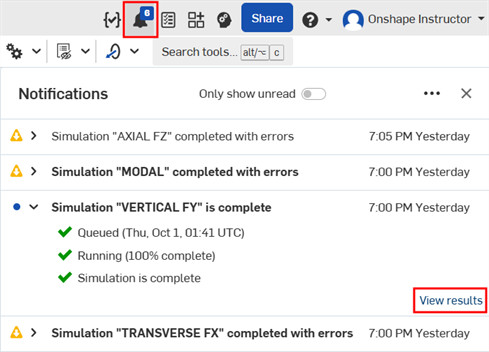
-
Die Simulationsergebnisse werden angezeigt, nachdem die Simulation abgeschlossen ist:

A simulation using the version's Default position
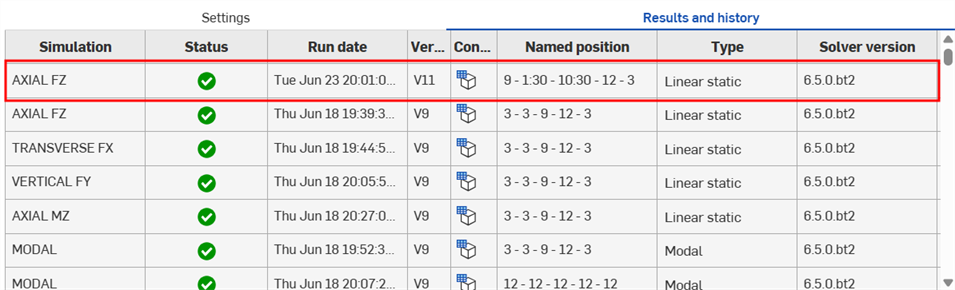
Simulations using Named positions
Deleting a simulation run
Permanently delete a completed or failed asynchronous simulation run, along with its results, from the document. You must have Delete permission for the document to delete a run.
-
Open the Results and history tab.
-
Open the menu for the simulation run you want to remove, and select Delete simulation results.

-
Click Delete in the confirmation dialog:
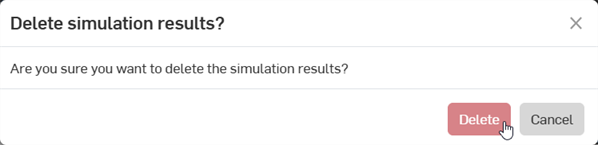
-
The run and its results are removed from the Results and history tab for everyone with access to the Document.
Deleting a simulation run is permanent. It cannot be undone, it is not recorded in the document's version history, and the run cannot be restored. Runs can be deleted from any workspace in the document.
Canceled runs are removed from the list automatically, and do not require deletion.
Tabelle „Ergebnisse und Historie“
Jede Zeile in der Tabelle „Ergebnisse und Historie“ steht für eine Simulationsstudie. Die Spalten sind:
-
Simulation: Name der Simulation, kann ein linear statischer oder modaler Simulationstyp sein.
-
Status: Status der aktuellen Simulation. Optionen: Warteschlange (Drehfeld), in Bearbeitung (blauer Fortschrittsbalken), abgeschlossen (
 ) oder ein Fehler (
 ).
). -
Datum der Ausführung: Durch Klicken auf die Schaltfläche Aktive Simulation ausführen wird der Auftrag gestartet. In dieser Spalte wird die Warteschlange angezeigt, während die Vorverarbeitungsschritte erfolgen. Anschließend werden in der Spalte das Datum und die Uhrzeit angezeigt, zu denen der aktuelle Simulationsauftrag gestartet wird.
-
Version: Dokumentversion, in der die aktuelle aktive Simulation ausgeführt wird.
-
Konfiguration: Wenn Sie den Mauszeiger über das Symbol der Konfigurationstabelle (
 ) der Spalte bewegen, wird Nicht konfiguriert oder eine Liste der Konfigurationseinstellungen (falls vorhanden) als Tool-Tipp für den aktuellen aktiven Simulationslauf angezeigt: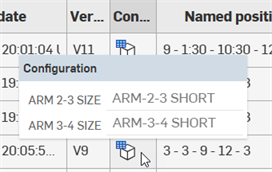
-
Named position - The applied Named position of the current active simulation run, or Default position if the simulation is run at the version's Default position.
-
Typ: Simulationstyp, entweder linear statisch oder modal.
-
Solver-Version: die Solver-Version, die für den aktuellen Simulationslauf verwendet wird. Da der Solver kontinuierlich verbessert wird, entsprechen neue Simulationen womöglich nicht den Ergebnissen früherer Simulationen.
Kontextmenü-Optionen
-
Einstellungen anzeigen: wird angezeigt, wenn die aktive Simulation läuft oder fehlgeschlagen ist. Klicken Sie auf diese Option, um die Einstellungen der aktuellen Simulation zu öffnen (aktive Simulation, benannte Position und Konfiguration).
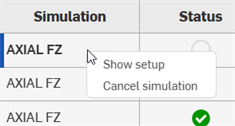
-
Simulation abbrechen: wird angezeigt, wenn die aktive Simulation läuft. Klicken Sie auf diese Option, um sie abzubrechen.
-
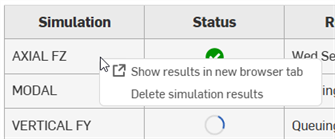
Ergebnisse anzeigen/Ergebnisse in einem neuen Browser-Tab anzeigen: Ähnlich wie bei „Einstellungen anzeigen“ sind diese Optionen zu sehen, wenn die Simulation abgeschlossen ist. Klicken Sie darauf, um die Einstellungen der aktuellen Simulation (aktive Simulation, benannte Position und Konfiguration) zu öffnen (auch in einer Dokumentversion). Die Simulationsergebnisse werden im aktuellen Tab oder einem neuen Browser-Tab angezeigt.
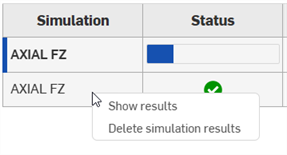
-
Delete simulation results - Permanently delete a completed or failed simulation run, along with its results, from the document. See Deleting a simulation.
-
Simulation wiederholen: wird angezeigt, wenn Sie auf eine fehlgeschlagene Simulation rechtsklicken (
). Führt die Simulation erneut aus.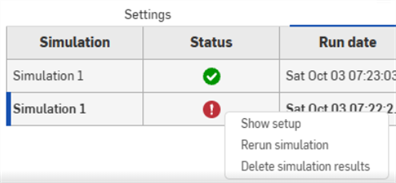
Bezugstexte
-
Simulationen können nicht gelöscht werden. Sie werden immer in der Tabelle Ergebnisse und Historie gespeichert.
-
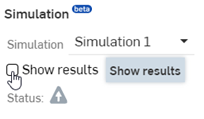
Wenn der Baugruppenstatus nicht exakt mit einer zuvor abgeschlossenen asynchronen Simulation übereinstimmt, wird durch Klicken auf Ergebnisse anzeigen in der linken Simulationspalette eine dynamische (Echtzeit-) Simulation ausgeführt, selbst wenn die ausgeführte Simulation einer unvollständigen asynchronen Simulation entspricht (entweder in der Warteschlange oder in Bearbeitung). Diese dynamischen Ergebnisse werden nicht gespeichert.
Wenn der Baugruppenstatus exakt mit einer zuvor abgeschlossenen asynchronen Simulation übereinstimmt, werden durch Klicken auf Ergebnisse anzeigen die Ergebnisse einer vorherigen asynchronen Simulation im permanenten Speicher abgerufen und es wird keine neue Simulation ausgeführt.
-
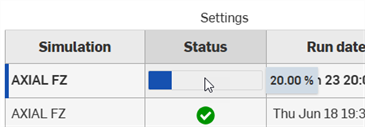
Wenn Sie mit der Maus über den Fortschrittsbalken der Status-Spalte gehen, wird der abgeschlossene Prozentsatz der aktiven Simulationsausführung angezeigt:
-
Falls sich eine Simulationsstudie immer noch in der Warteschlange befindet, die Ergebnisse aber sofort benötigt werden, können Sie auf Ergebnisse anzeigen oder Ergebnisse in einem neuen Browser-Tab anzeigen klicken.
-
Wenn eine Simulation in seltenen Fällen wegen eines Systemfehlers und nicht aufgrund eines Fehlers bei der Einrichtung oder Lösung fehlschlägt, erwägen Sie, den Auftrag abzubrechen und erneut zu senden.
-
Default position - An asynchronous simulation can be run on a version's Default position only while the Assembly is still at that version's original state, and there have been no history changes. For example, open V5 and the Default position is available. Rotate a part 30 degrees and it is no longer available. Rotate the part back 30 degrees and it is still not available. Undo both rotations and it is available again, because the original history state is restored.