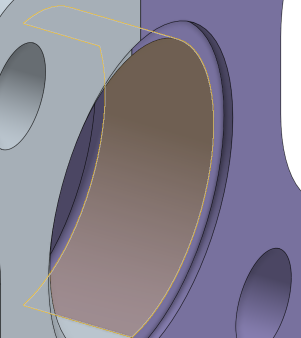
Zoom to Fit, Window, and Selection


Available in: Part Studio, Assembly
Use Zoom to fit, Zoom to window, and Zoom to selection to adjust the view of the current model in the graphics area to fit the screen, selected bounding box, or selection, respectively.
 Zoom options
The mouse wheel direction for zoom is configurable in user account preferences.
To zoom, select Camera and render options, then select one of the following options:
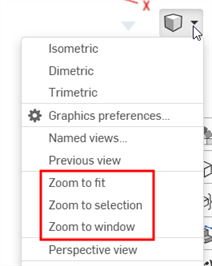
- Zoom to fit (shortcut: f, double-click scroll wheel) - Select this command or use the shortcut key to zoom the entire Part Studio, Assembly or Drawing into view.
- Zoom to window (shortcut: w) - Select this command, then click+drag a box around the area you want to zoom to in a Part Studio, Assembly or Drawing. The shortcut key toggles the feature on and off.
- Zoom to selection - Select this command to zoom to the selected entities. Must have an entity selected for this option to be visible.
Zoom to window and Zoom to selection are not available for iOS or Android platforms.
Zoom to selection
Use Zoom to selection to change the view to a close-up of the selected entities.
Make a selection in the graphics area:
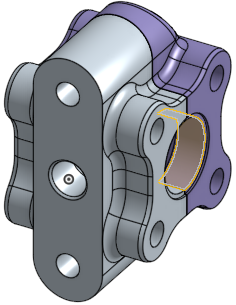
Expand the View menu and select Zoom to selection: