Reflection Analysis

Available in: Sketch, Part Studio, Assembly
Reflection analysis renders the model in the graphics area with a reflective material and environment image of your preference.
 Steps
Steps
-
Click the Show analysis tools icon (
 ) in the bottom right corner of the interface. From the menu, select Reflection analysis. This opens the Reflection analysis dialog: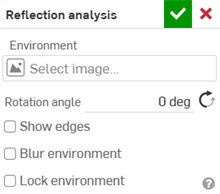
-
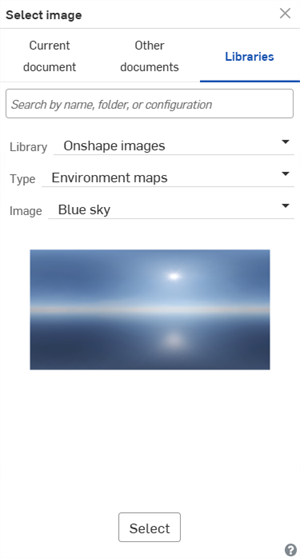
Under Environment, click the Select image field to open the dialog:
-
Upload and/or select an image from the Current document, Other documents, or Libraries folder. The following images are found in the Onshape images Library (Type: Environment maps):
-
Blue sky
-
Ceiling hexagonal
-
Ceiling square
-
Chromatic
-
Daylight road
-
Horizontal stripe
-
Light tunnel
-
Metro station
-
Nightfall
-
Pedestrian bridge
-
Wall stripes
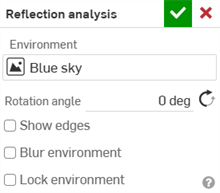
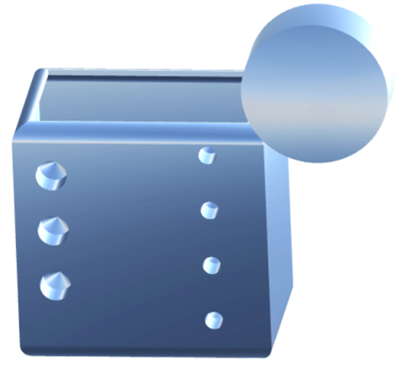
Parts with the "Blue sky" reflection applied
To create a new Reflection image library, see Image libraries.
-
-
Manually enter the Rotation angle. Optionally, click the Opposite direction icon (
 ) to flip the angle.
 -
Optionally, check Show edges to display the edges between part faces.
-
Optionally, check Blur environment to blur the environment image on the model in the graphics area.
-
Optionally, check Lock environment to lock the model's reflection relative to the world/camera.
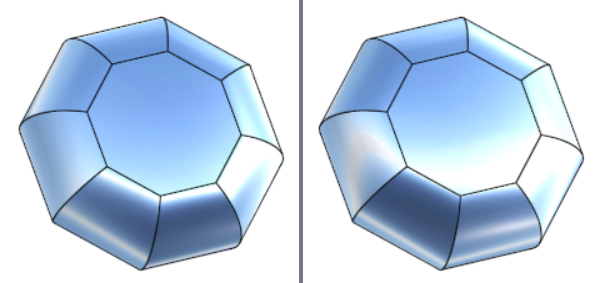
Lock environment disabled (left) and enabled (right)