
 Hide/Show


Available in: Part Studio, Assembly
Shortcut: Hide - y / Show - Shift+y
Hide/Show selected Part Studio or Assembly entities. These can be sketches, parts/instances, surfaces, mates, folders, or groups. Hide/Show are a set of toggle commands available from the context menu of a Parts list in a Part Studio, the Instances list in an Assembly, or the graphics area when hovering over a model.
Hide/Show is used:
-
To better access entities that may be hidden by other entities (for example, parts hidden by other parts)
-
To show all entities of a specified type (for example, showing all mates in an assembly)
-
When modeling parts that are geometrically reliant on one another
-
When editing in-context.
Available commands are:
-
Hide/Show - Disables or enables the display of a model entity in the graphics area.
-
Hide/Show all - Hides or shows all entities of the same type in the current tab. For example, right-clicking on an instance in an assembly Instances list and selecting Hide all instances hides all instances in the assembly.
-
Hide/Show other - Hides or shows all entities of the same type other than what is currently selected in the current tab. For example, right-clicking on a mate in an assembly Mate features list, and selecting Hide other mates hides all mates in the assembly other than the one currently selected (or right-clicked on).

 Video example
Video transcript
There are various methods to Hide and Show instances within an assembly.
Use the eye icon next to an instance in the list to Hide or Show individual instances.
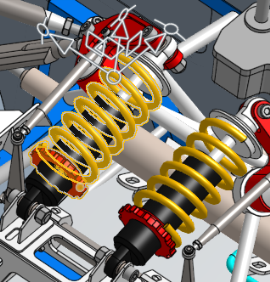
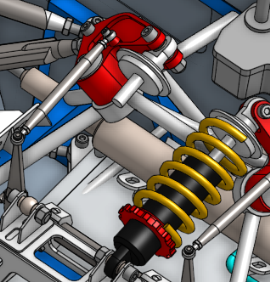
Hide multiple instances at once by selecting them from the list or the graphics area. Right-click a selected instance for hide options.
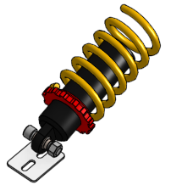
Hide removes the visibility of the selected instances. Hide other instances keeps the selections visible and hides everything else. This is a quick way to focus on a portion of the assembly.
Right-click in the empty space of the graphics area for show options. Select Show all to make all instances, mate connectors, and mate features visible. Select Show all instances to make all hidden instances visible.
Show multiple instances at once by selecting instances from the list or the graphics area. Then, right-click and select Show.
Hover over instances in the graphics area, and use the Y key to Hide. Use Shift+Y to Show.
Switch to viewing an instance in its source Part Studio or subassembly using its context menu. Right-click a part and select the Switch to option with the Part Studio icon. The document changes the active tab to the Part Studio where the part was created. The selected part is highlighted, making it easy to identify which part the focus is on. Similarly, right-click a subassembly instance and select the Switch to option with the assembly icon. The document changes the active tab to the subassembly tab.
 Notes
Notes
-
Use the shortcut key y to hide an entity under the cursor (entity shows highlighting on hover). Use Shift+y to show the entity.
-
Additional tools are available to isolate and make entities transparent. See Isolate and Make Transparent.
-
Box select also works for selecting entities in the graphics area.
-
You do not need to create a context in order to use the Hide/Show functionality.