 Insert DXF or DWG


Available in: Sketch
Insert DXF or DWG files into a sketch as sketch entities. The DXF or DWG must have already been imported into the currently open document (or another document you own or that has been shared with you, creating a link to that document). It is recommended that you insert DXF or DWG files into an empty sketch, though it is possible to insert into a sketch with existing sketch entities.
See Supported File Formats for the latest supported DXF and DWG import and export file formats.
 Steps
Steps
- Click Sketch to create a new sketch.
- Select a plane.
-
Click
 .
.
- In the dialog that appears, select the Units (at the bottom of the dialog) for the sketch entity:
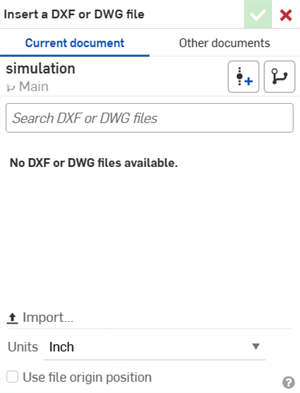
- Optionally, check Use file origin position to position the geometry from the file relative to the current Part Studio origin in the same way the geometry is positioned relative to the DXF/DWG file origin. (Otherwise, the geometry is positioned so that the center of the geometry extents -as calculated in the form of a 2D box containing all entities- is at the Part Studio origin.)
- Then select a DXF or DWG file (that has been previously imported in the current document), use Other documents to locate a file in another document that you have created or that has been shared with you, or use Import (at the bottom of the dialog) to import a new file to be used immediately.
When importing a file from within this dialog, once the import is complete, the file is listed in the dialog. Select it to insert it into the sketch.
-
Selecting the file to insert or import automatically closes the dialog.
Notes
- You are able to insert DXF/DWG files that have already been imported into your document or another document that you have created or has been shared with you. These show up as tabs and also in the Insert DXF dialog.
- Make sure to select the units in the dialog first; selecting the file automatically closes the dialog.
- The Insert action is recorded in the Undo/Redo stack for the document.
- When dimensioning the inserted sketch, the first dimension applied automatically scales the entire sketch.
- An alert message displays if there is a geometry, file format, or file integrity error during import.
See the Learning center course Introduction to Sketching (Onshape account required) for more information.