 Finish Flex PCB Model

Available in: Part Studio
Deactivates the selected flex PCB model and causes it to be treated like any non-flex PCB part. This allows the user to optionally perform post-finishing operations, and continue editing the part with non-PCB features.
Refer to Creating a rigid-flex PCB for export to an IDX file for additional instructions.
 Steps
Steps
To finish a flex PCB model:
- While in a Part Studio, click the Finish flex PCB model icon (
 ) on the Feature toolbar.
-
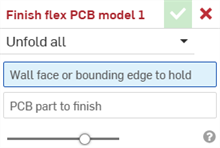
Select an Unfold type: Unfold all, Unfold selected, or Unfold none.
-
Select a Wall face or bounding edge to hold. This is the edge that remains held in place.
- Select the PCB part to finish.
- Click the checkmark icon (
 ) to accept the feature; the Finish flex PCB model is listed in the Features list.
Later changes to the Flex PCB model(s) do not affect the flat pattern or table values.
Finishing the flex PCB model deletes the flat pattern in the Sheet metal model and flat view panel. This helps avoid confusion between flat patterns and a flex PCBs that are imported in an Assembly.