Linking Documents


You can insert a part or assembly from a version of one Onshape document into an assembly in another Onshape Document, thereby linking the documents. Moving a part from one document to another creates a link to that part in any Assembly in which the part is previously inserted. You can also insert a part or assembly from a different version of the same document. (Using the Derived features also creates a link between documents or between versions of a single document.)
Linking documents allows you to create references from one document to data in a version of another document. For example, an assembly in Document A can instance a part defined in version V1 of Document B.
There are no changes to the behavior of parts and assemblies that are all defined within one Onshape Document. Changes to parts instantly propagate to assemblies within the same document. However, you control exactly whether and when to update references to newer versions of the part or assembly in the document in which you have inserted the part or assembly.
Linking documents in this manner is especially valuable when designs mature and you want to apply different permissions and version control to the parts and assemblies defined in other documents. It is also useful for any reuse of standard parts and assemblies.
 How it works
Consider a case where one Onshape document (UsingDoc) contains an assembly that instances a part that resides in another Onshape document (RefDoc). In Onshape, versions are always immutable, so anything defined in a version of RefDoc is stable and recoverable. Since linked document references are to versions, this means that every change in the history of UsingDoc is also stable and recoverable. And, as a result, versions created in UsingDoc are also stable and recoverable. This is a fundamental architectural advantage Onshape has relative to traditional file-based CAD.
Instead of changes to RefDoc propagating into UsingDoc with no recourse, you are informed when new versions are available and you choose whether to use them or not. If it becomes obvious that the new version causes a problem, you can use the document history to restore back to a prior working state.
A key aspect of linking documents is that all of Onshape’s document permissions work seamlessly. You decide when a document should change from Editable to View only to Reference only on a per user basis - and you are always able to change permissions whenever you want.
Steps
In an Assembly:
-
Click Insert
 to open the Insert dialog.
- The default is to insert from the current workspace. To insert a part or assembly from another document, select Other documents.
You can insert from another document only when that document has versions. If the selected document doesn’t have any versions, or you do not have edit permission (to create a version) Onshape displays a notification and allows you to version the document immediately:
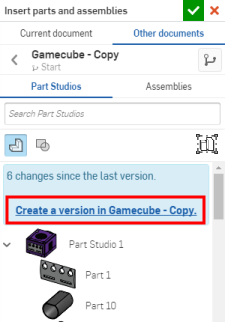
Click the link to open the Create version dialog for that document:
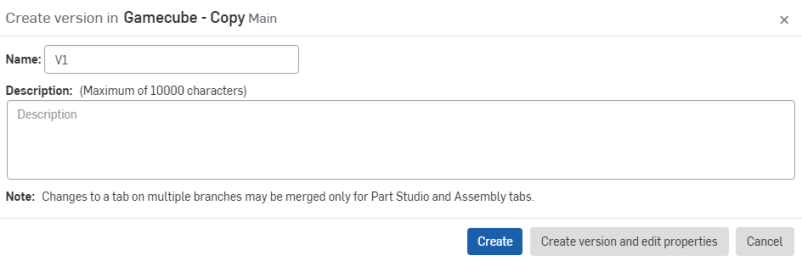
Enter the appropriate and necessary information, click Create and return to the Insert dialog.
- Select a part or assembly from the document.
- Click the check to close the dialog.
If a newer version of the part or assembly becomes available in the source document, you are notified via the icon in the document into which you inserted the part or assembly. A blue background appears around the linked icon to indicate that a newer version is available.
Opening a linked document
Once a part is inserted from another document, you can open the document from which the part is linked, if needed, for editing the part or to obtain a closer inspection of the part:
- Right-click on the part in the Instances or Features list and select Open linked document.
- A new browser tab opens, with the linked document open to the version that was linked to and the Part Studio of the part you selected active.
- Make whatever inspection you need, or edit the part, if desired.
- If you edit the part, in the tab you'll see the blue icon that indicates another version of the part is available. Click that icon to open the Reference manager .
Errors you may encounter
If the linked document you are trying to open is in the Trash, you will get an error: Failed to load document for workspace. Cannot open a document in the trash. Restore the document from Trash.
If the document is permanently deleted, you will see the message: Failed to load document for version. Resource does not exist, or you do not have permission to access it.
If you do not have permission to edit the linked document, you will see this message: You cannot modify this feature because you cannot access the referenced document.
Notes
- While the case described here is for Linked Documents, you can reference parts and assemblies defined in different versions on the same document as well.
- Select a linked item in the Feature list, right-click and select Open linked document to open the linked document in a new tab in your browser window.
- To allow another user to link to your document, share the document with at least Read/Copy/Export permissions (or higher).
- You can export linked documents on the browser platform.
- If you then unshare the document (remove a user from the list in the Share dialog), the removed user is blocked only from updating to a newer version and creating links to that. Any links already used will still work.
For an additional Learning center resource, follow the self-paced course here: External References (Onshape account required).