Create Menu


From the Documents page, create documents, folders, publications, projects, and labels, in addition to importing files externally or from a cloud drive.
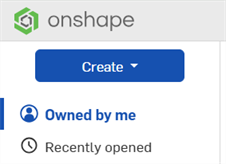
Click the Create button on the Documents page:
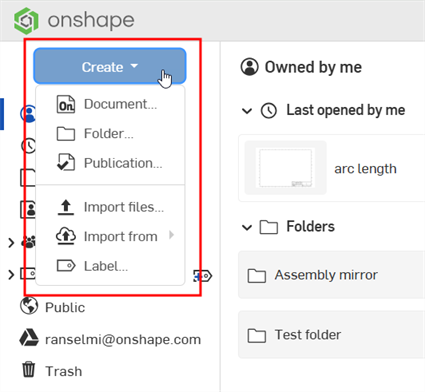
The Menu opens with the following options:
-
Document (
 )
- Click to create and name a new Onshape document and optionally apply an existing label. You can also create a new document using cad.onshape.com/new.
)
- Click to create and name a new Onshape document and optionally apply an existing label. You can also create a new document using cad.onshape.com/new.
-
Folder (
 )
- Click to create and name a new Onshape folder.
See Folders for more information.
)
- Click to create and name a new Onshape folder.
See Folders for more information. -
Publication (
 )
- Click to create and name a new Onshape publication.
See Publications for more information
)
- Click to create and name a new Onshape publication.
See Publications for more information -
Import files (
 )
- Click to import external files into Onshape.
)
- Click to import external files into Onshape.
-
Import from (
 )
- Click to import files from Google Drive, Dropbox, or Microsoft OneDrive into Onshape.
)
- Click to import files from Google Drive, Dropbox, or Microsoft OneDrive into Onshape.
-
Project (
 )
- Click to open the Create new project dialog box, where you are able to specify the name, description, and permission scheme of your project, as well as who has access to it. This option is available for any user who has been granted the Global permission that enables this functionality.
)
- Click to open the Create new project dialog box, where you are able to specify the name, description, and permission scheme of your project, as well as who has access to it. This option is available for any user who has been granted the Global permission that enables this functionality.
-
Label (
 )
- Click the Create new label icon (
)
- Click the Create new label icon ( ) to create and name a new Onshape label.
When creating a document or folder, you can add it into one of your existing folders by selecting a specific location in the Document location field of the New document or folder dialog. This places the document or folder into its designated folder. Alternatively, navigate to a folder first, then create a document or folder.
The Create button is available for all users; however, when an enterprise user has read-only access to the folder in which they are trying to create, this button is inactive.