 Updating References


Available in: Assembly
Onshape allows you to insert parts and assemblies from any document into any other document. This is known as linking documents, since referencing a part or assembly that resides in one document from another document (or within different versions of the same document) creates a virtual link between the two documents (or two versions of the same document).
Parts and assemblies inserted into other documents (or from versions of the same document) may be continually worked on in their source document or workspace and thus become out-of-date in the workspaces into which they were inserted.
Onshape helps you keep track of which objects are out-of-date and which to update by identifying the references with a series of icons, indicating not only which objects reference another document or version, but also which objects have newer versions or revisions available.
The out-of-date states are shown at all levels, for example: a sub-assembly is marked out-of-date if any of its children are out-of-date.
Knowing which objects can be updated gives you the confidence to perform an Update all references command
 to update versions all the way through subassemblies up to the top-level assembly, or to perform
individual or manual group updates..
to update versions all the way through subassemblies up to the top-level assembly, or to perform
individual or manual group updates..
Using the Update all references command updates all references within the assembly to their newer versions. When you have a top-level assembly that contains multiple references to parts and subassemblies in other documents or in versions of the same document, you can update all references with this one command.
To update some of the references, not all of them, you can pin references to keep them from being updated automatically with the Update all command. See Pinning references to exclude from update for more information.
The icon indicating that a newer referenced part or assembly exists exhibits a blue background. For example:
-
 This icon indicates that the part or subassembly is referencing a version from either the same document or another document and is up-to-date.
-
 When a newer version of the referenced part or subassembly is available, the icon exhibits a blue background like this. Consider any icon with a blue background to indicate that a newer version of the referenced object is available.
More specifically, the blue background appears when there are edits in a newer version of the same branch, and in the specific document tab of the referenced part or subassembly. References to tabs that do not have edits in a newer version do not have the blue linked icon even if there is a newer version without any changes.
 Icons and indications
This table presents the icons you may see when using linked documents, moving a part out of one document into another, and inserting parts and (sub)assemblies from one document into an assembly in another document.
| Indicator | Description |

|
Activates when updates are available for referenced instances in the top-level and in child levels that are not pinned, as well as newer revisions for revisioned top-level instances that are not pinned. Located in the Assembly toolbar. |
|
|
Instance is linked to a version from either the same document or another document and is referencing the latest version on its branch. Note there is no differentiation between an internal or external document from this icon, but is seen in the tooltip and in the Reference manager. Located next to the instance name in the Instances list. |
|
|
The referenced instance has a newer version available on its branch. Located next to the instance name in the Instances list. |

|
The instance is revisioned and is referencing the latest revision. Located next to the instance name in the Instances list. |

|
The instance has a newer revision available. |

|
The instance is linked to the latest version on its branch and is pinned*. Located next to the instance name in the Instances list. |

|
The instance is revisioned to the latest revision and is pinned*. Located next to the instance name in the Instances list. |

|
The linked instance has a newer version available on its branch and is pinned. Located next to the instance name in the Instances list. |

|
The revisioned instance has a newer revision available and is pinned. Located next to the instance name in the Instances list. |

|
The instance is in the same document and references a workspace (with live updates) but has a referenced or revisioned child that has a newer version available. Located next to the subassembly name in the Instances list. |

|
The instance is in the same document and references a workspace (with live updates) with a referenced or revisioned child that has a newer version or revision available, but the child is pinned. Located next to the subassembly name in the Instances list. |

|
The referenced subassembly contains a linked or revisioned child with a newer version or revision available. Located next to the subassembly name in the Instances list. |

|
The referenced subassembly contains a referenced or revisioned pinned child with a newer version or revision available. Located on the linked subassembly name in the Instances list. |

|
The revisioned subassembly has a referenced or revisioned child with a newer version or revision available. These cannot be updated from the top-level assembly. Located on the revisioned subassembly name in the Instances list. |

|
The pinned, referenced subassembly contains a referenced or revisioned child with a newer version or revision available. Located on the pinned, referenced subassembly name in the Instances list. |

|
The pinned, revisioned subassembly contains a referenced or revisioned child with a newer version or revision available. Located on the pinned, revisioned subassembly name in the Instances list. |

|
A child of a top-level instance has a new version or revision available. Located on a referenced child of a subassembly in the Instances list. |

|
A child of a top-level instance has a new revision available. Located on a revisioned child of a subassembly in the Instances list. |

|
A version in the Version and history that was created automatically by Onshape; for example, when using the Update to latest option as explained later in this topic. |

|
The part is automatically obsoleted due to a more recent release/revision of the same part number. |
In summary, you can think of the identifying characteristics of the icons in this way:
| Identifier | Characteristic | Description |
|
|
Blue background | A newer version or revision is available; use Update all or the Reference manager. |
|
|
Open grey circle | The top-level instance is pinned and a newer version or revision is available; use the Reference manager, Selective update. |
|
|
Solid grey circle | A child of a top-level instance has a newer version or revision available; navigate to the subassembly containing it to update. |
|
|
Small arrow with blue background | The subassembly contains a child with a newer version or revision available; use Update all or the Reference manager. |
|
|
Small arrow with grey background | The subassembly contains a child with a new version or revision available; the top-level instance is pinned, is a revision, or a child is pinned. If the top-level instance is pinned, the top-level instances needs to be unpinned in order to update with the Update all button and the Reference manager. If the top-level instance is a revision OR if the child is pinned, navigate into the subassembly containing it in order to update it. |
Another way to understand the icons is by the main identifying image:
- Version:
A reference to a part or subassembly in another document or in another version of the same document.
- Triangle:
A reference to a revision of a part or subassembly
- Thumbtack:
A pinned reference indicating that it is exempt from being updated with the Update all command.
Updating individual, or groups of, objects
You can click on the icon and select to update a single object or a group of objects. Click on each object to select those you want to update, then either right-click to access the context menu and select Update linked document or click one of the icons to open the Reference manager and initiate the update process. See Using the Reference manager below for more information.
You can update to newer versions of parts or subassemblies from any top-level assembly. However, to update a part or subassembly to a newer revision requires that you navigate to the part or subassembly and update at that point first. Then you can update from the top-level assembly to pull the change through.
Pinning references to exclude from Update all
To prevent an object from being updated when the Update all button is clicked, you can pin the reference:
- Select the object in the Assembly Instances list.
- Right-click the icon and select
Pin reference:
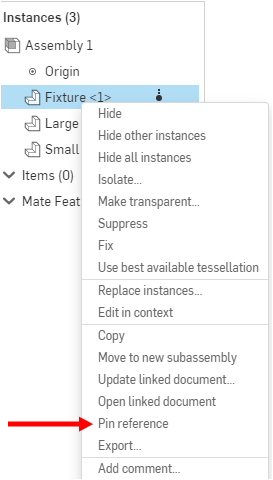
- The icon gains a small thumbtack image:
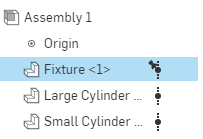
For references that exhibit a blue background (indicating a newer version exists), the new, pinned icon replaces the blue background with a circle. For example:
|
|
Reference icon indicating a newer version exists |
|
|
Pinned reference icon indicating a newer version exists |
Using Update all
To update all references to their associated newer versions: click the Update all button in the toolbar:
The Update all button performs a recursive update. That is, when a part or assembly inside of a top-level assembly has a newer version available, you can use the Update to latest tab of the Reference manager to pull that update through to the top-level assembly, automatically creating versions as needed in order to do so.
For example:
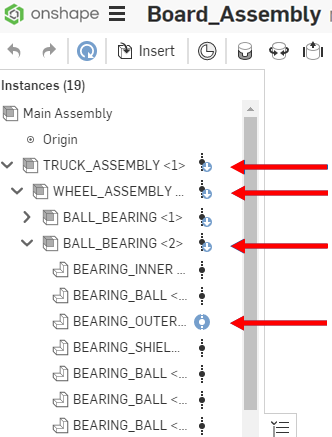
In the Instances list in BOARD_ASSEMBLY below, you can see by the icon on the TRUCK_ASSEMBLY, that a subassembly within it is out-of-date. The expanded list shows that the WHEEL_ASSEMBLY contains a subassembly BALL_BEARING that contains a part BEARING_OUTER that is out-of-date:
To view update options, click the icon next to TRUCK_ASSEMBLY to open the Reference manager:
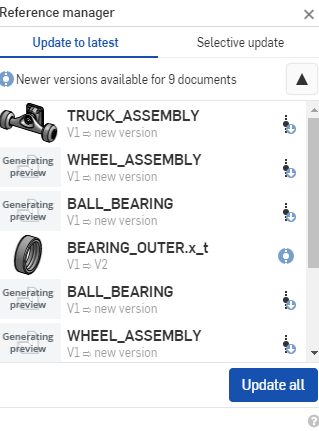
The Update to latest tab of the Reference manager shows that many of the subassemblies contain parts or subassemblies that are out-of-date. Note that these objects do not list a newer version under them in the list, only 'new version'; this means a new version must be created in the linked document in order for the object to be updated.
- TRUCK_ASSEMBLY
- WHEEL_ASSEMBLY
- BALL_BEARING<1>-2
- BALL_BEARING<2>-2
- WHEEL_ASSEMBLY<2>-1
Notice that BEARING_OUTER.x_t was left out of the list above. This is because this part actually has a newer version available already (V2).
When updating a reference that has newer versions available on different branches, you are prompted to choose the workspace from which to pull the update. Selecting the workspace updates the instance to the latest version on that branch:
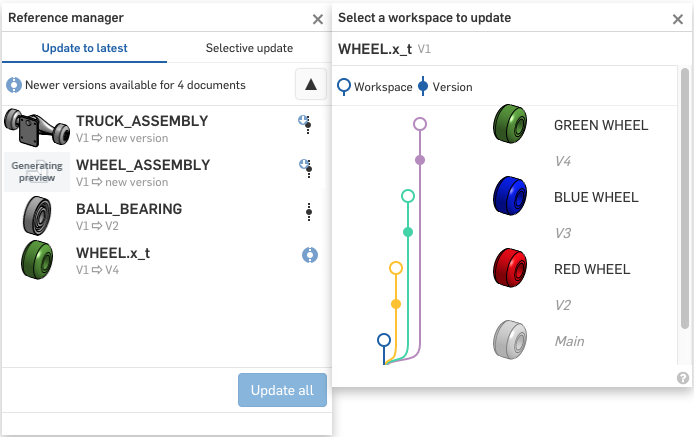
When Update all is clicked, the following happens:
- New versions are created for the following:
TRUCK_ASSEMBLY
- WHEEL_ASSEMBLY
- BALL_BEARING<1>-2
- BALL_BEARING<2>-2
- WHEEL_ASSEMBLY<2>-1
- Those objects are updated to the newly created versions.
- Since BEARING_OUTER.x_t already has a newer version available, no new version is created, and this object is updated to V2.
Using the Reference manager
The Reference manager is where you decide which version to update your linked references to. You can elect to perform a blanket "Update to latest" command (explained above) or to use a more "Selective update" and choose the versions to update to:
- To open the Reference manager, click on a version or triangle icon next to a top-level instance in the assembly.
Alternatively, you can click the Update all button to open the Reference manager for the assembly.
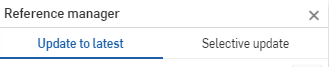
- However you open the Reference manager, make sure the Selective update filter is selected.
See above for instructions for Using Update all.
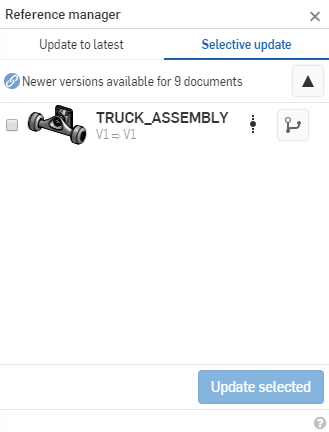
- Check the box beside the object you wish to update.
If necessary, use the Version icon to open the Version and history graph for that object so you can select the specific version you wish to use for the update. You can update to a previous version if you wish.
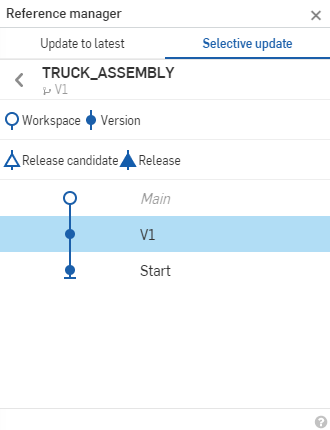
- Click Update selected.
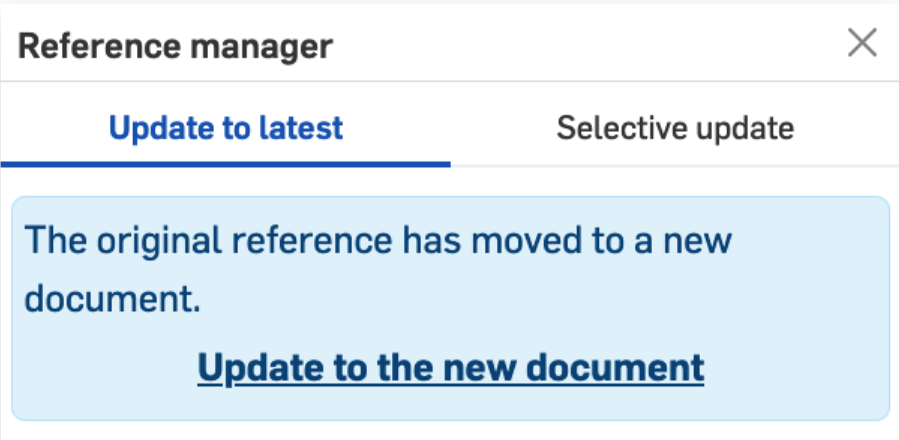
- When an Assembly instance is moved to another document, you can click Update to the new document within the "Update to latest" command:
Updating pinned objects
- If the icon has a blue background, you can update it from the top-level assembly. (If the icon does not have a blue background, first navigate to the subassembly of the object and perform these steps there.)
- Click the icon next to the pinned object.
Regardless of whether the pinned object is out-of-date or up-to-date, the Reference manager opens to the Selective update filter.
This method works only for top-level assemblies. To update pinned children inside of subassemblies, navigate to the subassembly itself and update there.
- Select the version or revision to which you want to update and click Update selected.
-
Use the Pinned icon
to filter the list to show only pinned instances.
-
Use the Revision icon
to filter the list to show only instances that have a newer revision available.
-
Use the Version graph icon
 to display the Version and history graph for the object in order to select the specific version to update to.
-
Use the Pinned icon
- Click Update selected.
Notes
- All versions are updated to the latest version when using update all, even those that are not out-of-date.
- The Update to the latest tab in the Reference manager indicates if any document doesn’t have write permission. If there are any documents without write permission listed in the Reference manager, the Update button is disabled.