Asynchronous Simulation


Only available for
Available in: Assembly
Typically, simulation runs dynamically (in real time) in the user's active modeling session, responding to every change to an assembly or its parts. This behavior is ideal for quick, iterative design guidance. However, a different approach is required to analyze significant design milestones or conduct long-running analysis.
With Asynchronous Simulation, a user runs simulations independent of their active modeling session. Simulation results are permanently stored in a Results and history table in the Simulation panel. Simulation results display the status of all jobs in the queue, in progress, and completed.
Features include:
-
Compute simulations outside the active modeling session
-
Store simulation results for the entire life of the Document
-
Submit simulation studies from any document version by setting the following Assembly characteristics:
-
Variables (optional; if present)
-
Configuration (optional; if present)
-
Named position (required, unless the Assembly is at the version's Default position)
-
Simulation (required)
-
-
Clearly organize simulations in the Results and history table
-
Easily monitor progress or cancel jobs from the queue, or retrieve results from completed jobs
-
Launch up to 50 consecutive simulations per user for comparative analysis
-
Remove time restrictions from live simulation, useful for long-running analysis. A simulation only times out if the analysis runs longer than 24 hours.
-
Increase memory allocation relative to live simulation, useful for compute-intensive analysis. Live simulation uses 32 or 24 GB GPU scientific compute instances (depending on availability), whereas asynchronous simulation uses 128 or 64 GB CPU scientific compute instances (depending on availability).
 Steps
Steps
This workflow assumes you have a completed CAD model in an Assembly tab, with the instances mated and the assembly sufficiently constrained, and a simulation properly defined:
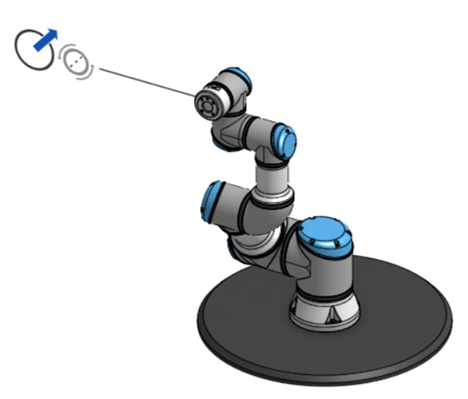
-
Optionally, create at least one Named position for the Assembly. The asynchronous simulation can be run at the version's Default position, which is the position of the Assembly at the moment the version was created.
-
Optionally, create any variables required for the Assembly.
-
Optionally, create any configurations required for the Assembly.
-
Create a document version.
-
From the Versions and history panel (
 ), select the version in which to run the simulation: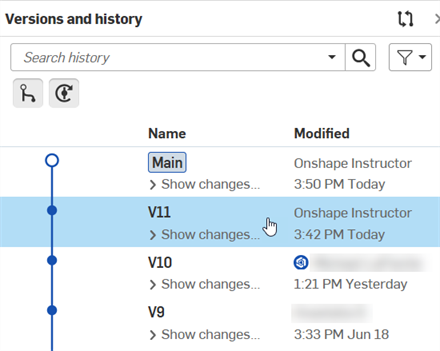
-
In the Named positions panel (
 ), right-click on the named position and select Apply named position: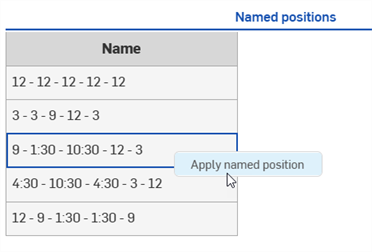
Skip this step to run the simulation at the version's Default position. Any change that creates a new history change entry makes the Default position unavailable. See the Default position note for additional information.
-
Optionally, select any variables or configurations for the Assembly in the left panel above the Instances list:
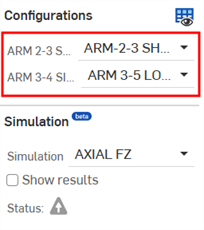
Configuration selection from the left side panel
-
In the same panel, select a simulation to run:
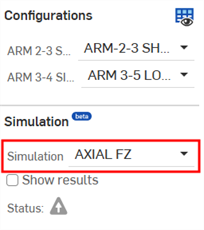
-
Open the Simulation panel, click the Results and history tab, and click the Run active simulation button:
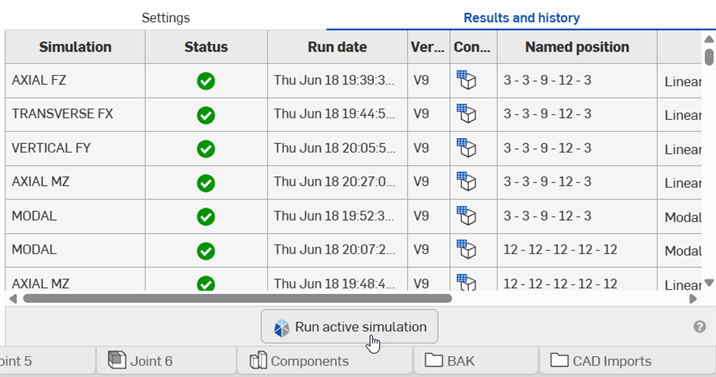
Clicking this button launches an Asynchronous simulation. It only appears in a Document version, and is deactivated if the user has reached their limit of 50 consecutive simulations or if the current Assembly state matches a previously-submitted Asynchronous simulation.
The user does not have to monitor the Results and history panel. Onshape sends a notification indicating the simulation's progress only to the user who started the simulation, with a link to view the simulation results:
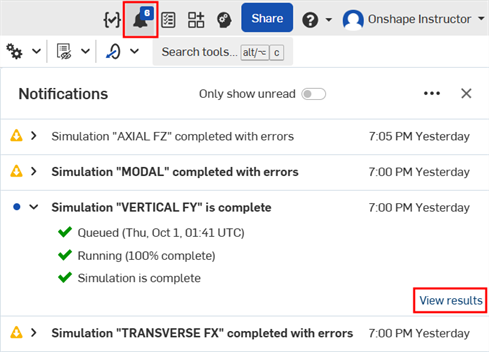
-
The simulation results are displayed after the simulation is completed:

A simulation using the version's Default position
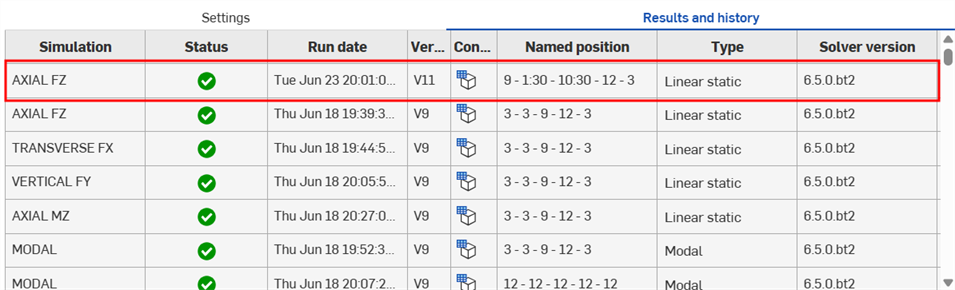
Simulations using Named positions
Deleting a simulation run
Permanently delete a completed or failed asynchronous simulation run, along with its results, from the document. You must have Delete permission for the document to delete a run.
-
Open the Results and history tab.
-
Open the menu for the simulation run you want to remove, and select Delete simulation results.

-
Click Delete in the confirmation dialog:
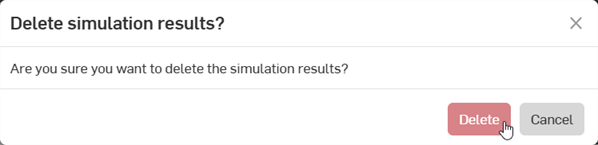
-
The run and its results are removed from the Results and history tab for everyone with access to the Document.
Deleting a simulation run is permanent. It cannot be undone, it is not recorded in the document's version history, and the run cannot be restored. Runs can be deleted from any workspace in the document.
Canceled runs are removed from the list automatically, and do not require deletion.
Results and history table
Each row in the Results and history table represents a simulation study. The columns are:
-
Simulation - Simulation name. This can be a Linear Static or Modal simulation type.
-
Status - State of the current simulation. Options are queuing (spinner), in progress (blue progress bar), completed (
 ), or an error (
 ).
). -
Run date - When the Run active simulation button is clicked, the job is kicked off. This column displays Queuing while preprocessing steps are undertaken. After these steps, the column displays the date and time when the current simulation job starts running.
-
Version - Document version in which the current active simulation is run.
-
Configuration - Hovering over the column's configuration table icon (
 ) displays Not configured or a list of configuration settings if they are present, as a tooltip for the current active simulation run: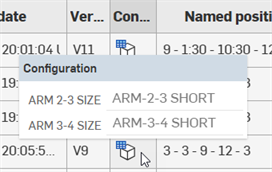
-
Named position - The applied Named position of the current active simulation run, or Default position if the simulation is run at the version's Default position.
-
Type - Simulation type; either Linear static or Modal.
-
Solver version - Solver version used for the current Simulation run. As the solver is continually improved, new simulations may not match the results of previous ones.
Context menu options
-
Show setup - Displayed when the active simulation is in progress or has failed. Click this option to open the current simulation's setup (Active simulation, Named position, and Configuration).
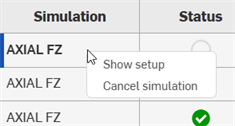
-
Cancel simulation - Displayed when the active simulation is in progress. Click this option to cancel it.
-
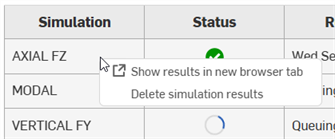
Show results/Show results in a new browser tab - Similar to Show setup, these options are displayed when the simulation is completed. Click this option to open the current simulation's setup (Active simulation, Named position, and Configuration), even in a Document version, and displays simulation results in the current tab or a new browser tab.
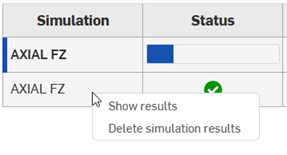
-
Delete simulation results - Permanently delete a completed or failed simulation run, along with its results, from the document. See Deleting a simulation.
-
Rerun simulation - Displayed when right-clicking on a simulation that has failed (
). Reruns the simulation.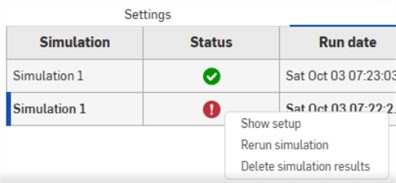
Notes
-
Simulations cannot be deleted. They are stored in the Results and history table at all times.
-
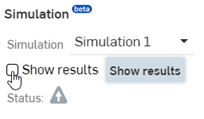
If the Assembly state does not exactly match a previously-completed Asynchronous simulation, clicking Show results in the left side Simulation panel runs a dynamic (real time) simulation. even if the simulation being run matches an incomplete Asynchronous simulation (either in queue or in process). These dynamic results are not stored.
If the Assembly state exactly matches a previously-completed Asynchronous simulation, clicking Show results retrieves the results from a previous Asynchronous simulation in permanent storage and no new simulation is run.
-
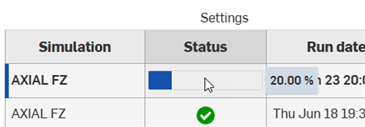
Hovering over the Status column's progress bar displays the completion percentage of the active simulation's run:
-
In the event that a Simulation study is still waiting in queue, but the results are needed immediately, consider clicking Show Results or Show results in a new browser tab.
-
Though rare, if a simulation fails due to a system error and not an error in the setup or solve, consider canceling and resubmitting the job.
-
Default position - An asynchronous simulation can be run on a version's Default position only while the Assembly is still at that version's original state, and there have been no history changes. For example, open V5 and the Default position is available. Rotate a part 30 degrees and it is no longer available. Rotate the part back 30 degrees and it is still not available. Undo both rotations and it is available again, because the original history state is restored.