反射分析

在草圖、Part Studio、組合件中提供此功能
「反射分析」使用您選擇的反射材質和環境影像在圖形區域中渲染模型。
 步驟
步驟
-
Click the Show analysis tools icon (
 ) in the bottom right corner of the interface. From the menu, select Reflection analysis. This opens the Reflection analysis dialog: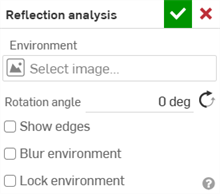
-
Under Environment, click the Select image field to open the dialog:
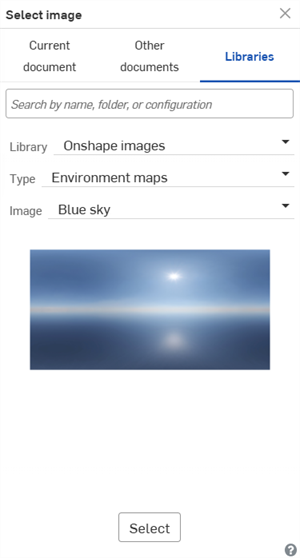
-
Upload and/or select an image from the Current document, Other documents, or Libraries folder. The following images are found in the Onshape images Library (Type: Environment maps):
-
Blue sky
-
六角形天花板
-
正方形天花板
-
彩色
-
白天道路
-
橫條紋
-
光隧道
-
捷運站
-
黄昏
-
行人天橋
-
牆條紋
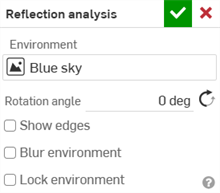
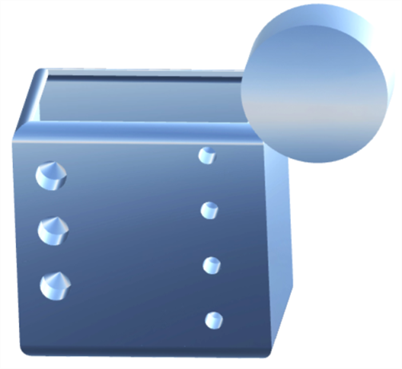
Parts with the "Blue sky" reflection applied
To create a new Reflection image library, see Image libraries.
-
-
手動輸入旋轉角度。選擇性地按一下相反方向圖示 (
 ) 來反轉角度。
 -
選擇性地核取顯示邊線來顯示零件面之間的邊線。
-
選擇性地核取模糊環境來模糊圖形區域中模型上的環境影像。
-
選擇性地核取鎖定環境以鎖定模型相對於世界/攝影機的反射。
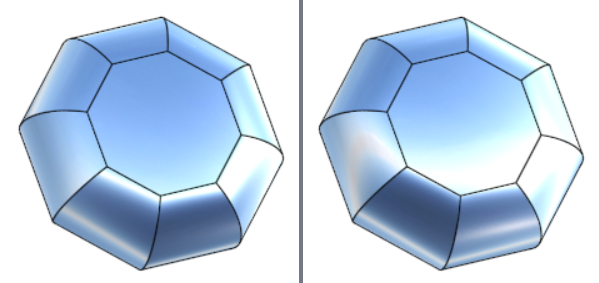
停用鎖定環境 (左圖) 與啟用鎖定環境 (右圖)